Date, time and shift
How to see the room at any moment of the shift, get back to "now", and why the hours after midnight belong to yesterday's shift.
The Host Panel always shows the room at some moment. Usually that’s “now”: time moves on its own and the map updates with it. But you can jump ahead to the evening — to see whether there’ll be enough tables at nine — or back to yesterday to check who sat where.
Date and time in the header
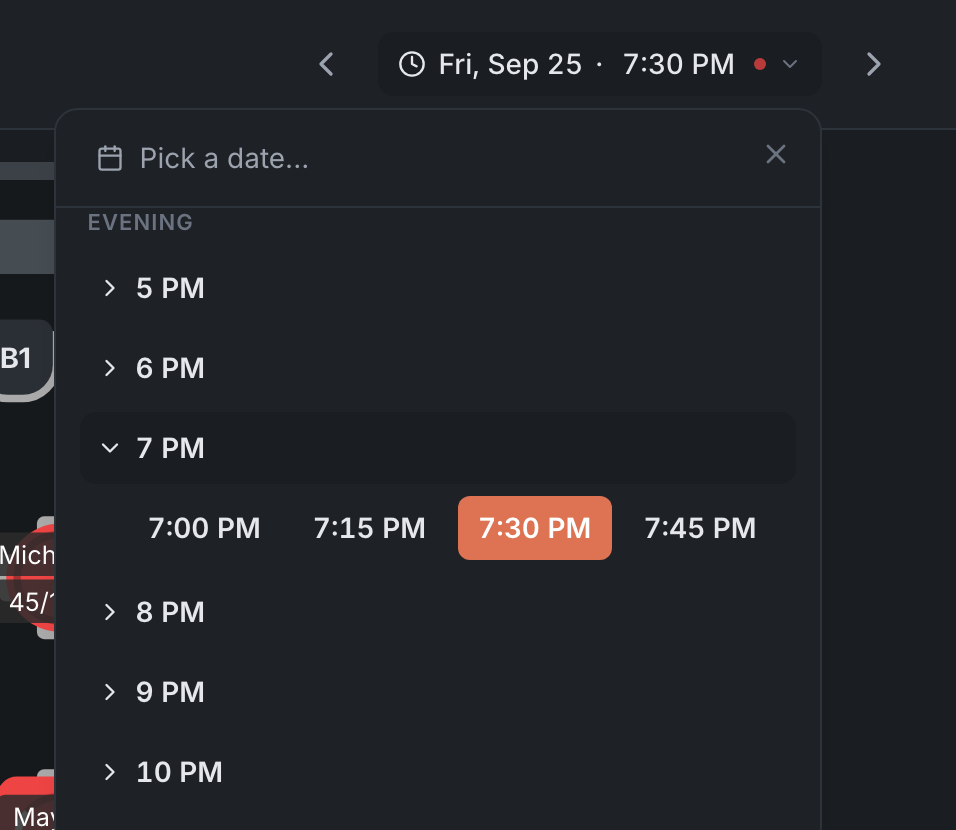
In the middle of the header are the weekday, date and time you’re looking at. A red dot next to them means this is “now” and time is moving on its own.
Tap the date and time to open a window:
- Pick a date… — a calendar. Past days can be picked too.
- Below it, the shift’s time split into Morning, Afternoon, Evening and Night. Open the hour you need and pick the time. The current time is highlighted in the list.
The arrows to the left and right of the date move one day back or forward. The time of day stays the same: if you were at 7:30 PM, you’ll see 7:30 PM on the other day. If that day has no such time, the panel shows the closest one and warns you, for example: “7:30 PM isn’t available this day — showing 7:00 PM”. Today always opens on “now”.
Time strip

At the bottom of the screen, on the Map and Timeline tabs, runs the time strip — the shift split into short intervals. Under each mark:
- how many guests are in the room at that moment;
- a load bar: the denser it is, the busier the room. For past time it’s grey, for the future — red. Past days have no load bar.
The selected moment sits framed in the middle. Scroll the strip with a finger or the mouse wheel — it stops on the nearest mark. On a keyboard you can move with the ← and → arrows. The “now” mark carries a red dot.
What changes when you move in time
- The map shows tables as they will be (or were) at the selected moment.
- Upcoming bookings in the table card are counted from the selected time.
- The side list shows the whole selected day: moving the time within the day barely changes it. Only the Waitlist tab and the By event and Waitlist sub-tabs follow the selected time. The Seated tab always shows who is seated right now.
- The buttons in the table card depend on the time: now — Seat walk-in, in the future — Reserve, in the past — Past time slot — no actions available.
- The table card stays open when you move in time, and its data updates. That’s the Pinned view mode, which is the default. In the Classic view mode the card closes every time you move. The mode is changed in the panel settings.
- The header changes color: when you look at the past it’s grey, at the future — dark burgundy. At “now” it has its usual color. This is the same in every theme.


If another day is selected, the whole day counts as past or future — even if the time of day matches the current one.
How to get back to “now”
- The cross in the header next to the arrows. It appears as soon as you leave “now”; on a phone it’s at the left edge of the header.
- The Back to Now button on the time strip: on the left when you’re looking at the future, on the right when you’re looking at the past.
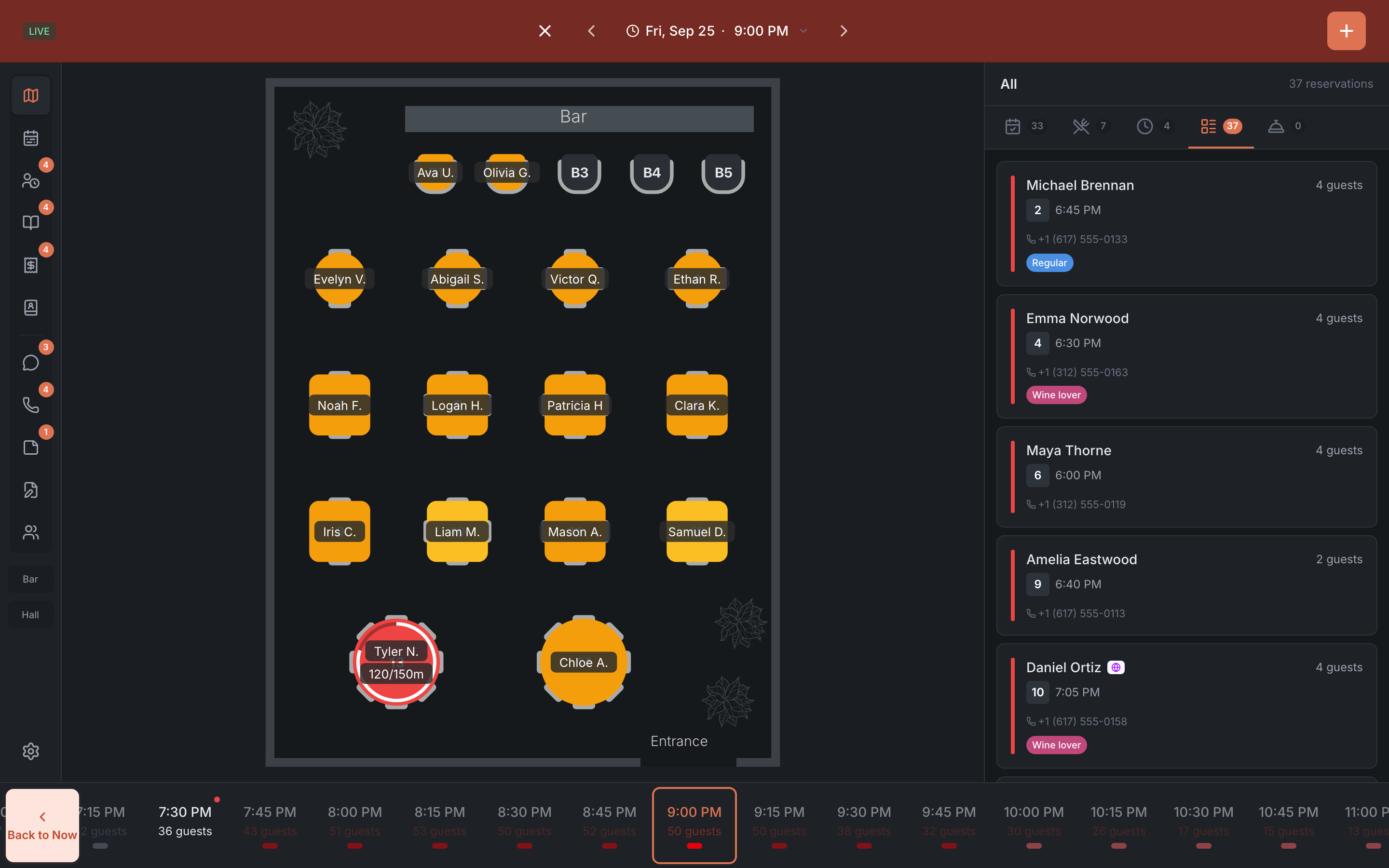
Both take you back to today and the current time.
Period on Reservations, Orders and Notes
On these tabs the header holds a period instead of a date:
- Reservations and Orders — Shift, Week, Month, 3 months and Custom. The arrows move the period back and forward, and tapping the period label opens a calendar. The Today cross takes you back to the current shift. The Requests sub-tab has no period picker.
- Notes — Shift, Week, Month, 3 months and All.
On a smaller screen — a phone or most tablets — the period picker moves to a second line of the header.
Shift and the night after midnight
A shift starts at 5:00 AM restaurant time. Everything between midnight and 4:59 AM belongs to the previous shift. A guest seated at 1:30 AM on the night from Friday to Saturday is part of Friday’s shift.
The panel shows times after midnight under Night with a +1 mark — that’s the next calendar day.
The shift follows the restaurant’s clock, not the device’s. If you open the panel from another time zone, the shift still turns over at 5:00 AM restaurant time.
Around 5:00 AM the “Hello there 👋 Meet new day 🌞” banner appears above the header. Tap Let’s go! and the panel reloads on the new shift. The banner only appears if the panel has been open since before midnight. If you opened it later, just reload the page at the start of the shift.