Creating and editing a booking
One form for four cases: walk-in, reservation, waitlist and reservation waitlist. Fields, table picking, deposits and editing a booking.
A new booking, a walk-in and a waitlist entry are all created in one form — it opens on the right, where the list usually is. Only the set of fields changes: a walk-in has no date, the waitlist has no table, a reservation has a deposit.
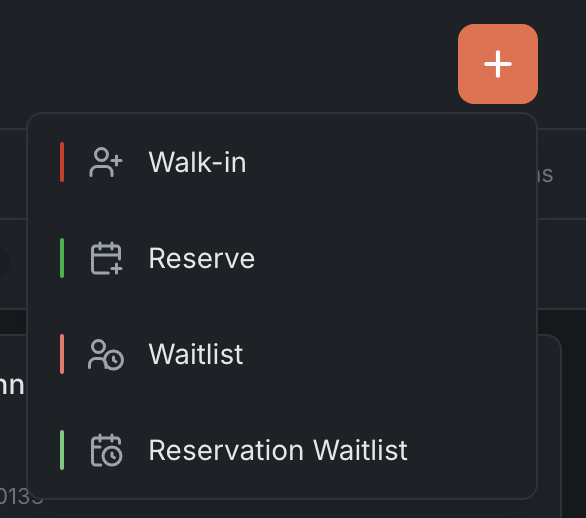
You open the form:
- with the + button in the header — it asks what to create;
- with the Seat walk-in and Reserve buttons in the card of a free table — then the table is already picked, and the party size equals the number of seats at it;
- from an incoming call, a chat or a draft — the guest’s name and phone are filled in for you.
Four kinds of entries
| Item in + | Form title | What you get | Button at the bottom |
|---|---|---|---|
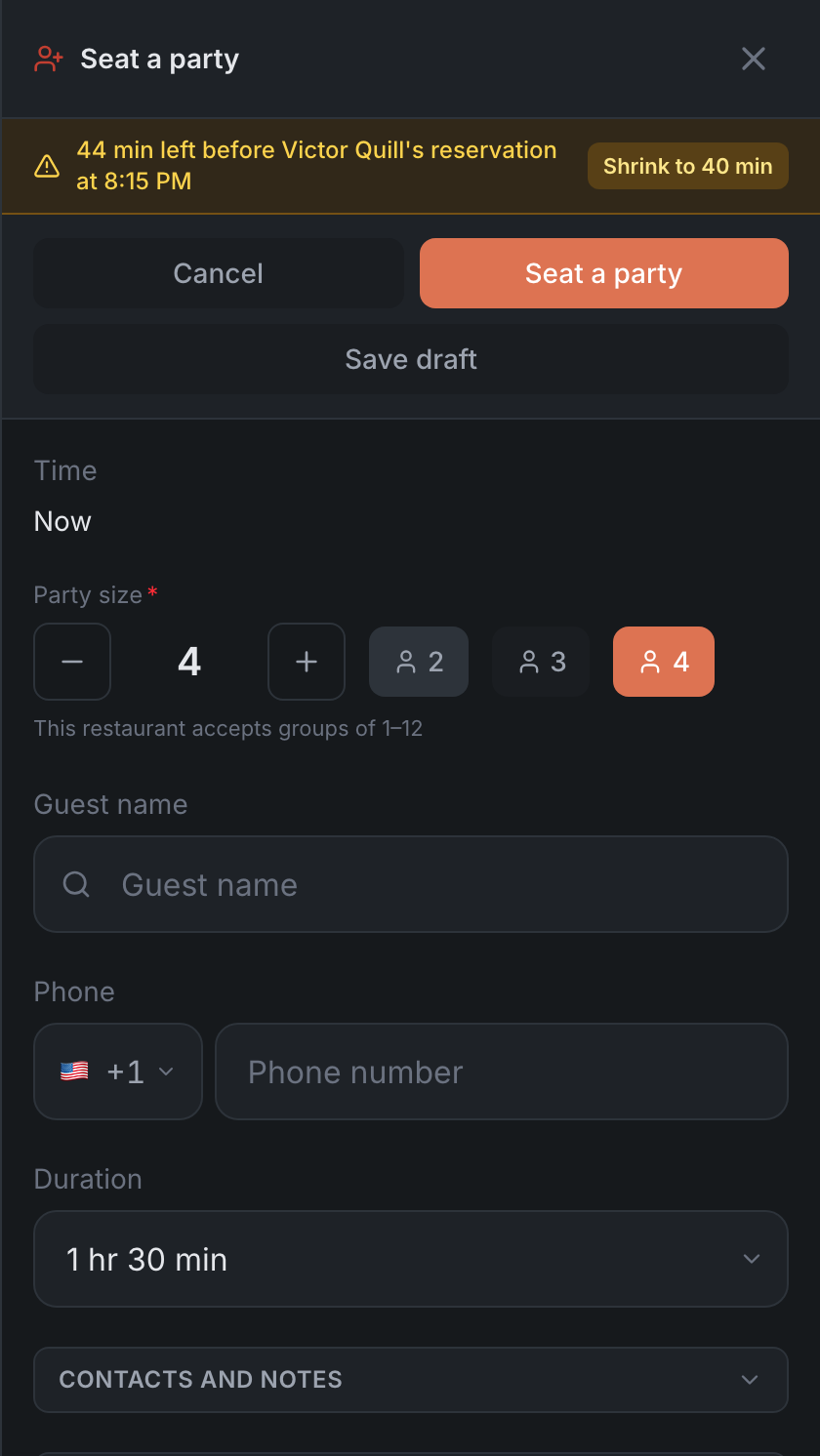
| Walk-in | ”Seat a party” | a guest without a booking, seated at once | Seat a party |
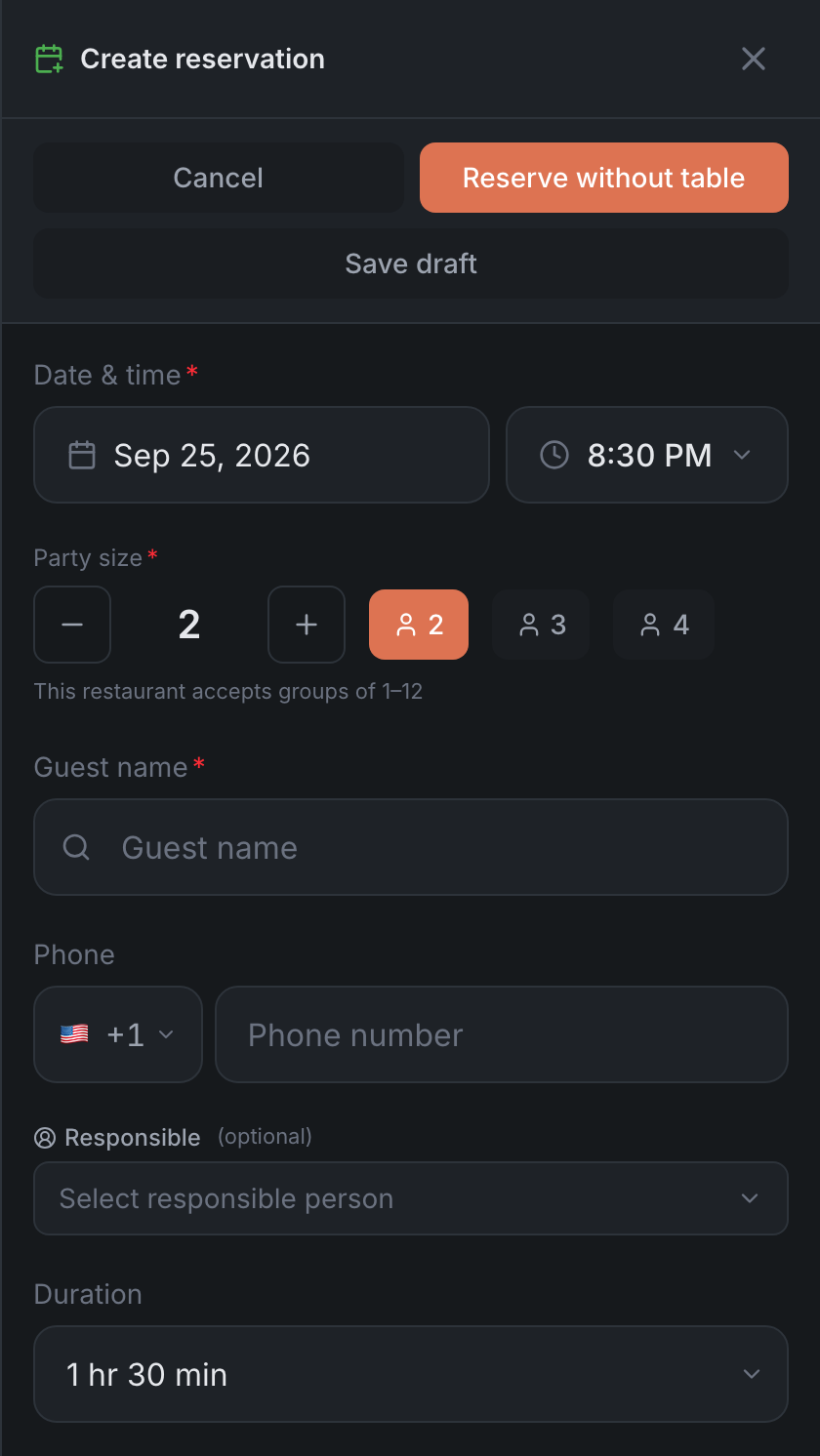
| Reserve | ”Create reservation” | a booking for a date and time | Create reservation |
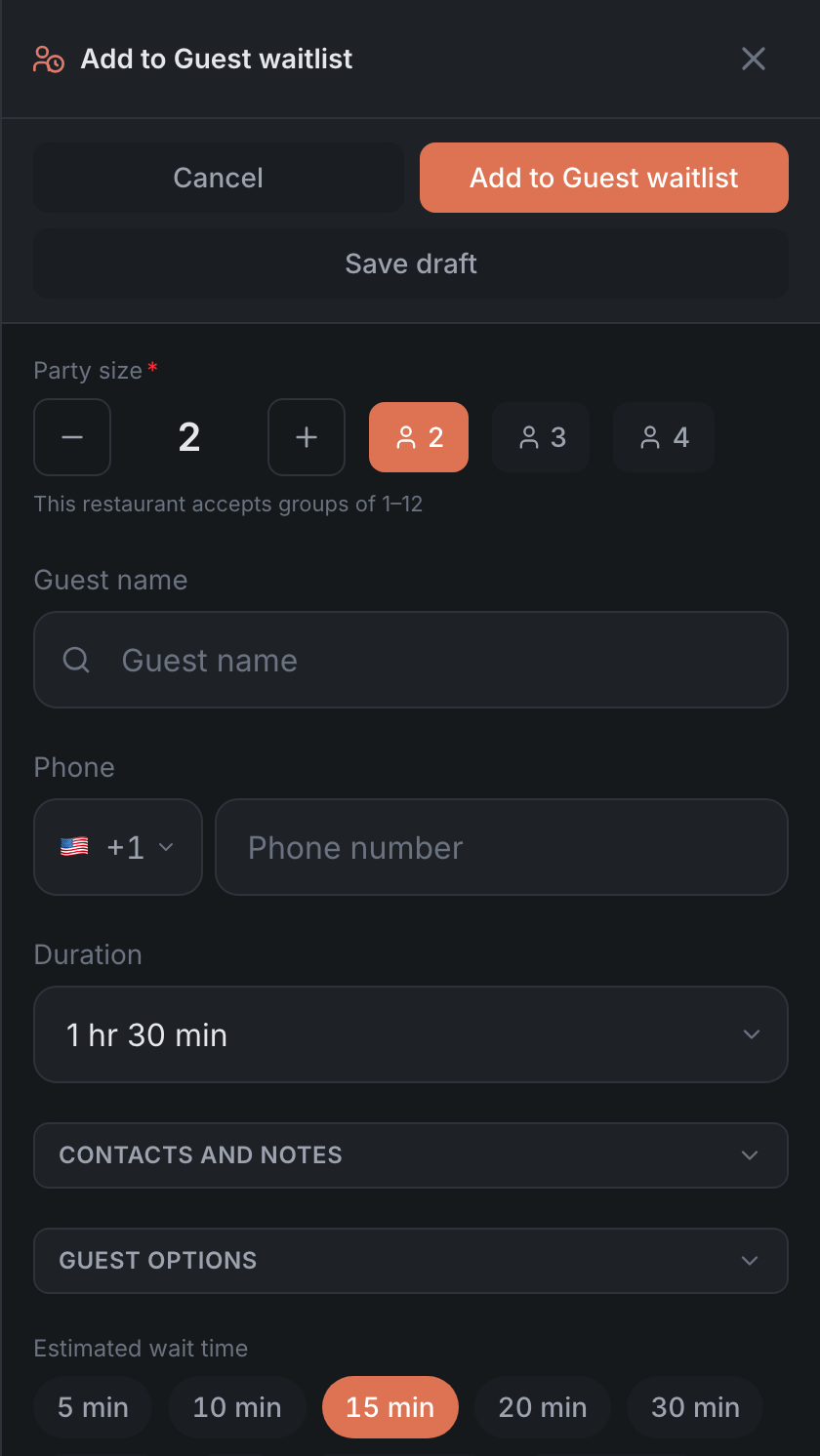
| Waitlist | ”Add to Guest waitlist” | a guest in the room waiting for a table — see Waitlist | Add to Guest waitlist |
| Reservation Waitlist | ”Add to reservation waitlist” | a booking request when there’s no room — see Requests and the reservation waitlist | Create request |
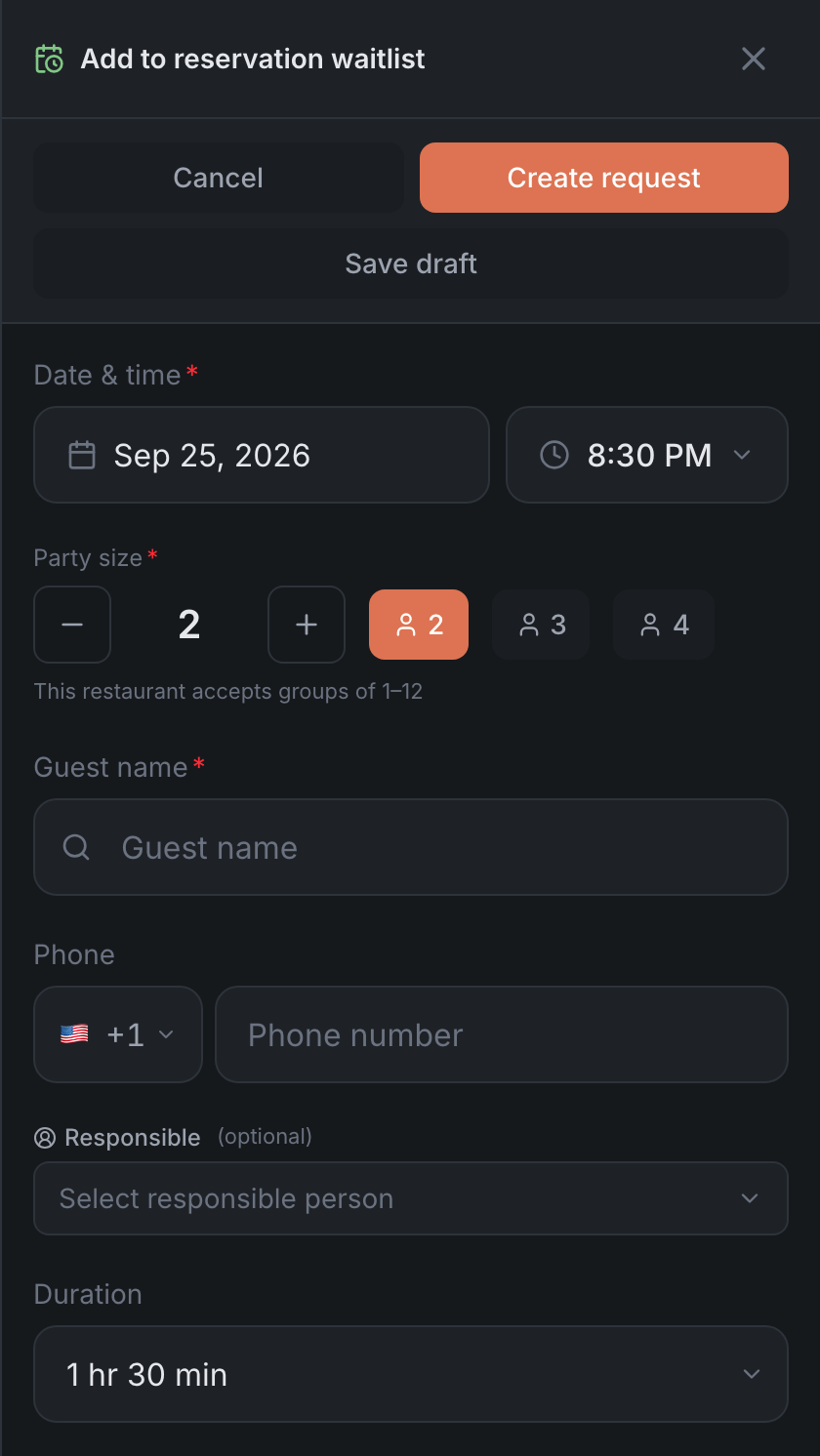
The Reservation Waitlist item is there only if the waitlist is turned on in the Admin — see Booking rules.
A walk-in is always about “now”: if you were looking at another time, the panel goes back to the current moment by itself. A reservation and a request open at the time selected on the time strip: pick 7:30 PM, and the form opens at 7:30 PM.
If the form is already open, tapping + again opens a new, empty one.
Form fields
| Field | Where | What to know |
|---|---|---|
| Date & time | Reserve, Reservation Waitlist | a walk-in has “Now” instead, the waitlist has none |
| Party size | everywhere | − and + buttons, quick 2, 3 and 4 — those within the restaurant’s limits. If the restaurant limits group size, you’ll see “This restaurant accepts groups of …–…” |
| Guest name | everywhere | required for a reservation and a request, not for a walk-in or the waitlist. See Guest |
| Phone | everywhere | the restaurant’s country code is filled in |
| Table | Walk-in, Reserve | see Table |
| Zone | Waitlist, Reservation Waitlist | if the restaurant has more than one area: Everywhere or specific areas, several allowed |
| Duration | everywhere | how long the guests are planned to stay. The default comes from the restaurant’s settings |
| Estimated wait time | Waitlist | how many minutes you promise the guest. The panel suggests: “Typical wait is about … min” |
| Event | Reserve | a booking for an event. Picking an event switches the map to its room |
| Responsible | if the restaurant keeps a staff history | who created the entry. Whether to ask for it for reservations, walk-ins and the waitlist is picked in the panel settings, in the Responsible person section. If the restaurant requires it — “This restaurant requires a responsible person” |
| Deposit | Reserve, Reservation Waitlist | if the restaurant takes deposits. See Deposit |
Below are collapsed sections:
- Contacts and notes — Email and Special requests (for a reservation and a request) and Internal notes — only staff see them;
- Guest options — tags, allergies, high chair, the occasion and other marks the restaurant has set up;
- Referral — for a reservation and a request: who recommended the restaurant.
Guest
The Guest name field is also a search in the guest book. Start typing a name or a phone number: from two characters on, the panel shows matching guests.
- Tap a guest in the list — their details are filled in, and a chip with their name and a Replace button appears in the form.
- The first item in the list is New guest: ”…” — that creates a new guest with this name. Under the field you’ll see “A new guest will be created”.
- If similar guests are found, the panel warns: “Similar guests found — pick one from the list, otherwise a new guest will be created”. That keeps duplicates out of the guest book.
- If the guest is on the blacklist, the form shows “This guest is on the blacklist”. You can still create the entry — it’s your call.
Table
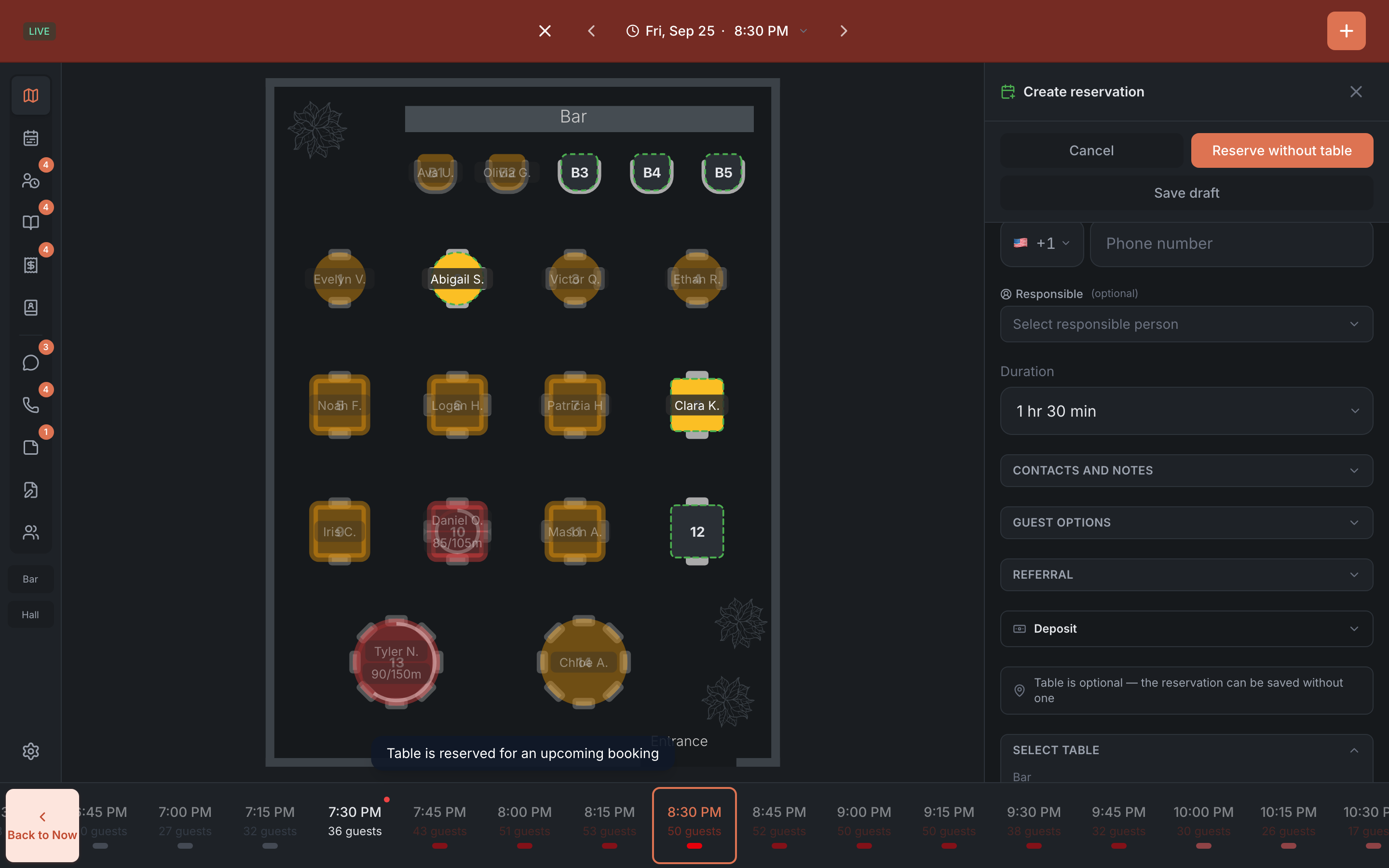
You pick a table in the Select table section or right on the map: “Click available tables on the map to add”. You can pick several tables — for a large party. The picked ones are shown as “Tables: …”. On a computer the section stays collapsed until you open it.
If you tap a table that doesn’t fit, the panel tells you why: “Table is occupied”, “Table is reserved for an upcoming booking”, “Table is blocked” or “Table is being prepped for a booking — enable “Seat during cleanup” in Settings”.
Is a table required:
| Entry | Table |
|---|---|
| Walk-in | required. If the restaurant picks tables automatically, you don’t have to: “Leave empty and a free table is picked automatically on seating” |
| Reserve | not required: “Table is optional — the reservation can be saved without one”, and the button becomes Reserve without table. If “Require a table when creating a reservation” is on in the panel settings, you can’t create a booking without a table |
| Waitlist and Reservation Waitlist | no table — it’s picked when the guest is called or the request is confirmed |
If the restaurant has turned off table selection, the section is replaced by “Table selection is turned off by the restaurant”.
Table warnings:
- ”… min left before …‘s reservation at …” — the next booking on this table starts before the guests will be done. The Shrink to … min button shortens the duration — it appears if there are at least 15 minutes until the next booking. When you create an entry, the panel shortens the duration even without the tap. When you edit, it doesn’t: the duration you picked is saved.
- “Table(s) seat …, party is … — this restaurant enforces seating by capacity” — there are more guests than seats. Add a table or pick another one: while there aren’t enough seats, the form won’t save.
Deposit
If the restaurant takes deposits, a reservation and a request have a Deposit section — or No-show fee, if the restaurant only charges for no-shows. This is set up in the Admin — see Deposits & fees.
- Method — Cash, Invoice or Card. Only the methods that work for the restaurant are shown.
- Amount is filled in for you — by the restaurant’s rules and the party size. You can change it.
- Cash is marked with the Mark paid and Mark unpaid buttons.
- An invoice goes to the guest by phone or email: “Phone or email is required to send invoice”.
- A card is attached with the Attach card button — after that you’ll see “Card attached”.
The booking is saved even if the deposit isn’t paid: the panel doesn’t make you take money to create a booking. Whether a deposit is paid shows on the coin on the booking — see Reservations.
Draft
If the guest can’t give all the details right away, tap Save draft — the form closes with “Saved to draft”. Later you can open it from the Drafts tab and carry on — see Drafts.
The button is only there when you create an entry. An entry you’re editing can’t have a draft.
If the form won’t save
| Message | What to do |
|---|---|
| ”Guest name is required” | a reservation and a request need a name |
| ”Table is required” | pick a table — or turn off “Require a table when creating a reservation” if you don’t need one |
| ”Date and time cannot be in the past” | pick a time later than now |
| ”Seating is only available in real time — return to Now” | tap Now next to the message |
| ”Choose a responsible person to continue” | the restaurant requires you to say who created the entry |
| ”Table(s) seat …, party is …“ | there are more guests than seats at the picked tables |
If the restaurant’s subscription isn’t paid, + opens the “Please pay your subscription” window: you can’t create new entries, but existing bookings work as usual.
After saving, the panel confirms briefly — for example, “Reservation created” or “Guest seated successfully” — and the form closes.
Editing a booking
The same form opens for editing — titled “Edit reservation”. For a waitlist entry it’s “Edit queue entry”, for a waitlist guest who’s already seated — “Edit booking details”, for a request — “Edit request”. The button at the bottom is Save.
You can open it:
- in the booking card — in the Edit section with the Edit booking details button, or by tapping the table number or the party size under the guest’s name;
- in the table card — in the Edit section;
- with the Approve button on a Pending booking in the list: the form opens with the booking’s details, you can adjust the table or the time, and the booking is approved when you save the form.
What to know about editing:
- The date and time are locked until you tap Change date & time, so you can’t change them by accident. You can only change them for Pending and Approved bookings.
- The name of a guest from the guest book can’t be changed here: “Guest from the guest book — the name is edited in their profile”.
- The phone number changes for the guest everywhere: ”…‘s number — will change in all their bookings”.
- A table isn’t required when editing.
- Guest options: the guest’s profile — tags, allergies, birthdays — is read-only when editing; only this visit’s options can be changed.
- If the booking time has already passed, the panel warns “This booking time has already passed”, but lets you save.
- If you change the estimated wait time of a waitlist entry, “The guest will see the new time on their status page”.
In the HostMe Classic theme
In the HostMe Classic theme, a dark full-screen wizard opens instead of the form on the right — one step per screen:
| Entry | Steps |
|---|---|
| Reserve | Party → Date → Time → Table → Guest → Deposit |
| Walk-in | Party → Table → Guest |
| Waitlist | Party → Time → Zone → Guest |
| Reservation Waitlist | Party → Date → Time → Zone → Guest → Deposit |
In the wizard a request has the Event field too, and the calendar won’t go further ahead than the restaurant allows: “Bookings up to … days ahead”.
Steps you don’t need drop out by themselves: for example, Table if the restaurant picks tables automatically, Deposit if the restaurant doesn’t take deposits. In this theme the + button opens a New booking screen with four tiles instead of a menu.