Table card
What the table card shows and which actions it offers: seat, reserve, approve, release.
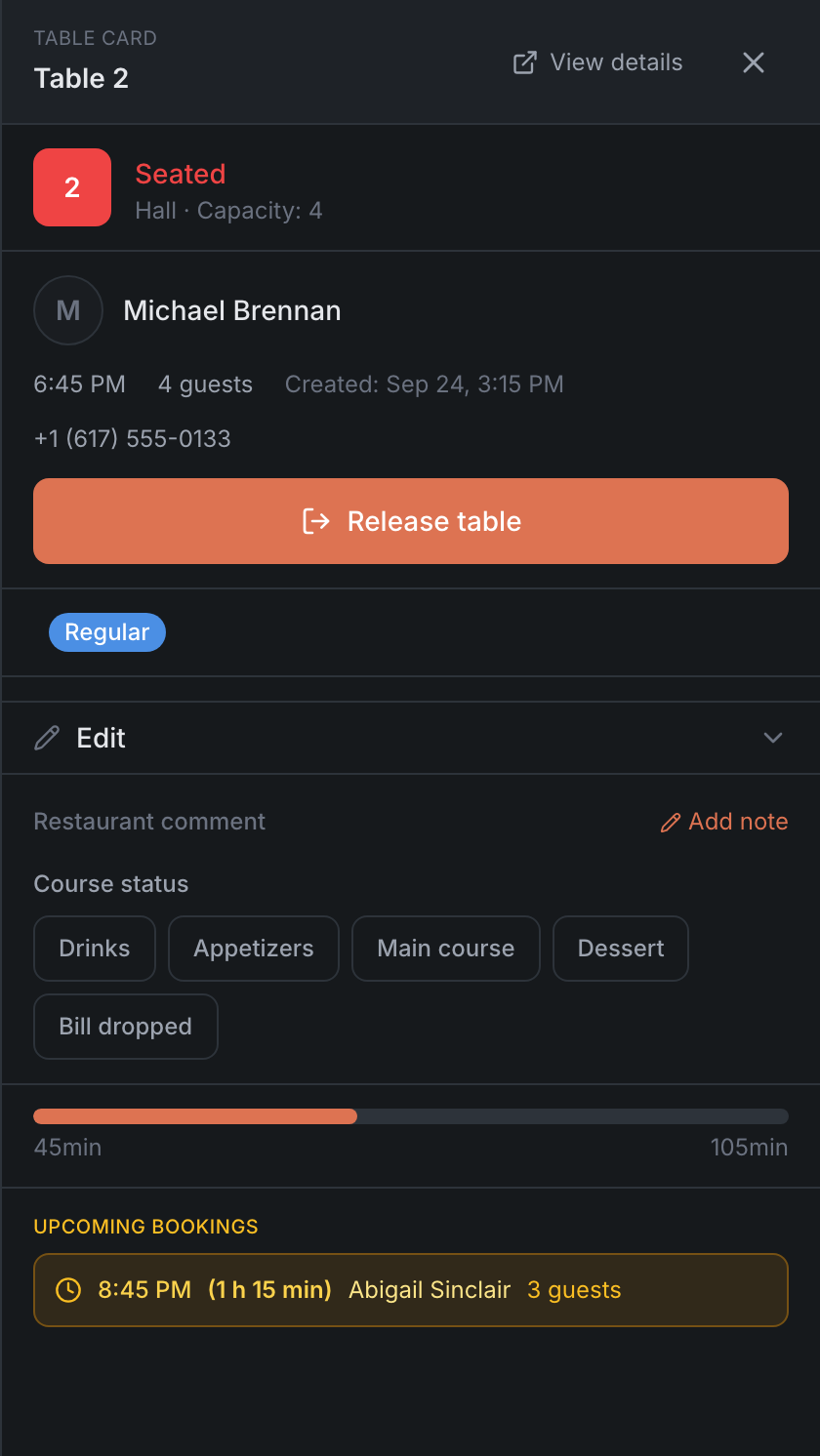
Tap a table on the map and the table card opens on the right: who is seated there or who it’s waiting for, what’s next on it, and what you can do with it right now. On a phone, the card slides in from the right edge of the screen.
What’s in the card
From top to bottom:
- Title — Table Card, the table number, the View details button (opens the full booking card) and the cross.
- Status — squares with the numbers of all the tables of this booking, the status and a line like “Terrace · Capacity: 4”.
- Booking — the guest’s name and VIP star, the event, the time, the party size and when the booking was created, the deposit, the phone. Below — the action buttons.
- Guest profile — tags, options, the occasion, allergies, Guest comment and Booking comment.
- Edit — a collapsed section: change the booking, the guest, the duration.
- Restaurant comment — a note about the guest that the restaurant keeps for itself. It’s there when the guest is in the guest book.
- Pre-seating status or Course status — chip buttons.
- Progress — for seated guests, when the planned time is known: a bar and how many minutes have passed out of the planned ones.
- Upcoming bookings on this table.
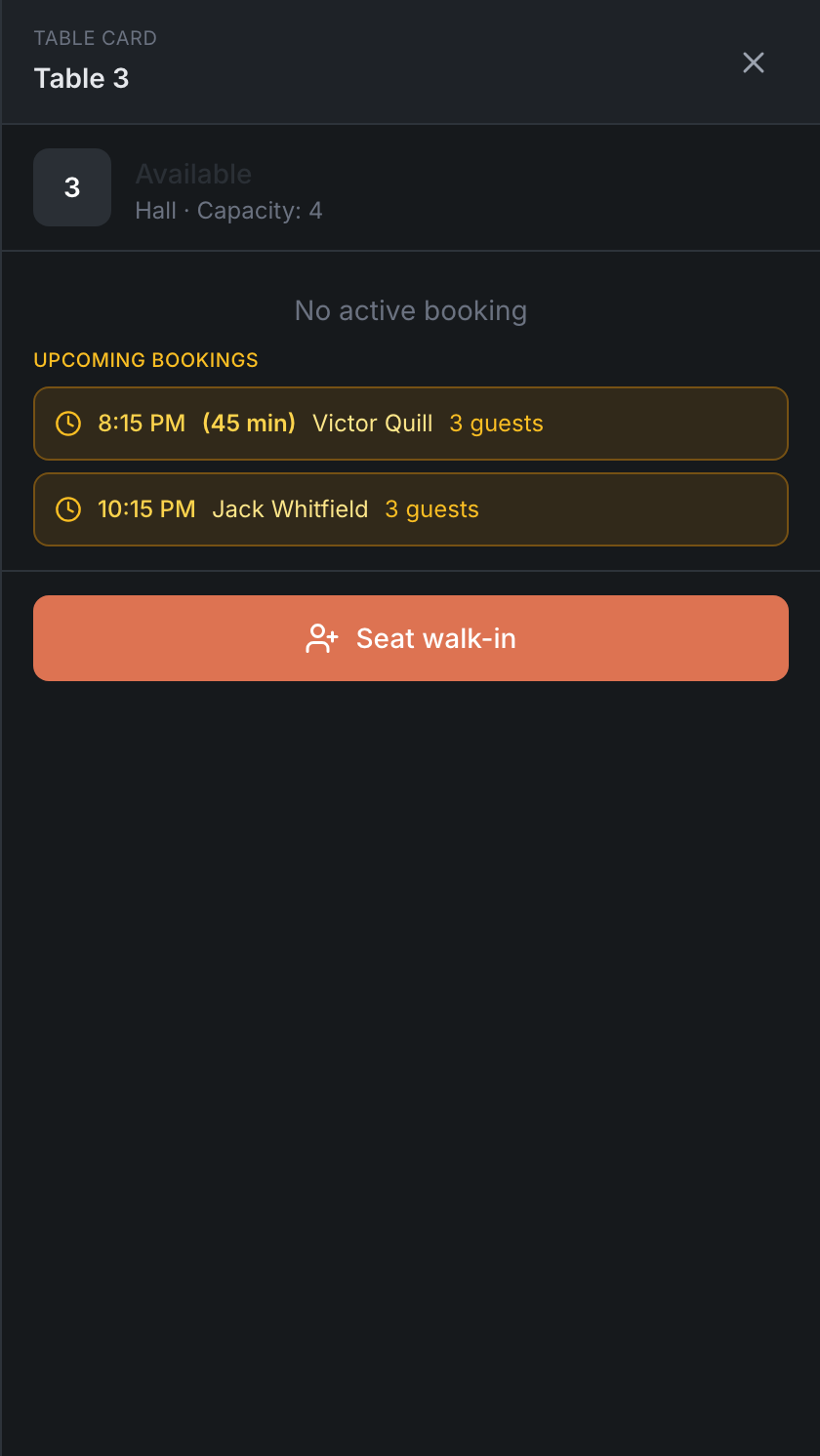
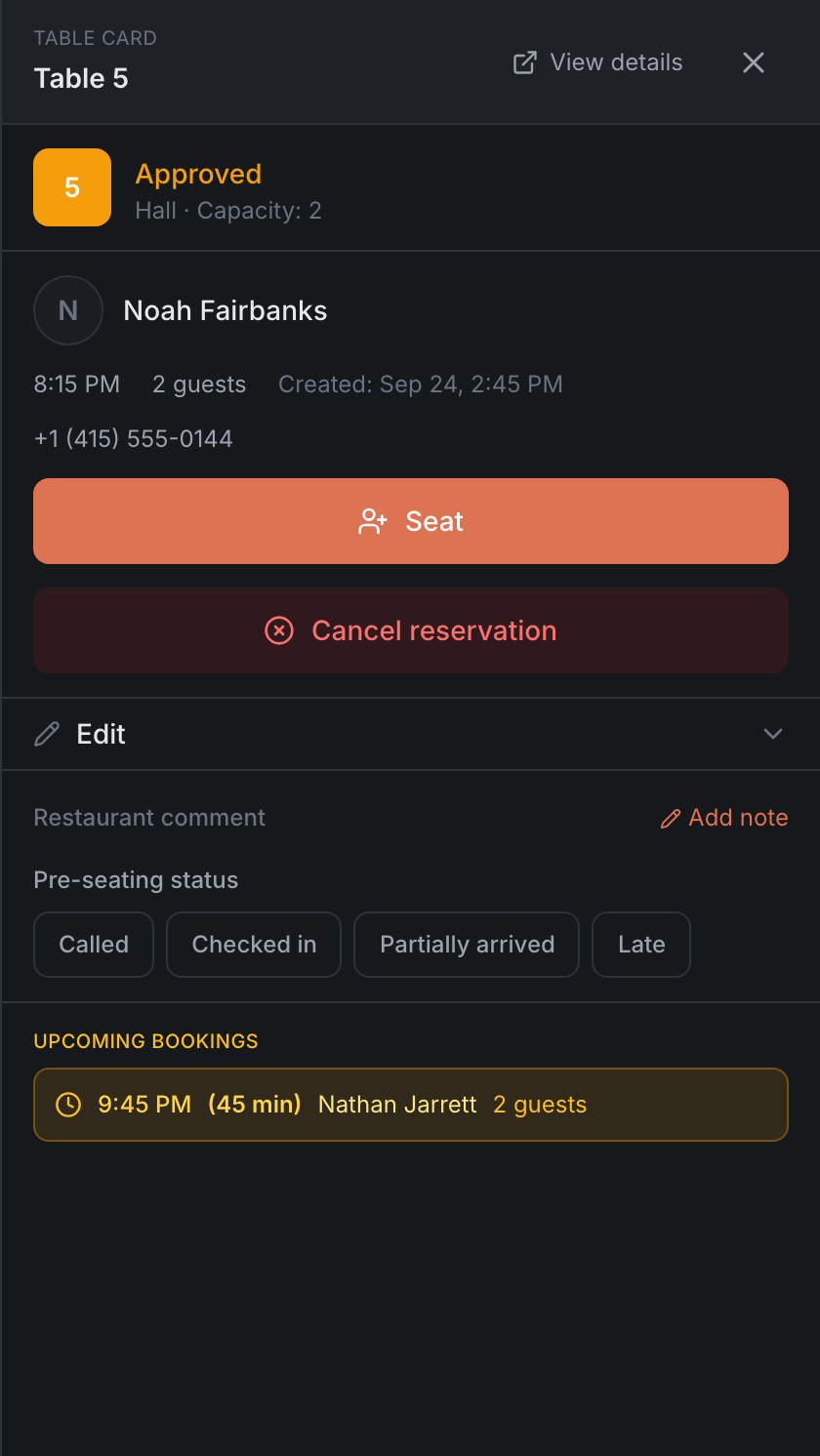
For a free table, instead of the booking there’s “No active booking”, the list of upcoming bookings and an action button at the bottom.
Status
| What it says | When |
|---|---|
| Available | there’s no booking at this moment |
| Blocked | the table is blocked |
| the booking’s status — Pending, Approved, Called, Seated | the table has a booking |
Buttons depend on the time
The card shows the table at the moment selected on the time strip, and the buttons change with it:
| Selected time | Free table |
|---|---|
| Now | Seat walk-in — seat a guest without a booking |
| Future | Reserve — create a booking for that time |
| Past | Past time slot — no actions available |
In the past, a booking on the table has no buttons either, and the Edit, Pre-seating status and Course status sections are hidden.
Seat walk-in opens a short seating form. If quick walk-in seating is turned on in your restaurant (in the Admin — Settings → Interface), there’s no form: a lightning bolt appears on the button and the guest is seated at once — the hint says “Quick seat — seats immediately, no form”.
Buttons for a table with a booking
| Booking status | Buttons |
|---|---|
| Pending | Approve — the booking is approved right away, with no form · Cancel reservation |
| Approved, Called | Seat · Cancel reservation |
| Seated | Release table |
Cancel reservation doesn’t cancel right away: a cancellation panel opens, where you pick a reason and decide what to do with the deposit.
Prepping for a booking
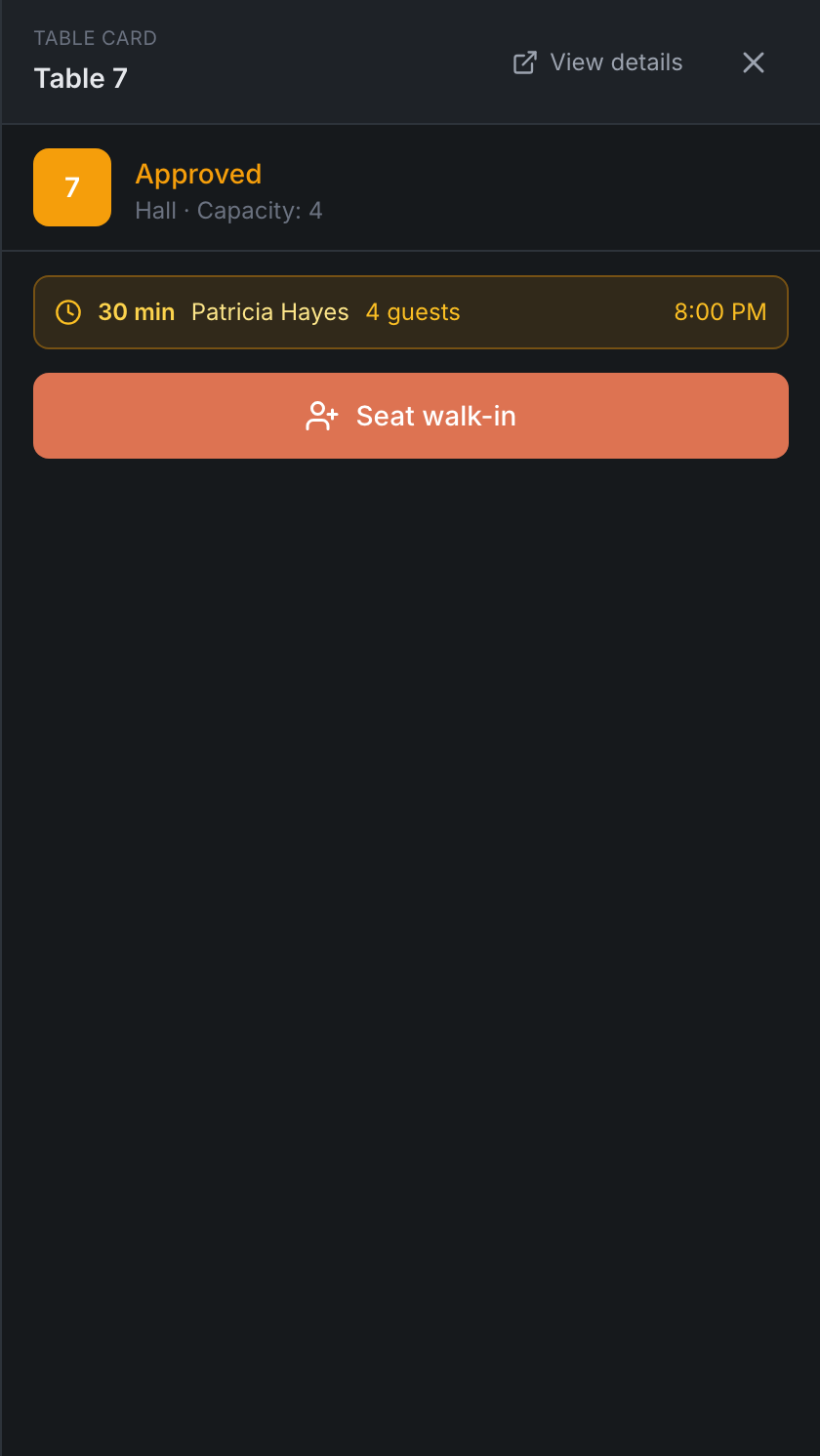
When a booking on the table is coming up soon, the table goes into preparation. If “Allow seating and reservations during the preparation window” is on in the panel settings (it’s on by default), the card shows a banner — how soon the booking starts, who it’s for and for how many — and the Seat walk-in or Reserve buttons. That’s how you seat a guest who’ll be gone before the booked party arrives.
Blocked table
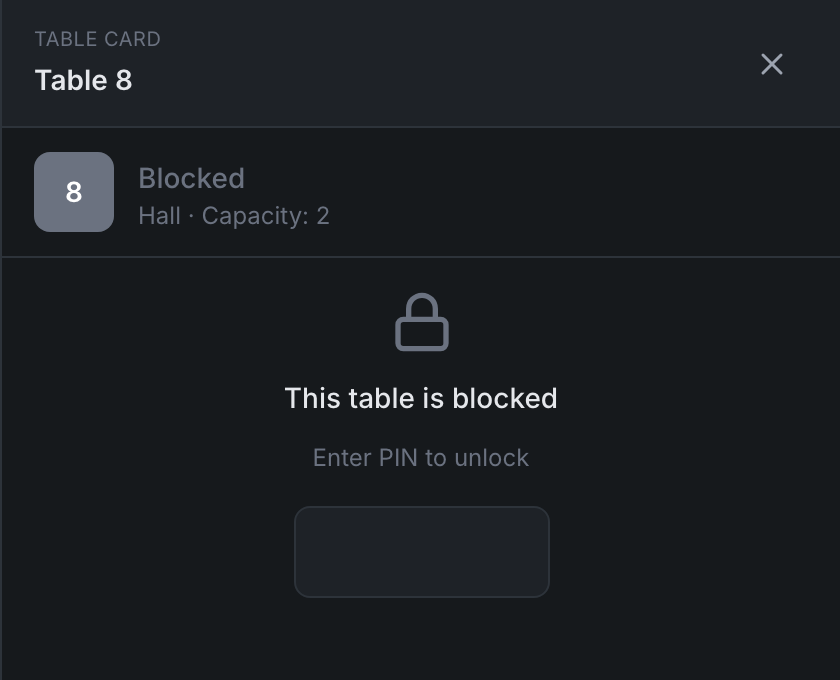
The card of a blocked table shows a lock and “This table is blocked”.
- If the restaurant has set a PIN, the panel asks for it: “Enter PIN to unlock”. After the right PIN — “Table unlocked” and the Seat walk-in or Reserve buttons. A wrong PIN shows “Wrong PIN”. The four-digit code is checked as soon as you enter the last digit.
- If no PIN is set, the buttons are shown right away.
The PIN only unlocks this card, so you can seat a guest. On the map the table stays blocked, and if you pick another table and come back, the lock is there again.
You can’t block a table from the Host Panel: blocks and the PIN are set up in the Admin — see Blocked tables.
Edit
The Edit section is collapsed so it doesn’t get in the way. Inside:
- Edit booking details — the booking form: time, table, guests, comments.
- Edit guest info — opens the guest’s card in the guest book. If the guest isn’t in the book yet, a search by name and phone opens.
- Replace guest — if the booking was made for the wrong person.
- Duration — how long the guests are planned to stay. Pick a value in the list — it saves right away, there’s no save button. It’s the planned time, not how long the guests have already been seated.
Pre-seating status and course status
At the bottom of the card are chip buttons:
- Pre-seating status — for bookings that haven’t been seated yet: for example, Called, Checked in, Late, Partially arrived. It saves you keeping in your head who is already at the door.
- Course status — for seated guests: for example, Drinks, Main course, Dessert, Bill dropped.
Tap a chip and the status changes right away. The set of chips, their names and colors are set by the restaurant in the Admin — see statuses and workflows. A course status color also paints the table itself on the map.
Upcoming bookings
The list of bookings on this table after the selected moment: the time, the name and the party size. The first booking shows how soon it starts, for example “(1 h 20 min)” — counted from the time on the time strip, not from the real “now”.
The list includes confirmed bookings and those waiting for approval. Tap a line to open the booking.
In the HostMe Classic theme
In the HostMe Classic theme the table card is different — like in the previous panel:
- the status is large: Reserved for a table with a booking, Seated for an occupied one, and instead of the booking time — “Seated 1 hr 20 min”;
- instead of Duration — Limit;
- the buttons are in two columns, with Release table at the bottom of the card;
- a blocked table has no buttons;
- Upcoming bookings don’t show “how soon”.