Drafts
Unfinished bookings, walk-ins and requests: how to save a form as a draft, where to find it and how to finish it.
A draft is an unfinished booking form you’ve saved to finish later. Say a guest calls, starts booking, then goes to check the time with friends. You don’t have to keep the form open or jot the details on paper: save a draft and come back to it when the guest calls again.
Drafts are shared across the whole restaurant. Save one on one tablet, and it shows up on another one and for a colleague too, once they reload the page.
How to save a draft
In the form for a new entry, tap Save draft — the form closes, and the panel briefly shows “Saved to draft”. You can save a draft from any form: a reservation, a walk-in, the waitlist or the reservation waitlist.
- A draft is saved only with the button. If you just close the form, what you typed is lost.
- The button isn’t there when you edit an existing booking: only new entries have drafts.
- If you opened a draft and tapped Save draft again, the same draft is updated — no second one appears.
Where to find drafts
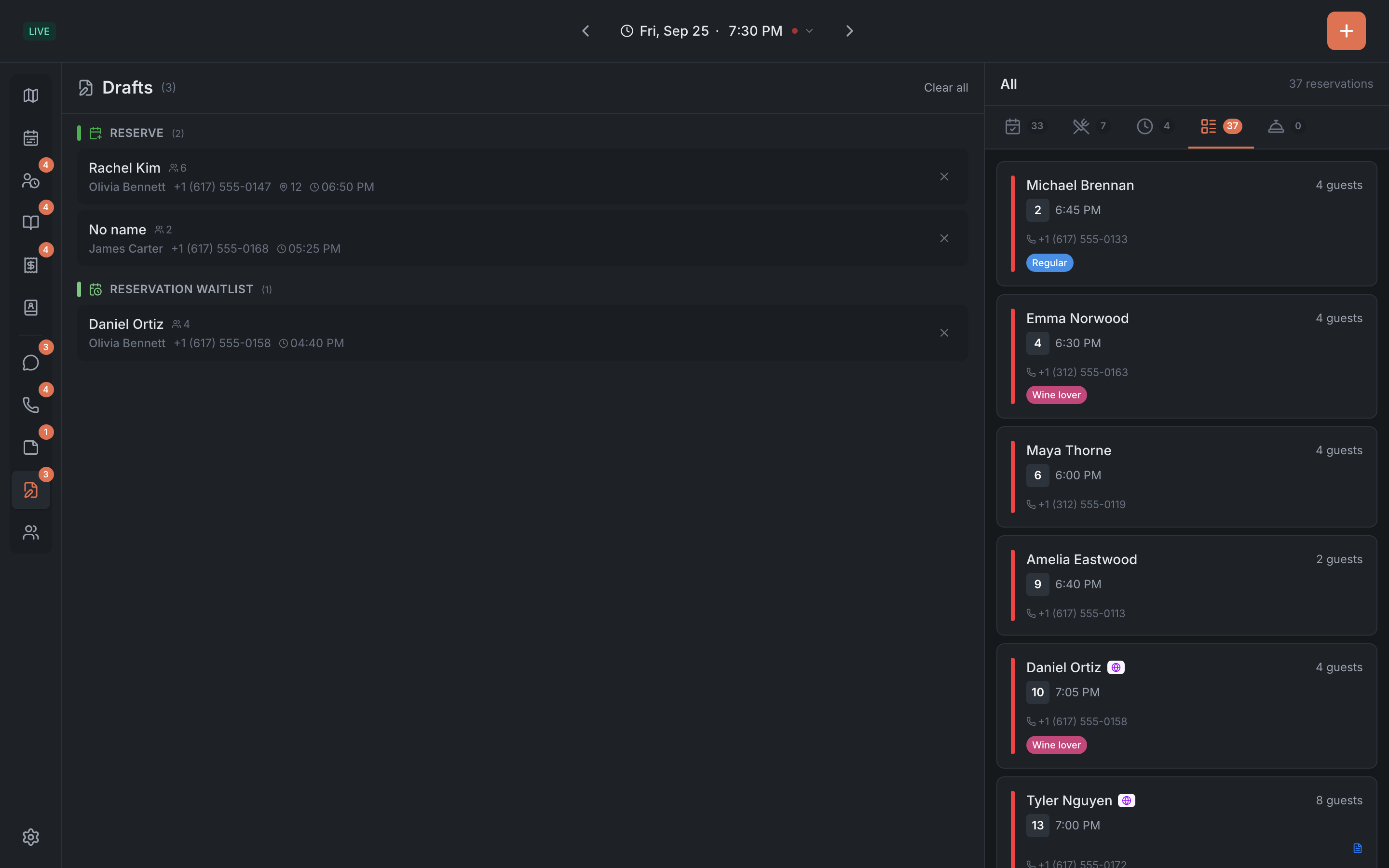
On the Drafts tab in the menu on the left. The number next to the icon is how many drafts are saved right now.
Drafts are grouped by the kind of entry: Reserve, Reservation Waitlist, Walk-in, Waitlist. A draft card shows:
- the guest’s name — or “No name” if nobody got to type it;
- the party size, the phone and the table;
- who saved the draft and when.
If there are no drafts — “No saved drafts”.
How to finish a draft
Tap a draft — the form of the right kind opens with everything that was saved, and the map moves to the draft’s date and time. Check that the table is still free, fill in what’s missing and tap the create button, for example Create reservation.
Once the entry is created, the draft disappears by itself. If the restaurant’s subscription isn’t paid, a draft won’t open.
How to delete a draft
- The cross on a card deletes one draft.
- Clear all deletes all of the restaurant’s drafts — yours and your colleagues’.