Moving and combining tables
How to reseat guests, add a table to a booking, swap tables or seat a guest by dragging on the map.
You can reseat guests, add another table to a booking, or give a table to a booking that has none right on the map — by dragging. The panel asks what exactly you want to do and shows whether it gets in the way of the next booking.
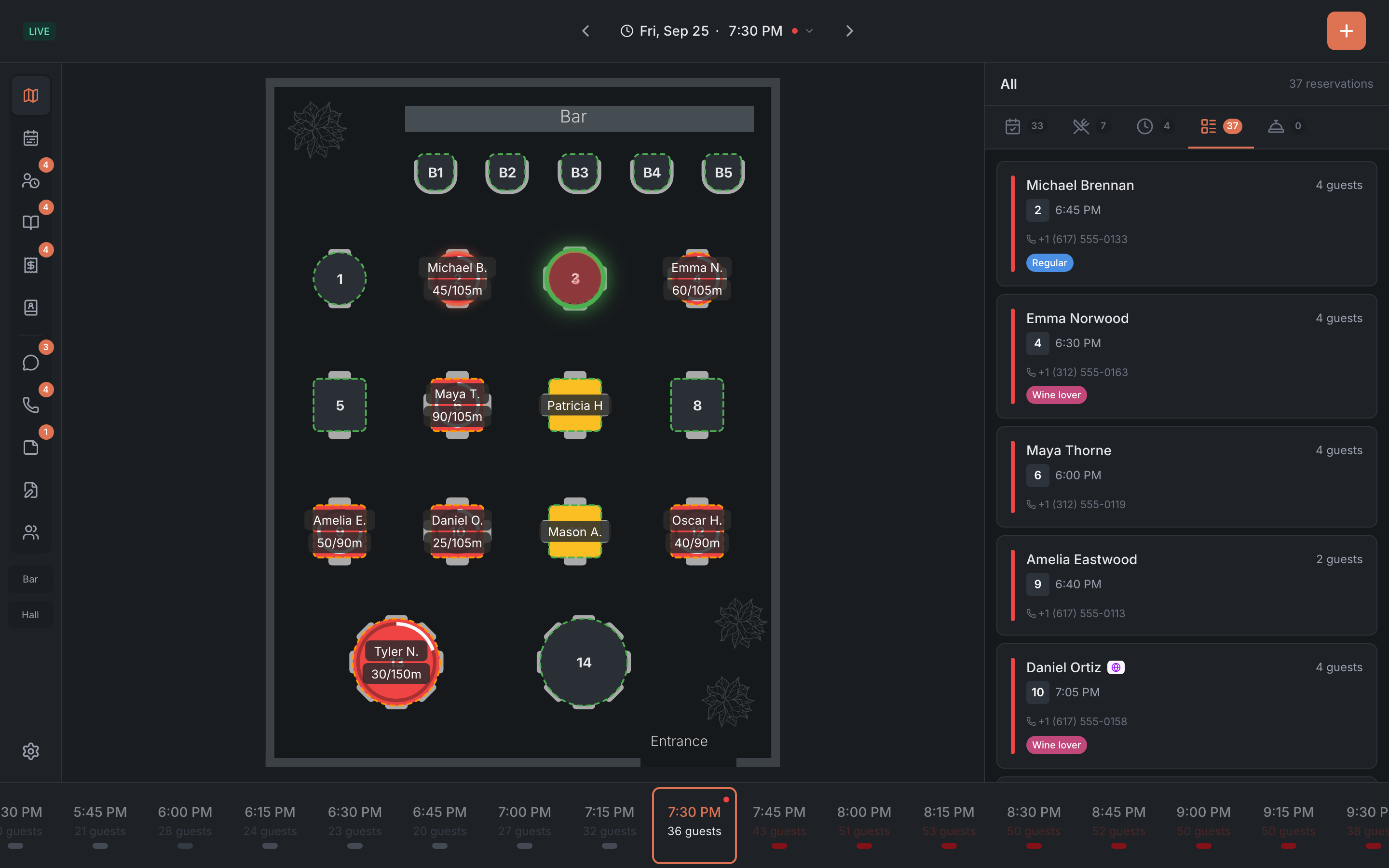
How to drag a table
- Press and hold an occupied or reserved table — for about a third of a second. A ghost of the table appears under your finger, and a tablet that supports it buzzes briefly.
- Without letting go, move to the table you want to move the guests to. Suitable tables are highlighted with a dashed outline.
- Let go on the table you need. The Confirm action panel opens on the right with the options.
- Pick an option — or Cancel if you changed your mind.
While the panel is open, you can tap another table and the panel recalculates the options for it.
After the action, a confirmation shows briefly at the bottom — for example, that the guest was moved from table 4 to table 7.
Which options the panel offers
The options depend on where you let go of the table:
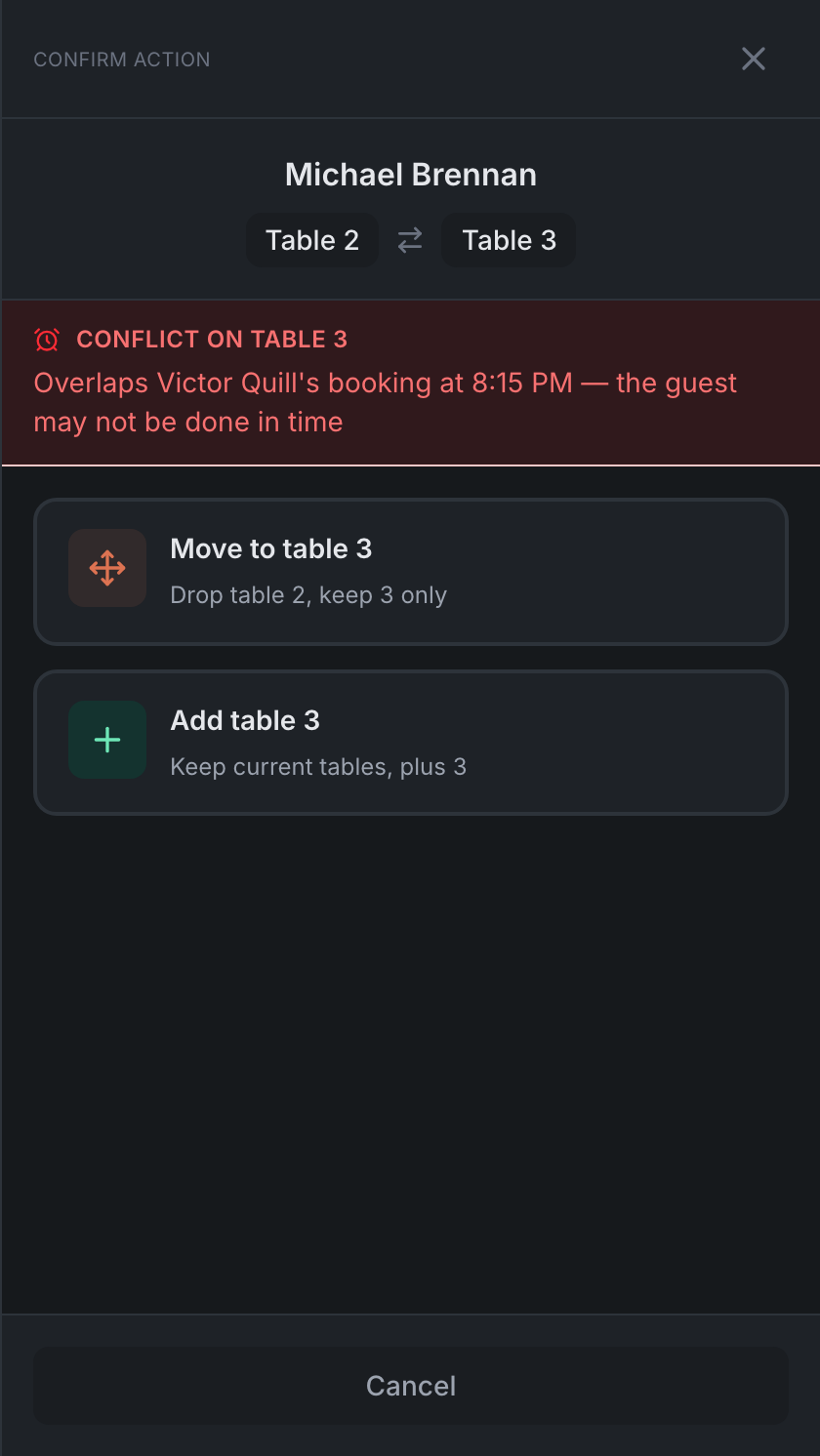
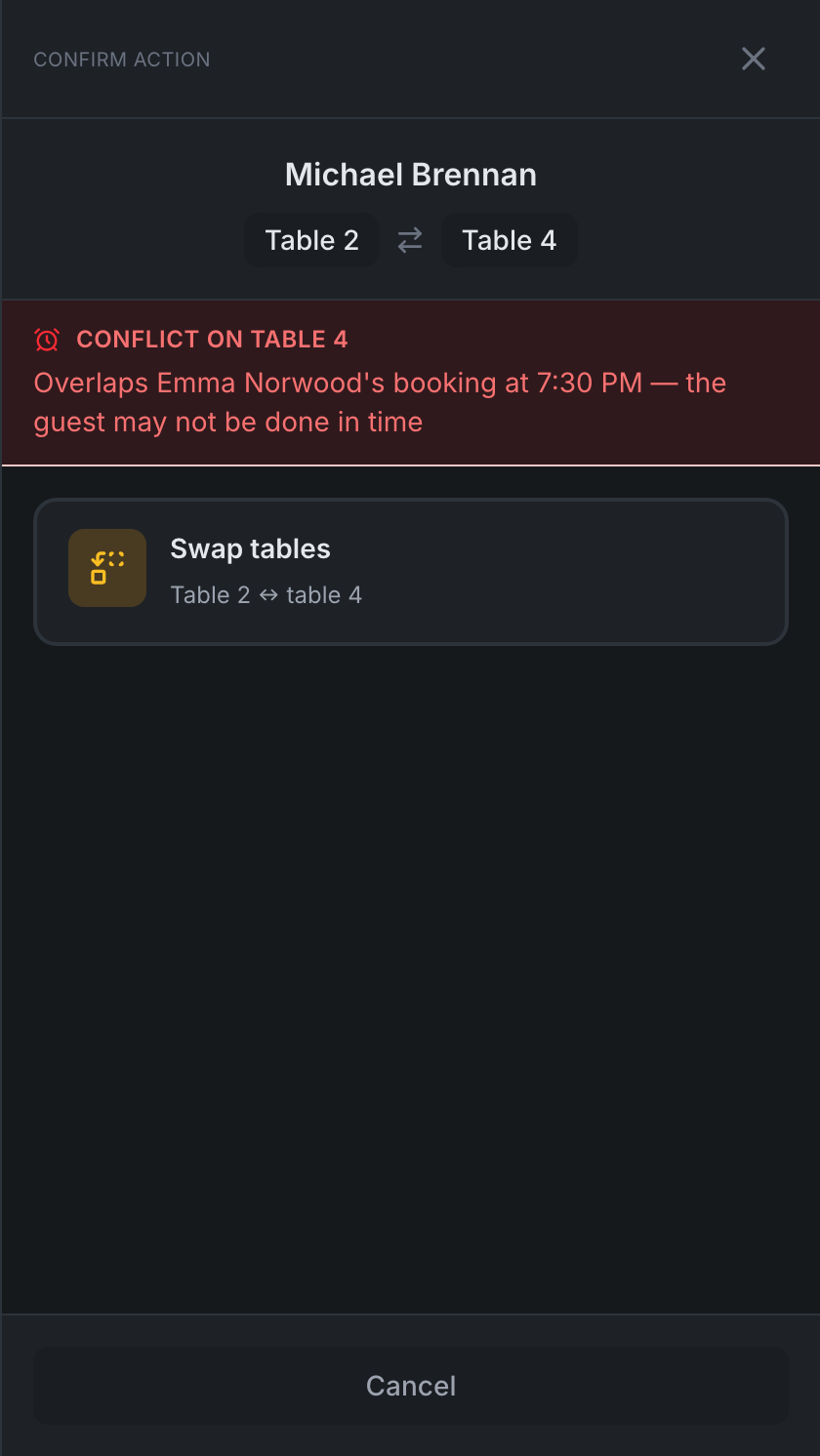
| Where you let go | What you can do |
|---|---|
| On a free table | Move to table … — the guests move to the new table and the old one is freed |
| Add table … — keep the current tables and add the new one. That’s how tables are combined for a large party | |
| On a table with another booking | Swap tables — the two bookings trade tables |
| On another table of the same booking | Remove table … from booking — the booking stays on its other tables |
| Keep only table … — all other tables of the booking are freed. This option appears when the booking has three tables or more | |
| On a blocked table | nothing — you can’t move there |
Seat or assign a table from the list
A booking card from the side list can also be dragged onto a free table:
| Whose card | What you can do |
|---|---|
| A booking without a table | Assign table … — the table will wait for the guest · Seat at table … — the guest is seated at once |
| A booking with a table | Move to table … · Add table … · Seat at table … |
Next booking and conflicts
At the bottom of the confirmation panel, the panel tells you what comes next on the chosen table:
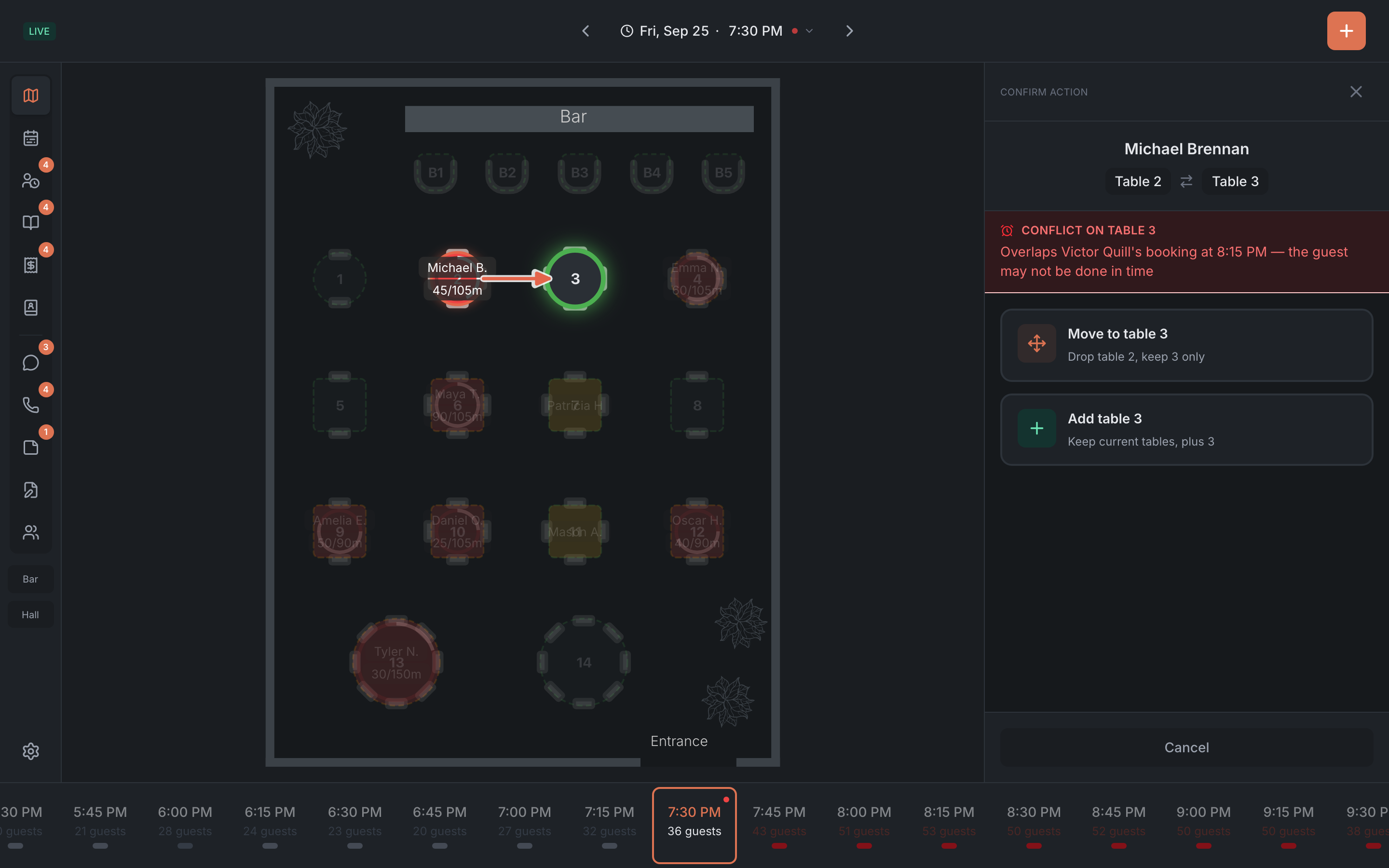
- Next booking on table … — when the next booking on the new table is and how much time is left until it.
- Conflict on table … in red — if the time overlaps another booking: “Overlaps …‘s booking at … — the guest may not be done in time”. It’s your call: pick another table, or move anyway if you know the party will leave soon.
If it doesn’t work
- The map is zoomed in. While the map is zoomed in with two fingers, you can’t drag. Tap Reset zoom in the top right.
- The table is free. Only a table with a booking or seated guests can be dragged.
- You let go too early. Your finger moved before the ghost appeared, so dragging never started. Hold a little longer without moving your finger.
On the timeline
On the Timeline tab a booking can be dragged too — not only to another table but also to another time. How that works is covered in Timeline.