Orders
Delivery, takeaway and preorders in the Host Panel: the list, tiles, statuses and buttons, canceling, payment and refunds, editing an order.
The Orders tab holds delivery, takeaway and preorders. This is where you approve them, move them through their stages — Preparing, Ready, Out for delivery — and close them. New orders are created here too — see New order.
A delivery or takeaway order doesn’t take a table, so it isn’t on the map, the timeline or the Reservations tab. A preorder is a booking with a table and an order attached: you see it here, in reservations and on the map.
The number on the Orders menu item is how many orders are in progress on the current shift: waiting for approval or already in progress.
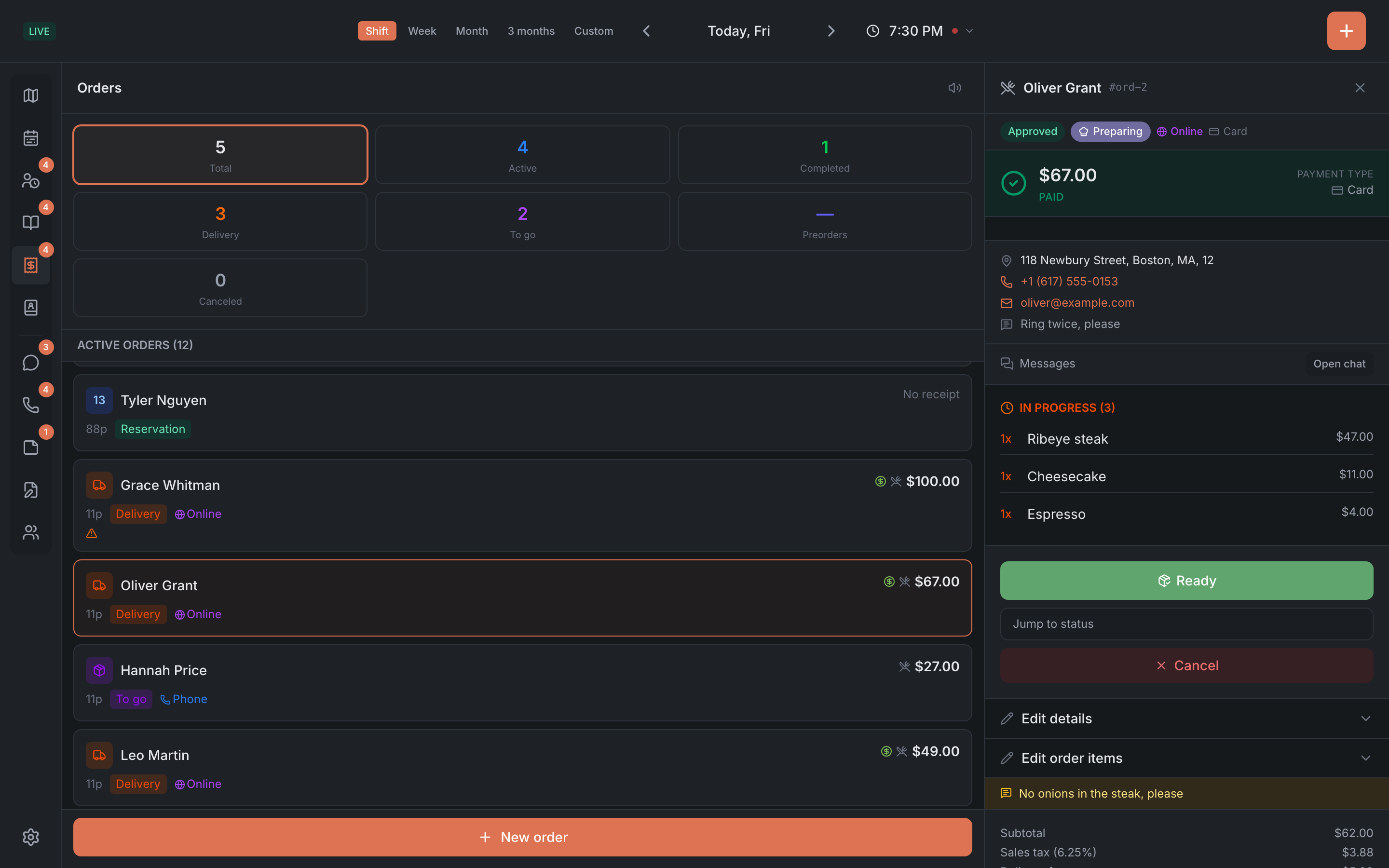
What’s in the list
At the top, as on Reservations, you pick a period: Shift, Week, Month, 3 months or Custom. The period is shared with the Reservations tab: change it here and it changes there too. When the period is longer than a day, orders are split by day.
The list includes:
- delivery, takeaway and preorders for the selected period;
- guests seated at tables right now — with the table number and the check total, if the POS sent it. They have no stage buttons, only the check.
New orders appear by themselves, without reloading the page. For an online order the panel plays a short sound — the speaker button next to the title turns it off. After a page reload the sound is on again.
There’s no search in orders — you narrow the list with the tiles.
Tiles
Above the list are seven tiles: Total, Active, Completed, Delivery, To go, Preorders and Canceled.
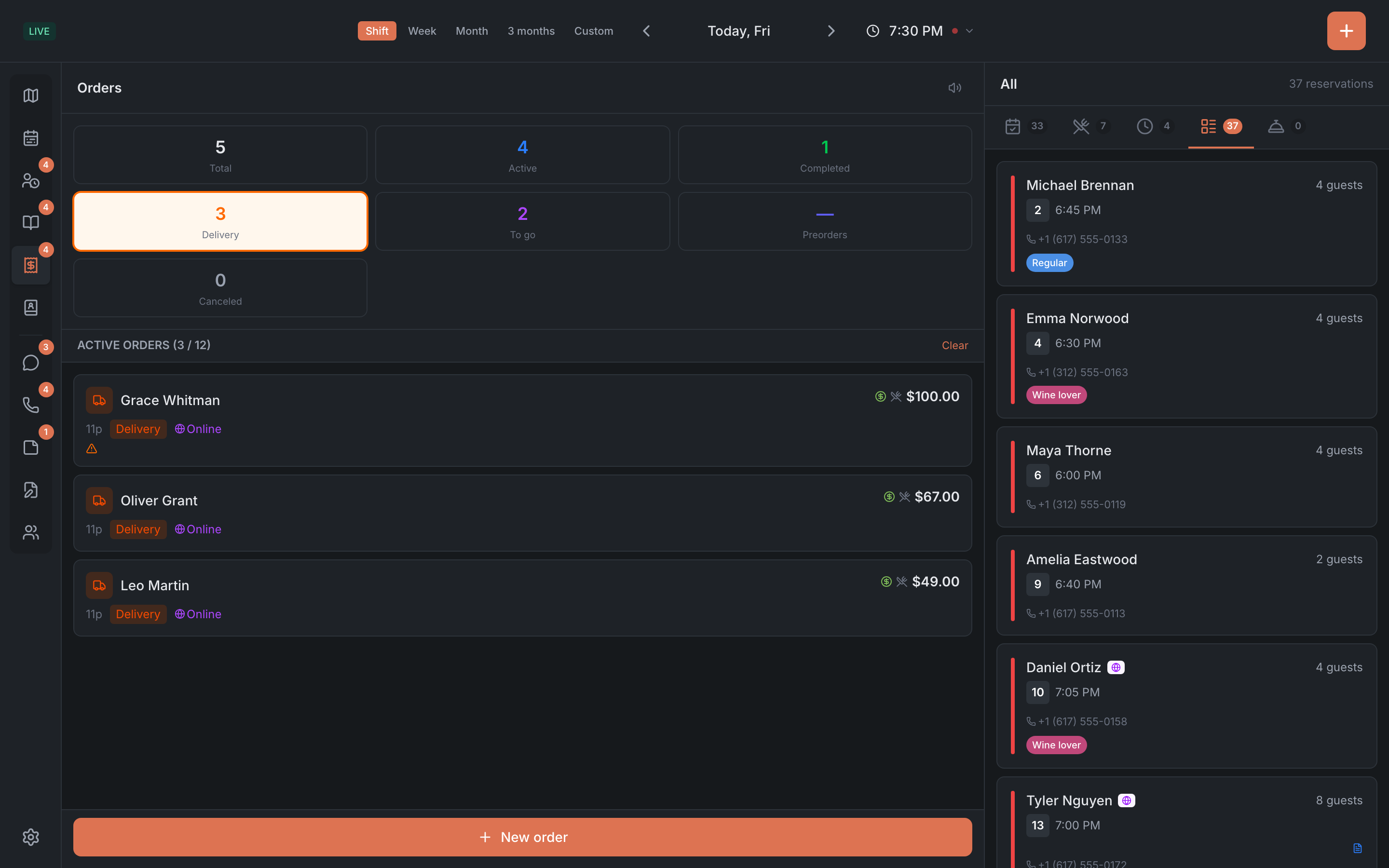
- Tap Delivery, To go or Preorders — the list shows only those orders. Tap again or Clear — everything comes back. Total also clears the filter.
- The tiles count only delivery and takeaway. They don’t count seated guests or preorders, so Total can be smaller than the number of rows in the list.
- The Preorders tile always shows ”—”.
- If the period is longer than a shift, every tile shows ”—”: the numbers are only available for one shift.
Above the list is the line “Active orders (… / …)”. If there are no orders — “No active orders”, and with a filter on — “No orders match this filter”.
A card in the list
- The icon on the left — the kind of order: a truck for delivery, a box for to go, a clock for a preorder. A seated guest shows the table number.
- The guest’s name, the party size and a badge: Delivery, To go, Preorder, Reservation or Walk-in.
- Where the order came from: Online, Phone, Event or Source. Orders created in the panel have no mark.
- Small icons: a star for a VIP guest, a triangle for allergies, a leaf for vegetarian, a clock for a preorder, a bubble with a number for unread messages.
- On the right — the check total and the payment coin. If there’s no check yet — “No receipt”.
The delivery time and address aren’t on the card — they’re inside the order.
Statuses and buttons
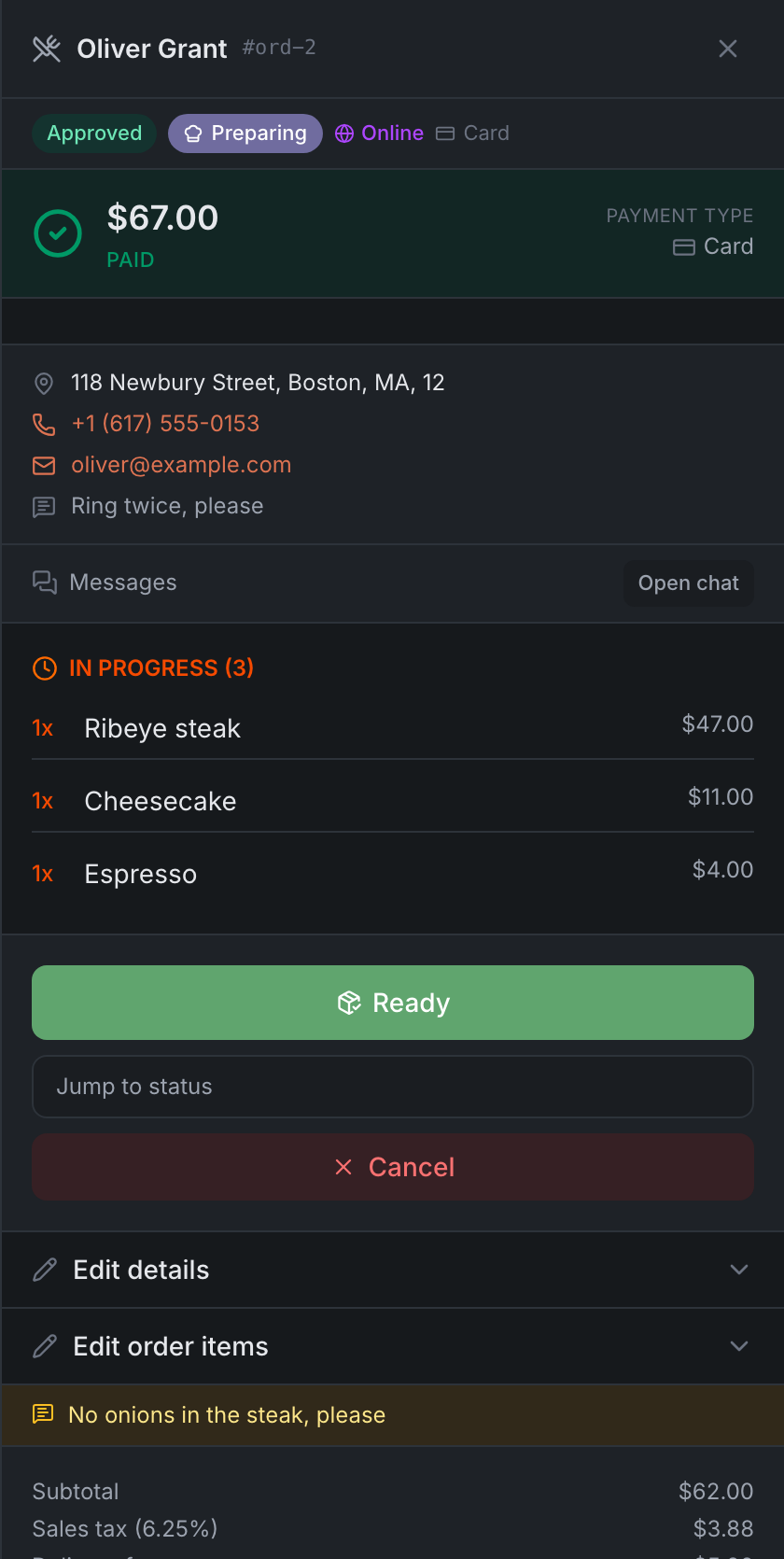
Tap an order and its card opens on the right. The buttons depend on the status:
| Status | Buttons |
|---|---|
| Pending | Approve · Reject |
| Approved | the next-stage button · Jump to status · Cancel |
| Canceled, Closed, Rejected, No-show | no buttons |
Order stages. An approved order goes through stages in order. Usually it’s Preparing → Ready → Out for delivery; a to-go order skips Out for delivery. The big button moves the order to the next stage and is named after it. At the last stage it’s replaced by Complete — the order is closed. The Jump to status list moves the order straight to any stage, forward or back.
If the restaurant has set up its own stages in the Admin, the panel uses those — with the same names and colors. See Ordering settings.
Approve, moving to the next stage and Complete work at once, with no “are you sure?”.
If an order is approved and its time on the current shift has passed, a Late badge appears next to the status.
Canceling and rejecting
Reject and Cancel open a window — “Reject order” or “Cancel order”:
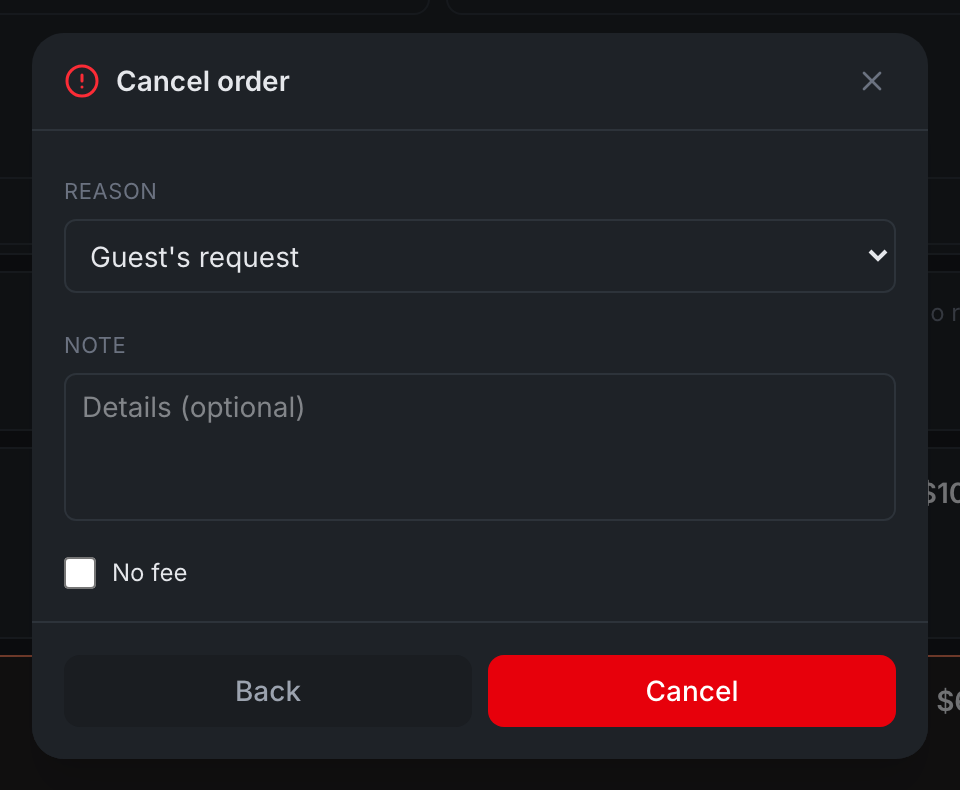
- Reason — from the reasons the restaurant has set up, or from the built-in list: Guest’s request, No-show, Out of stock, Restaurant closed, Wrong address, Other. No-show isn’t offered when rejecting. The first reason is preselected.
- Note — “Details (optional)”.
- No fee — a checkbox, only when canceling.
Tap Cancel or Reject. Back closes the window without changes.
Order card
From top to bottom:
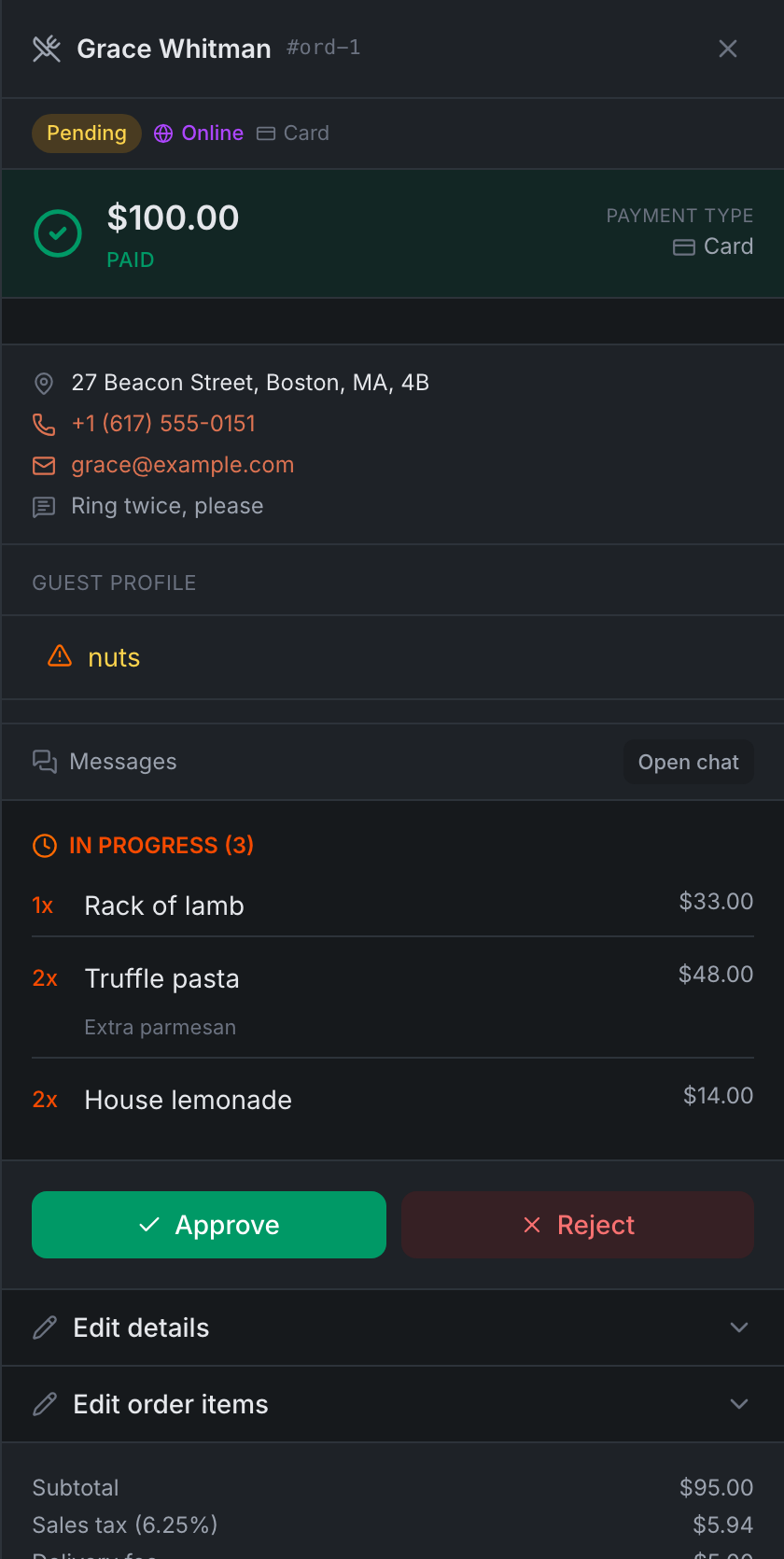
- The header — the guest’s name, the table number (if any) and a short order number like “#1a2b3c4d”.
- The status and the stage, the payment method — Cash, Card, Online or Invoice.
- Payment — the amount and its state, see below.
- Delivery — the address and apartment, phone, email and instructions for the courier.
- Guest profile — tags, allergies and the restaurant’s comment, if the guest is in the guest book. The Edit button changes them right here, and they’re kept for future visits.
- Messages — the Open chat button takes you to the Chat tab with the guest’s conversation. It’s there if the guest has a phone number.
- The check — dishes in two groups: In progress and Ready, with quantity, modifiers and price. Below are the guest’s comment on the order, Subtotal, taxes, Delivery fee, Delivery discount, Tips and Total. You can change the tips with the pencil next to them: type the amount and press Enter.
A canceled or closed order only keeps the view and the check.
Payment and refunds
The payment block shows the amount and its state: Paid, Not paid, No card, Card on file or Refunded. Below is the Payment history, if there were payments.
How to refund. If the order is paid, tap the payment block — the hint says “Click to refund the deposit”. The Refund deposit window opens: it shows how much is available, and you can refund part of the amount or tap Full, then Refund.
Changing an order
An order that’s still in progress has three expandable blocks in its card:
- Edit details — date, time, party size, order type (Delivery, To go, Preorder), payment method, name (required), phone, email, address and apartment, instructions for the courier, the guest’s requests, the restaurant’s comment and order options — for example Contactless delivery, Don’t disturb, Card reader required. Save with Save; Reset puts everything back.
- Duration — if the order has one. It saves as soon as you pick a value.
- Edit order items — the quantity of each item (− and +) and removing an item. You can’t add a new dish here. The total is recalculated after you save.
The delivery or pickup time is only visible in the Edit details block.