Reservations
The Reservations tab: bookings for a shift or any period, sub-tabs, statuses, search, filters, statistics and the host sheet.
The Reservations tab lists all of the restaurant’s bookings: for a shift, a week, a month or any other period. This is where you handle requests, check who’s coming, find a guest by phone and export bookings to a spreadsheet.
If all you need is tonight next to the floor plan, the side list on the Map tab is handier. Reservations is for working with bookings as a list.
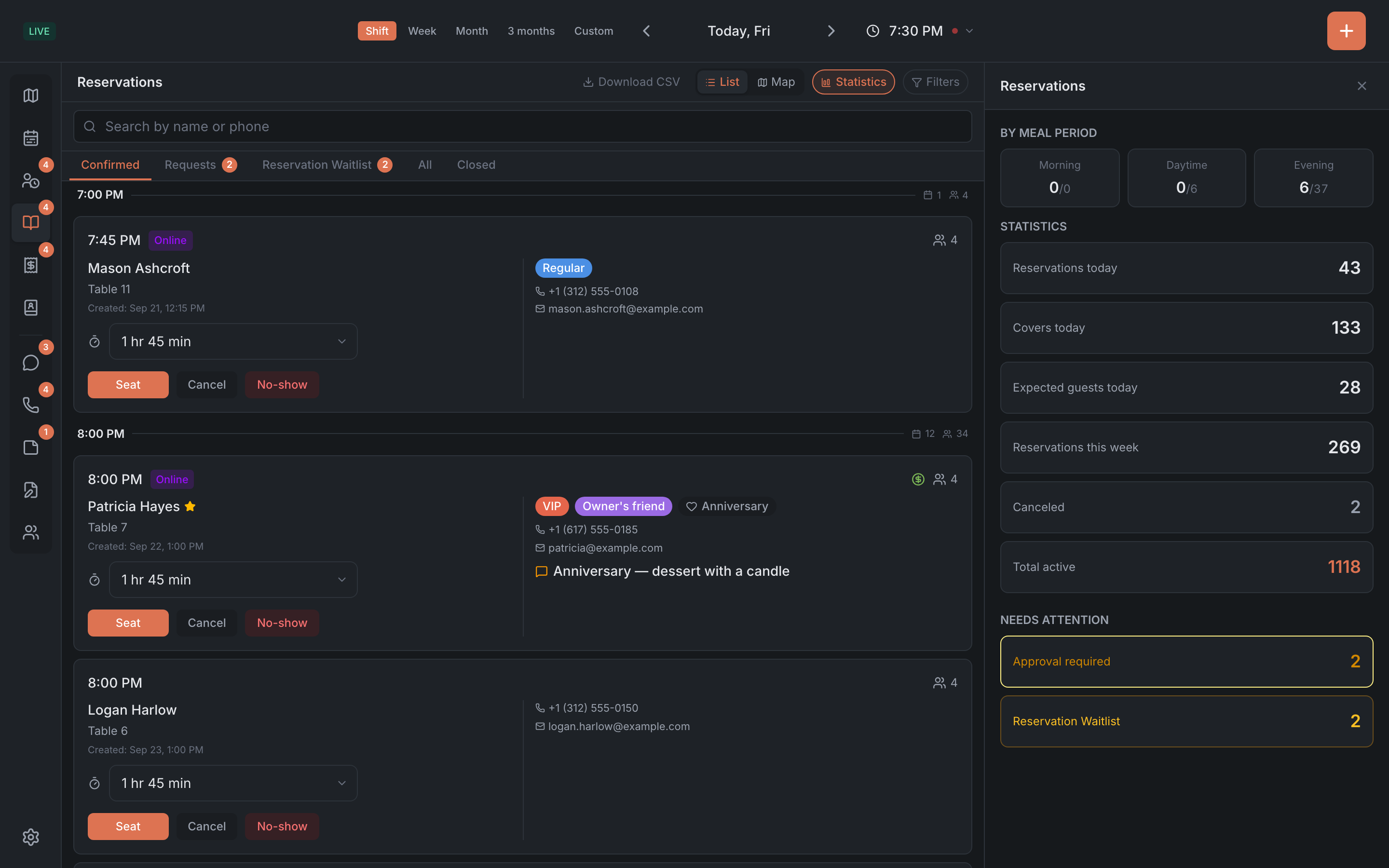
Period
Instead of a date, the header has a period picker: Shift, Week, Month, 3 months or Custom. The arrows move through periods, and tapping the period label opens a calendar. In Custom mode there are two date fields instead. The Today cross takes you back to the current shift. More in Date, time and shift.
Within one day, bookings are grouped by hour; within a longer period, by day. The panel remembers the period and the sub-tab you picked.
Sub-tabs
| Sub-tab | What’s in it |
|---|---|
| Confirmed | confirmed bookings for the period |
| Requests | bookings waiting for your decision — for all dates, not just the selected period. Grouped by day |
| New online | confirmed online bookings nobody has opened yet |
| Reservation Waitlist | requests from guests who couldn’t get a table — see Requests and the reservation waitlist |
| All | everything except closed bookings — including guests who are already seated |
| Closed | canceled bookings, no-shows and finished visits |

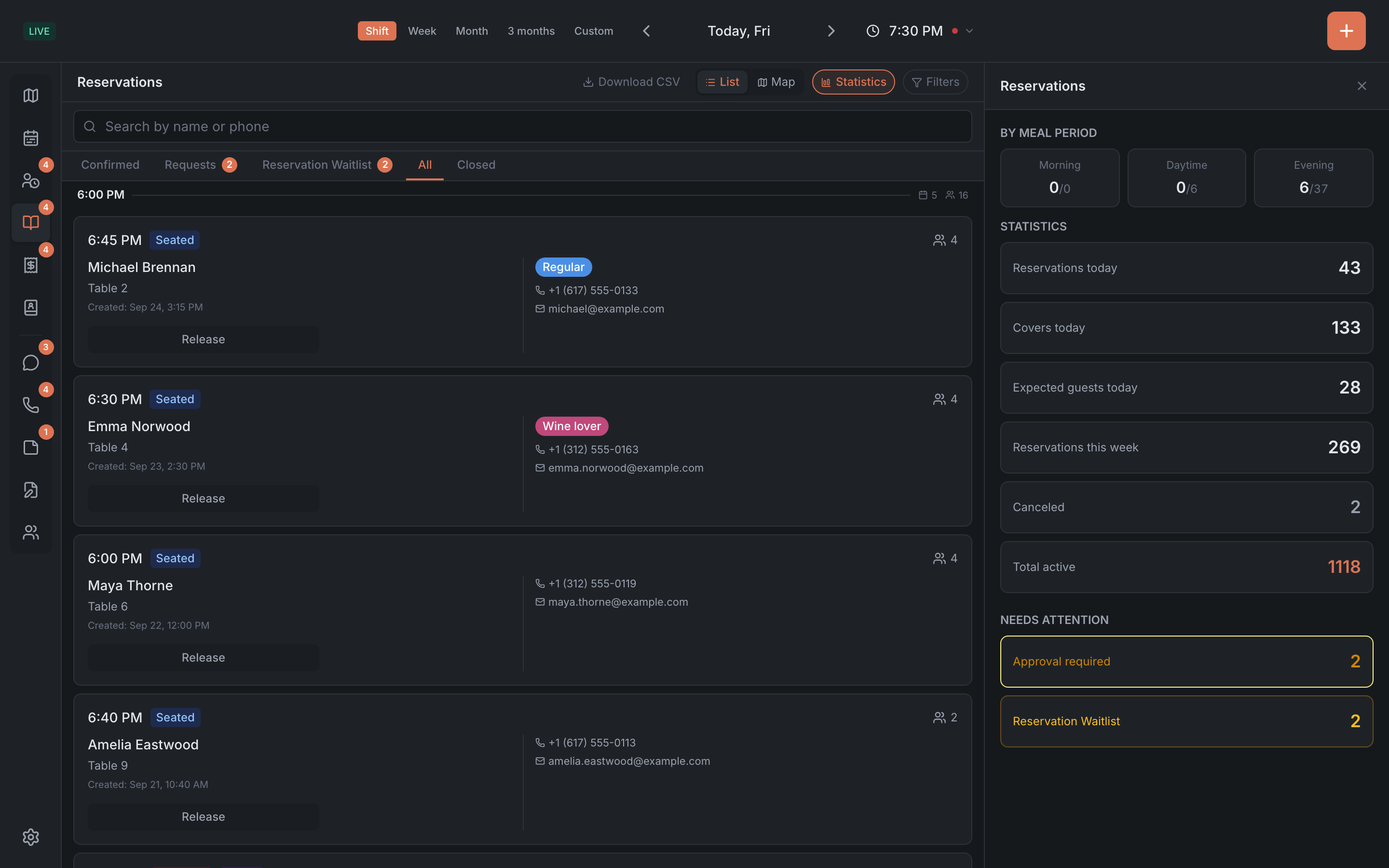
New online and Reservation Waitlist appear only when they have something in them. The numbers on Requests, New online and Reservation Waitlist are highlighted — that’s what needs your attention.
You can change the order of the sub-tabs in the panel settings, in the “Reservations screen: sub-tab order” section.
Booking statuses
| Status | What it means |
|---|---|
| Pending | the booking is waiting for your decision — usually an online booking |
| Approved | the guests are expected |
| Seated | the guests are at the table |
| Canceled | the booking was canceled or rejected |
| No-show | the guests didn’t come |
| Closed | the visit is over |
There’s no separate “Rejected” status: a rejected booking shows as Canceled.
Besides the status, a card can have badges:
- Late — the booking is approved, and its time has already passed;
- Online — a booking from the website or the widget. If it came from a partner service, its name is shown instead of Online;
- No table — no table has been assigned yet;
- a deposit coin — its color shows whether the deposit is paid.
What you can do right from the list
The buttons on a card depend on the booking’s status:
| Status | Buttons |
|---|---|
| Pending | Approve · Reject |
| Approved, has a table | Seat · Cancel · No-show |
| Approved, no table | Assign table instead of Seat — unless the restaurant has turned off table selection |
| Seated | Release |
| Canceled, No-show, Closed | Reopen — bring the booking back |
The buttons are there when the list is shown as cards. In the Compact rows view (the “Reservations list view” panel setting) there are none — the actions are in the booking card.
- Approve opens the booking form with the details filled in, so you can adjust the table or the time right away. The booking is approved when you save the form.
- Assign table opens the booking on the table picker.
- If your restaurant allows seating without a table, an approved booking without a table also gets a Seat without table button.
Tapping the card itself opens the booking card with all the details and actions.
Search
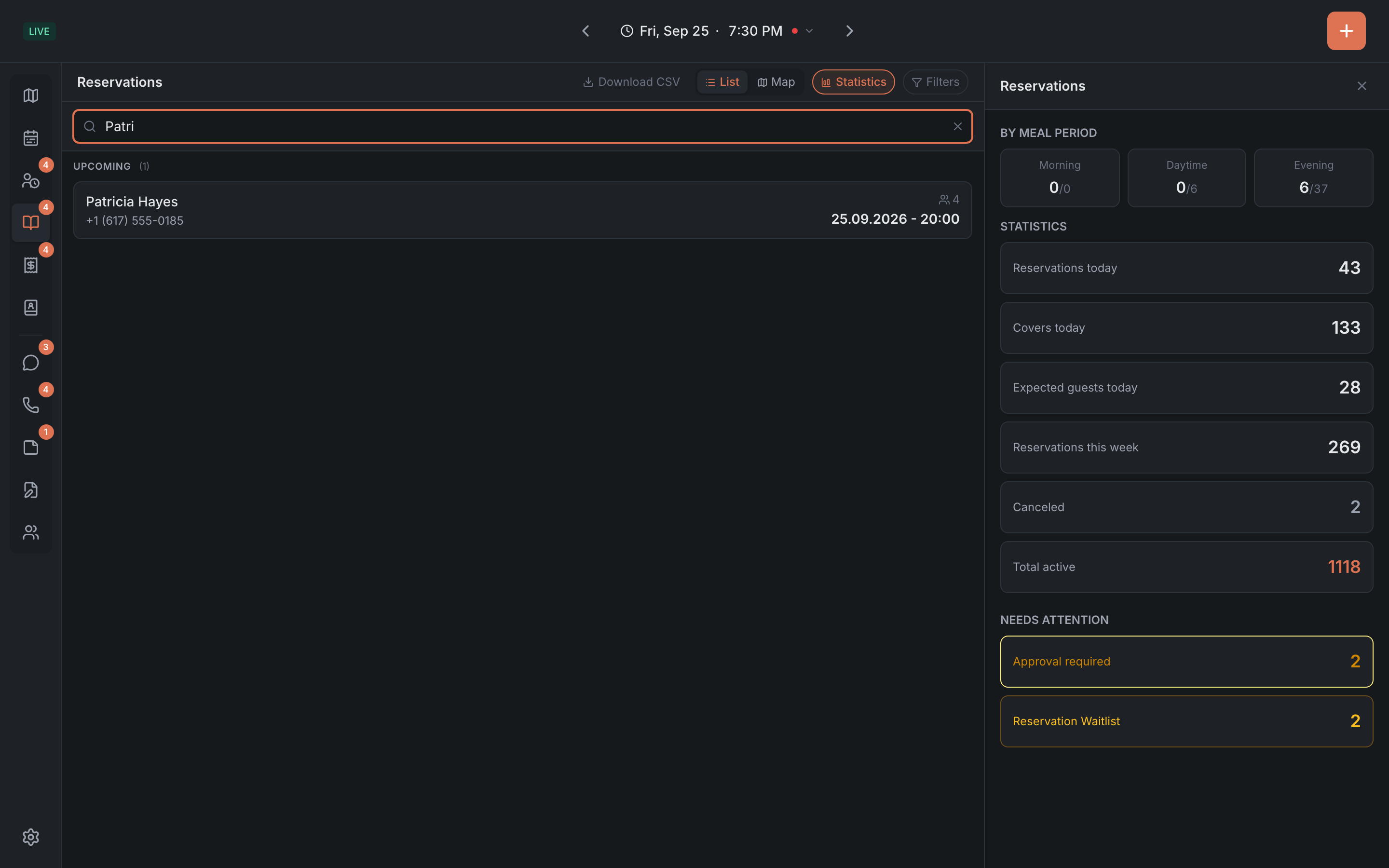
The Search by name or phone field searches all bookings, not just the selected period. It starts searching from two characters. Results are split into groups: Upcoming, Seated, Waitlist, Canceled and Closed. Tap a result to open its card — the period on screen stays the same.
Filters
The Filters button opens a filter panel on the right. The button shows how many filters are on. You can narrow bookings down:
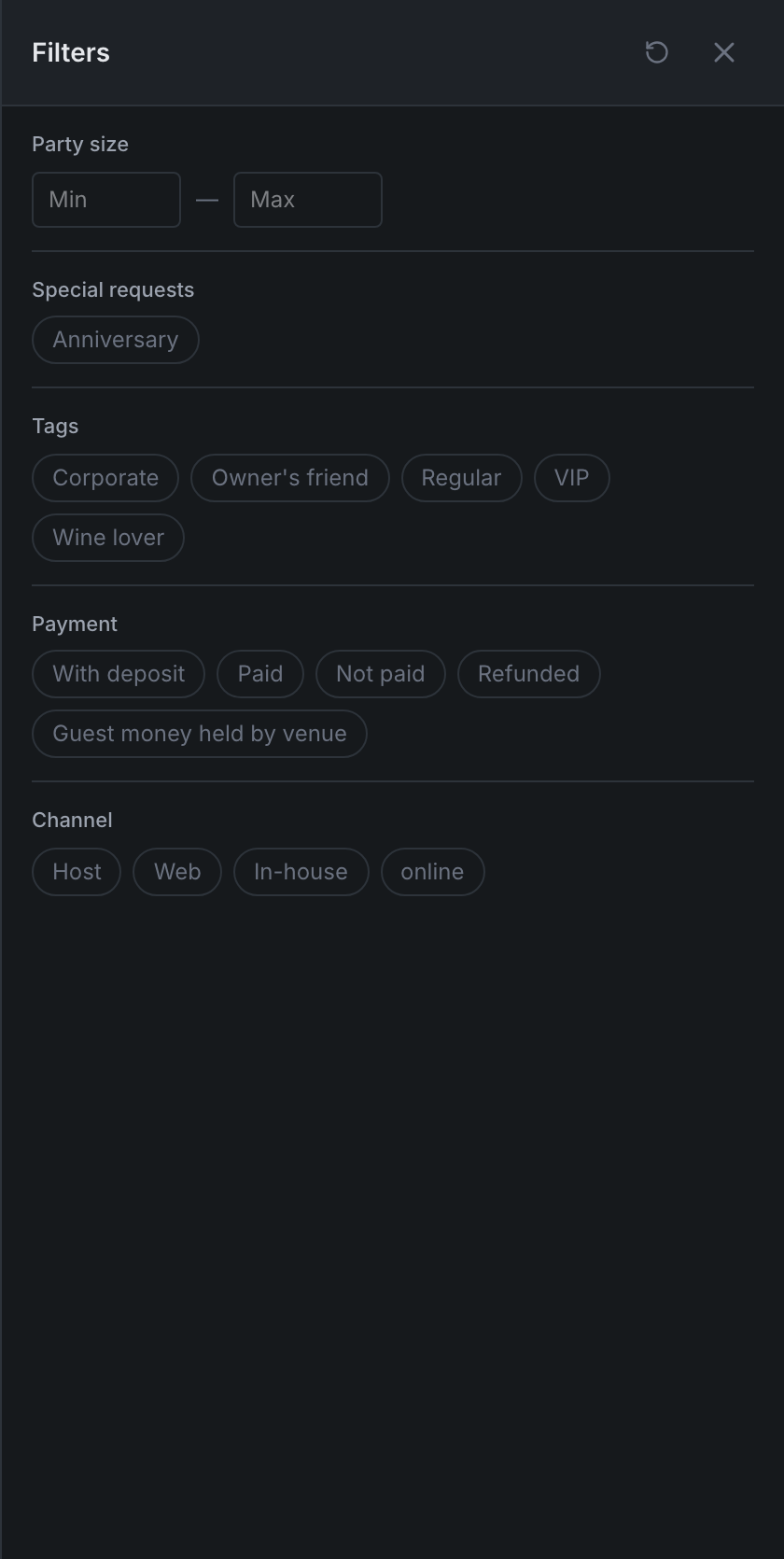
- by party size — from and to;
- by special requests, allergies and tags;
- by channel — in-house, online or a specific partner service;
- by payment — Guest money held by venue, With deposit, paid, not paid, refunded.
The Channel, Allergies and Tags sections appear only if there are such bookings in the selected period. Filters apply to all sub-tabs and to the waitlist.
Statistics
The Statistics button opens a summary on the right:
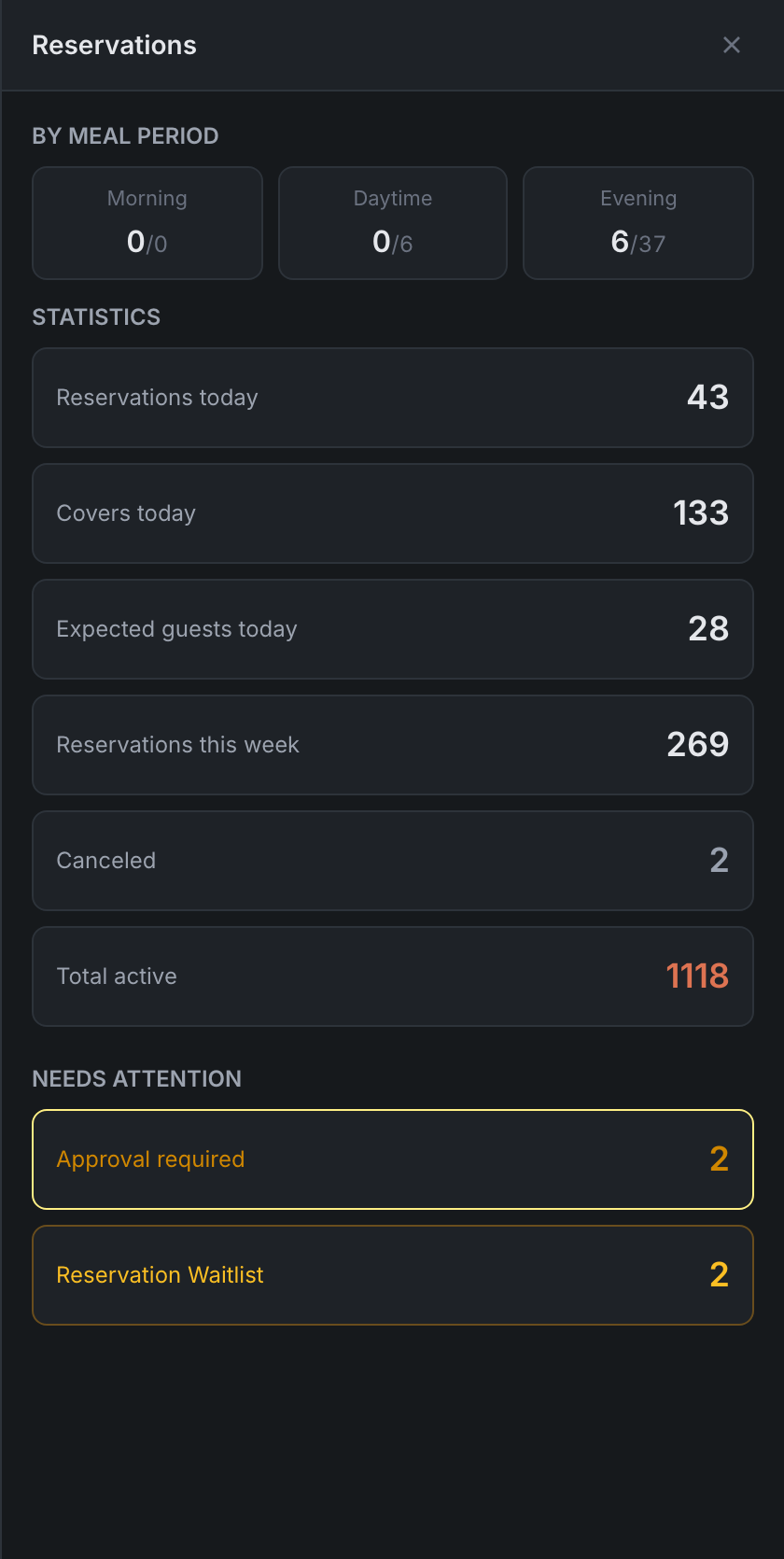
- By meal period — morning, daytime and evening: how much is booked out of what’s available;
- Reservations today, Covers today, Expected guests today — on another day these labels change to that date;
- Reservations this week, Canceled, Total active;
- Needs attention: Approval required, New online and Reservation Waitlist — the block appears when there’s something in it.
Host sheet
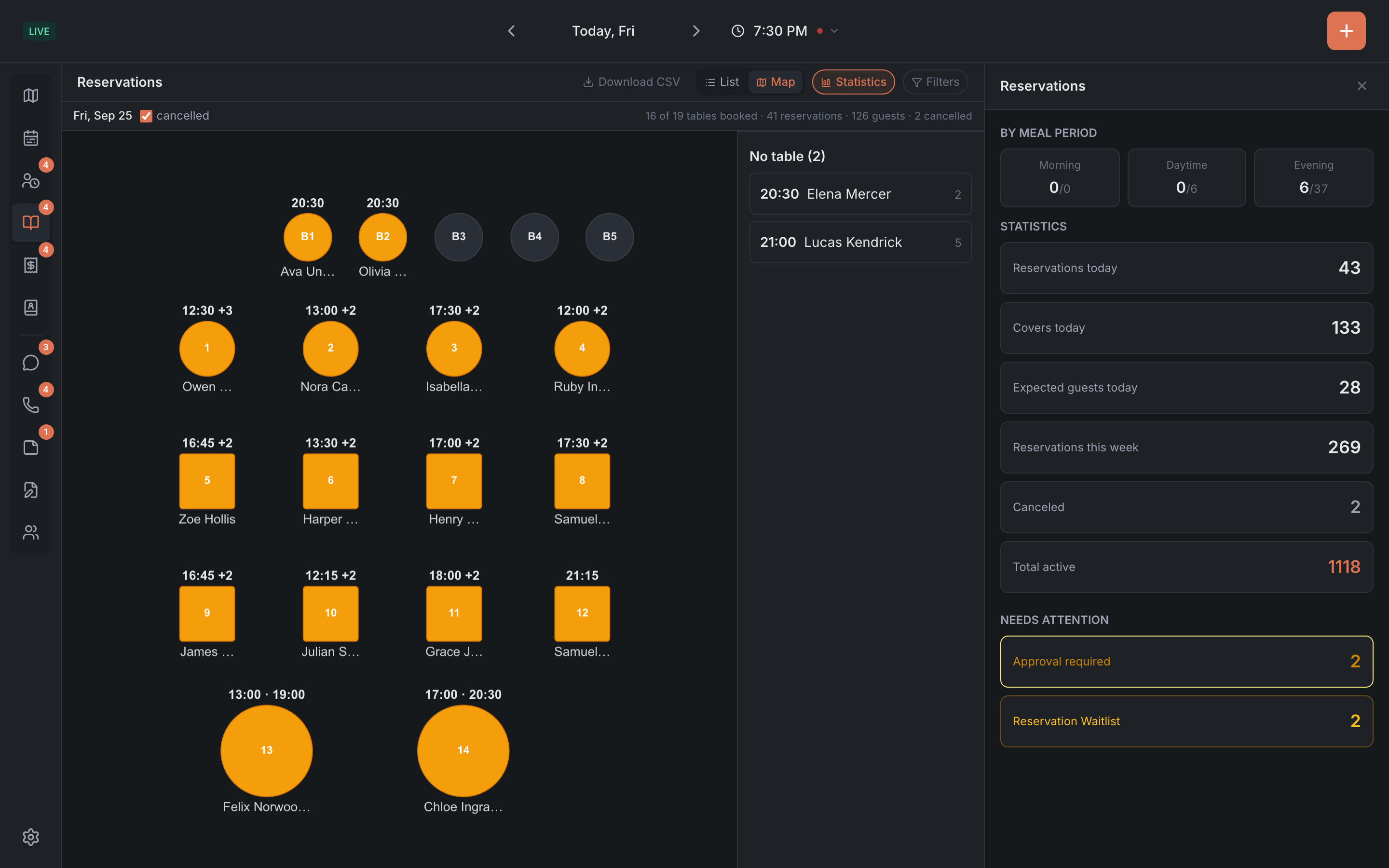
The List / Map switch above the booking list shows the same bookings on the floor plan — like a paper sheet a host marks up with a highlighter. A table with a booking is filled in, the time is above it and the name below it. The whole day at once, with no time strip.
- This mode always shows one shift: week and month are hidden, and the arrows pick the day.
- At the top is a summary: ”… of … tables booked · … reservations · … guests · … cancelled”.
- The cancelled checkbox shows canceled bookings too. It’s on from the start — untick it to hide them.
- If you use highlighter marks, you can filter bookings by mark color — or show only unmarked ones. The all button clears the selection.
- Bookings without a table are collected separately — “No table (…)”.
- Tap a table to see all its bookings for the shift on the right.
Filters work here too. The floor is switched as usual — in the header.
Export to a spreadsheet
The Download CSV button exports the bookings for the selected period to a file that opens in Excel or Google Sheets. If the restaurant’s subscription isn’t paid, export isn’t available.