Requests and the reservation waitlist
Online bookings waiting for approval and requests from guests who couldn't get a table: where to find them, how to approve and reject them.
Two kinds of entries wait for your decision in the Host Panel:
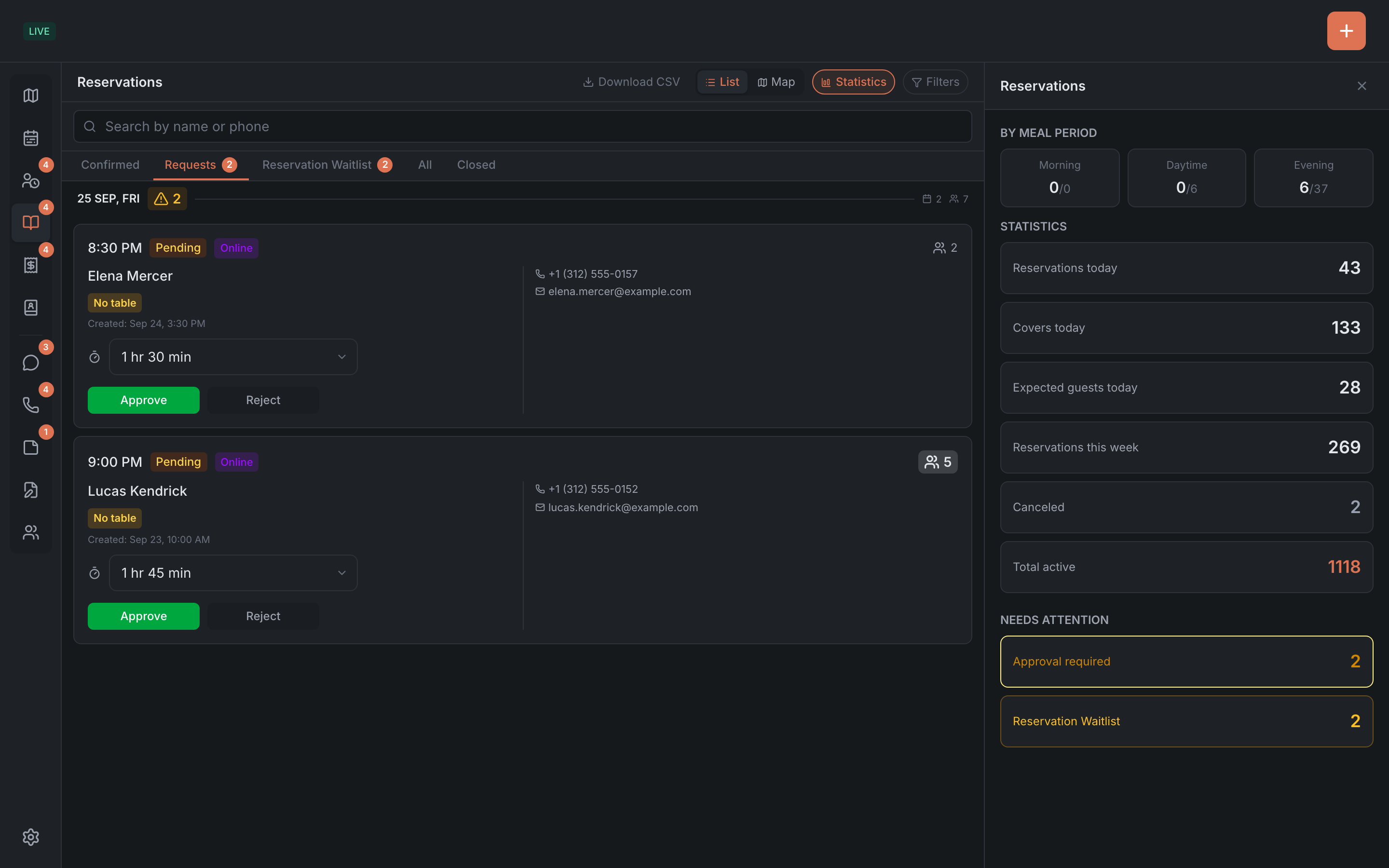
- requests — online bookings in the Pending status. The guest picked a time, and the restaurant approves the booking manually;
- reservation waitlist requests — the guest wanted to come at a certain time, but there was no room. If a table frees up, the request can be turned into a booking.
They look alike but work differently. The main difference: a rejected booking can be reopened, while a rejected waitlist request is gone for good.
Bookings waiting for approval
Where you see them:
- on the Reservations tab, the Requests sub-tab — for all dates at once, not just the selected period. Grouped by day;
- in the side list: Reservations → Requests;
- in the statistics on the Reservations tab — the Approval required line;
- on the Reservations item in the menu on the left — in the number next to the icon. It adds up everything that needs attention: requests, new online bookings, reservation waitlist requests and late bookings.
A new request arrives by itself, without reloading the page, and is highlighted in the list for a couple of seconds.
What to do with it:
| Button | Where | What happens |
|---|---|---|
| Approve | in the list and in the booking card | the form opens with the booking’s details. You can adjust the table or the time, and the booking is approved when you save the form |
| Approve | in the table card | the booking is approved right away, with no form |
| Reject | in the list | works at once, with no question |
| Reject | in the booking card | the panel asks: “Reject this reservation?” |
A rejected booking gets the Canceled status and moves to the Closed sub-tab. If you rejected it by mistake, open it there and tap Reopen — the booking comes back.
Reservation waitlist
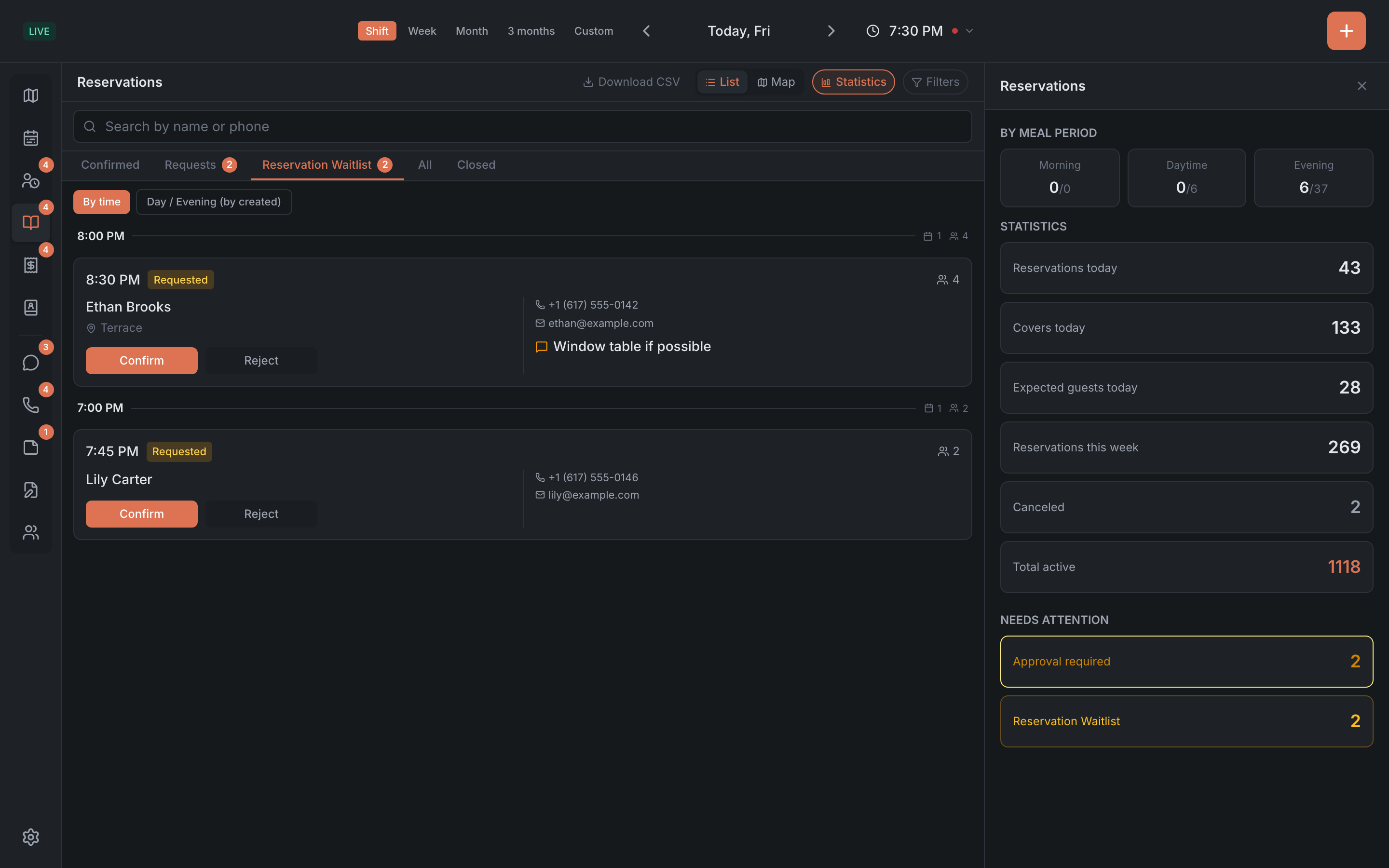
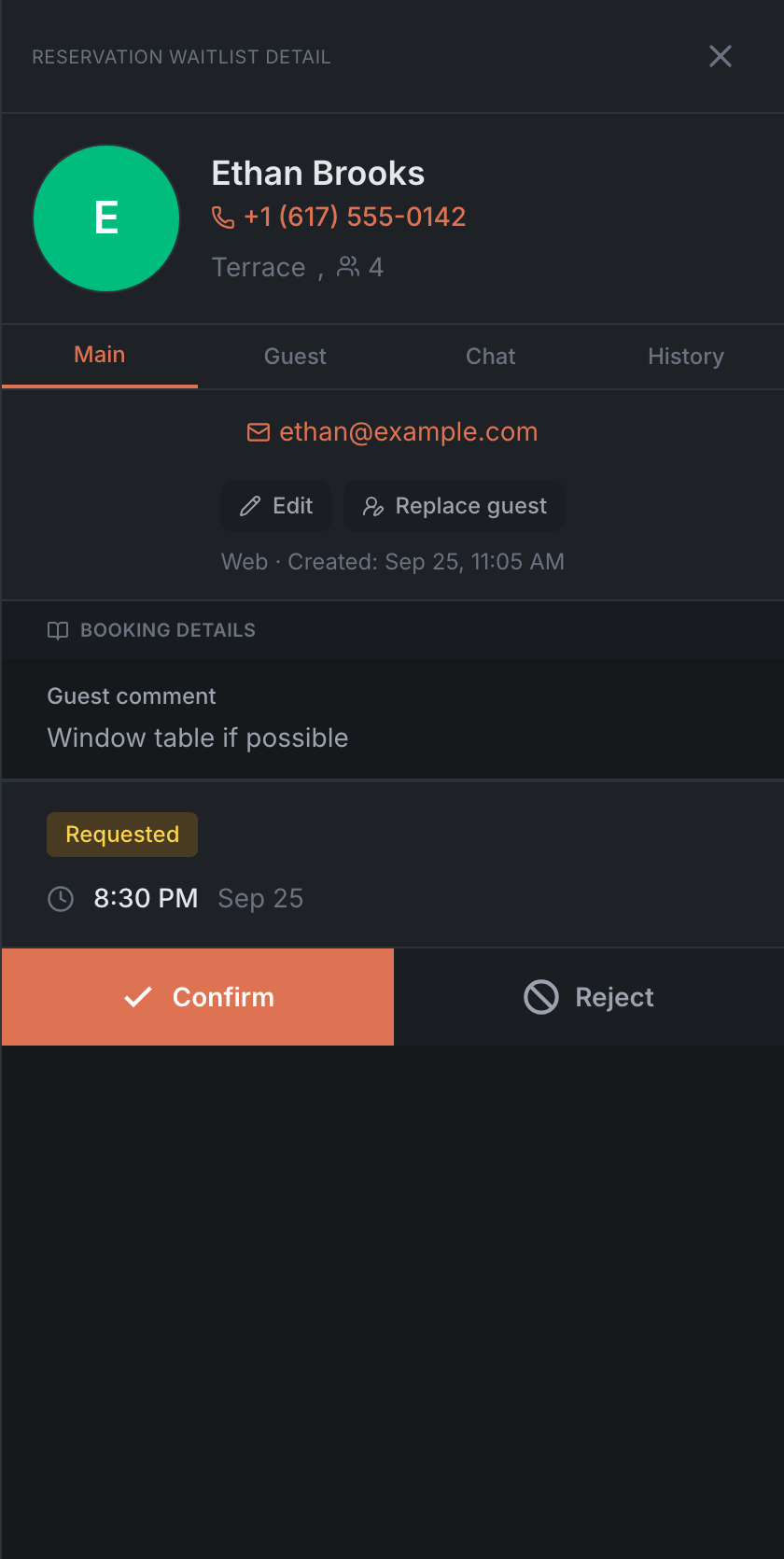
The reservation waitlist holds requests from guests who wanted to book a table, but there was no room at the time they wanted. A request has no table and no status — only a Requested badge.
Requests come in two ways:
- the guest leaves one when booking online;
- you create one with + → Reservation Waitlist, for example when a guest calls and there’s no room — see Creating and editing a booking.
The waitlist is turned on in the Admin — see Booking rules. If it’s off, there’s no Reservation Waitlist item in +.
Where you see them:
- on the Reservations tab, the Reservation Waitlist sub-tab — it appears only when there’s something in it;
- in the side list: Reservations → Waitlist, and also All. The card shows a Reservation Waitlist badge, the time and the date.
How to confirm a request
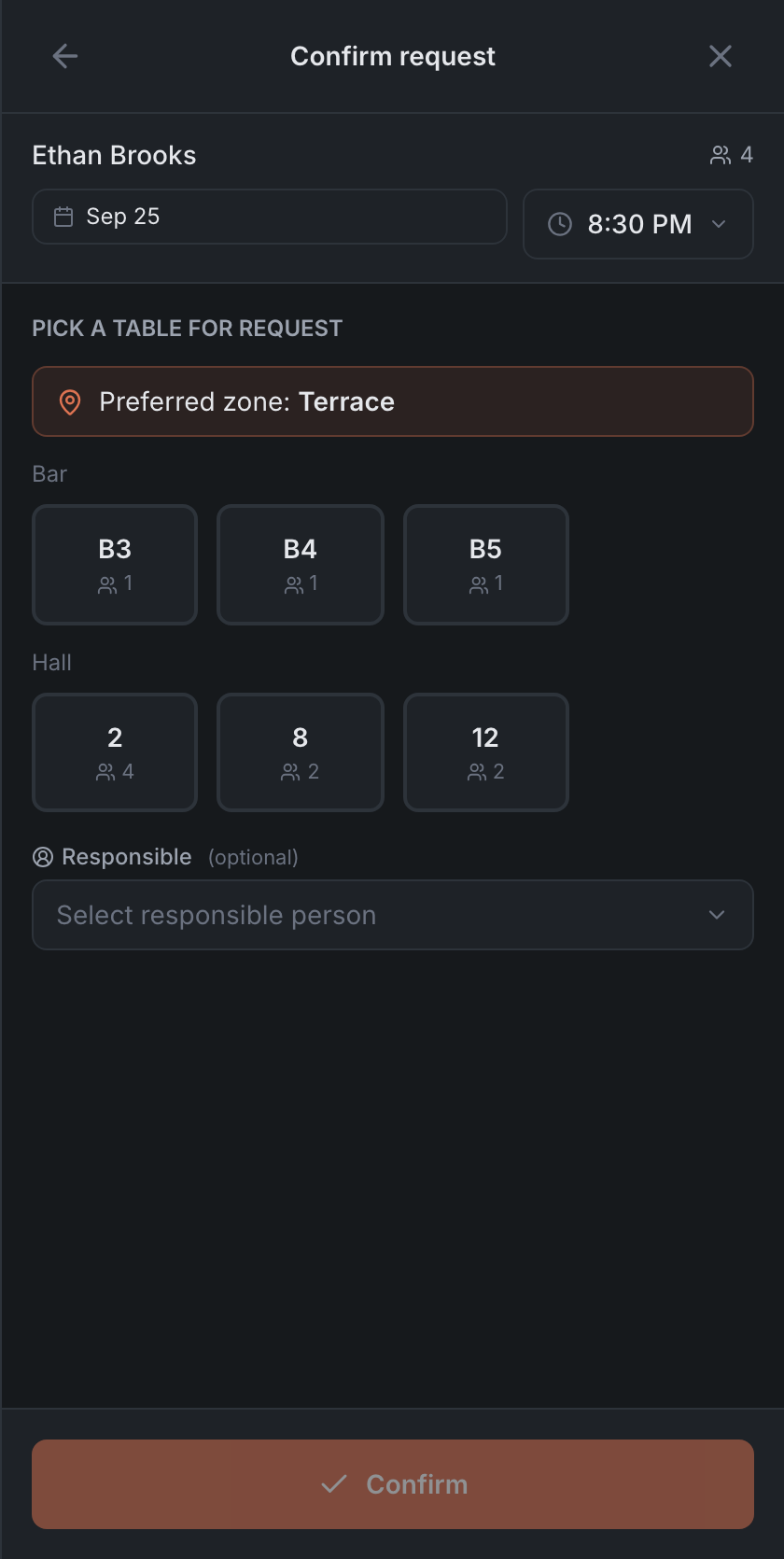
- Tap Confirm on the request — in the list or in its card. Confirm request opens.
- Check the date and time — you can change them. The map moves to that time so you can see which tables are free.
- Pick a table: Pick a table for request. If the guest asked for a particular area, the panel reminds you: “Preferred zone: …”.
- If the restaurant keeps a staff history, pick the Responsible person. When the restaurant requires it, you can’t confirm without one.
- Tap Confirm. You’ll see “Reservation created”, and the request disappears from the waitlist — it’s a regular booking now.
The Confirm button can’t be tapped until a table is picked, or if the selected time has already passed.
Rejecting or changing a request
- Reject — the request is deleted at once, with no “are you sure?”.
- Edit — opens the request in the “Edit request” form: you can change the date, time, party size, contacts and requests. A request has no table — it’s picked when you confirm.
- Replace guest — if the request was made for the wrong guest.
Reservation waitlist and waitlist
These two lists are easy to mix up — the names are similar, but the guests are different:
| Reservation waitlist | Waitlist | |
|---|---|---|
| Who’s waiting | a guest who wants to come on another day or at another time | a guest who’s already standing in the room |
| Item in + | Reservation Waitlist | Waitlist |
| Date and time | yes | no — the guest is waiting now |
| Statuses | none, only the Requested badge | Waiting → Called → Seated |
| How it ends | Confirm — a booking appears | Call to a table and Seat |
| If you turn it down | the request is deleted for good | the entry can be reopened |
| Deposit | possible | never |
More about the waitlist in Waitlist.