Booking Rules
A walkthrough of the Booking Rules tab — manager notifications, guest reminders, party size, special requests, no-shows and cancellation reasons.
The “Booking Rules” tab (in the Reservations section) sets the basic rules for all reservations — both online and staff-created: who gets notified, how guests are reminded of a reservation, which fields and requests are available, how lateness is counted, and why a reservation can be cancelled.
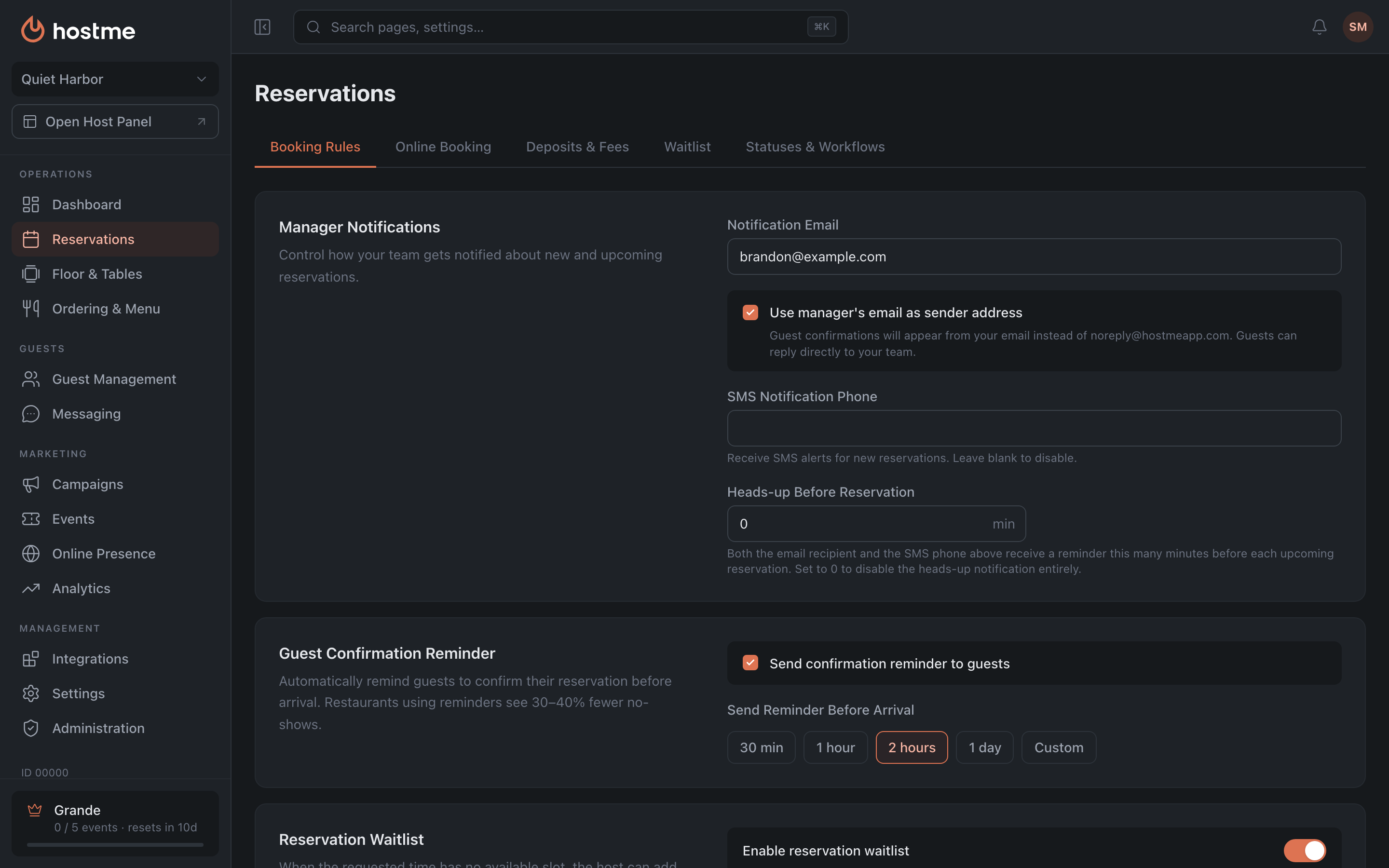
Manager Notifications
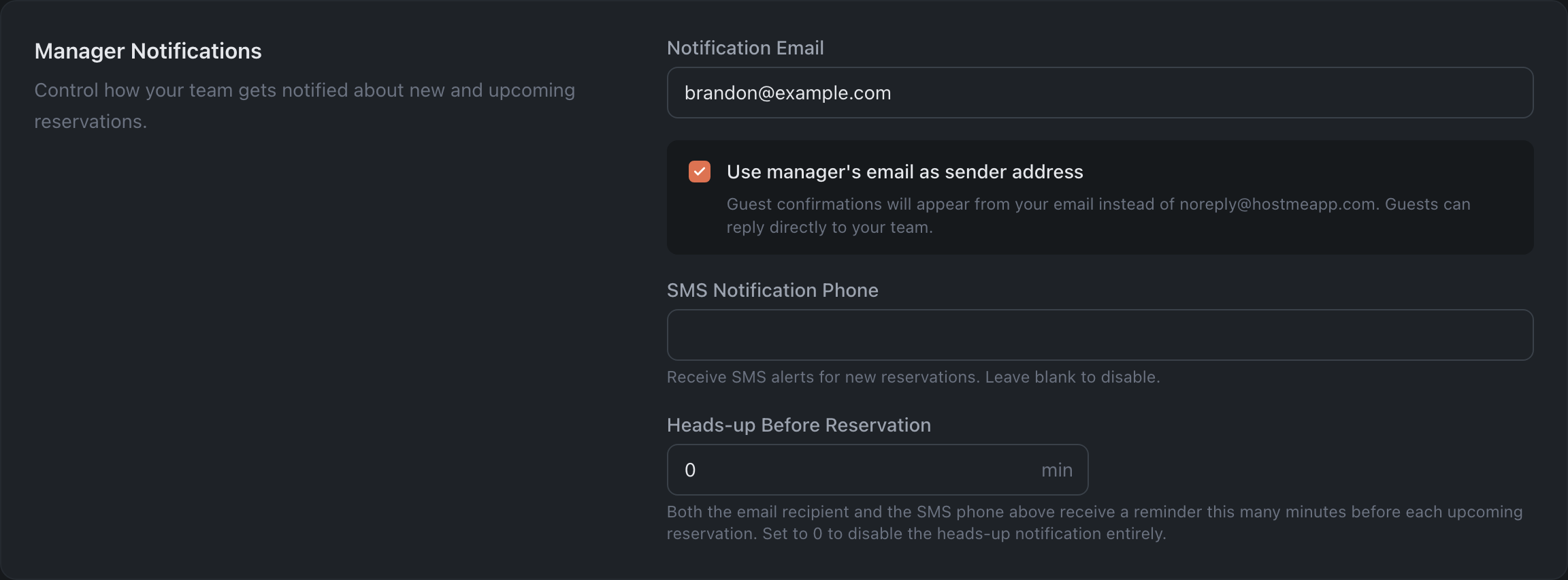
How the team learns about new and upcoming reservations.
- Notification Email — the address that reservation emails go to.
- Send guest replies to the notification email — emails to guests come from “[restaurant name] via Hostme”, and if a guest replies, the reply goes to the first address under “Notification Email”.
- SMS Notification Phone — the number for SMS about new reservations. Leave it empty to turn SMS off.
- Heads-up Before Reservation — how many minutes before the reservation to send a reminder to the recipient (email and SMS). 0 — turn advance notifications off entirely.
Guest Confirmation Reminder

- Send confirmation reminder to guests — automatically ask the guest to confirm the reservation before the visit (cuts no-shows by 30–40%).
- When enabled, “Send Reminder Before Arrival” appears: presets 30 min / 1 hour / 2 hours / 1 day, or “Other” for your own value.
Reservation Waitlist

- Enable reservation waitlist — if there is no free slot for the requested time, the booking can be put on a waitlist: it waits until a slot frees up or you confirm it by hand. This is the reservation waitlist — not the live queue of walk-in guests, which lives on the Waitlist tab.
Party Size (Host Bookings)

- Minimum and Maximum guests for reservations created by staff. If the minimum turns out greater than the maximum, an error appears under the fields. Limits for the online widget are configured separately on the Online Booking tab.
Booking Outside Operating Hours

- Allow booking outside operating hours — when enabled, staff can create reservations for times outside operating hours (for a special event, for example).
Special Request Options and Custom Fields
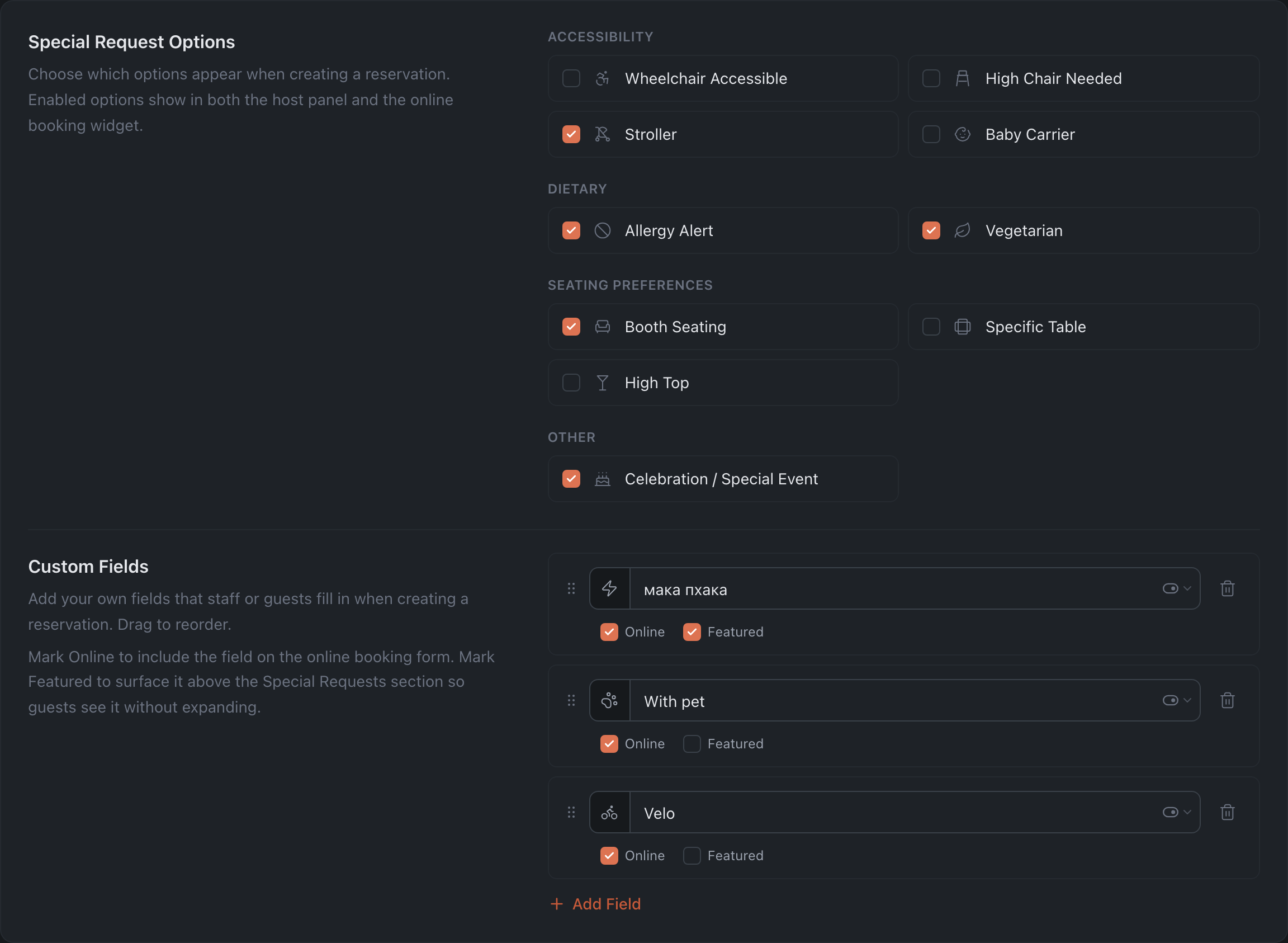
Controls which requests and fields are available in the reservation form. The built-in checkboxes are grouped:
- Accessibility: Wheelchair Accessible, High Chair Needed, Stroller, Baby Carrier.
- Dietary: Allergy Alert, Vegetarian.
- Seating Preferences: Booth Seating, Specific Table, High Top.
- Other: Celebration / Special Event.
Custom Fields — add your own fields to the reservation form (the “Add Field” button): icon, name, type Text or Switch, the Online flag (show in the widget) and Featured — it doesn’t highlight the field but moves it above the “Special Requests” section in the online widget, so the guest sees the field without expanding the section. The flag becomes available only after “Online” is checked. Fields can be dragged by the grip on the left to change their order in the form.
No-show Handling

- Grace period — how many minutes a guest can be late before the reservation counts as overdue. At 0 a warning appears (the guest will be marked late immediately).
Cancellation & Rejection Reasons
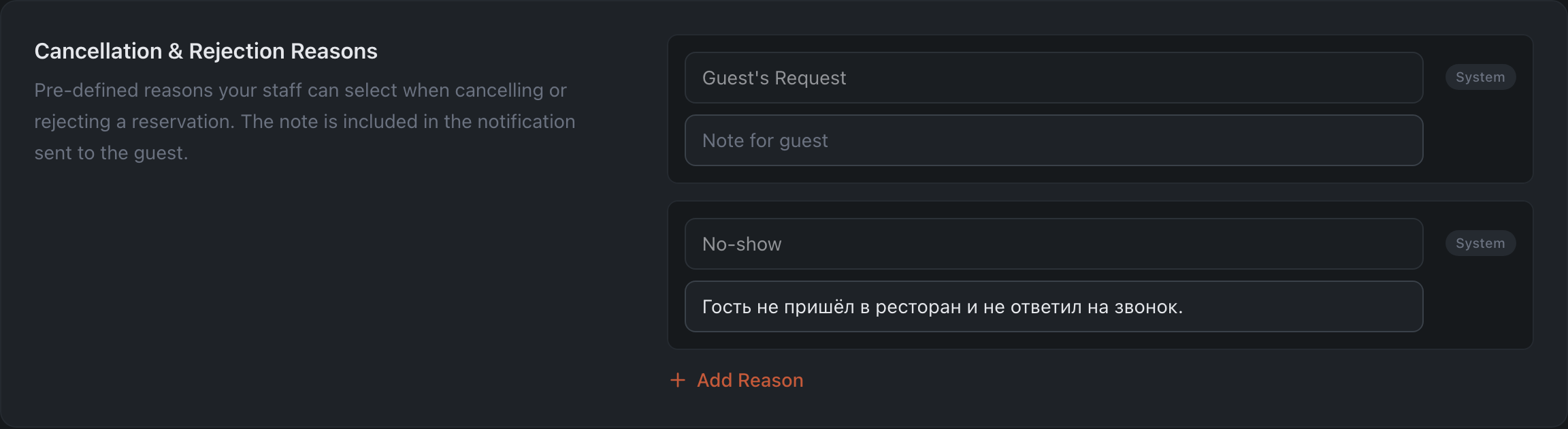
The list of reasons for cancelling or rejecting a reservation (the “Add Reason” button). Each reason has a name (up to 64 characters) and a note for the guest. System reasons (“Guest’s Request”, “No-show”) are marked with a “System” badge and can’t be deleted. A reason without a name won’t be saved — it is silently dropped.
How changes are saved
Changes are applied with the “Save Changes” button at the bottom (it appears once you edit something); the modified tab shows a dot. Next to it is the “Cancel” button, which reverts the edits to the last saved state. If you leave the page with unsaved edits, the panel asks whether to save, discard, or stay.