Events
A walkthrough of the "Events" section — creating and configuring events (special occasions) with their own booking rules.
The “Events” section is for special occasions (dinners, concerts, tastings) that have their own booking settings, deposits and presentation, different from the restaurant’s regular operation.
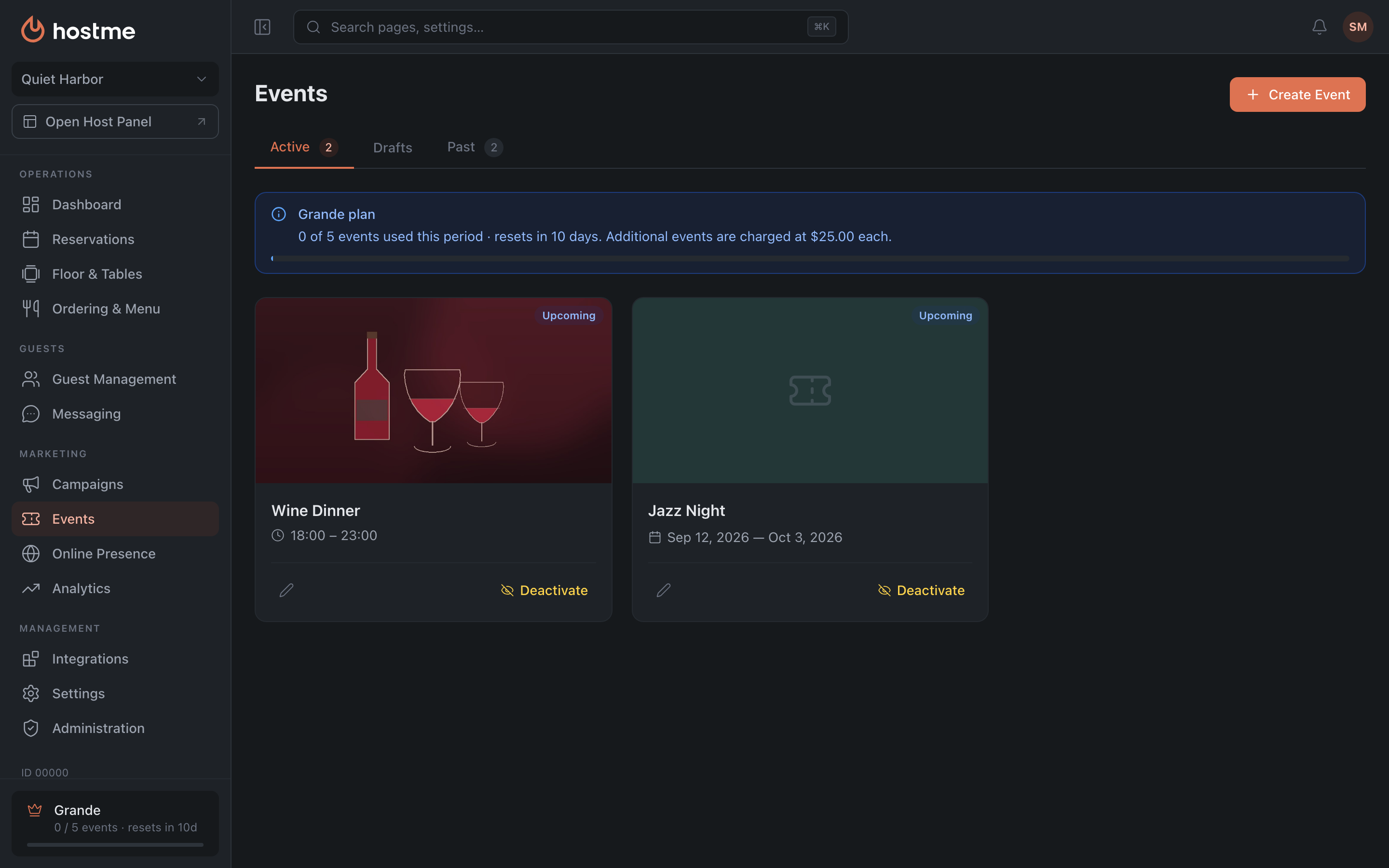
Event list
Three tabs with counters: Active · Drafts · Past. Events are shown as cards. The “Create Event” button.
Creating an event
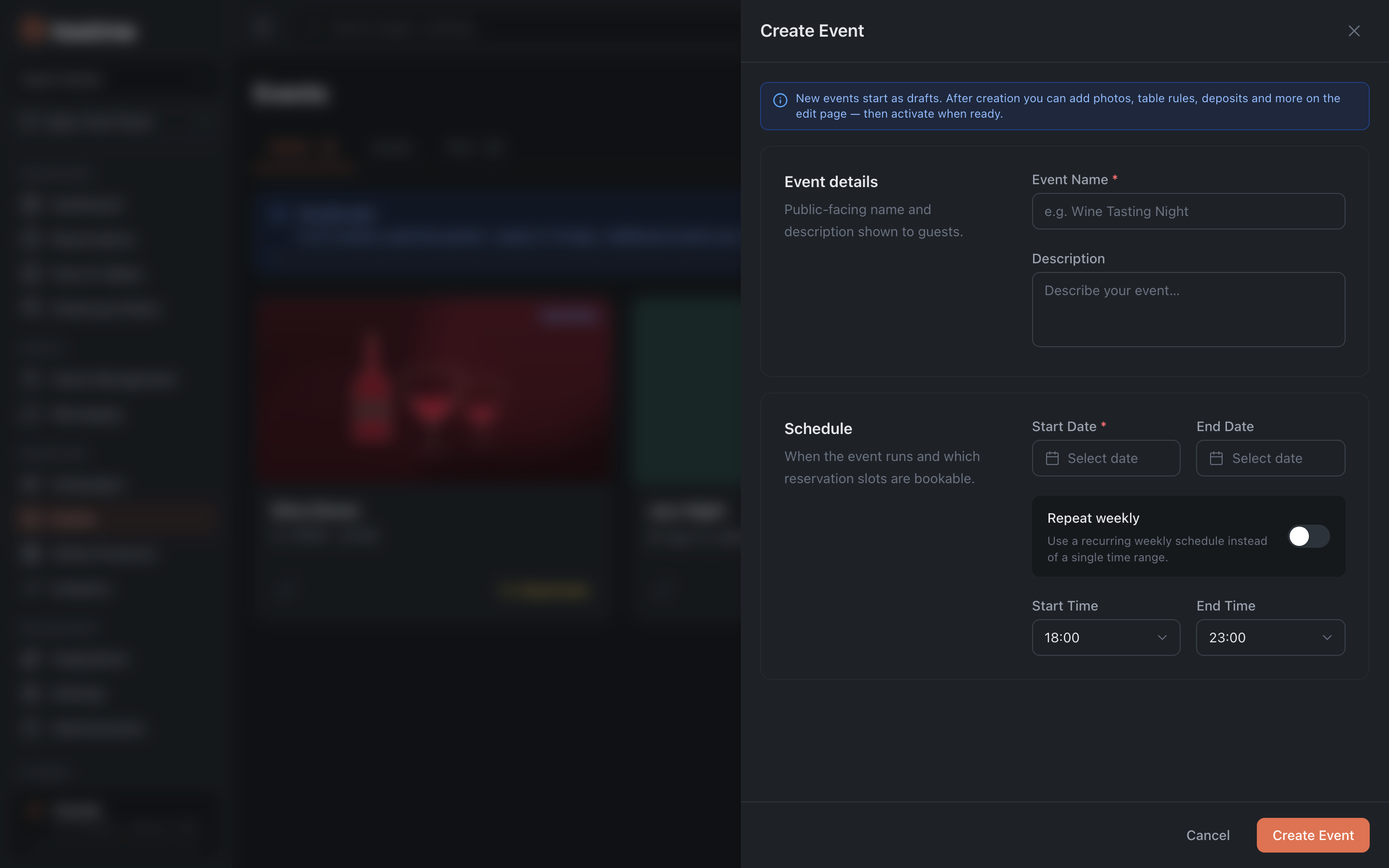
“Create Event” opens a short form: Name, Description, Start/End Date and Time, “Repeat weekly” — this toggle changes the form: instead of a single time, a weekly schedule is set. Such an event repeats on the chosen weekdays between its start and end dates, or for a year if there is no end date. Name and start date are required. The event is created as a draft and is shown on the restaurant’s public page by default — this can be switched after creation, on the “Public Page” tab.
After creation the full event editor opens with tabs — they override the restaurant’s settings for this event only:
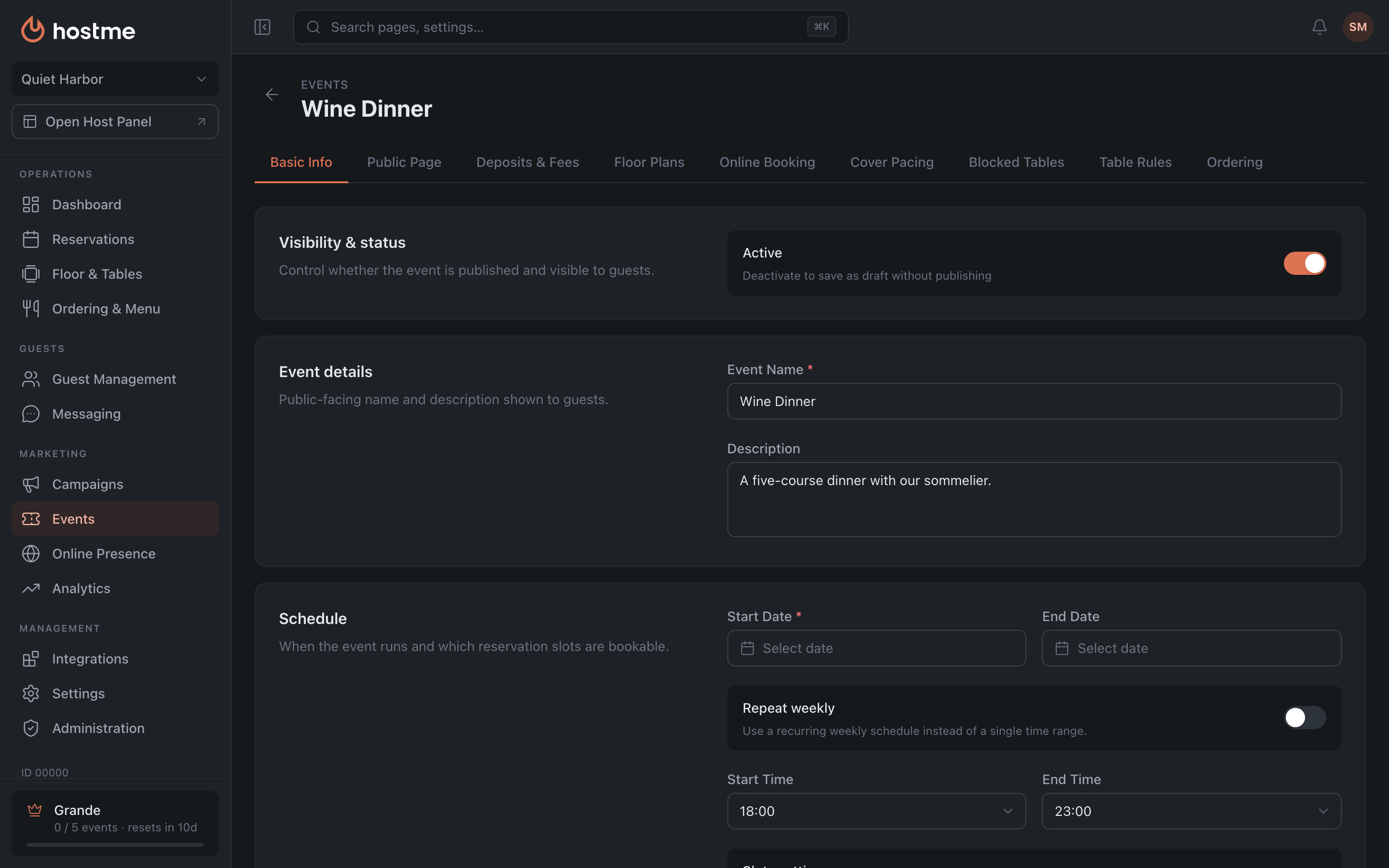
- Basic Info — information about the event.
- Public Page — the “Show on Restaurant Page” toggle, the public link to the event (appears when the toggle is on; it can be copied or opened), the main photo and the gallery with categories.
- Deposits & Fees — a higher deposit for the event.
- Floor Plans — which floor plans are involved.
- Online Booking, Cover Pacing, Blocked Tables, Table Rules — same as the regular settings, but applying only to the event.
- Ordering — ordering settings for the event.
An event can be activated in two ways: with the buttons on its card in the list — “Activate” on a draft, “Deactivate” on an active one, “Archive” on one that has ended — these take effect immediately; or with the “Active” toggle on the editor’s “Basic Info” tab, which is applied with the save button.
How changes are saved
Edits in the event editor are saved with the save button; a tab with unsaved edits shows a dot. The exception is the “Floor Plans” tab: enabling plans, renaming, deleting and edits in the builder are applied immediately — there is no separate save button there. Activation/deactivation is a separate toggle.