Deposits & Fees
A walkthrough of the Deposits & Fees tab — enabling payments, payment methods, the mode (deposit or cancellation fee), amounts by group size and the payment timeout.
The Deposits & Fees tab (in Reservations) handles deposits and prepayments for reservations as well as cancellation fees. This is where you enable fee collection, choose payment methods and set the amounts.
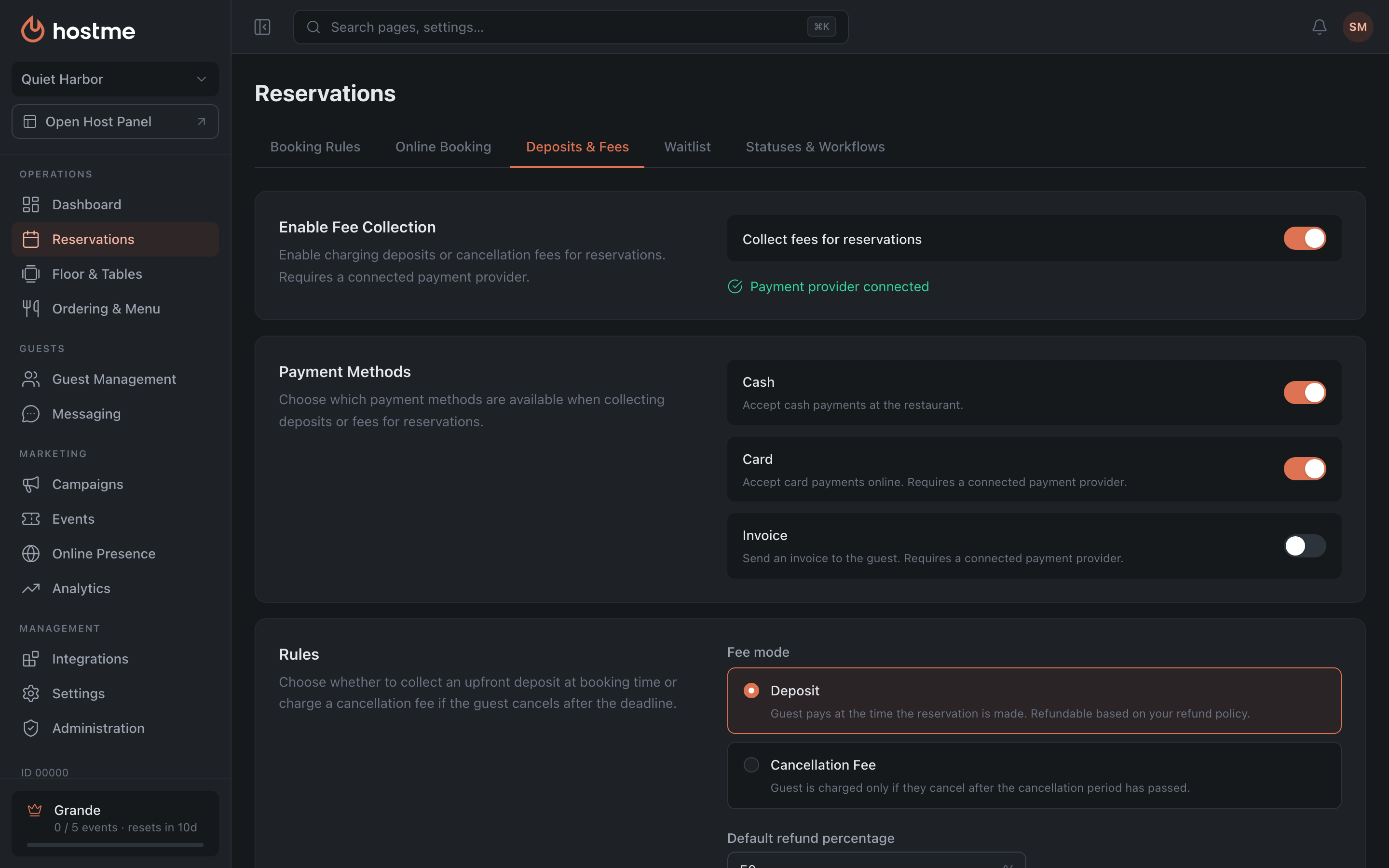
Enable Fee Collection

- Collect fees for reservations — the master switch for the feature. Turns on deposits/cancellation fees.
If no provider is connected, a warning appears here with a link to Integrations — without one, card payments are unavailable.
Payment Methods
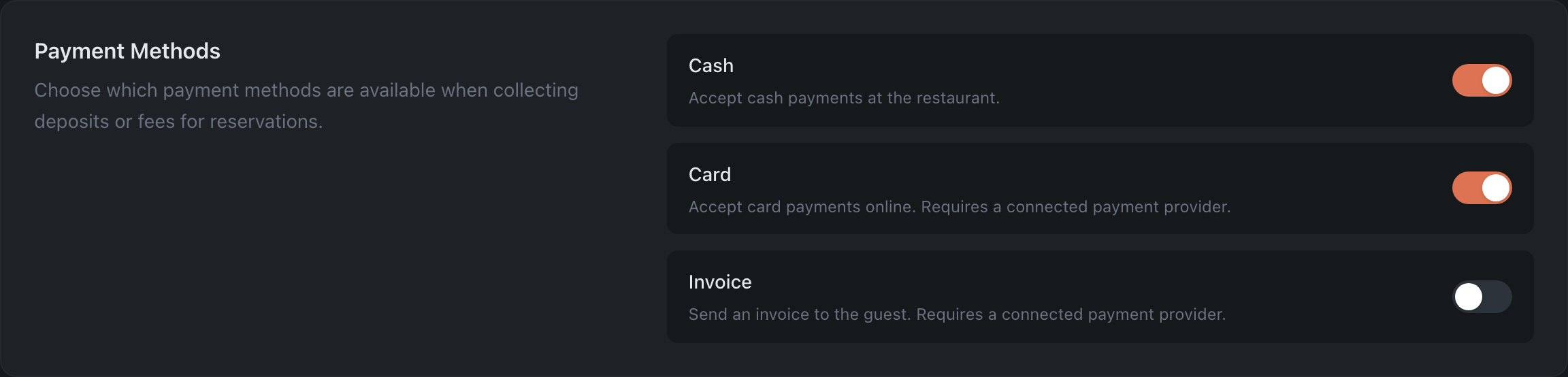
Which methods are available when collecting:
- Cash — accept cash at the restaurant (works without a provider).
- Card — card payment online. Requires a connected provider.
- Invoice — send an invoice to the guest. Requires a provider.
Rules: fee mode
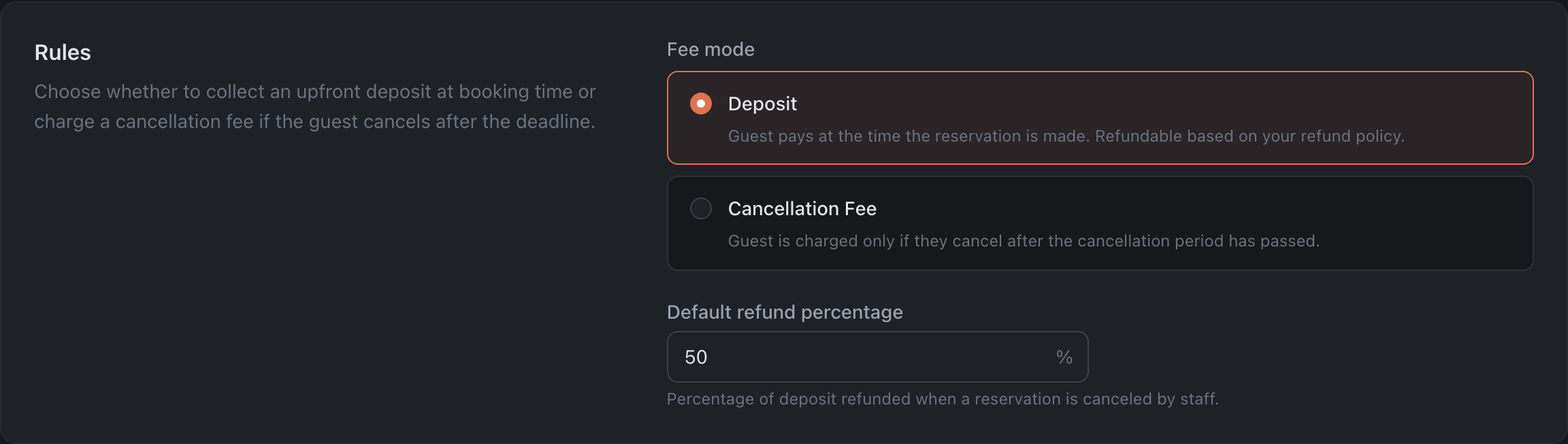
The Payment Methods, Rules and Fees by Group Size sections appear only after the master switch Collect fees for reservations is turned on, and “Payment Timeout” — once at least one rule is set as well.
Choose what the charge is for:
- Deposit — the guest pays when the reservation is made. Refunded according to your refund policy.
- Default refund percentage — what % of the deposit is refunded when staff cancel.
- Cancellation Fee — the guest pays only if they cancel after the deadline.
- Cancellation period — how many hours before the reservation a cancellation is still free, or a specific time of day.
Fees by Group Size
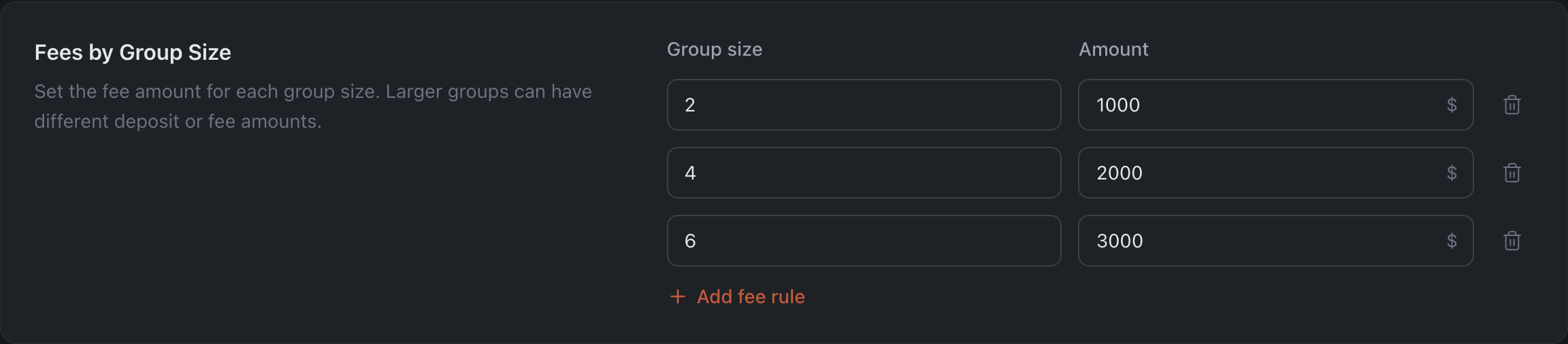
A table of amounts depending on the number of guests — you can set different amounts for different group sizes (the Add fee rule button). It sets the amount for both the deposit and the cancellation fee — depending on the selected mode.
Payment Timeout
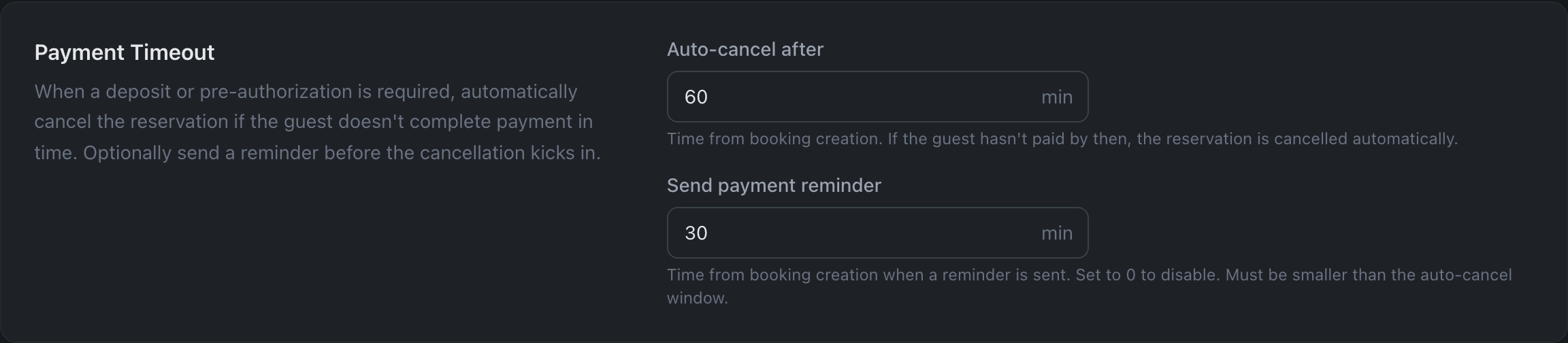
(appears once there is at least one amount rule)
- Auto-cancel after — after how many minutes an unpaid reservation is cancelled automatically.
- Send payment reminder — after how many minutes from the creation of the reservation to remind the guest to pay (0 — don’t remind). Auto-cancel counts from the same moment, so the reminder must come earlier: if it coincides with auto-cancel or comes later, the panel warns that guests won’t receive it. You can still save such a value.
How changes are saved
With the Save Changes button at the bottom (appears when there are edits). A modified tab shows a dot.