Automations
Trigger-based automatic campaigns: all 11 types and their parameters, the four-step wizard, activation and pausing.
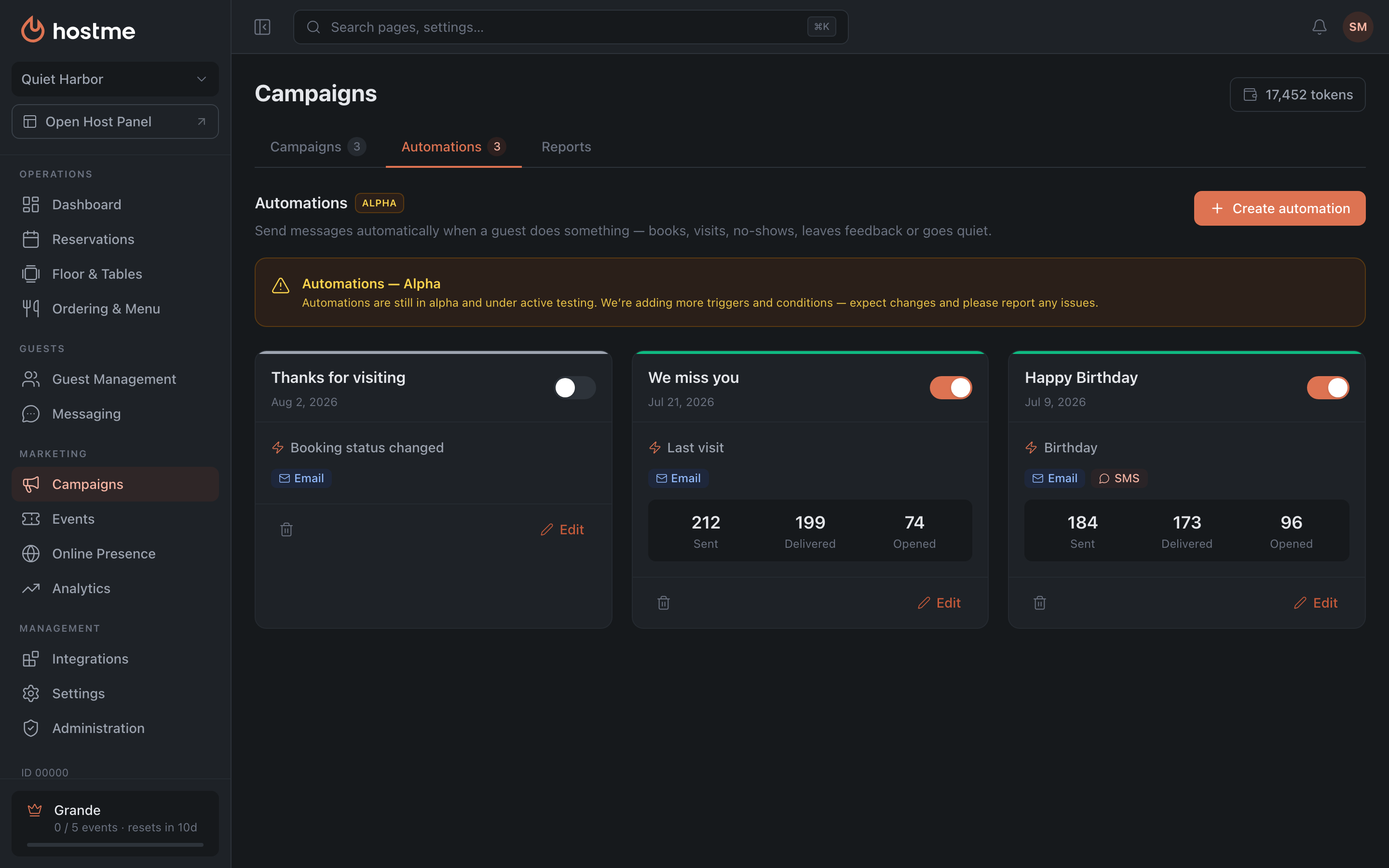
An Automation is a campaign that goes out on its own when something happens with a guest: a birthday arrives, ten visits accumulate, a reservation moves to the “No-show” status. A one-off campaign is sent once to everyone at the same time; an automation runs continuously and fires for each guest at their own moment.
Automations live in the Campaigns section, on the “Automations” tab.
Trigger types
There are eleven triggers, split into two groups — the split is visible right in the picker.
Scheduled
Sending is tied to a time: all nine have a “Send time (local)” field, and the hint honestly clarifies that the message goes out within ±30 minutes of the specified time.
| Trigger | When it fires | Parameter |
|---|---|---|
| Birthday | On the guest’s birthday | date |
| Anniversary | On the guest’s anniversary date | date |
| Joined | Relative to the date the guest was added to your guest base | date |
| Last visit | Relative to the last visit date | date |
| Visits count | The total number of visits reaches a threshold | threshold |
| Visits (30 days) | Visits in the last 30 days reach a threshold | threshold |
| Cancelations | The total number of cancelations reaches a threshold | threshold |
| Spent amount | The total amount spent reaches a threshold | threshold |
| Total events | The total number of event bookings reaches a threshold | threshold |
Date triggers (the first four) ask in the “When” block whether to send “On the day”, “Before” or “After” that date. The field with the number of days appears only for “Before” and “After” — the “On the day” option has none. That’s how a single “Last visit” gives you both “90 days after the last visit” and “3 days before the anniversary”.
Threshold triggers (the last five) ask for a single number — the “Threshold”. The message goes out when the guest’s counter reaches it.
Event-based
These two fire immediately on the action itself, with no daily cycle. Instead of a send time they have a “Delay after event” field in minutes — so that, for example, a request for a review goes out not the moment the check is closed but an hour later.
| Trigger | When it fires | Parameter |
|---|---|---|
| Booking status changed | The reservation moved to the selected status | statuses: Confirmed, Canceled, No-show, Closed (several allowed) |
| Tag assigned | A tag was assigned to the guest | list of tags — the automation fires when any of them is assigned |
Creation wizard
“Create automation” opens a four-step wizard; “Step N of 4” is shown at the top.
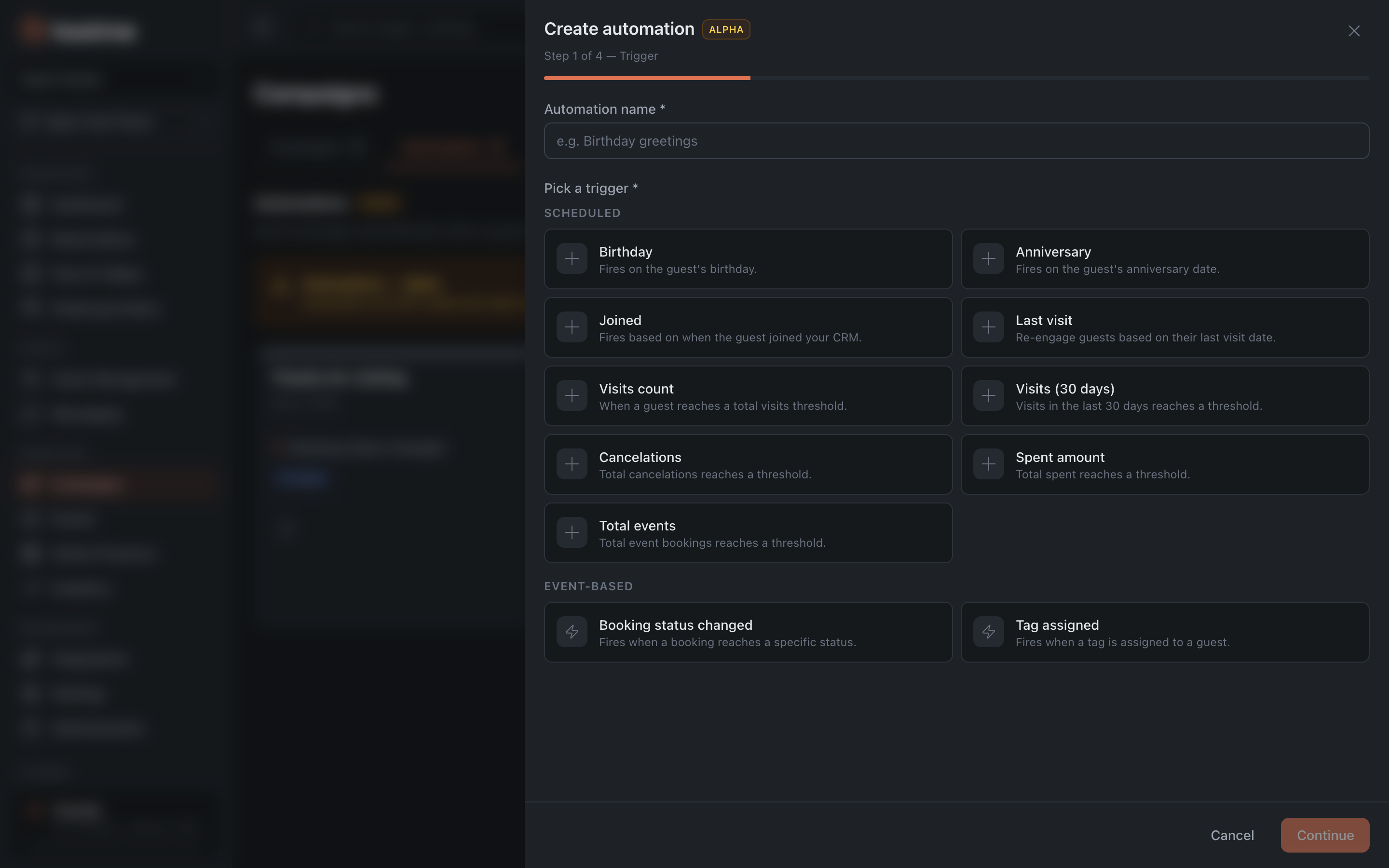
- Trigger — the automation name and the choice of a type from the list above, with all its parameters.
- Channels & Content — unlike a one-off campaign, you can pick several channels: Email, SMS, WhatsApp. A separate message is filled in for each selected channel.
- Audience — by default, all guests matching the trigger condition. Segment filters here narrow the circle: the trigger condition and the filters work together, and the message goes only to those who match both.
- Settings — the “Activate immediately” toggle.
The message language is not chosen separately — the restaurant’s language is used.
Activation and pausing
The “Activate immediately” toggle decides how saving ends. When creating, the button at the bottom changes its label accordingly — “Save & activate” or “Save as draft”. When editing, the button is simply called “Save”, and the automation’s state is brought in line with the toggle after saving.
The state is visible from the colored bar on the card: green for an active one, gray for a paused one. The toggle there switches the state at any moment: you can pause and resume without editing the automation itself.
Besides the status and the trigger, the card shows sending statistics — sent, delivered, opened. They appear after the first runs.
What’s next
- Campaigns — one-off campaigns and an overview of the section.
- Campaign reports — what the metrics mean and how to export them to CSV.
- Guide: birthday greetings — your first automation in five minutes.
- Guide: win back lapsed guests — the “Last visit” trigger in practice.