Administration
A walkthrough of the Administration section — restaurants, team and roles, billing (subscription) and the activity log.
The Administration section is where you manage the account: your restaurants, team and roles, subscription and billing, plus the activity log. Four tabs — but the set depends on your role: IT Support, for example, only sees Team and Activity Log. A link to a tab that is closed to you opens the first available one; when you arrive by such a link from outside, the panel explains why.
Restaurants
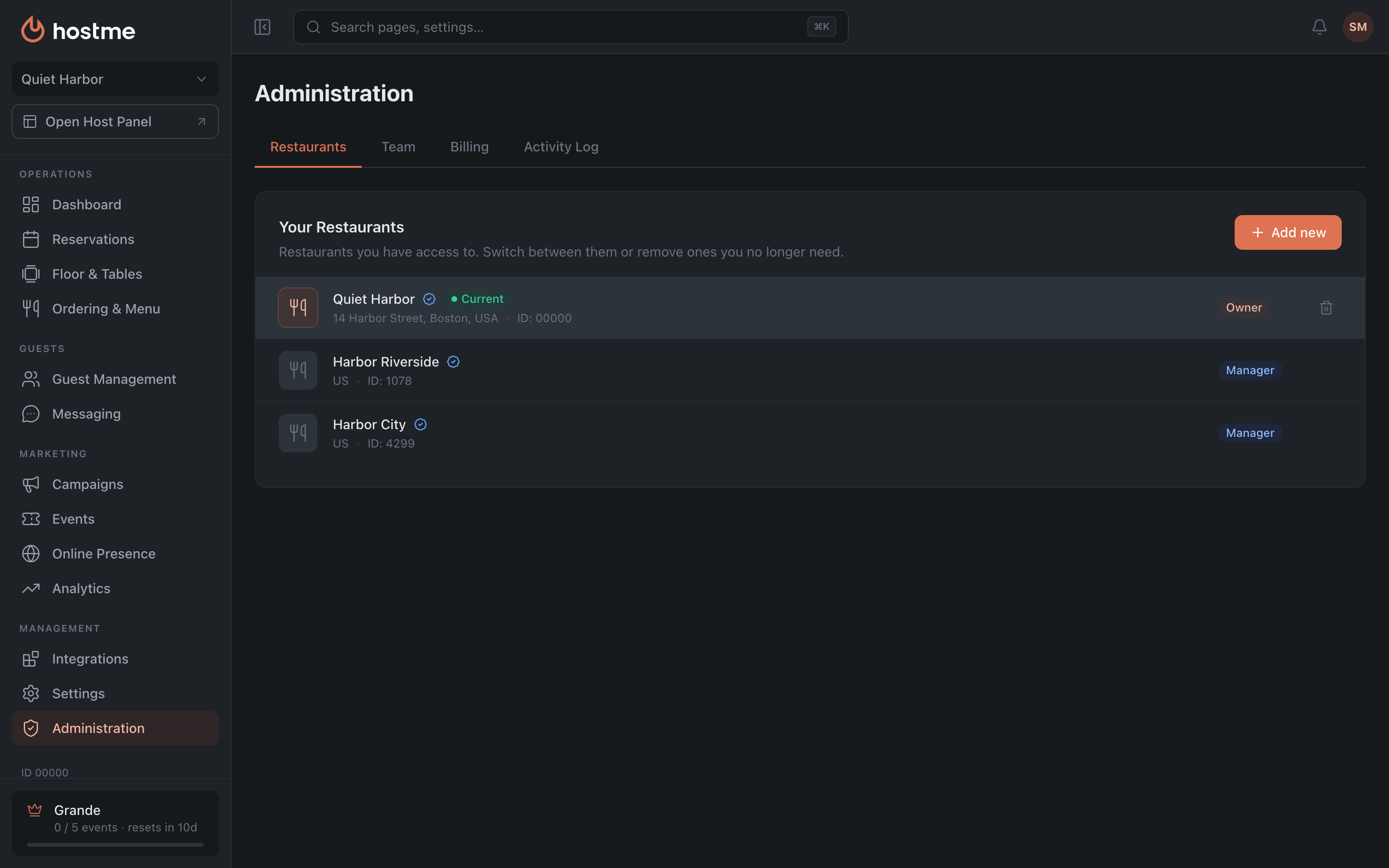
The list of your restaurants. Each has a name, status (Verified / Suspended / Offline / Current), address, ID and your role. Clicking a row switches the active restaurant. The Add new button creates a new restaurant (each one is a separate subscription); the same dialog sets whether its Guest Book is shared with a network or separate. Removing a restaurant is available to the Owner, and a reason has to be given.
Team
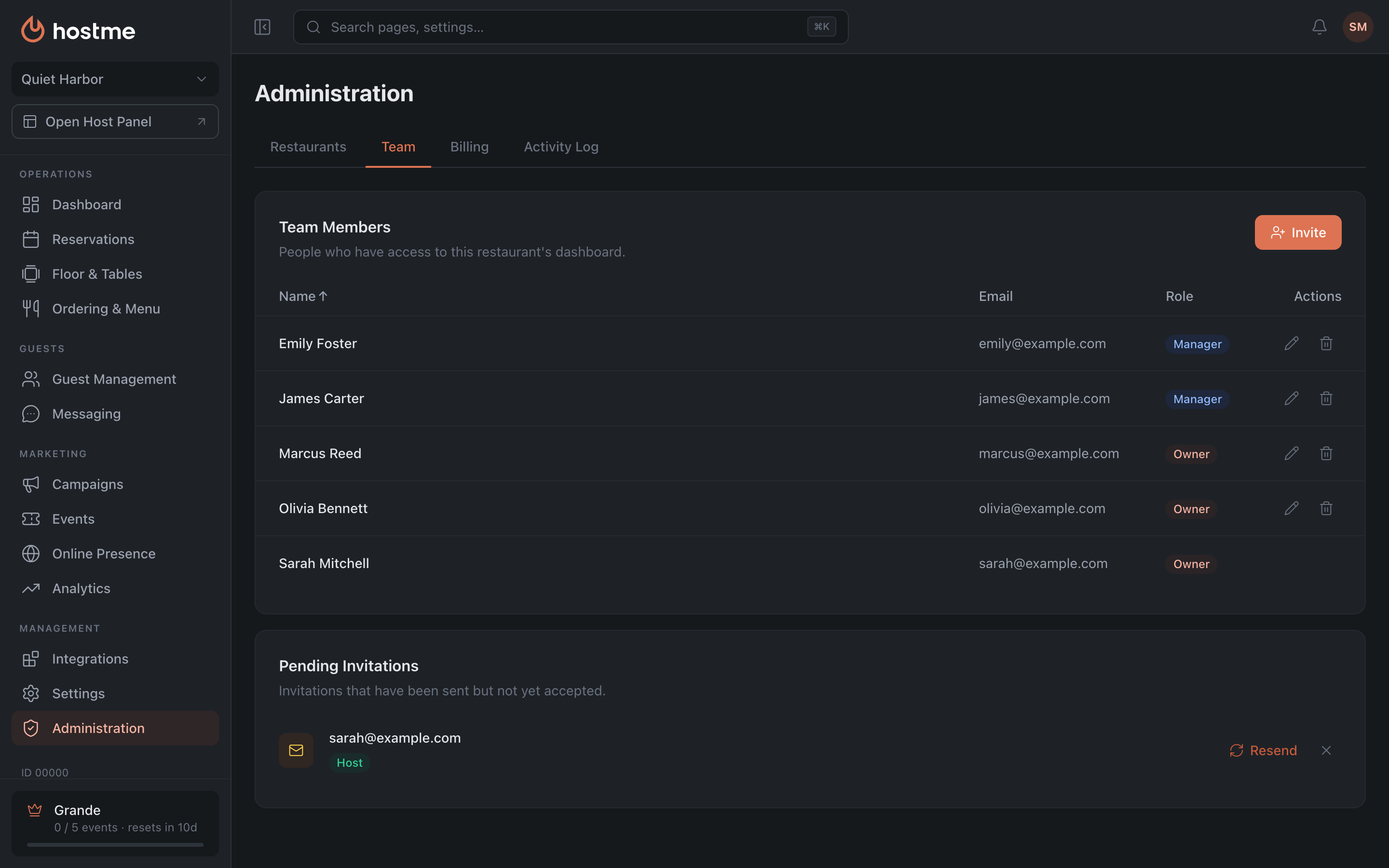
Everyone with access to this restaurant’s panel. A four-column table — Name, Email, Role and actions: every row has “Change role” and “Remove”. New permissions take effect immediately, with no need to re-invite the person; someone removed loses access to the panel but stays in the activity log.
The “Invite Team Member” button sends an invitation to an email address and sets the role right away. Invitations that were sent but not yet accepted are collected below in a separate “Pending invitations” list with a “Pending” status, and can be withdrawn from there.
What each role can do is on the Roles & Permissions page.
Who can change what:
- You can’t edit or remove your own row — you can’t change your own role or remove yourself.
- Another Owner’s row can be changed or removed only by an Owner.
- Roles can be changed by the Owner and a Manager; a Manager — for everyone except the Owner. Host, Marketing and IT Support invite only into their own role; Kitchen doesn’t invite anyone.
- Only an Owner can make a team member an Owner. The last Owner can’t be removed or given another role — make someone else Owner first. If no owner is left or the only one lost access, write to us and we’ll help.
Billing
The plan, cards, invoices and charge history are on a page of their own: Billing and subscription.
Activity Log
The full history of changes to the restaurant settings: who changed what, and when. It earns its keep in two situations — when a setting “changed by itself” and you need to know who touched it, and when you need the previous value back and nobody remembers it. The total number of entries is shown above the list.
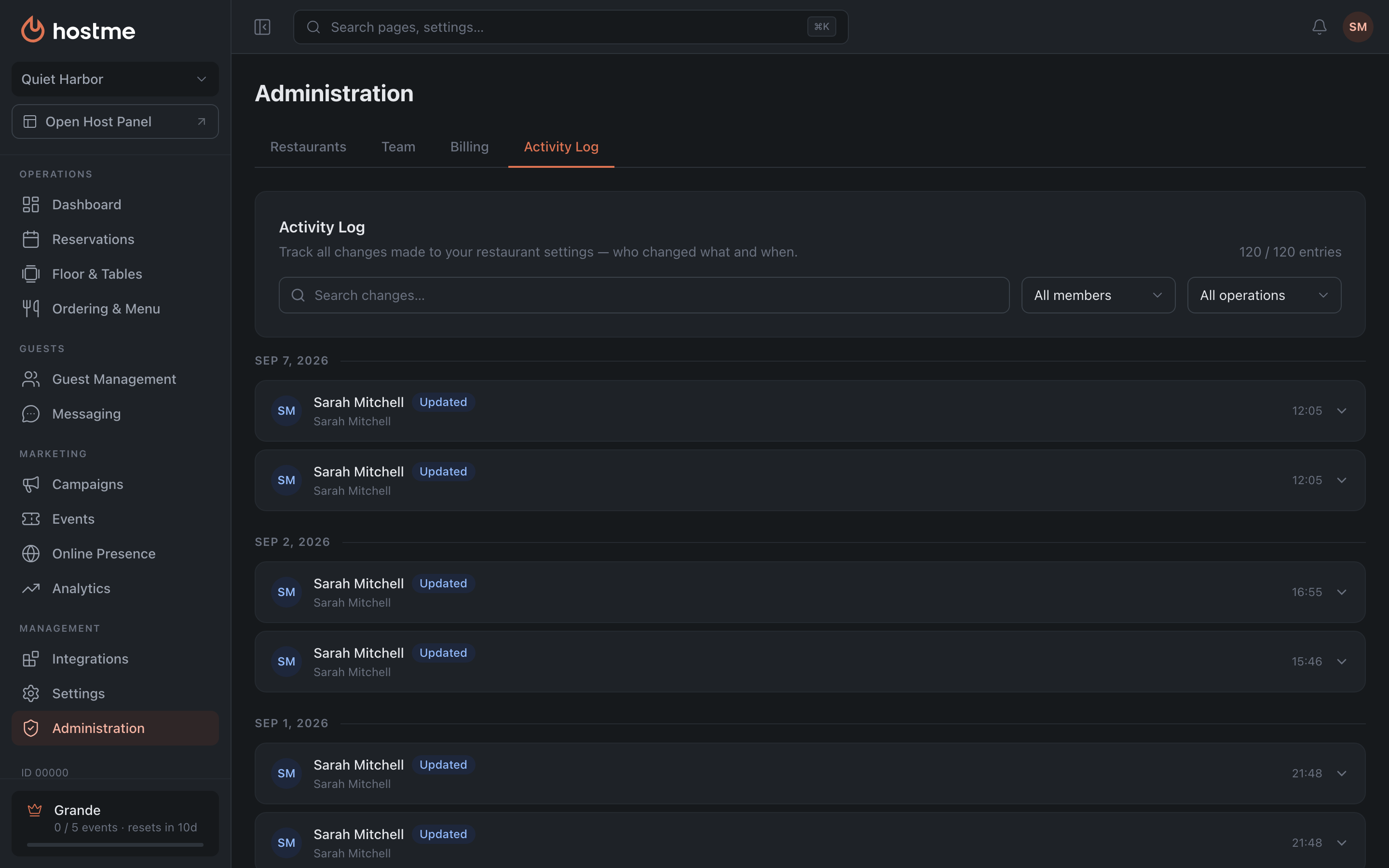
How to narrow the list. Three tools work together: search over the change text, a filter by team member (“All members” by default) and a filter by operation type (“All operations” by default) — Created, Updated, Deleted, plus the system ones Disabled and Activated. The list of operations in the filter is built from the entries themselves, so the set of options depends on what has happened in the restaurant. The Reset button clears all filters at once.
How to read an entry. Entries expand, and changes are shown in a human-readable form rather than raw JSON:
| What it looks like | What happened |
|---|---|
| ”Field — enabled” / “Field — disabled” | a toggle was switched |
| ”Field: “old” → “new”“ | a value was replaced |
| ”Field set to “value”“ | an empty field was filled in |
| ”Field cleared” | a value was erased |
| ”N item(s)“ | a list changed — e.g. the set of areas or rules |
If a change couldn’t be parsed, the panel says there are no structured changes and offers Show raw JSON — the raw view of the entry. That JSON is handy to attach to a support request.
The author of an entry is the team member’s profile name. System changes are signed with a service name. “Undefined user” is an entry with no author at all, usually an old one.
A step-by-step walkthrough — in the guide How to find who changed a setting.