How to add a second restaurant and switch between them
A chain under one account: where locations are switched, how to add a new one, and what happens to the subscription.
One account can run several venues. All data — reservations, guests, menus, settings — is separate for each location; the only thing they share is you.
How to switch
The quick way: the dropdown at the very top of the left menu — it shows the current restaurant’s name. Clicking it opens the list of available ones; picking one switches.
The full list is in Administration → the “Restaurants” tab. There, each location shows its statuses:
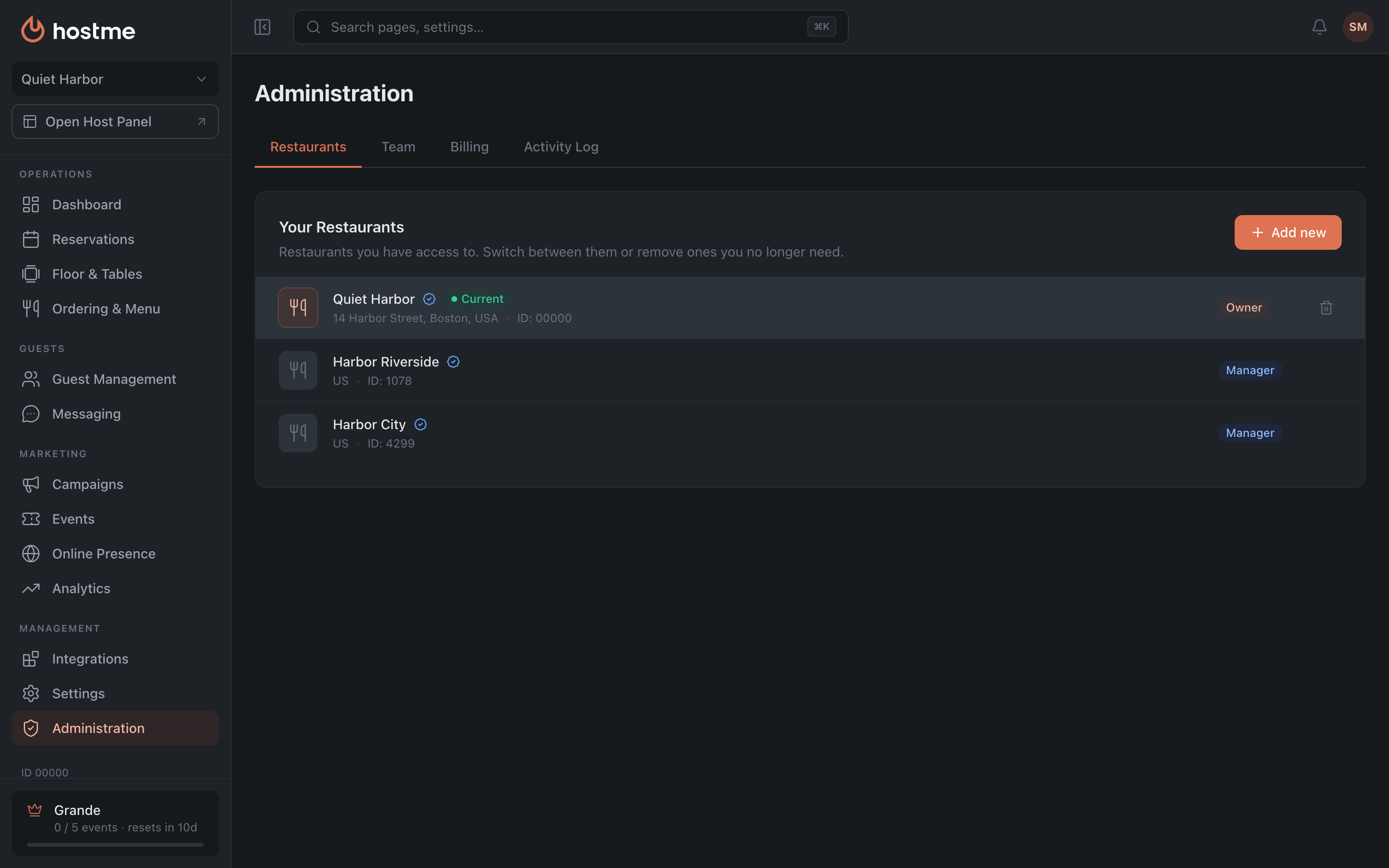
- Current — the one you’re in right now.
- Verified — the venue has passed verification.
- Suspended — access is restricted due to billing issues.
- Offline — the restaurant is hidden from public booking channels; guests won’t be able to book online.
The whole row switches — there is no separate button, you click the restaurant’s row. The current venue’s row doesn’t react: you’re already in it.
Switching from the “Restaurants” tab reloads the panel — that’s how the new location’s settings are pulled in. Switching from the sidebar dropdown happens without a reload.
How to add a new restaurant
-
Open Administration → “Restaurants” and press “Add new”.
-
Fill in the new location’s details: name, address and phone are required. The phone goes with its country code — pick the country to the left of the number. The language is preset to your interface language and can be changed; the website is optional.
-
Choose the “Guest Book”:
- “Shared with a network” — guests, their history, segments and campaigns are shared with the restaurants of the chosen network. A network is listed by its restaurants’ names; only networks you own are listed.
- “Separate Guest Book” — guests of the new restaurant and of your others aren’t visible to each other; segments and campaigns stay separate too.
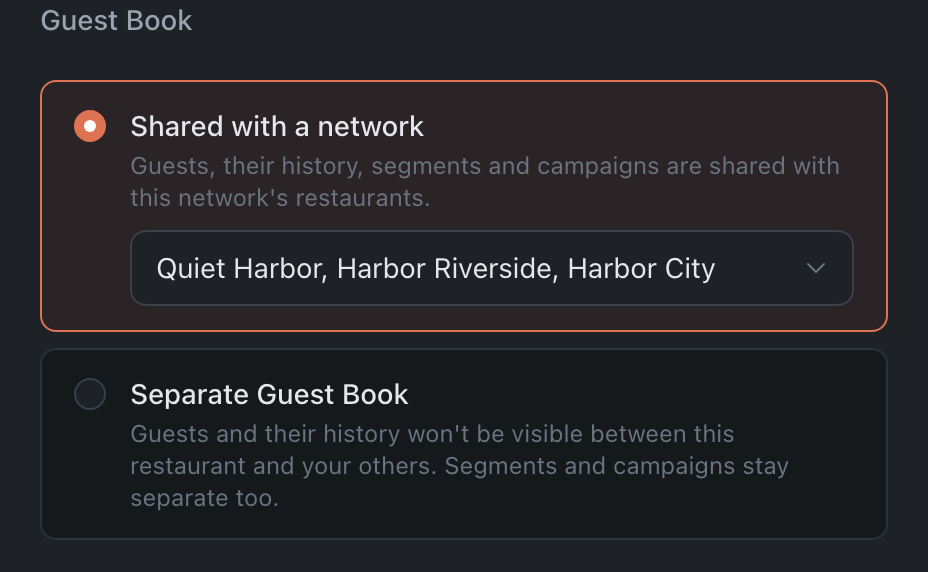
By default it’s “Shared with a network” — the network of the restaurant you’re in now, if you own it. If you don’t, the default is “Separate”: only a network’s owner can add restaurants to it. If you don’t own any network, only a separate Guest Book is available.
-
Tick the checkbox confirming you understand about the separate subscription (more on that below). If you already own at least one restaurant, the window warns that the new one won’t get a free trial.
-
Press “Create restaurant”.
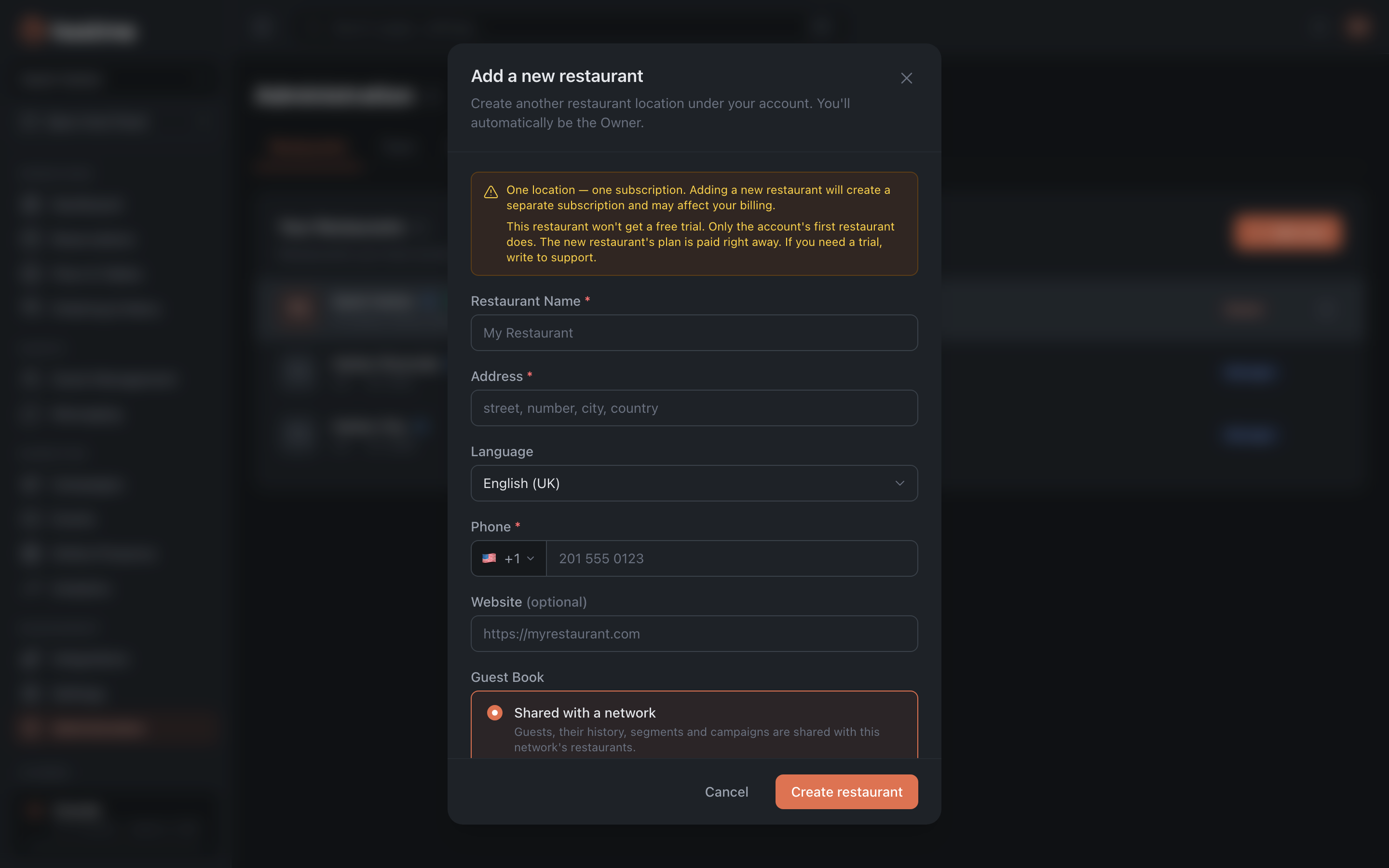
You automatically become its owner, and the panel switches to the new venue right away — no need to look for it in the list.
Removing a restaurant
The “Remove” button is only there for locations where your role allows it — a Manager won’t even see it in the list.
Removal asks for a reason and warns bluntly: all reservations, settings and billing data will be lost for good.
What’s next
- Administration — team, roles, billing, log.
- Guide: add a team member — each location has its own team.
- Guide: manage your subscription.