How to flag a VIP guest and keep notes and allergies
Keep a guest profile — tags, VIP, notes and marketing consent — so your team knows about them in advance.
The more you know about a guest, the better the service. Hostme keeps a profile for every guest with tags and notes — and the whole team sees it during the shift.
What to do
-
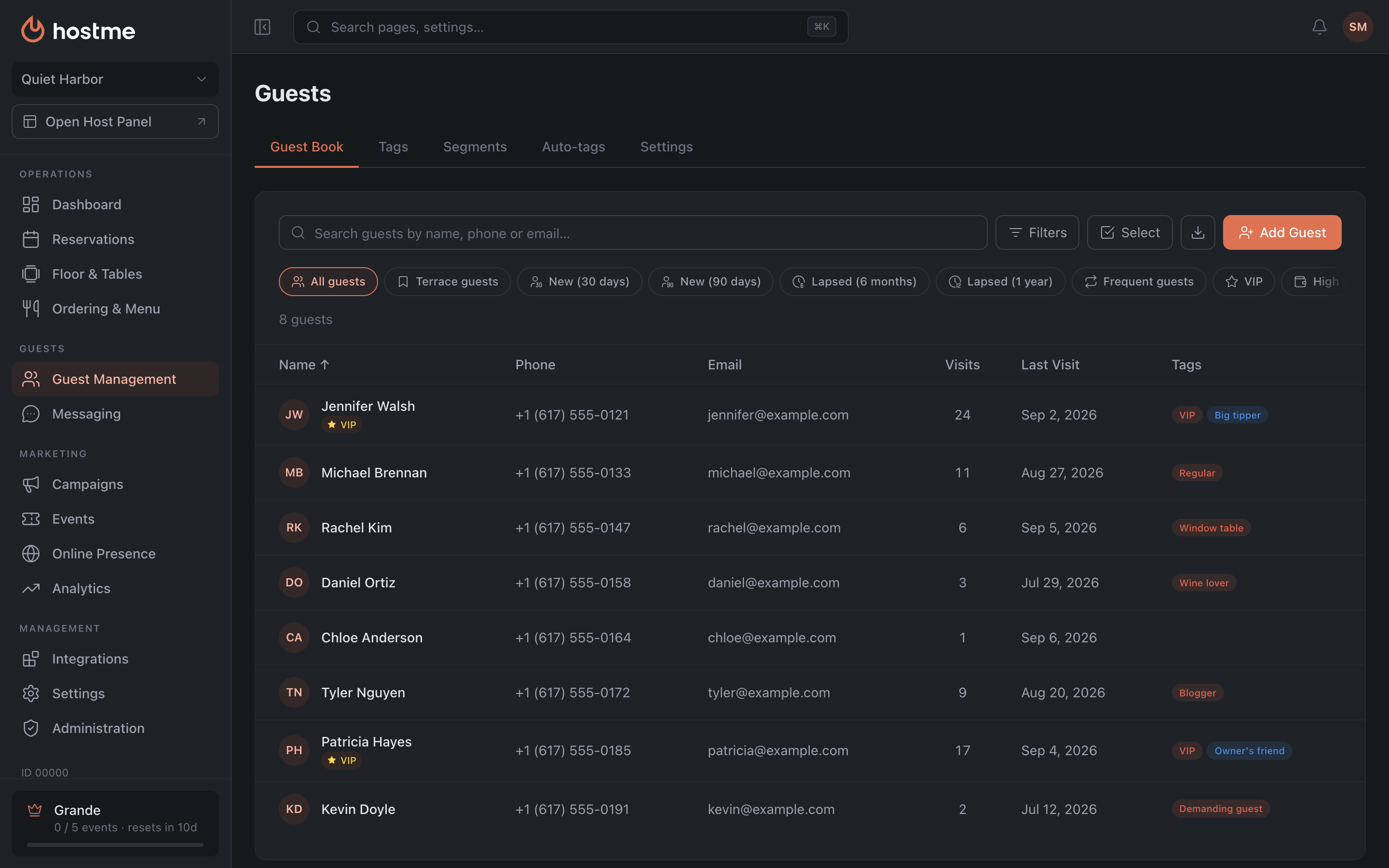
Open Guests → “Guest Book” and find the guest (search by name, phone or email).
-
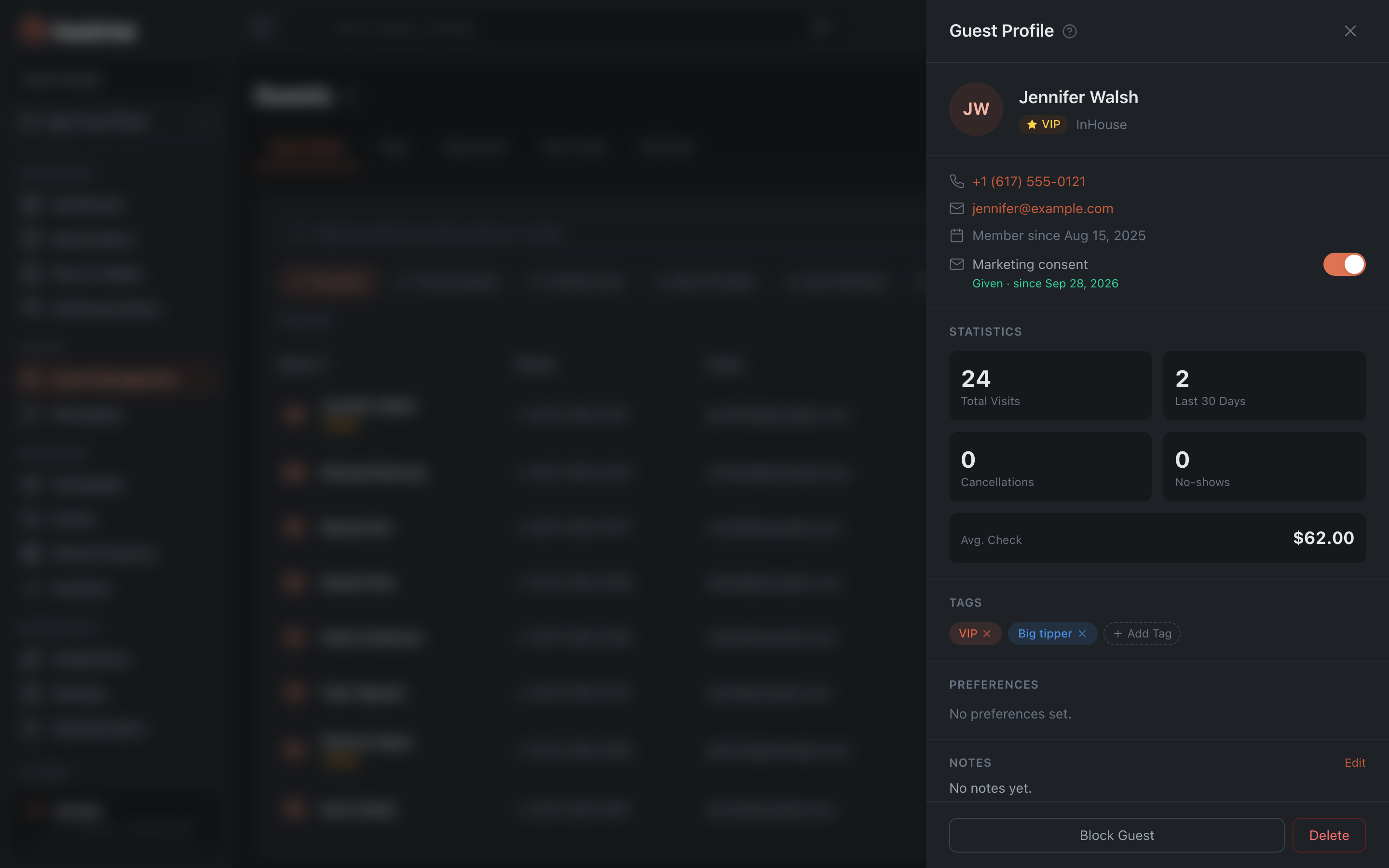
Click the guest — their profile opens.
-
The profile has three blocks, each for something different:
- Tags — what your team itself knows about the guest: “Owner’s friend”, “Window table”, “Big tipper”, “Demanding guest”. You can only pick existing tags; a new one is created on the Guests → “Tags” tab (colour + name). “VIP” is a system tag: it is in the list from the start and cannot be renamed or deleted — just put it on the guest and a ★ appears next to their name.
- Preferences — allergies, dietary needs, a favourite table, a birthday. No need to duplicate them with a tag: the block has its own fields, and a guest with an allergy gets a dedicated icon on their own. The block is read-only in the Admin Panel for now — the host fills it in from the Host Panel.
- Notes — free text for the team: whatever fits neither a tag nor a preference.
Tags are saved immediately. For notes, click “Edit”, type the text and click “Save”.
If a guest opts out of marketing
The profile’s contacts have a “Marketing consent” row with a switch. When it’s on, the guest gets this restaurant’s marketing messages.
- The guest asked not to get marketing — turn the switch off. “Withdrawn” with the date appears under the row, and this restaurant’s marketing won’t reach them any more.
- The guest changed their mind and agrees again — turn the switch on, the row will say “Given”.
Guests can also give consent on their own — with a checkbox while booking in the widget; the profile then says “Given”. The switch saves right away. “Not asked” means the guest hasn’t answered yet; such guests get marketing messages by default. More in Marketing consent.
Result: during the shift the team sees VIP guests, allergies and preferences at a glance — both in the profile and in the “Pre-shift guest alerts” block on the Dashboard.
Related: Segments and campaigns