How to add a team member and assign a role
Invite a team member to the panel and assign a role that defines their permissions.
Every team member needs their own account with a role — it defines what they see and can change.
What to do
-
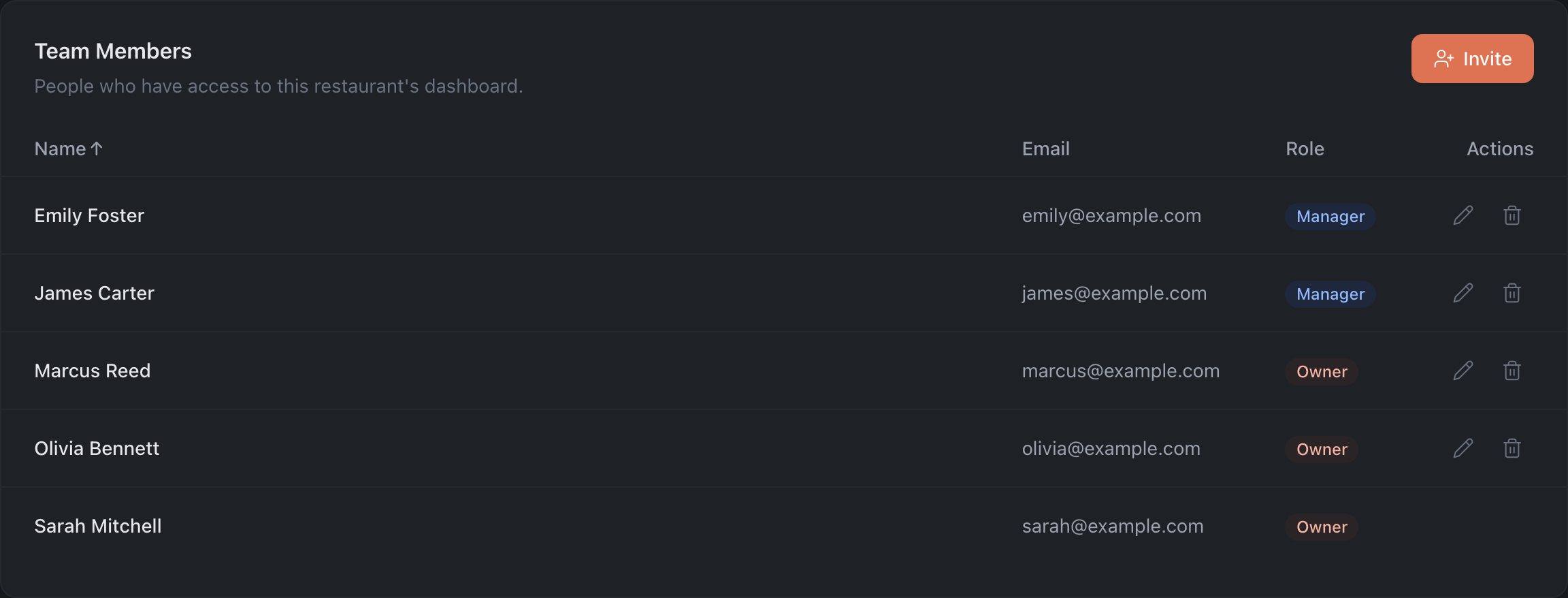
Open Administration → “Team” tab.
-
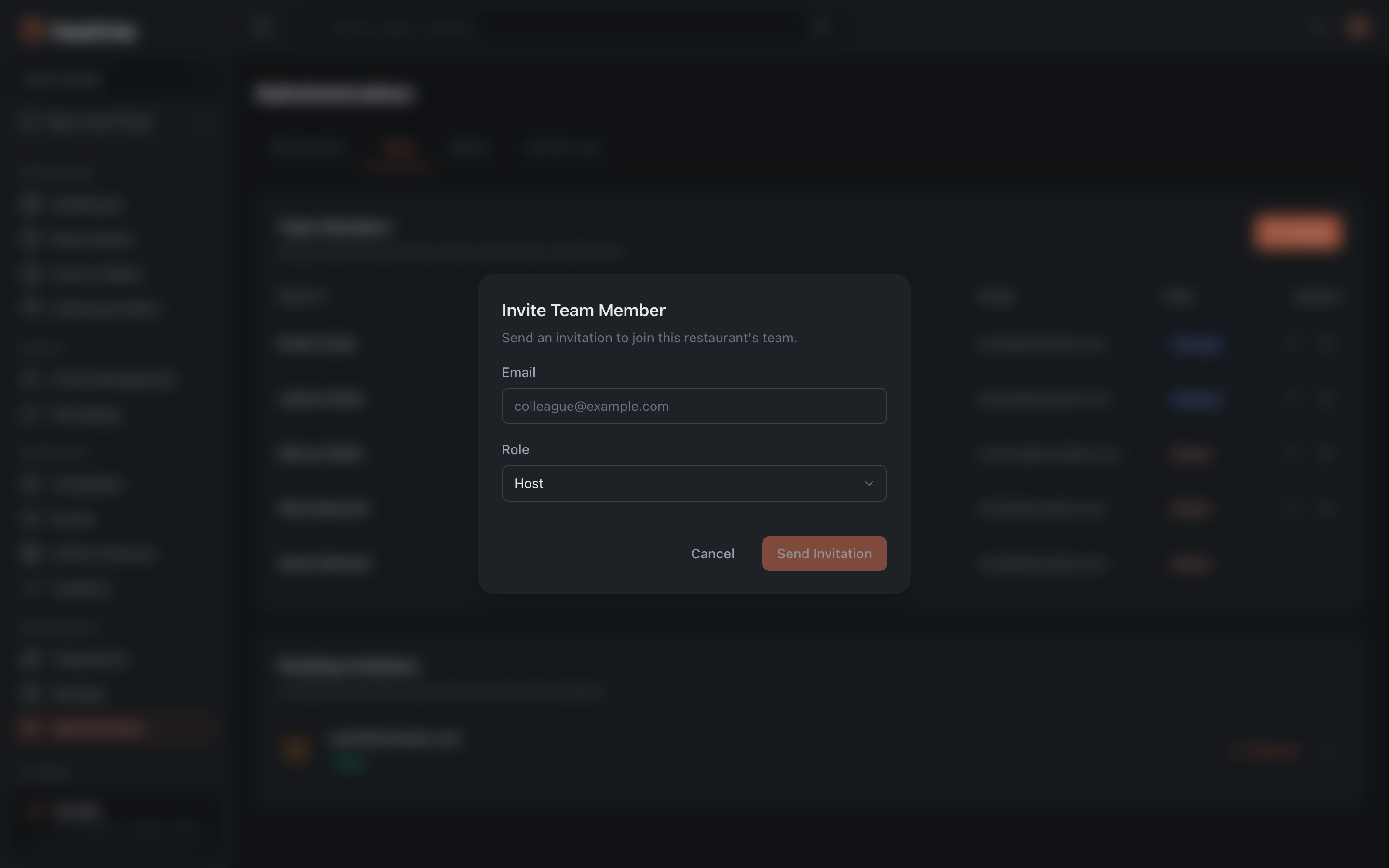
Click “Invite” — the “Invite Team Member” dialog opens.
-
Enter the team member’s email and choose a role (for example, Host for floor staff, Manager for the person in charge). Which roles are in the list depends on yours: Host, Marketing and IT Support invite only into their own role.
-
Click “Send Invitation” — the team member receives an invitation email.
The invitation appears in the “Pending Invitations” section (it can be resent or cancelled).

Change the role later
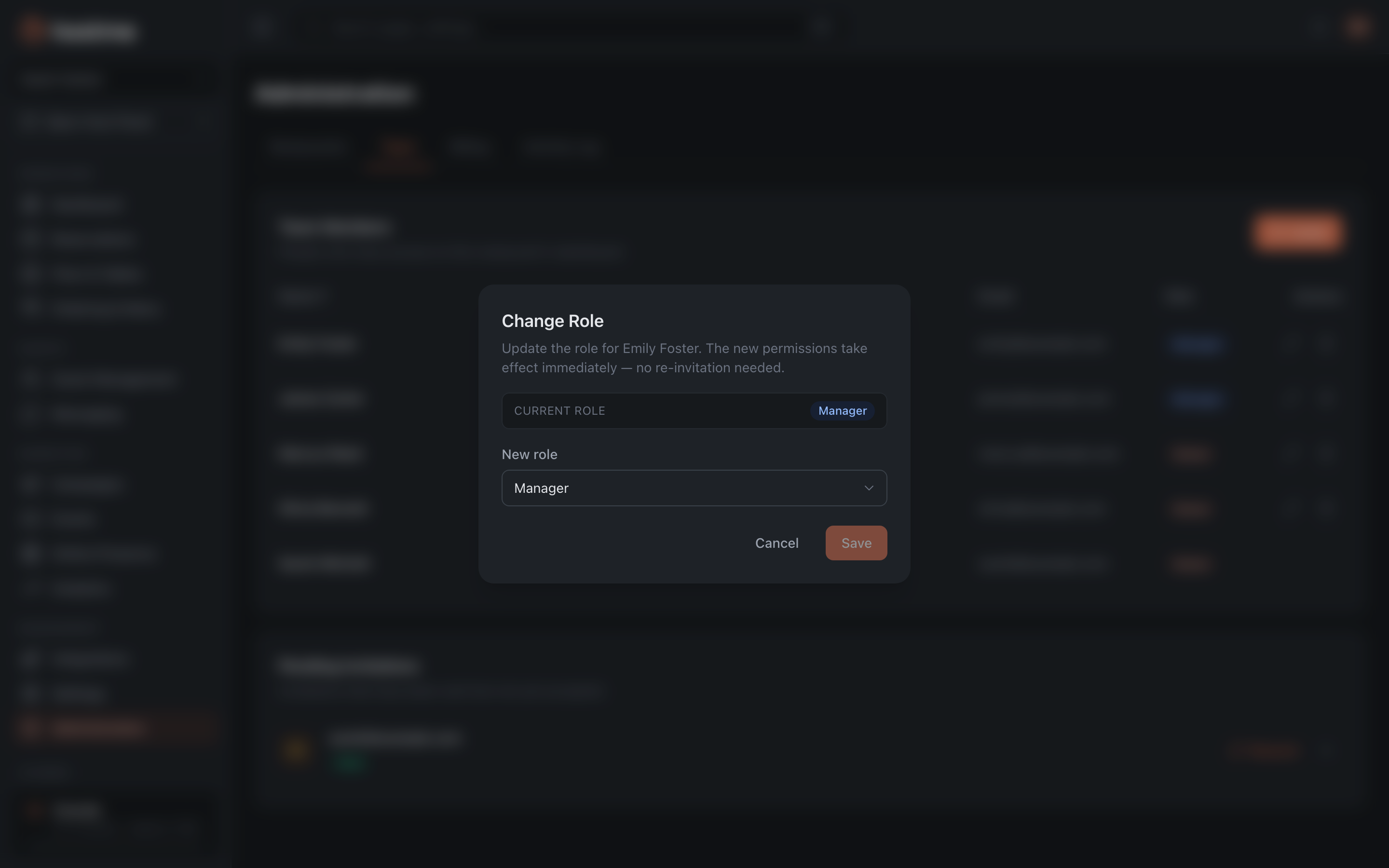
In the members table, click the pencil icon “Change role” in the “Actions” column — the “Change Role” dialog opens. The new permissions apply immediately.
Result: the team member gets access to the panel exactly within the scope of their role.