How to switch to the new Host Panel
Try the new Host Panel on one device, show it to your team, then switch the whole restaurant — without stopping the shift.
This guide is for restaurants that moved over from the old Admin and the old app. Their Host Panel is still the previous one (v1): hosts work where they always have. The new Host Panel (v2) is switched on separately, and there’s no rush — the move takes two steps:
- Try it on one device — your laptop or a single host tablet. Everyone else keeps working in the previous version.
- Switch the whole restaurant once the team is comfortable.
A restaurant created in the new Admin runs on the new Host Panel from day one: it doesn’t have these settings and has nothing to move.
Where to find it
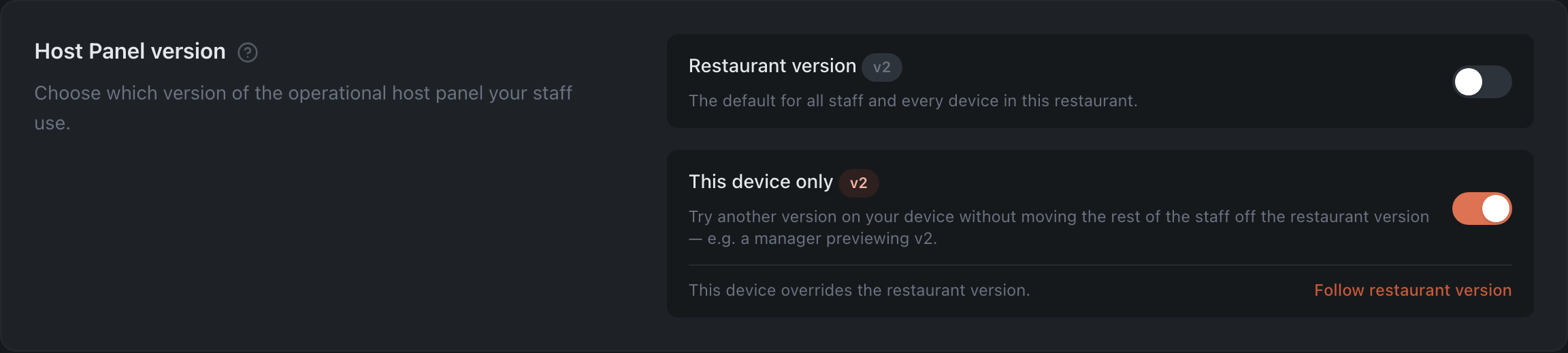
Settings → Interface tab → Host Panel version. While the restaurant is on the previous version, this section sits at the top of the tab.

The section has two switches:
- Restaurant version — the version for all staff and every device in the restaurant.
- This device only — the version for the device you’ve opened the Admin on right now.
A switch that’s on means the new version: the v2 badge next to it lights up. Both apply instantly — there’s no Save button to press.
Step 1. Try it on one device
-
On the device where you want to try the new version, open the Admin — in the Hostme mobile app or in a browser — and sign in.
-
Go to Settings → Interface and turn on This device only. A line appears under the switch: “This device overrides the restaurant version.”
-
Click Open Host Panel in the left menu — the new version opens.
To put the device back on the shared version, click Follow restaurant version in the same section.
What counts as a device
The choice is remembered by the browser — not by the account, and not by the tablet as a whole. So:
- it applies to anyone who signs in on that device, and it stays after signing out;
- Chrome and Safari on the same tablet, a private window and the mobile app are separate devices — each needs its own choice;
- clearing the browser’s data puts the device back on the restaurant version.
How the host gets to the new version
Hosts and kitchen staff have nothing to do in the Admin: when they sign in to the Admin or the mobile app, they’re taken straight to the Host Panel — in the version chosen for that device, or the restaurant version if nothing is chosen on the device.
So, to make a host’s tablet open the new version:
- Sign in to the Admin on that tablet with your own account (Owner or Manager).
- Turn on This device only and sign out.
- The host signs in to the Admin with their account — and lands in the new Host Panel.
Step 2. Switch the whole restaurant
Once the team is comfortable:
-
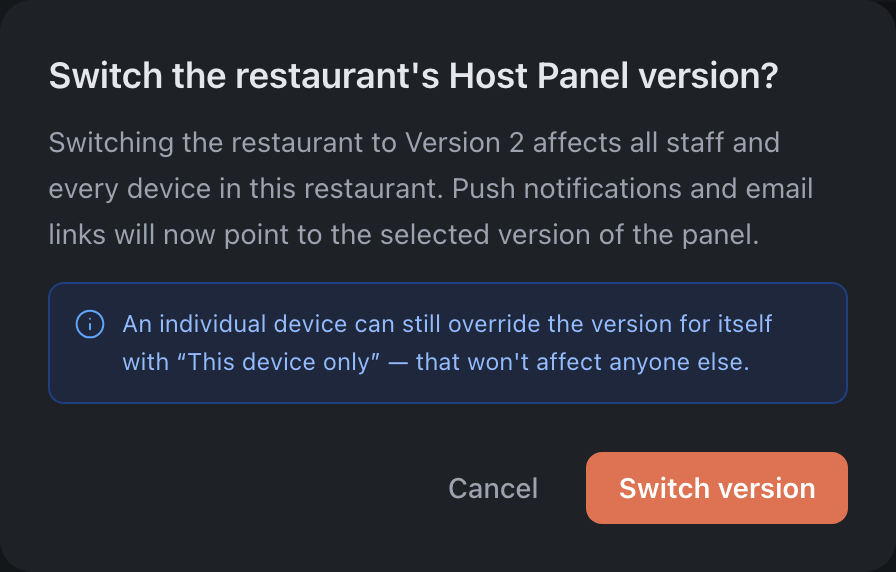
Go to Settings → Interface and turn on Restaurant version.
-
In the confirmation window, click Switch version.
What changes
- All staff on every device land in the new Host Panel by default: via Open Host Panel, when hosts and kitchen staff sign in, and in the mobile app.
- Push notifications and email links now lead to the new version.
- Devices where the version was chosen separately stop overriding it and follow the new restaurant version — the next time the Admin is opened on them.
- A panel that’s already open isn’t closed. A tablet showing the previous version right now stays there until the host comes back in through the Admin or the app. Give the shift a heads-up.
Tablets and phones
On tablets and phones, work in the Hostme mobile app — it’s on the App Store and Google Play. It opens the Host Panel in the right version on its own — the one chosen for the restaurant or for that device — and nothing needs setting up again in it when the version changes.
The previous Host Panel lives at its own address (panel.hostmeapp.com) and never sends anyone anywhere. If a device opens it from a browser — from a bookmark or a home-screen shortcut, sometimes used instead of the app — it stays on the previous version, even after the whole restaurant has switched. Move those devices to the app.
If the shift needs the old version
In the new Host Panel, open Settings and click Switch to Classic version — the previous panel opens in a new tab. This changes nothing in your settings: on the next sign-in the device opens its own version again.
To keep one device on the previous version for longer after the restaurant has switched, turn off This device only on it — nobody else is affected.
Switching the restaurant back
Same switch: turn off Restaurant version and confirm. Every device that doesn’t override the version goes back to the previous Host Panel, and links in notifications and emails lead there again.
Before you switch the restaurant
- Open the new Host Panel yourself (step 1) and go through every floor: tables in place, areas labelled.
- Let a host work one full shift in the new version on one tablet.
- Move tablets and phones to the Hostme app — especially the ones where the Host Panel is opened from a bookmark or shortcut.
- Turn desktop notifications on again: the subscription doesn’t carry over from the previous panel — see Panel notifications.