How to connect a communication channel
SMS, WhatsApp or Telegram: where to start, what to choose and how to check that messages are going out.
Until at least one channel is connected, guests receive no reservation confirmations, no reminders and no campaigns. This is a mandatory setup step — and one of the few that can’t be put off “for later”.
Where to start
Open Integrations → the “Channels” tab — this is where providers are connected.
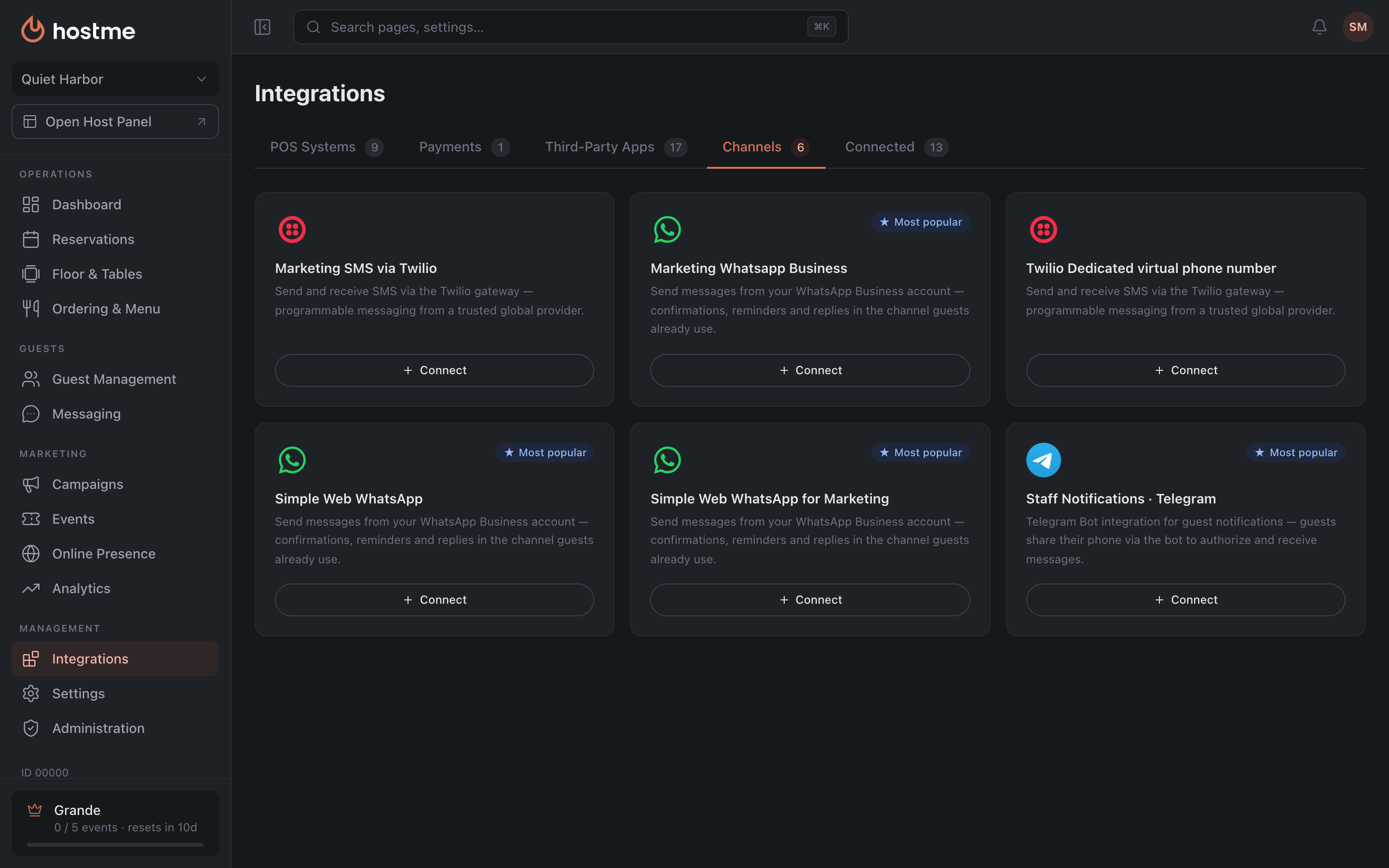
Which channel to choose
It depends on what you send:
- Email — reservation confirmations, campaigns, anything long. Cheaper than the rest and the fastest to connect. Start with it.
- SMS — reminders on the day of the visit and anything urgent: it reaches everyone and gets read right away. More expensive than the rest, and each provider has its own price — you can see it right on the provider card in the channel settings.
- WhatsApp / Telegram — where your audience already chats. They make sense when a messenger is the primary channel in your region.
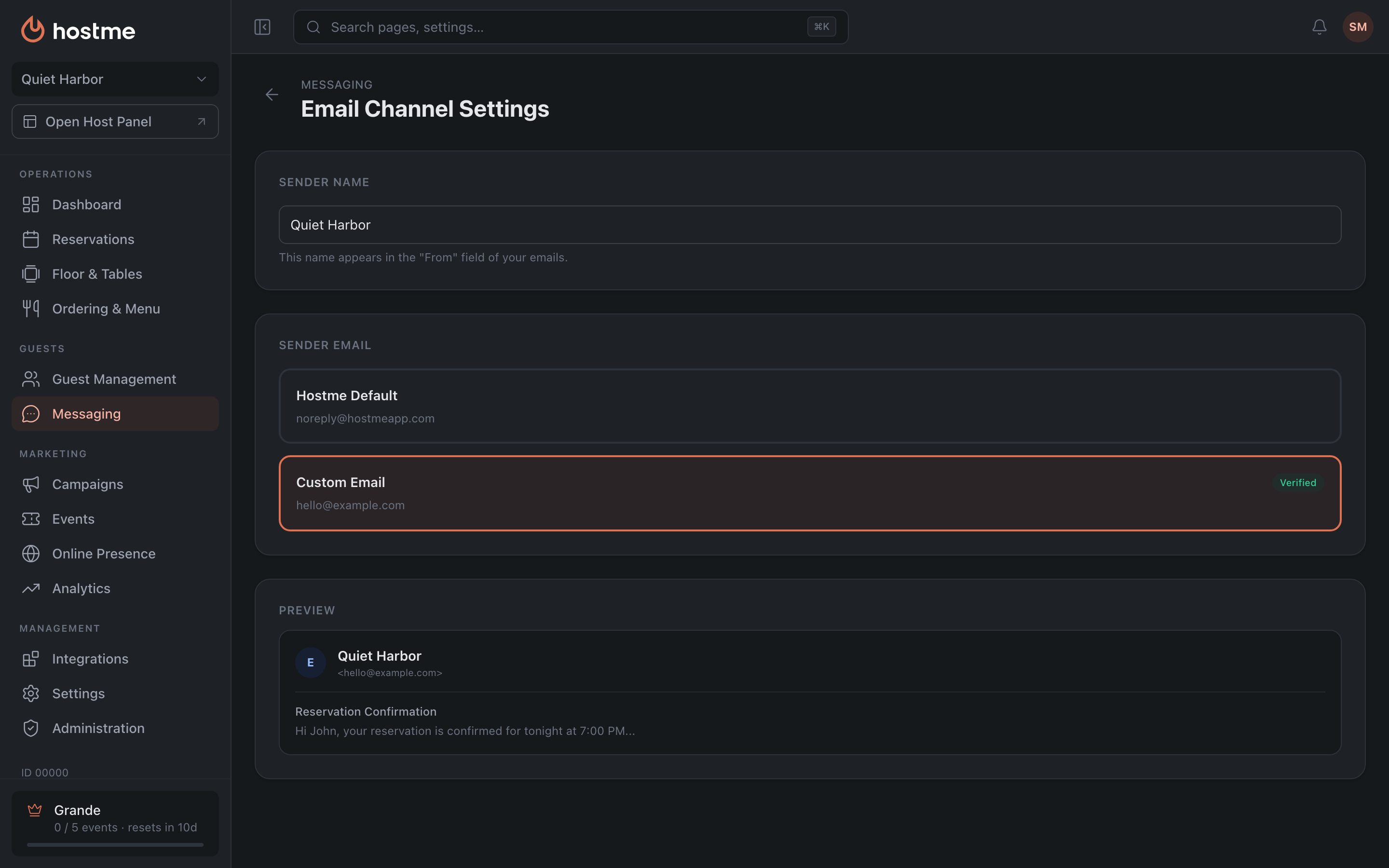
- Set the “Sender Name” — the guest sees it in the “From” field. Usually it’s the restaurant’s name.
- Choose the “Sender Email”: “Hostme Default” or “Custom Email”.
- A custom address has to be verified — until that is done the status stays “Pending verification”.
SMS
-
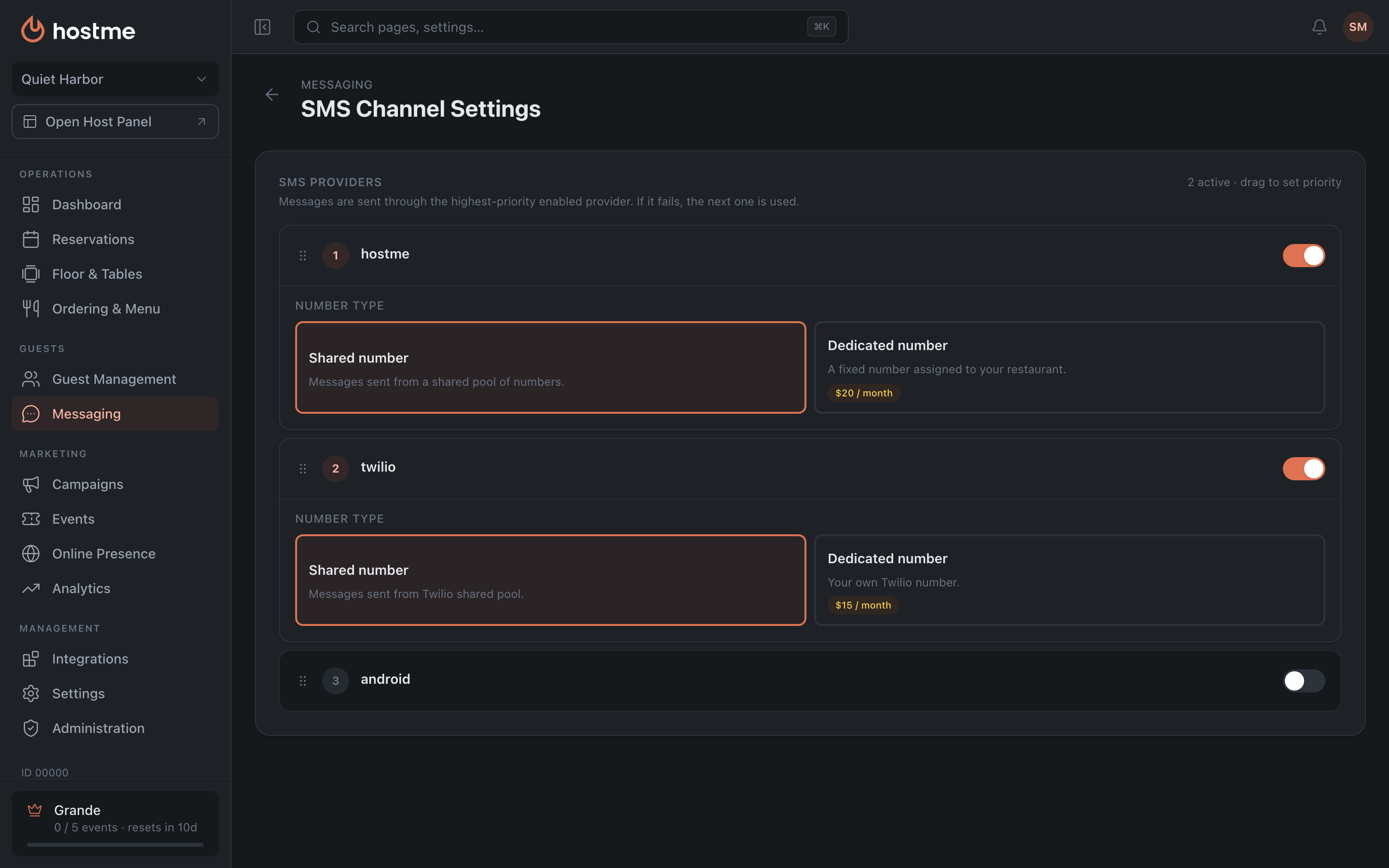
Enable at least one provider with the toggle. If the provider requires an API Key, enter it and click “Verify” — the panel will tell you whether the key was verified or not.
-
If there are several providers, order them by dragging: the first is the primary one, the next takes over on failure.
-
Choose the number type — a shared pool (Shared number) or one assigned to you (Dedicated number).
Telegram
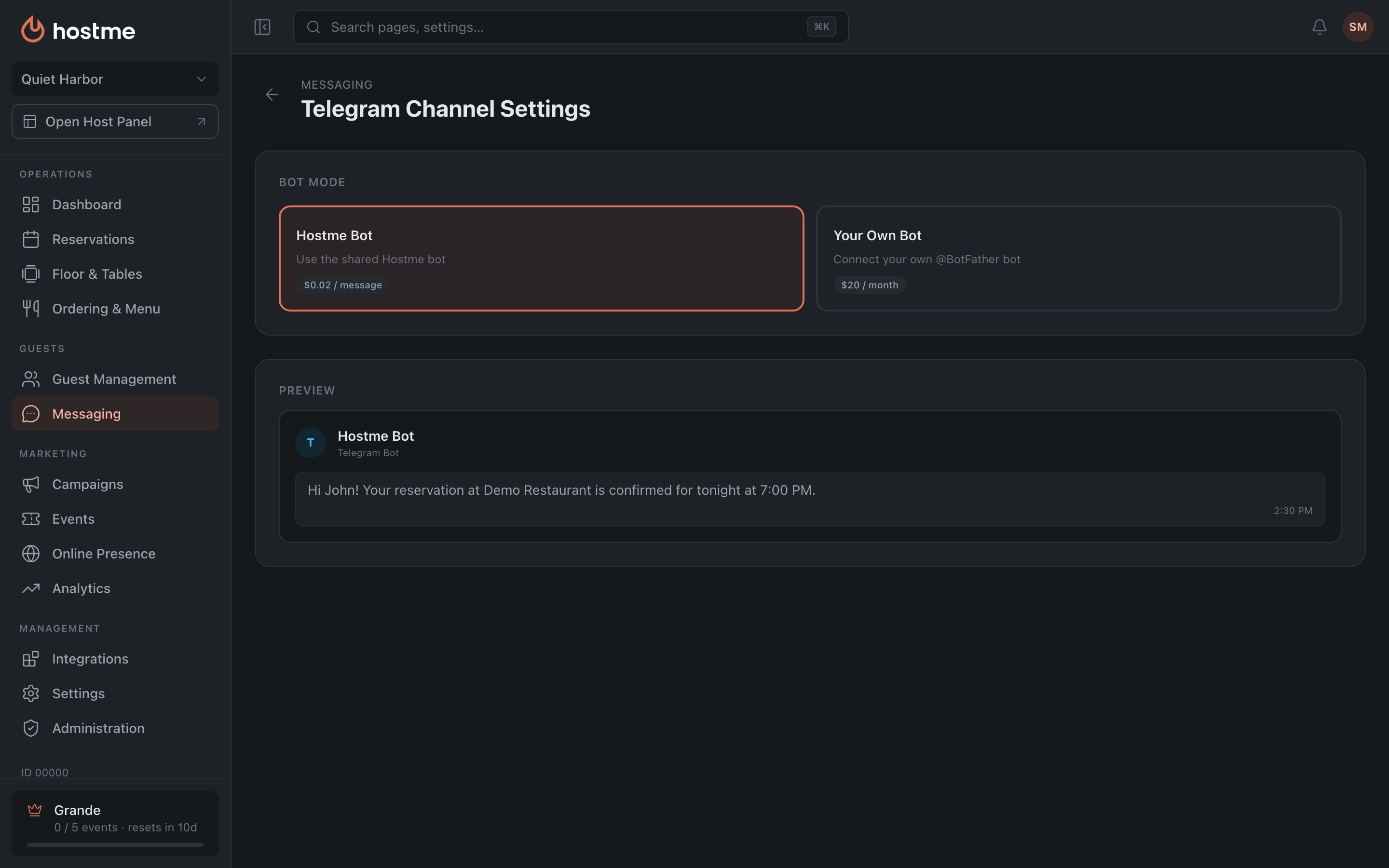
The fastest option is the Hostme Bot: nothing to set up, you pay per message.
Your own bot, if you need it to be yours:
- In Telegram, find @BotFather.
- Send /newbot and follow the instructions.
- Copy the API token, paste it into the panel and click “Verify” — without this the bot won’t connect; saving does not check the token.
If the bot is already connected to another service, the panel will notice and ask for a mode: “Mirror” (messages go to both services) or “Exclusive” (Hostme only).
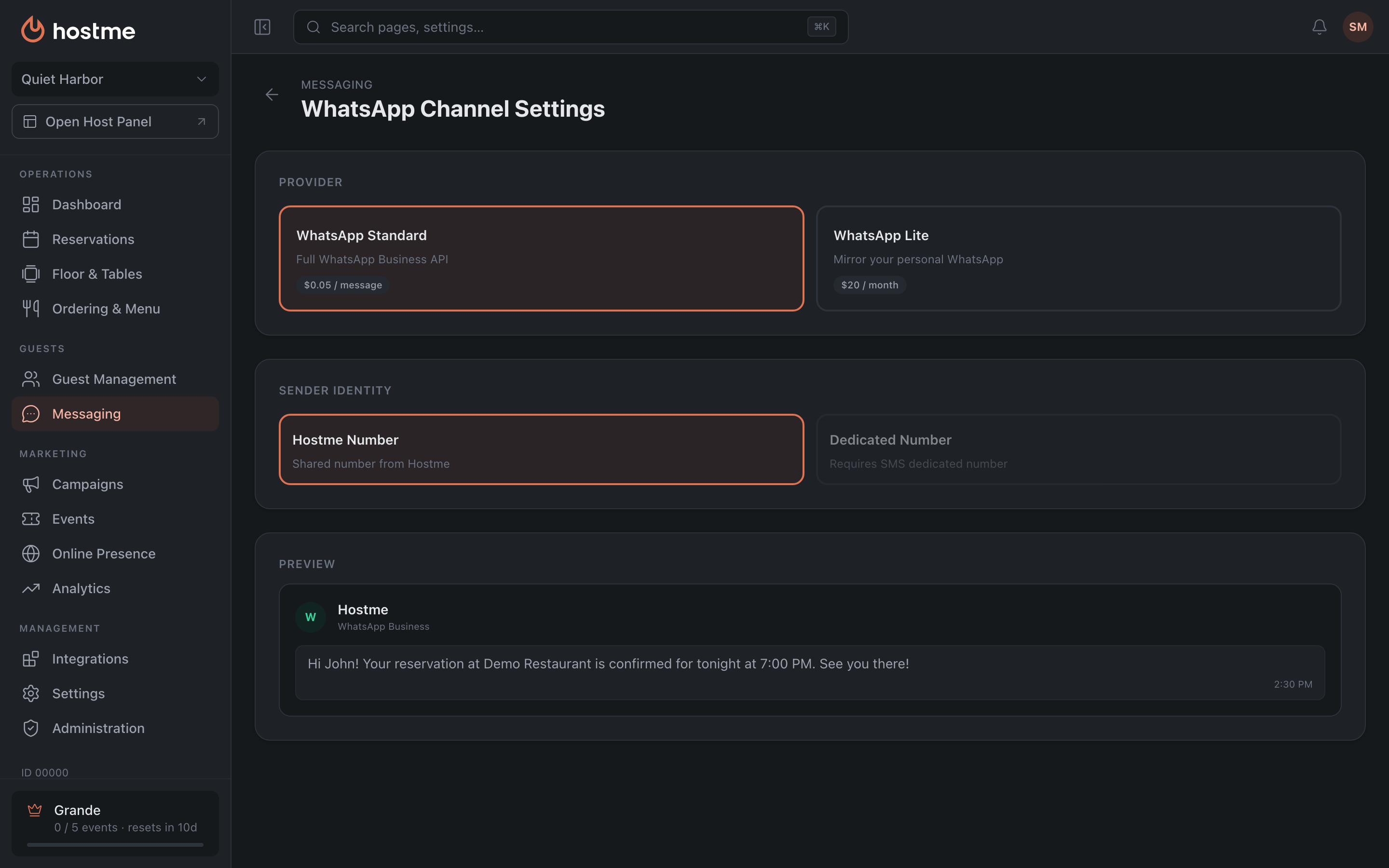
Lite — a mirror of your personal account. Turn on the “WhatsApp Mirror” toggle, then in WhatsApp on your phone open Linked Devices → Link a Device and scan the QR code on the screen.
Standard — the full Business API, needed for large volumes.
How to check it works
Don’t wait for the first real reservation. Open Campaigns, create a draft on the channel you need and click “Send Test” — the message goes to your account’s contact or to any address you specify.
What’s next
- Communication Channels — every setting of each channel.
- Messaging — templates and sending policies.
- Guide: brand your emails.