Messaging
A walkthrough of the Messaging section — communication channels, notification templates, email branding and policies.
The Messaging section handles automatic guest notifications: which channels they go through, what they say, and what the email looks like. Tabs: Channels · Templates · Branding · Policies.
Tabs
Channels
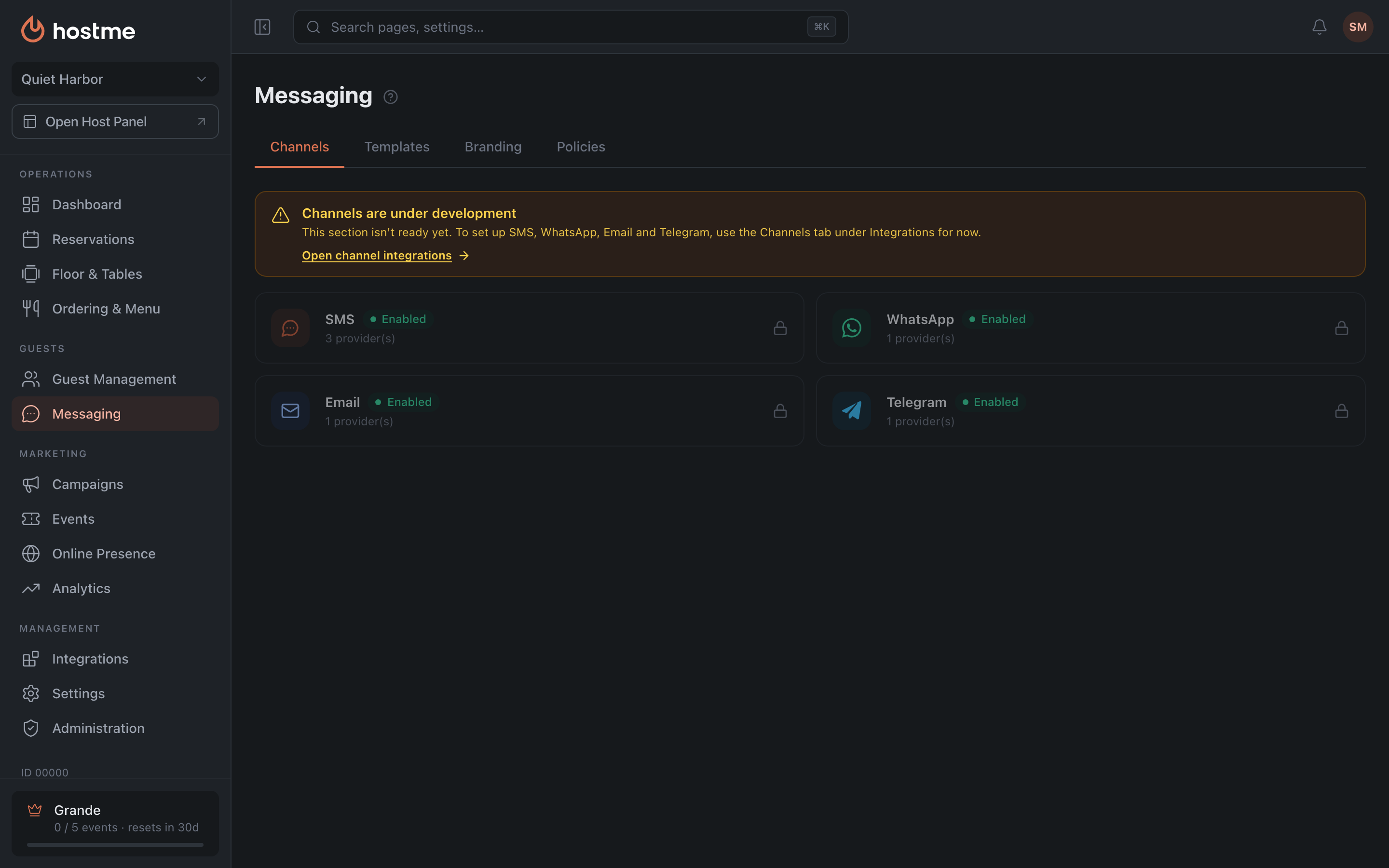 The list of communication channels: SMS · WhatsApp · Email · Telegram. Each has its own settings page: providers and their priority, the sender name, your own bot, domain verification. The status on a card is the channel’s status for guest notifications — the same ones you set up in templates. What each channel configures is described on the Communication Channels page.
Templates
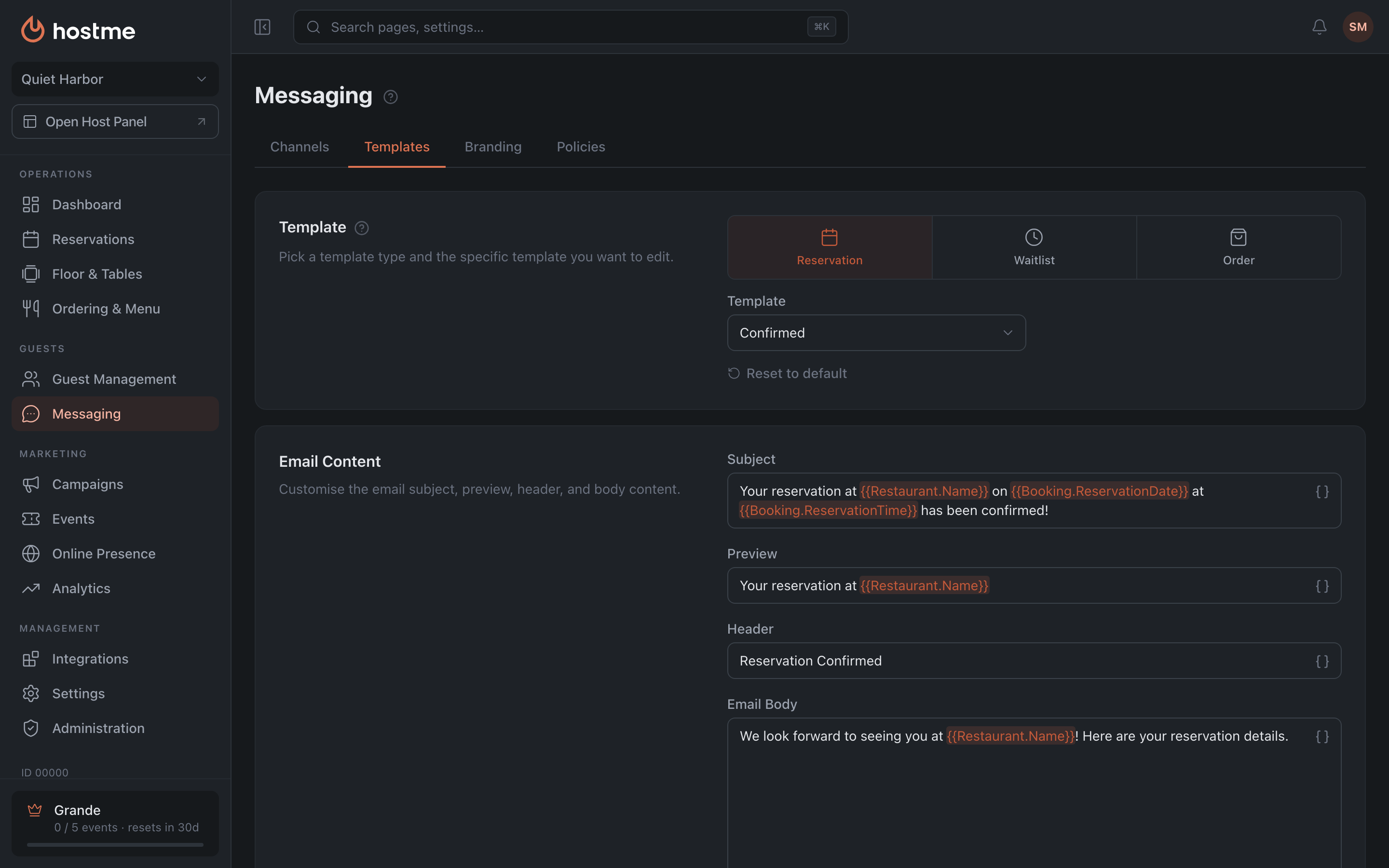 The notification template editor, organized by folders (Reservation · Waitlist · Order). Templates are edited in the restaurant’s language. For each template:
- Email Content Grande — the key text elements of the transactional email:
- Subject — the email title in the inbox list.
- Preview — the short text next to the subject, shown before the email is opened.
- Header — the main heading inside the email body.
- Email Body — the introductory message under the header. The guest sees it in the email.
- SMS, WhatsApp, Telegram — the text for each channel, available on any plan. If the Telegram field is empty, the standard Telegram text goes out.
- Email preview — how the guest will see this email.
- The “Send Test” button (to your account’s email) and “Reset to default” — the reset requires confirmation and irreversibly restores the factory text. The test email is built from the saved template, so the button is unavailable while there are unsaved edits — save first, then send the test.
Template channels
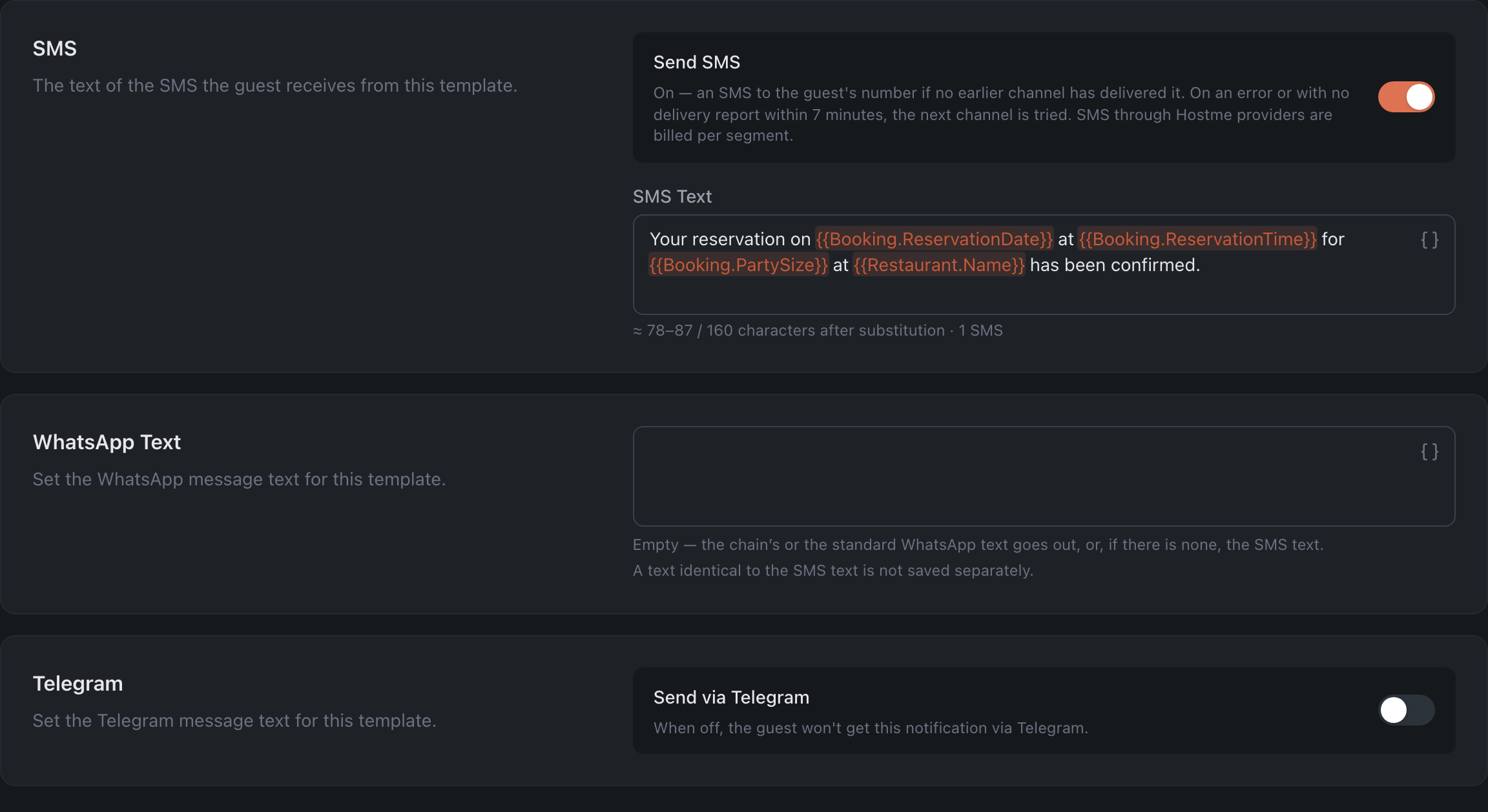
Each guest notification has its own switches: Send SMS and Send via Telegram. For example, you can stop sending an SMS for a reservation confirmation and keep Telegram. A switch applies to every language of the template, and “Reset to default” doesn’t touch it.
Of SMS and messengers, the guest gets the notification through one channel — the first one that delivers it. If a channel returns an error or there’s no delivery report within 7 minutes, the notification goes out through the next channel. Telegram reaches only guests who messaged the restaurant’s bot and shared their number.
When a channel is off, the template shows only its switch. The text is hidden, not deleted: turn the channel back on and the text is still there.
Channels the restaurant hasn’t connected, or that aren’t in its plan, don’t appear in the template. A grey line at the bottom of the template lists them: “Not set up” links to Integrations → Channels, “Not in your plan” links to Plans.
The guest email can’t be switched off: if the guest has an email address, the email always goes out.
SMS counter

Under the SMS field there is a counter: how many characters the message takes once the variables are filled in, and how many SMS it will be sent as. Guest names, dates and links differ in length, so the length is shown as a range, for example ”≈ 73–82 / 134 characters after substitution · 2 SMS · Unicode”. Two SMS are highlighted in amber, three or more in red.
- Unicode. If the text, the restaurant name or address contains Cyrillic, accented letters (é, ü) or emoji, the SMS is sent in Unicode, and one SMS holds 70 characters instead of 160. The way dates are written in the restaurant’s language can do the same. The line under the counter says exactly why, for example “Unicode because of the restaurant name ”…"".
- Warnings appear when the text has variables: depending on names, dates and links the message may take a different number of SMS; the text is close to the limit and a longer guest name will split it into one more SMS; a guest name in Cyrillic also switches the SMS to Unicode; a guest’s note or cancellation reason can make it longer.
- Links in an SMS are shortened, but only the last one in the text — the others go out in full.
Variables
Placeholders like {{...}} turn one template into a personal message: {{Guest.CustomerName}} becomes each recipient’s full name, {{Booking.ReservationTime}} the time of their reservation. Variables come in four groups:
- Restaurant — name, address, phone, booking page.
- Guest — first name, full name, phone.
- Booking — date, time, party size, table, area, duration, note, cancellation reason.
- Links — to change the reservation, to pay, and to leave a review.
First Name ({{Guest.FirstName}}) comes from the guest’s profile. Many guests, especially long-standing ones, have their name stored as a single line — then the full name goes in. The greeting is never left empty: “Hello, {{Guest.FirstName}}!” becomes “Hello, Emma!” or “Hello, Emma Clarke!”.
Last name isn’t in the list: it’s filled in only for guests whose first and last names are stored separately, and for everyone else it comes out empty. If {{Guest.LastName}} is already in the text, the editor warns you.
You pick them from a searchable list: put the cursor in the field first, then choose the variable.
Branding
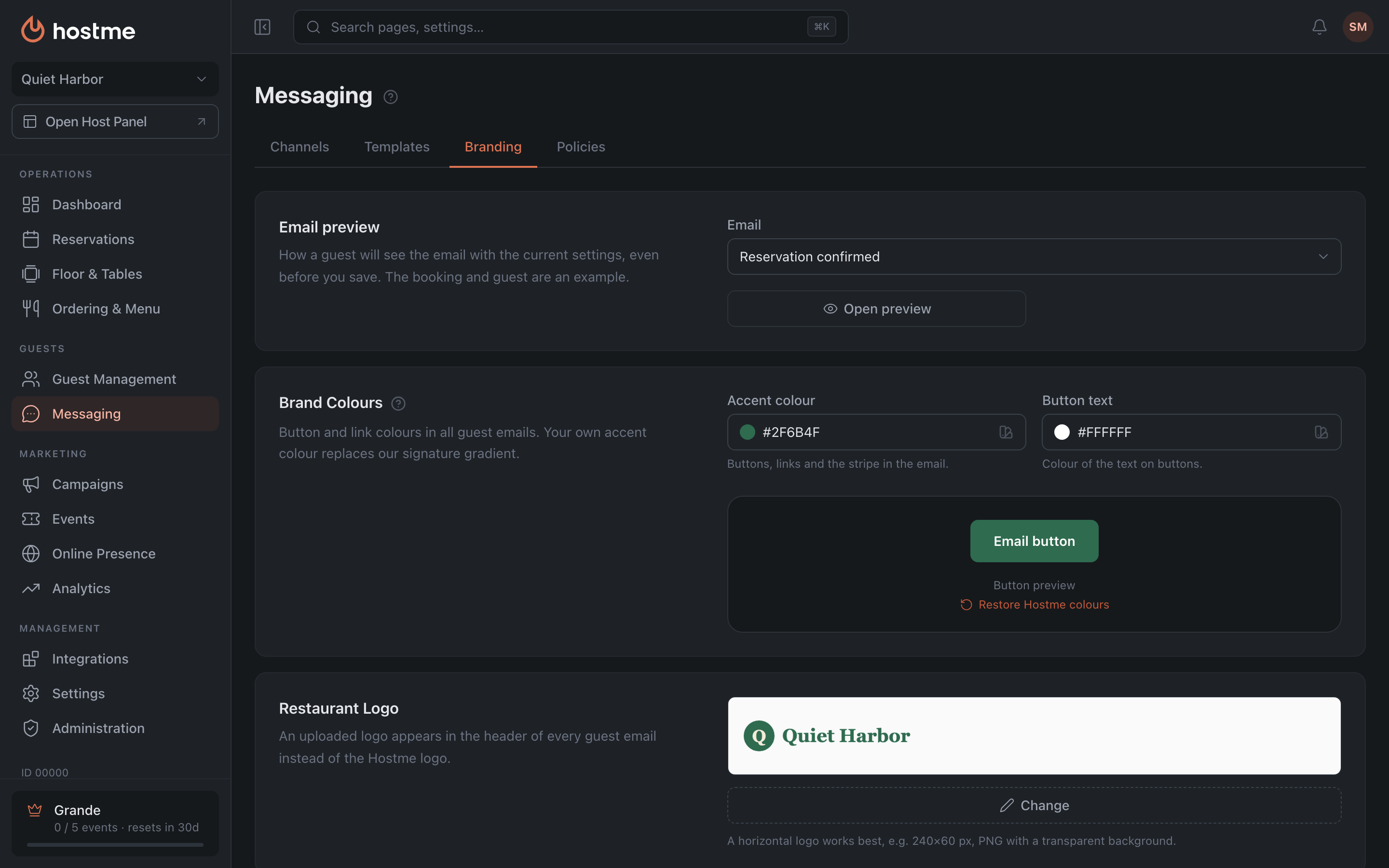 Everything about how the guest email looks is on one tab. The settings apply to all guest emails at once: reservations, waitlist and orders.
- Email preview — at the top of the tab: how the guest will see the email with the current settings, even before you save. You can pick the email: reservation, waitlist or order.
- Brand Colors Grande — the accent color (buttons, links and the stripe in the email) and button text. “Restore Hostme colors” brings back the standard colors.
- Restaurant logo Grande — shown in the header of all guest emails instead of the Hostme logo. A horizontal logo works best, for example 240×60 px, PNG with a transparent background. You can upload the image, pick it from the gallery or paste a link.
- Promotional Section Grande — the advertising block of the email: a promo image (a poster, the seasonal menu), a promo title and promo content. The text is written in the restaurant’s language.
You can also remove things: the logo and the promo image with the cross in the corner of the preview. After you save, they disappear from emails.
Details in the email Grande
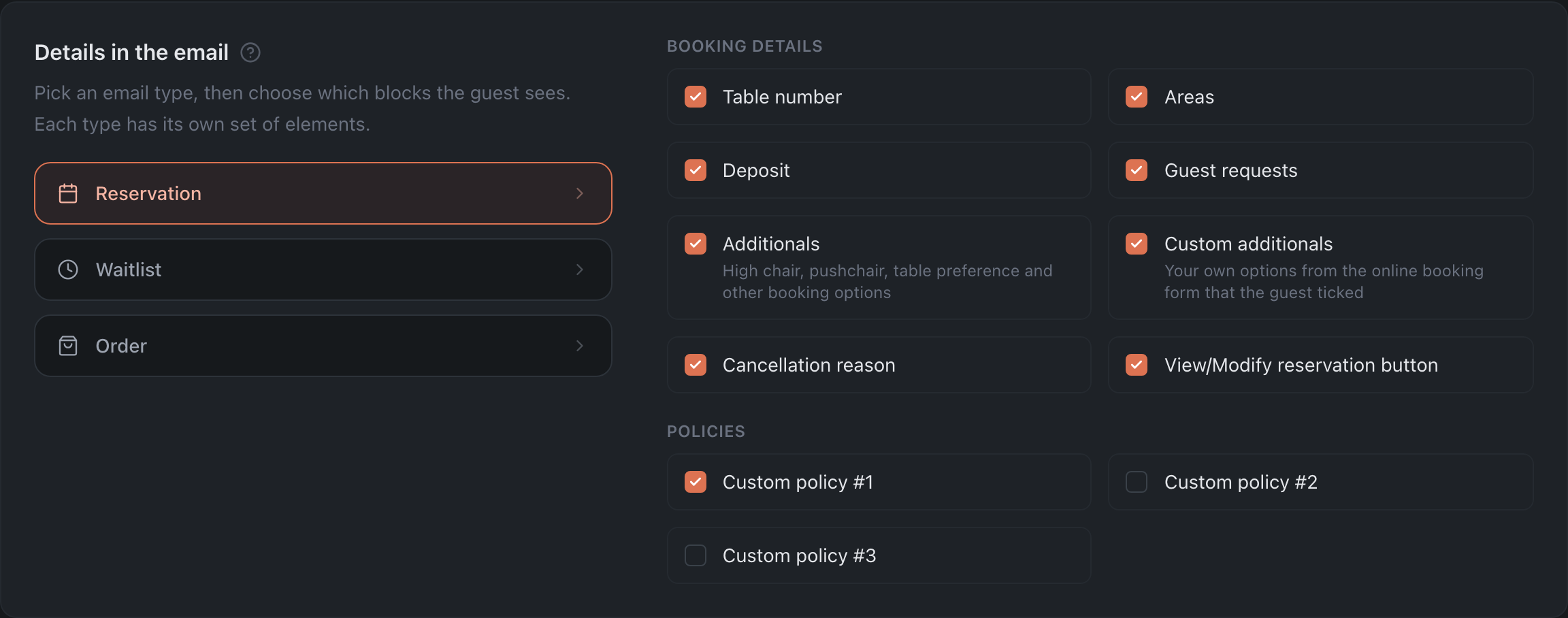 What the guest sees. Each email type has its own set:
- Reservation — table number, areas, deposit, guest requests, additionals, custom additionals, cancellation reason, the view/modify reservation button, policies #1–#3.
- Waitlist — the waitlist spot button and policies #1–#3. All off by default.
- Order — guest requests, the order button and the order policy.
The guest’s name, the pre-order, order details and items, and the restaurant’s phone are always in the email.
Without the Grande plan the block is locked, and emails go out with our default settings.
Email design Grande
Three switches for all guest emails:
- Restaurant copyright — an email footer with the restaurant name and contacts instead of the Hostme footer.
- Promo — the block from the promotional section: image, title and text.
- Restaurant social links — icons linking to the social networks from the restaurant profile.
At the bottom of every guest email there is a line saying the email was sent automatically, with the guest’s address.
Policies
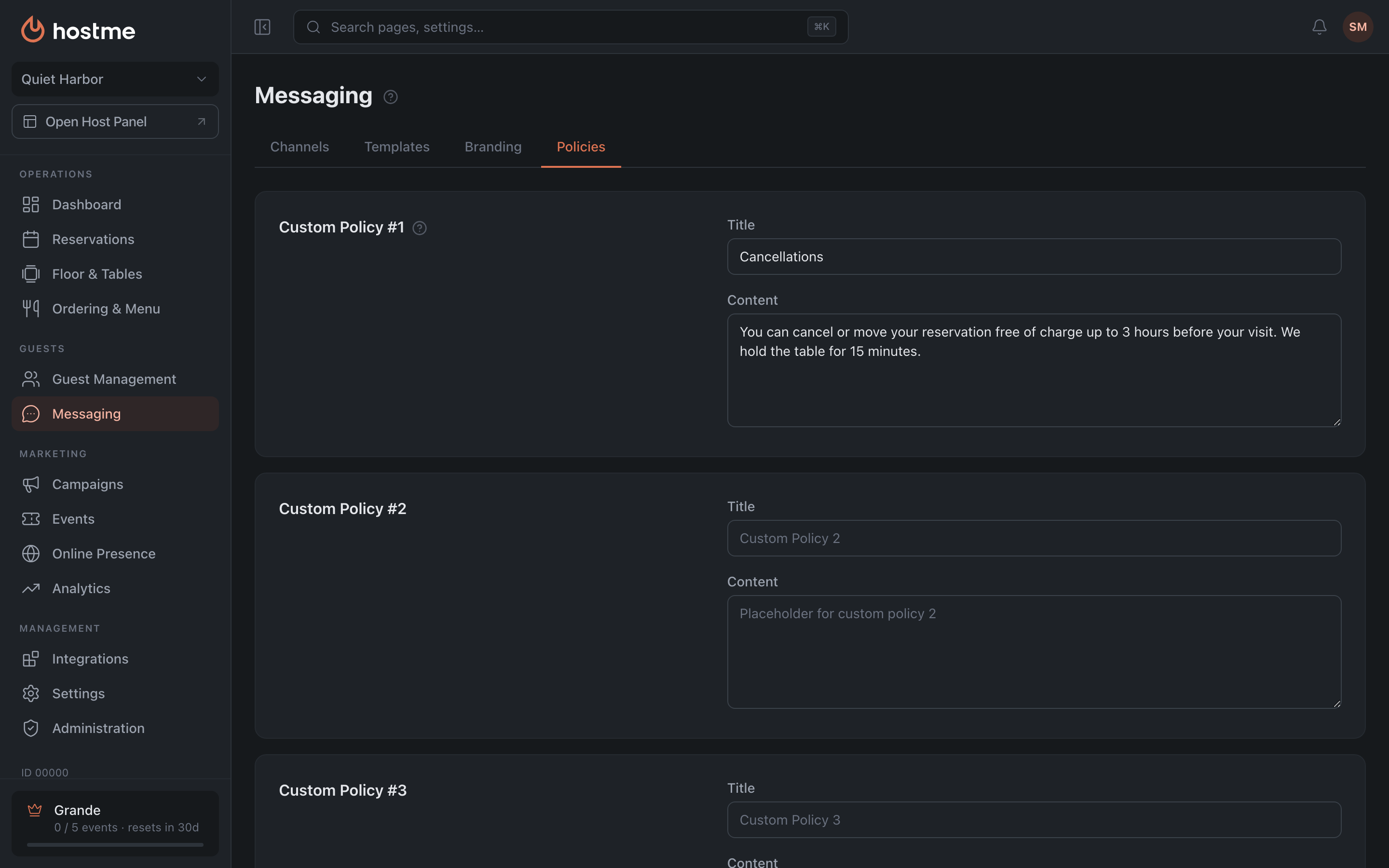 Text blocks for policies — “Custom Policy #1”, “#2”, “#3” and “Order Policy”, each with a title and content. Like templates, policies are kept in the restaurant’s language. The first policy is available on any plan; the others are Grande-only. Policies #2, #3 and the “Order Policy” title show a placeholder in the empty field — an example text. While the field is empty, that block isn’t printed in the email. Whether a policy appears in the email is chosen in “Branding → Details in the email”.
How changes are saved
The Templates / Branding / Policies tabs share the common “Save Changes” bar at the bottom (it appears when you edit). The Channels tab is view-only.