Modifiers
Options and add-ons for dishes: two types, selection modes, minimum and maximum, linking to products.
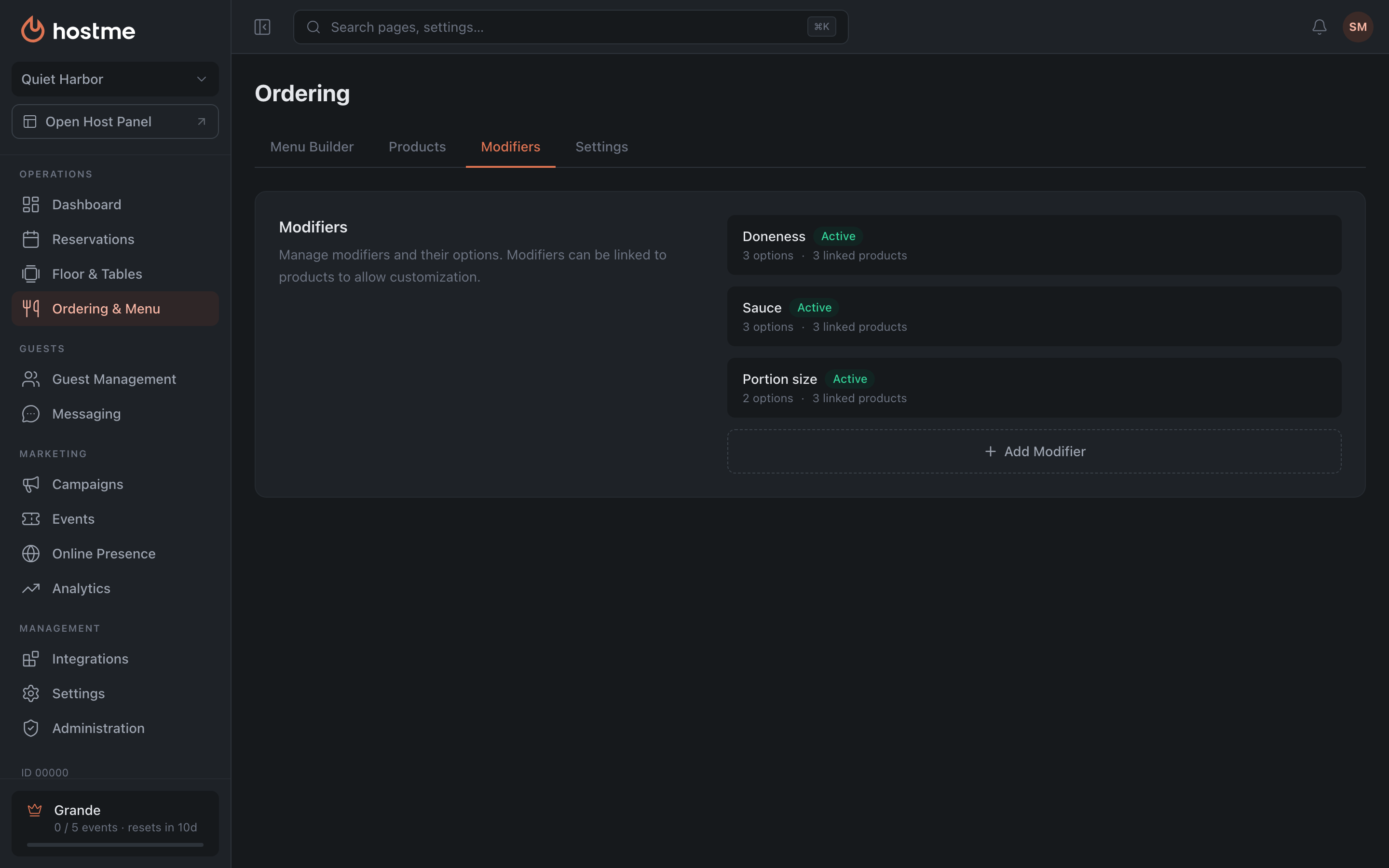
A modifier is what a guest picks for a dish: doneness, sauce, milk for coffee, portion size. The “Modifiers” tab in the Ordering & Menu section manages them centrally: a modifier is created once and linked to several products at the same time.
Two types
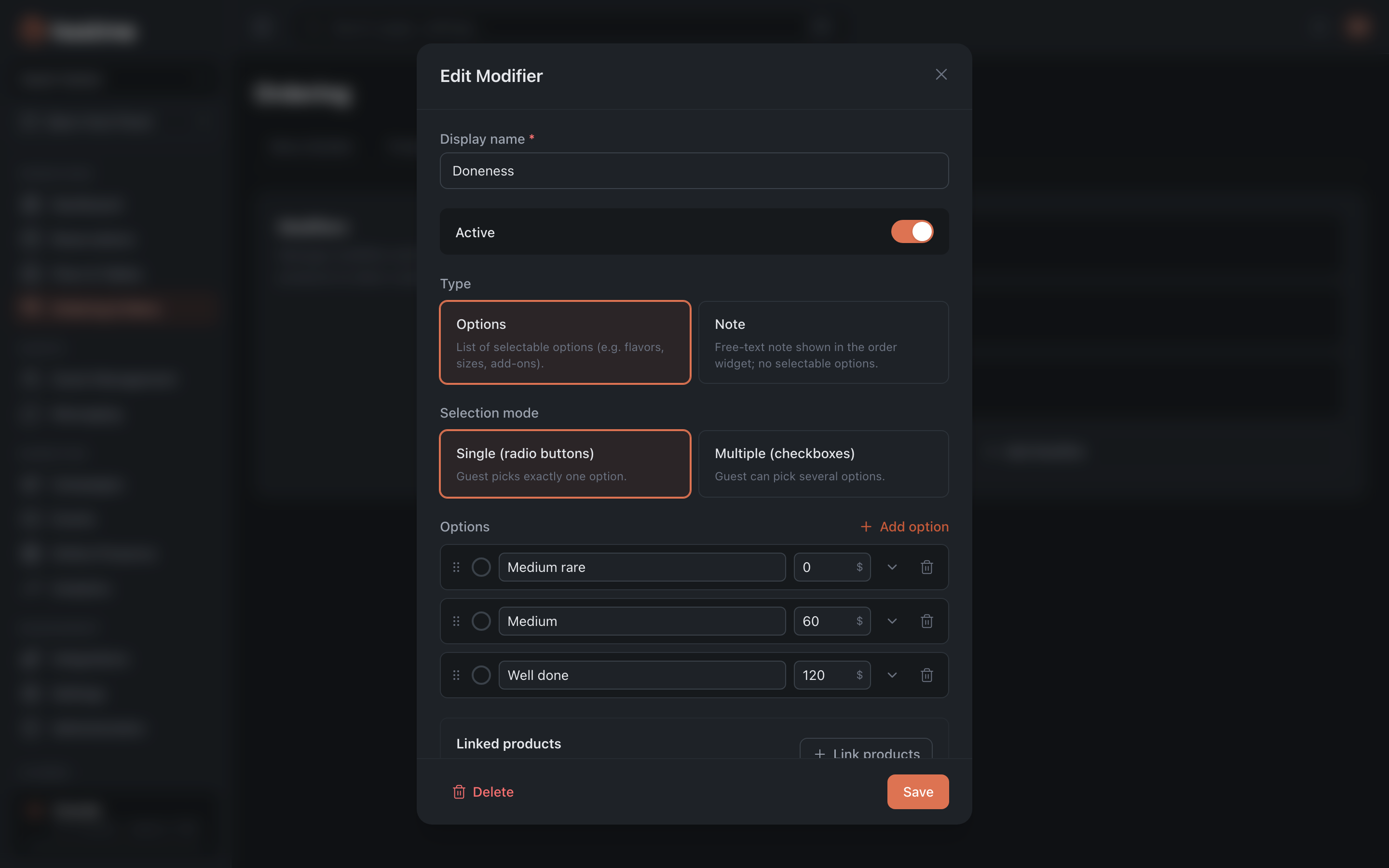
| Type | What it does |
|---|---|
| Options | a list to choose from — flavors, sizes, add-ons |
| Note | free text in the ordering widget, no selection |
“Note” fits where the options can’t be listed: “doneness requests”, “no onion”. The guest writes freely.
Selection mode
For the “Options” type you define how the guest chooses:
- Single (radio buttons) — exactly one option. Steak doneness.
- Multiple (checkboxes) — several can be ticked at once. Toppings.
For multiple, “Min selections” and “Max selections” are also set. The maximum can be left “Unlimited”.
Options
Each option has a name, an optional description, a price and an optional tax rate. The price can be zero: “No sauce” costs nothing but still has to be in the list.
An option can be marked as selected by default — it will be ticked automatically when the modifier opens. In “Multiple” mode there can be several such options.
Linking to products
The “Linked products” block shows which dishes the modifier will appear on in the ordering widget. The “Link products” button opens a picker with search, “Select all” and “Clear” buttons and a counter of selected items.
Where else this is configured
A modifier’s visibility can be changed for a specific menu — the “Modifier Toggles” block in the Menu Builder. Useful when the choice isn’t needed for delivery but is for dine-in.
Modifiers applied to a whole category show up in the product card with the “via category” label — they can’t be unlinked there.
What’s next
- Products & Categories — what modifiers are linked to.
- Menu Builder — enabling and disabling per menu.
- How to launch delivery and a QR menu