Billing and subscription
The current plan, the event quota, changing plans, cards, billing history and invoices.
Everything to do with money: which plan is active, what you pay with, what has already been charged and for what. It opens under Administration → Billing.
Current Plan
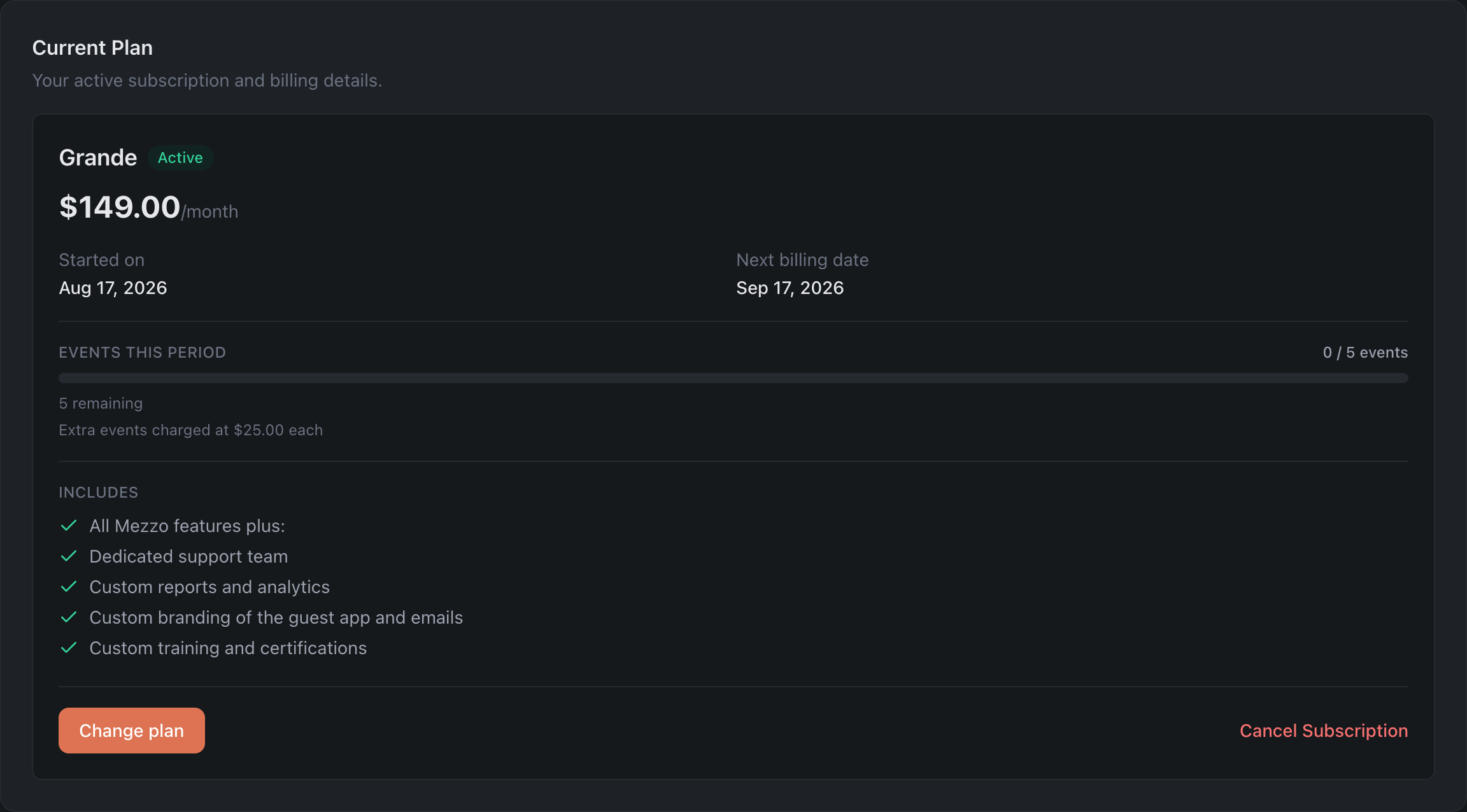
The top block: the name of the active plan, the next billing date, and a list of what the plan includes. While the trial is running, a counter sits here too — how many days are left out of how many — and on the last day it says outright that the trial ends today.
If the last payment failed, a warning appears in this block asking you to update the card: until the payment goes through, access to paid features may be closed.
Event quota
Events are what separates the plans most, so their usage is shown separately: how many events have been used this period and how many remain. When the quota runs out, events are not blocked — each one over the limit is billed separately, and you can see both the price per event and the estimated amount that will be added to your next invoice.
What each plan includes is on the Plans and what they include page.
Changing plans
The Change plan button opens the list of available plans. Each is marked as an upgrade or a downgrade relative to your current one, and the plans shown are those for the selected billing interval — if there are none for that interval, the list will be empty.
If there is no active subscription at all, the plan block is replaced by an invitation to pick one from the same list.
Before the change, a confirmation dialog opens. The Due now line shows how much we’ll charge right now and to which card. If the amount includes charges for the current period, such as SMS, the dialog says so.
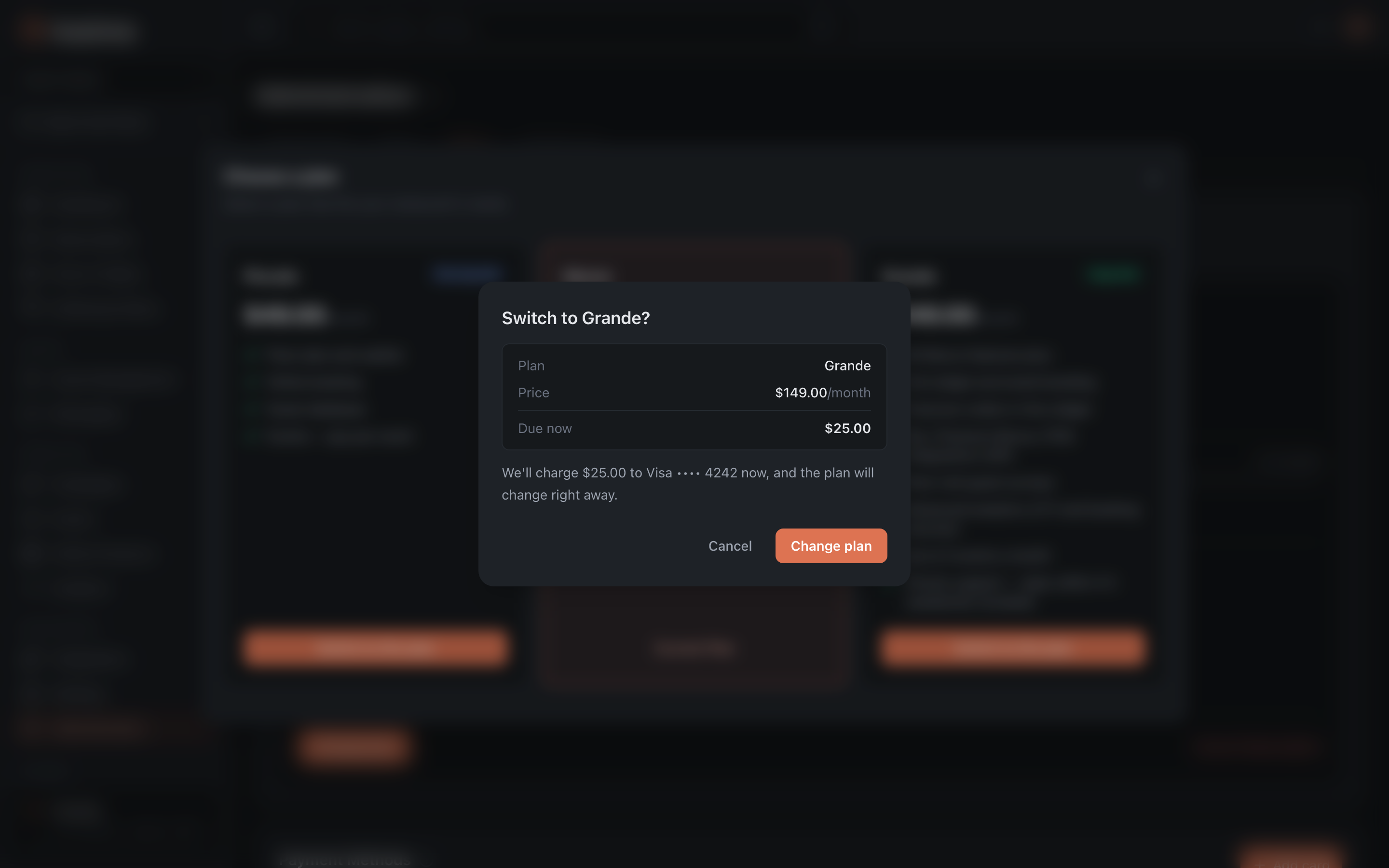
An upgrade usually takes effect right away, and a downgrade from the start of the next billing period. The confirmation dialog tells you which applies.
If your bank asks you to confirm the payment, the bank’s window opens. The plan changes once you confirm the payment.
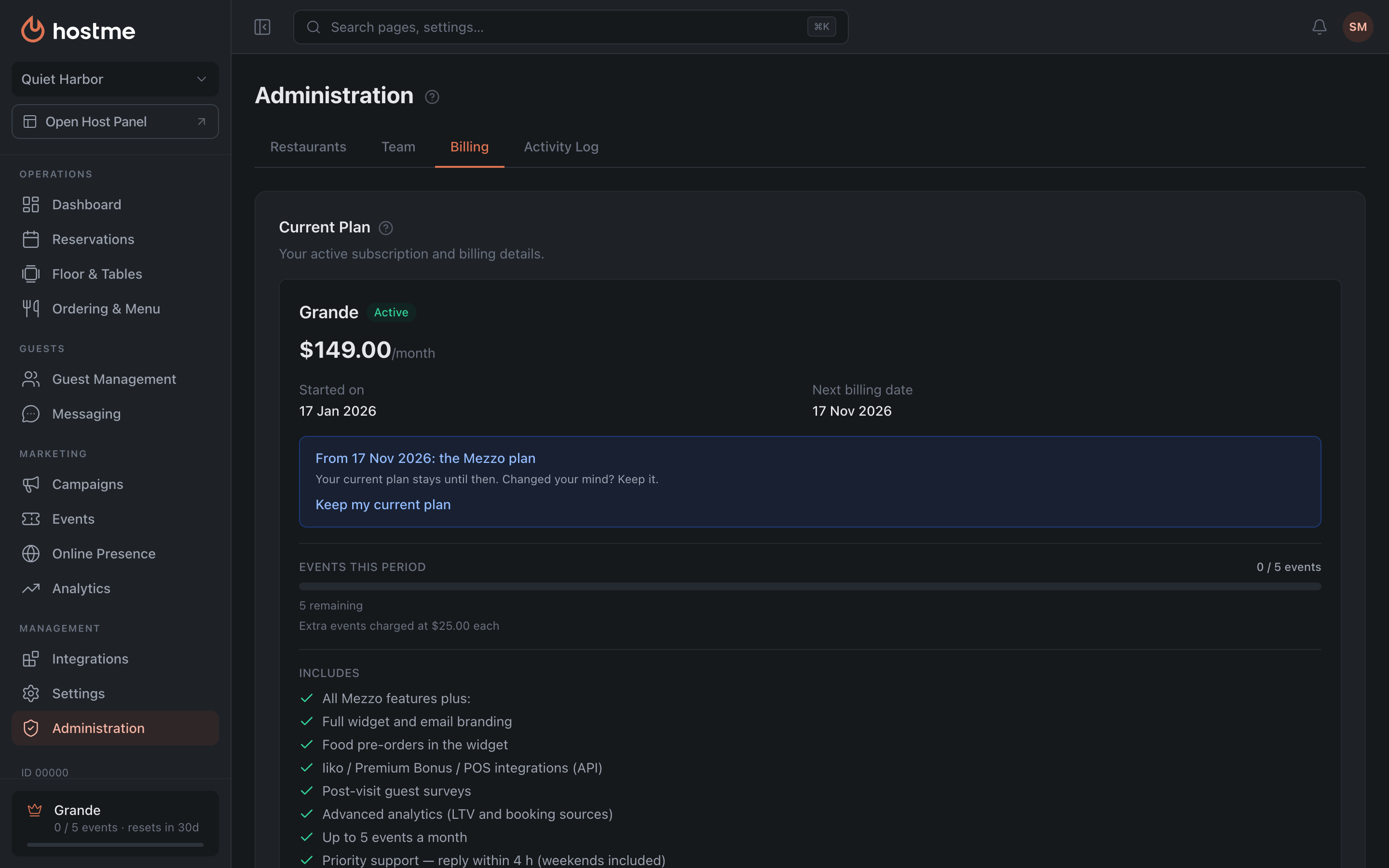
Downgrading from the next period. Your current plan stays until that date, and the Current Plan card shows when the new plan starts. Changed your mind? Click Keep my current plan, and the change is cancelled.
Card. Switching to a paid plan needs a linked card. If there isn’t one, the card form opens first, followed by the confirmation dialog.
During the trial you can change the plan and the billing period (monthly or yearly) yourself, no card needed. The trial carries on and nothing is charged now. When it ends, you get an invoice for the plan and period you chose.
Payment Methods
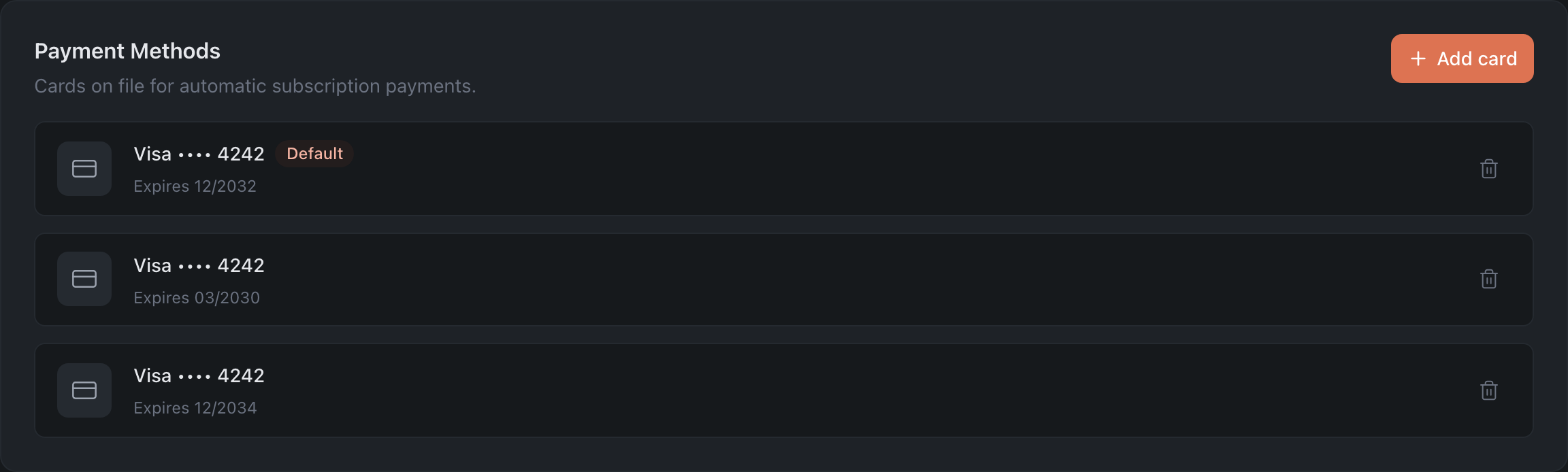
The cards the subscription is charged to. One of them is marked Default — that is the card automatic payments come from; each shows its expiry date.
A card is added with Add card: cardholder name, email and card details. We do not store the card number — the details are encrypted and processed by Stripe.
Removing a card asks for confirmation and names the last four digits, so you don’t remove the wrong one.
Billing History
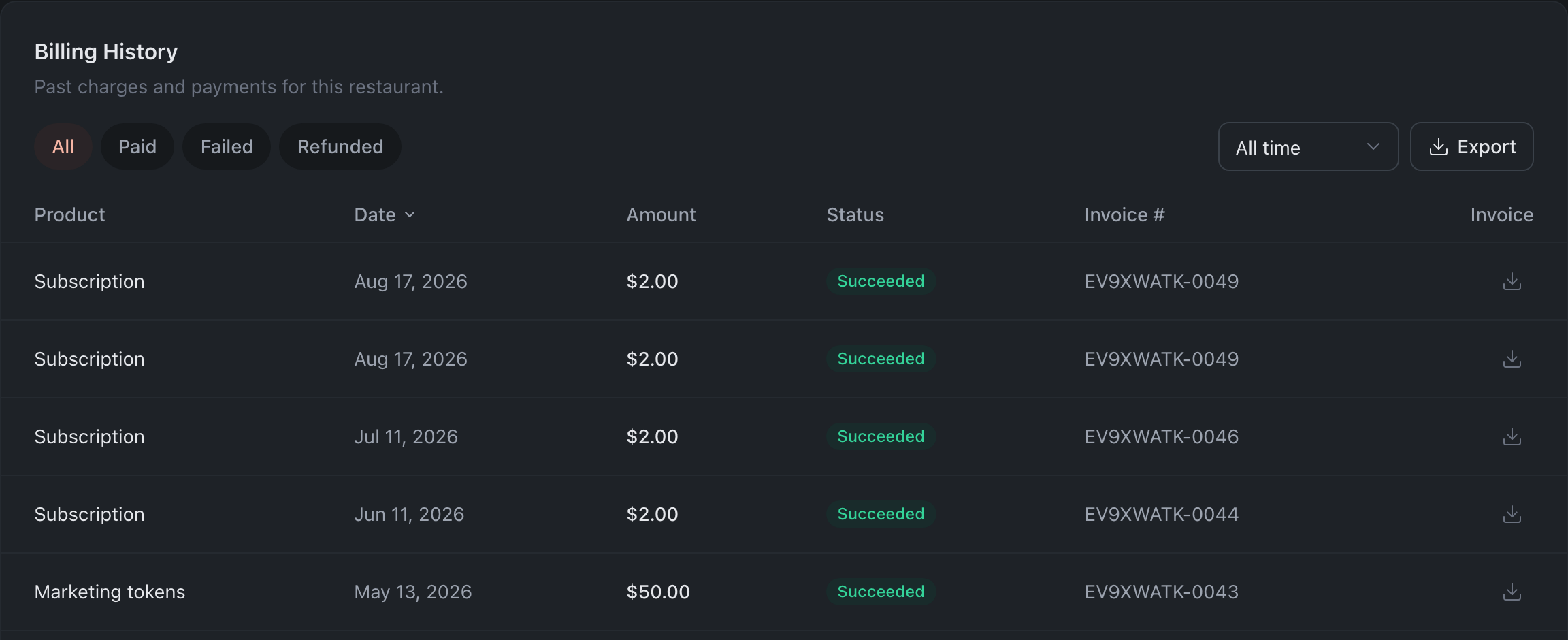
Every charge for this restaurant: date, amount, status, product and invoice.
Statuses: “Succeeded”, “Failed”, “Pending”, “Refunded” and “Partially refunded”. For refunded charges you can see exactly how much came back.
Paid by the network. When a network pays for several of its restaurants with one invoice, the product name has a “Paid by the network” note under it. The amount in that row is the whole network invoice, not this restaurant’s share. A network invoice with no plan in it (add-ons only, for example) and some older network payments show only in the restaurant the network’s subscription is billed to.
Finding what you need. Filters by status — all, paid, failed, refunded — and by period: 30 days, 90 days, this year, all time. A long history is split into pages.
What you can take away. Every charge has an invoice PDF and a link to the receipt. The Export button takes the whole selection as CSV; your accountant will find that more useful than downloading invoices one by one.
Cancelling a subscription
The Cancel Subscription button leads to a separate screen that asks for a reason. After cancelling, paid features stop working; you can come back by picking a plan again.
Refunds are not issued through the panel — contact support about those.
What’s next
- Plans and what they include — how Piccolo, Mezzo and Grande differ.
- Administration — restaurants, team and the activity log.