Online Booking
A walkthrough of every setting on the Online Booking tab — approval mode, party size, booking window, booking form and limits — with examples of when to turn what on.
The Online Booking tab (in the Reservations section) defines how your online widget accepts and handles bookings: whether they are confirmed automatically or by hand, what party sizes are allowed, how far ahead of the visit guests can book, which fields the guest sees, and how many bookings are accepted per slot.
Online booking on or off
The first section of the tab is the “Guests can book a table online” switch. Turn it off if you don’t need online booking at all: guests won’t be able to book a table or place a preorder in any channel — widgets, Google or guest apps. The host books as usual, and delivery and takeaway follow their own settings. While the switch is off, the rest of the tab’s settings are hidden; they aren’t lost and come back when you turn it on.
Approval Mode
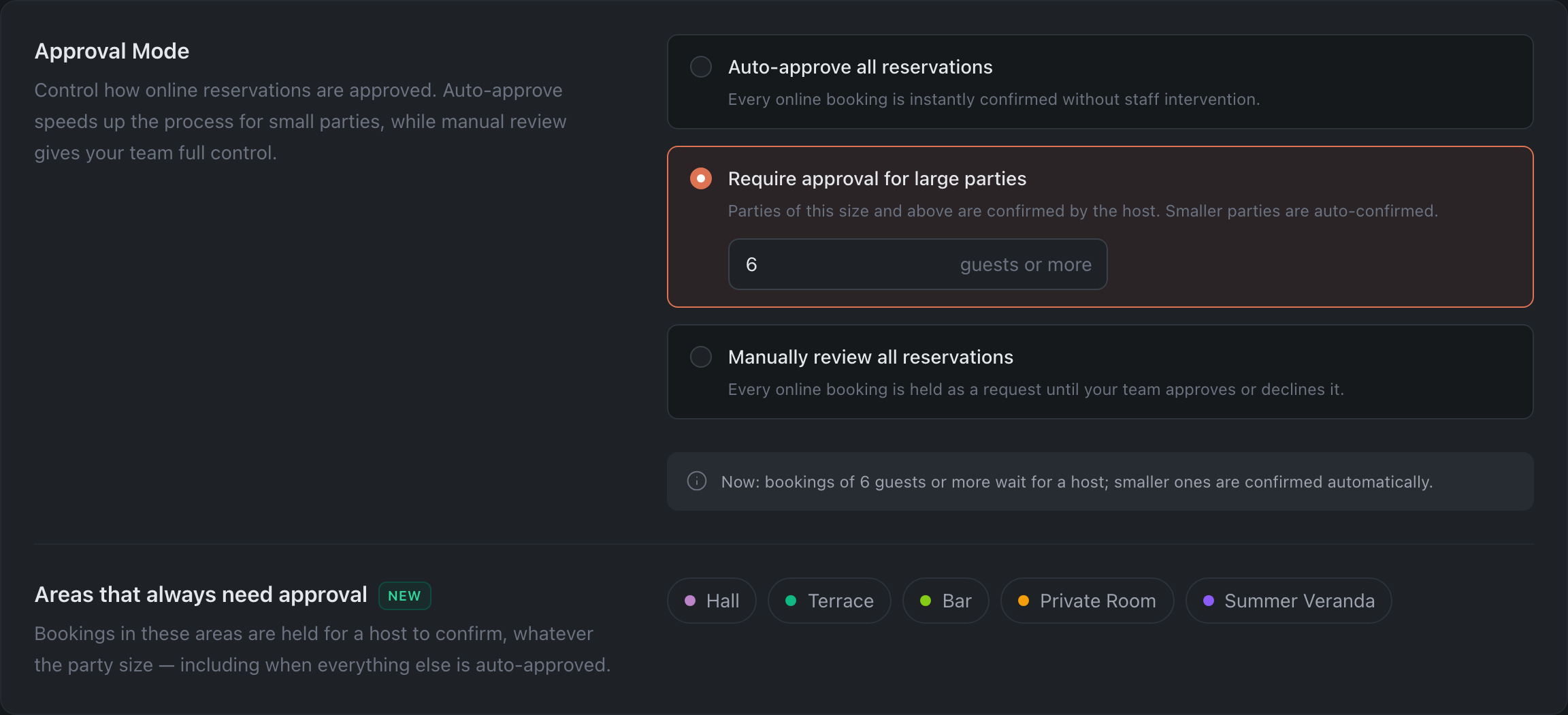
Defines what happens to an online booking right after it is submitted.
- Auto-approve all reservations — every booking is confirmed instantly, with no staff involvement.
- Require approval for large parties — you set the party size from which a booking goes to the host. Parties of that size and larger wait for approval; smaller ones are confirmed automatically.
- Manually review all reservations — every booking stays a request until the team confirms or declines it.
Below the setting, the same rule is spelled out in words — for example: “Now: bookings of 7 guests or more wait for a host; smaller ones are confirmed automatically.” This line is a handy way to double-check yourself after changing the threshold.
Areas that always need approval
A separate list of areas where bookings are confirmed by the host regardless of party size — even when everything else is auto-approved. It works on top of the approval mode, not instead of it: a booking goes to approval if the party reaches the threshold or the guest picked one of these areas.
Handy for a terrace, a private room or a banquet hall that you want to keep under manual control without complicating the rules for the whole restaurant.
The block is available in the “Auto-approve all reservations” and “Require approval for large parties” modes. It is hidden in “Manually review all reservations” mode (everything goes through the host there anyway) and when the restaurant has no areas set up. The selected areas are kept and come back if you switch modes. There is no limit on the number of areas.
Step-by-step setup with a breakdown of the combinations is in the guide Manual approval for bookings in a specific area.
Online Party Size

The Minimum and Maximum number of guests that can be booked through the widget. These limits apply to online bookings only — limits for staff bookings are set on the Booking Rules tab.
Booking Window
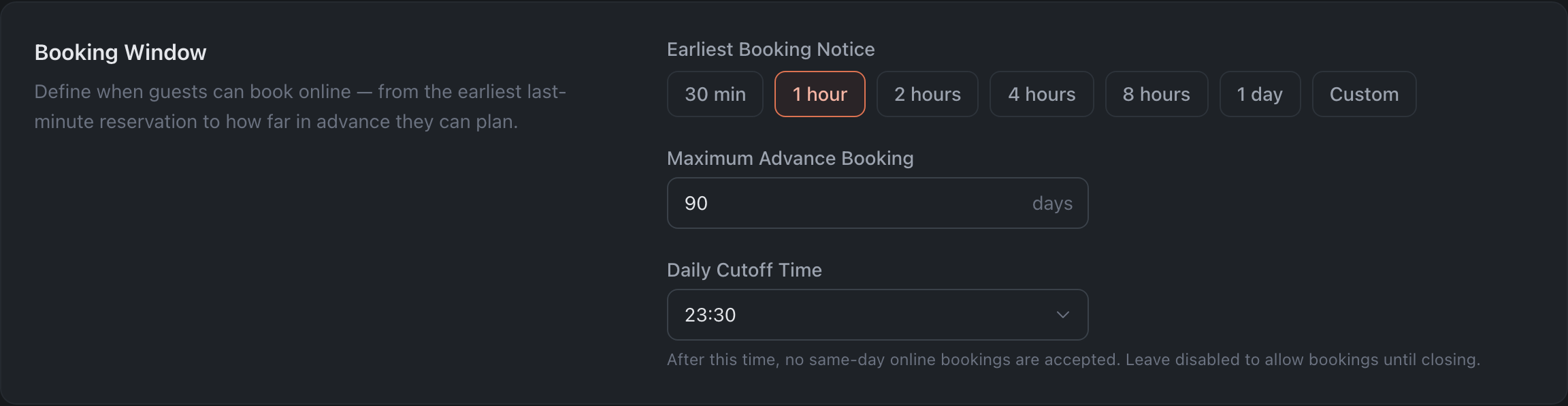
Defines the period within which guests can book online.
- Earliest Booking Notice — the minimum lead time before the visit (presets from 30 min to 1 day, or “Other”).
- Maximum Advance Booking — how many days ahead booking is open.
- Daily Cutoff Time — after this time, online bookings for the current day are no longer accepted. “Disabled” = accept right up to closing.
Booking Form
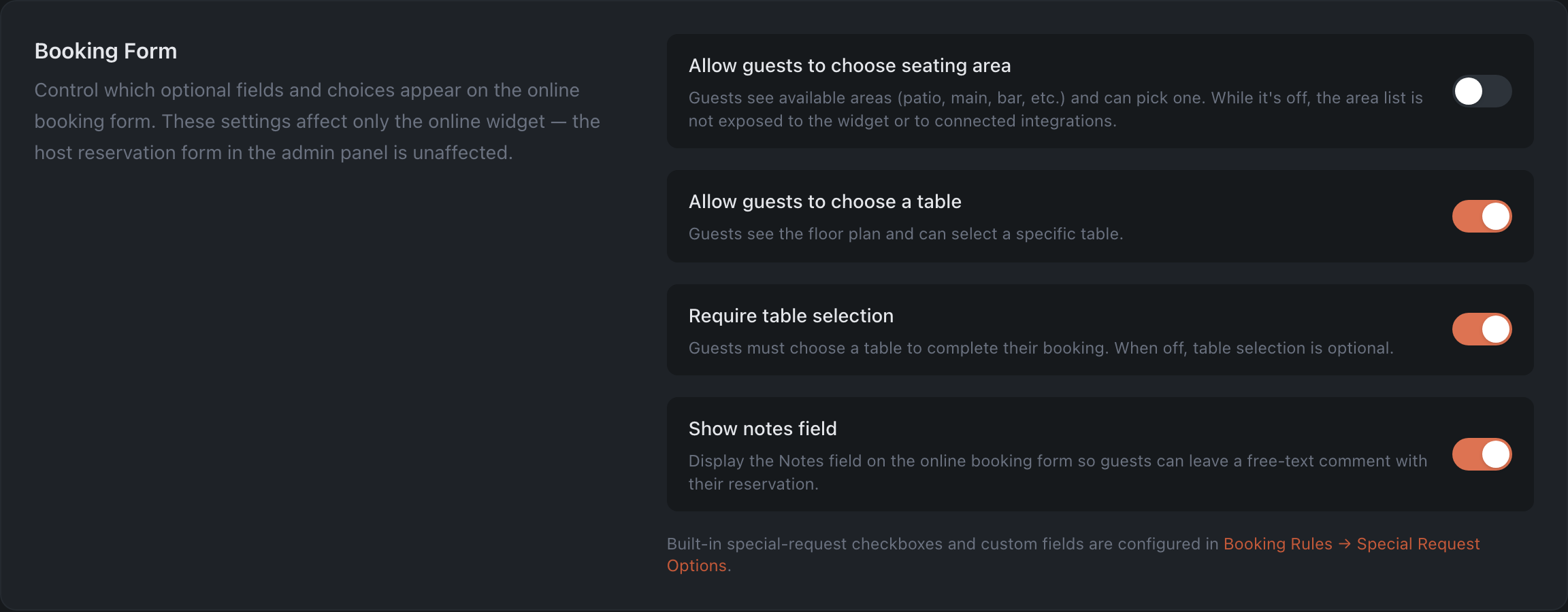
Controls which fields and options the guest sees in the widget.
- Allow guests to choose seating area — the guest sees the available areas (terrace, dining room, bar…) and picks one. While the switch is off, the list of areas is not sent to the widget or to connected integrations.
- Allow guests to choose a table — the guest sees the floor plan and picks a specific table.
- Require table selection — the guest must pick a table to complete the booking. This switch appears only when “Allow guests to choose a table” is on.
- Show notes field — the guest can leave a free-form comment with the booking.
Pacing and limits — on the Cover Pacing tab
Guest-flow limits (how many guests and how many bookings are accepted for the same time, how much of the room goes to online) are set not here but under Floor & Tables → Cover Pacing — all pacing settings live there together.
How changes are saved
Changes on the tab don’t apply immediately: while you edit, a bar with Cancel and Save Changes buttons appears at the bottom of the screen, and a dot lights up on the tab. The widget settings update only after Save Changes.
What’s next
- How to set up the booking widget — embed the widget on your website.