Campaigns
A walkthrough of the Campaigns section — guest mailings (email/SMS/WhatsApp), automations and reports.
The Campaigns section is for messaging the guests in your database: one-off campaigns, event-driven automations and delivery reports.
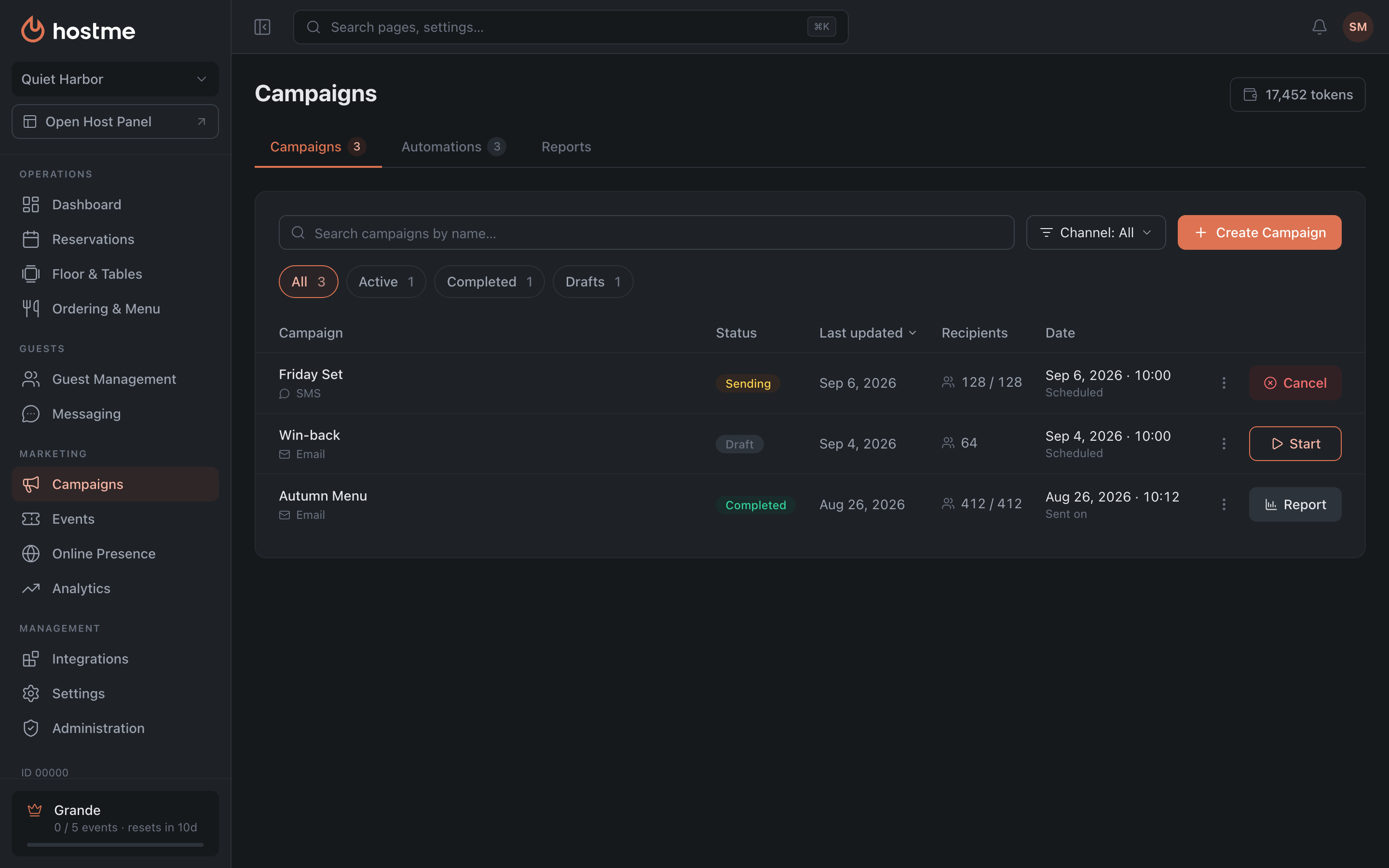
Tabs
- Campaigns — the list of one-off mailings, with search by name, a channel filter and statuses: All · Active · Completed · Drafts.
- Automations — trigger-based automatic mailings: eleven types, from a birthday to a booking status change. Unlike a one-off campaign, an automation can use several channels. On the Audience step you can additionally narrow the recipients with segment filters: the trigger condition and the filters work together — the message goes only to guests who match both. The preview shows the number of recipients without a cost. All triggers are covered on the Automations page.
- Reports — delivery, open and click statistics for one-off campaigns and automations, with a funnel and CSV export. Details are on the Campaign Reports page.
At the top right is the token balance (tokens are spent on sending); clicking it opens the top-up. What makes up the price and why SMS costs more is explained in the guide Tokens and mailing costs.
Creating a campaign
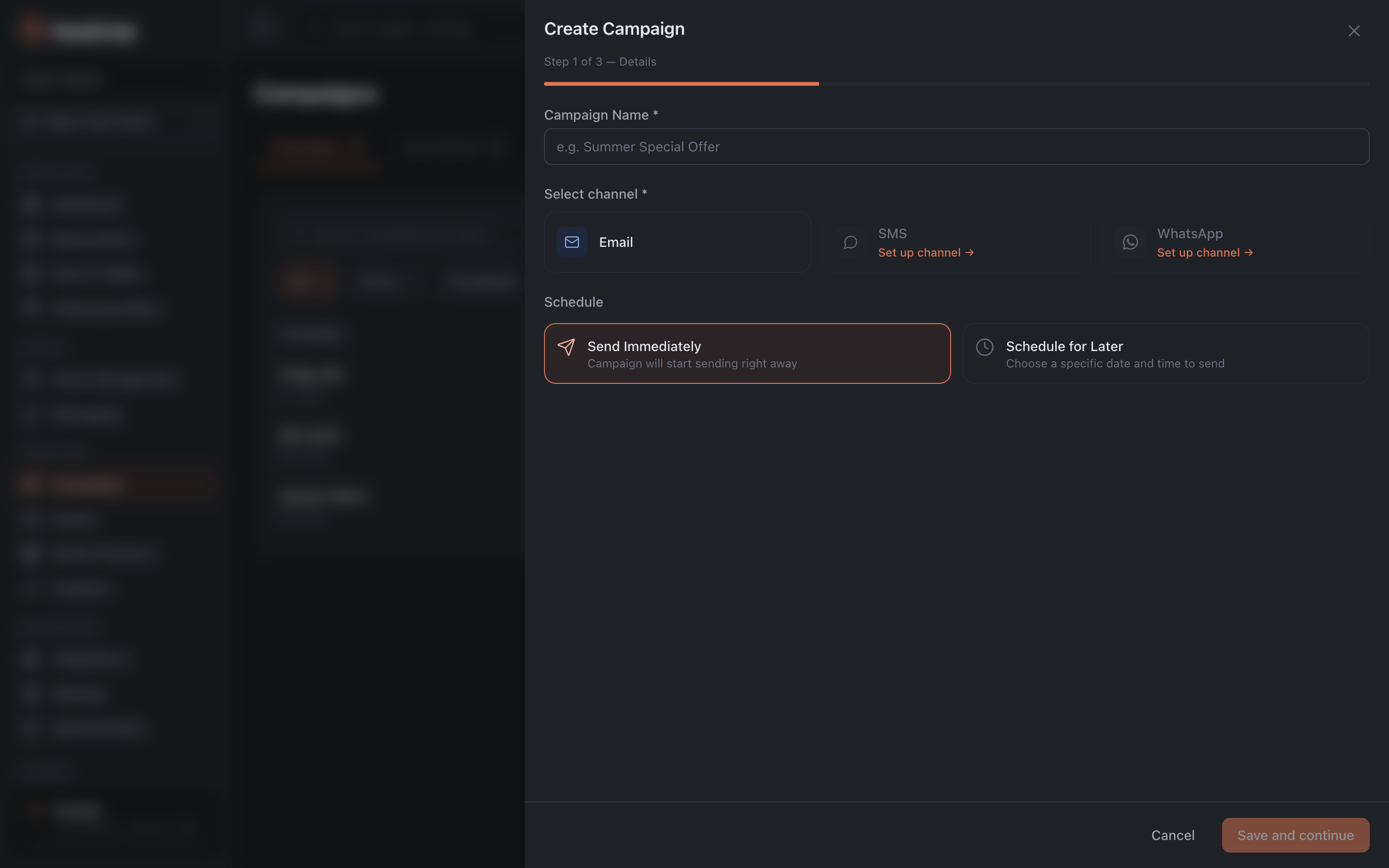
The Create Campaign button opens a three-step wizard.
Step 1. Details
Name, channel and schedule (Send Immediately or Schedule for Later). A one-off campaign has one channel: Email, SMS or WhatsApp — picking a new one replaces the previous, and once the campaign is created the channel can no longer be changed. A single campaign can’t be sent to several channels at once; multi-channel is only available in automations. A draft is created at this step.
Step 2. Content
The content for the chosen channel: for an email it’s the subject, preview, header and email body; for SMS — the text; for WhatsApp — a template. You can insert variables into the text — the guest’s name, the restaurant name and others. This is also where Send Test lives: the test goes to the specified contact (by default, your account’s contact) and also spends tokens.
How the content differs per channel is further down this page.
Step 3. Audience and cost
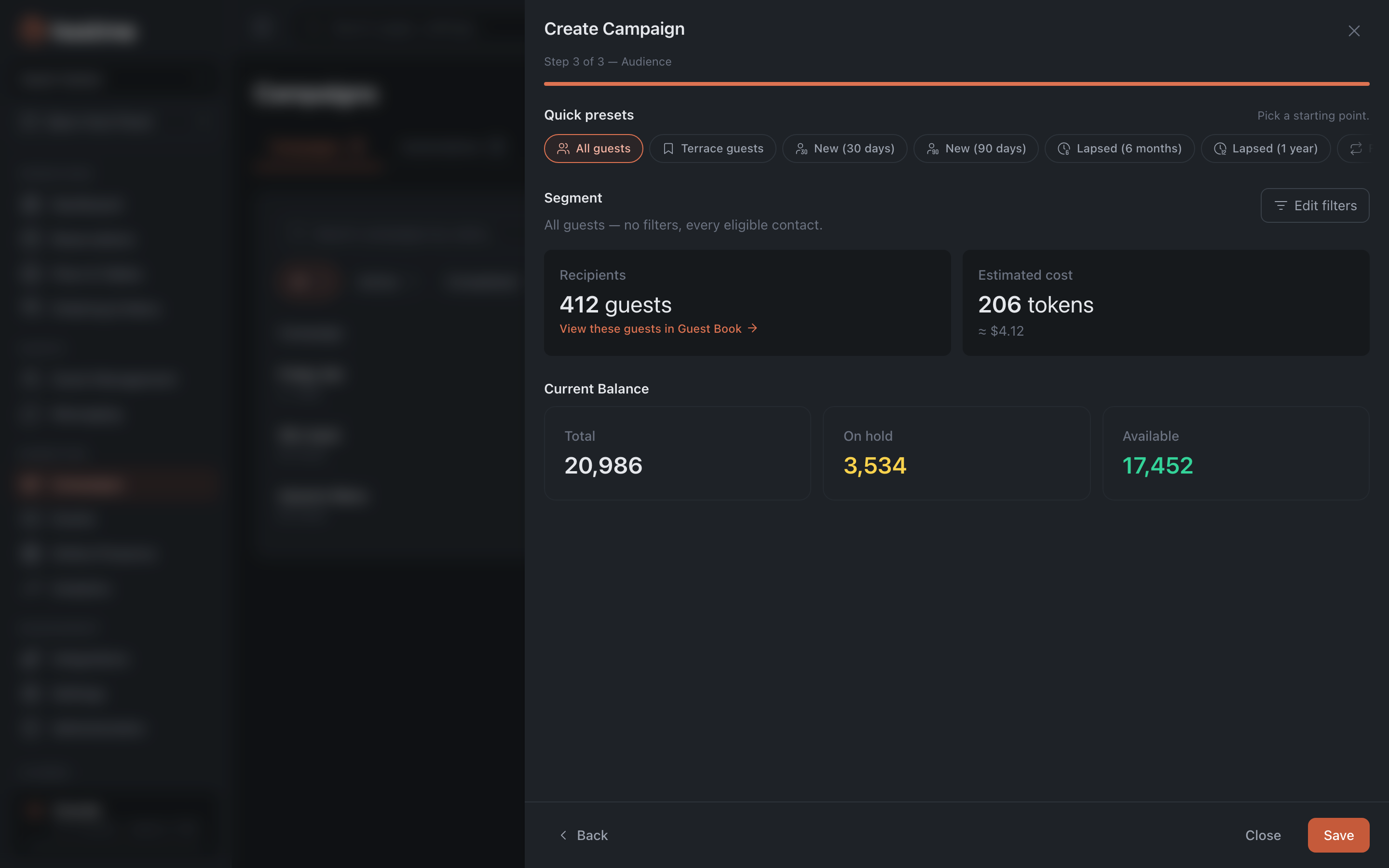
This is where you define who receives the campaign: quick presets or the full segment builder — the same one as in the Guests section. A preset picks by one trait (VIP, new in the last 30 days, lapsed), the builder by a set of conditions at once.
Guests who withdrew marketing consent never get the campaign. To send only to guests who gave consent, pick Marketing consent → Given in the builder.
The panel also works out what it costs: how many recipients the selection caught and how many tokens the send will take. For SMS the estimate counts segments, so a long text costs more than a short one — the guide Tokens and campaign costs goes into detail.
A single one-off campaign goes to no more than 10,000 guests. If the segment is larger, the rest won’t get it, and you only pay for the guests it goes to.
Launching
Once configured, the campaign has to be launched separately — the Start button in the list. The “Activate Campaign” dialog opens: recipients, how much will be charged and how much will be remaining after send; confirm with Activate. The launch is blocked in three cases: not enough tokens (then “Top up” is offered), the content is empty, or the WhatsApp template hasn’t been approved yet. If the service refuses the launch or a test send, the reason appears right in the dialog; if it says “You don’t have access”, contact support.
Content by channel
The “Content” step looks different depending on the channel you picked: each has its own possibilities and its own limits.
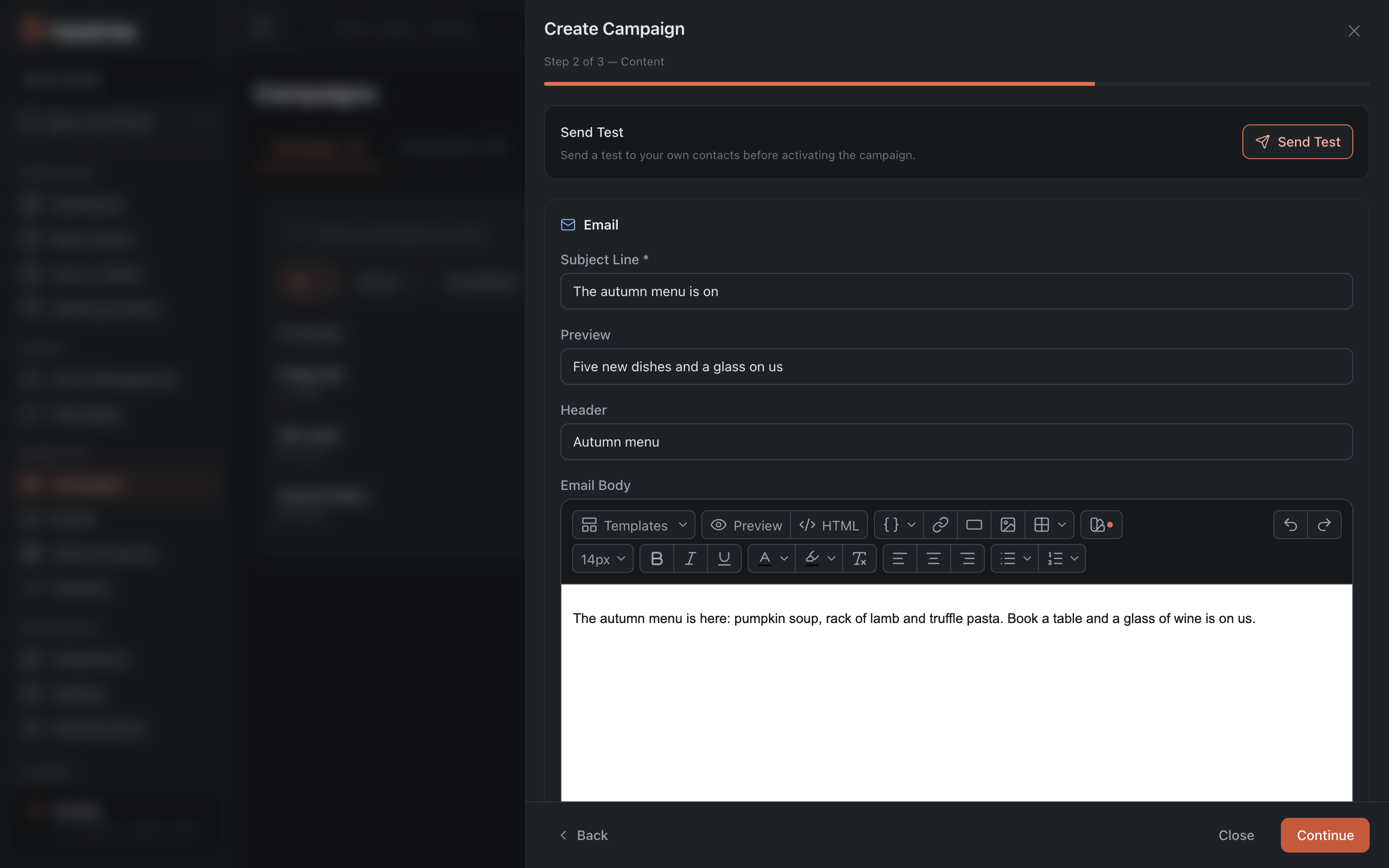
Subject, preview (the short text next to the subject in the inbox list), header and body.
The body can be built two ways. The simple editor is visual: you insert images, buttons and links, set the primary colour and see a preview as you go. The other way is source mode: if the email has already been designed and coded, you paste the whole HTML in as it is, instead of rebuilding it piece by piece.
Next to it is the list of saved templates: take a ready one as a starting point, or start from blank.
SMS
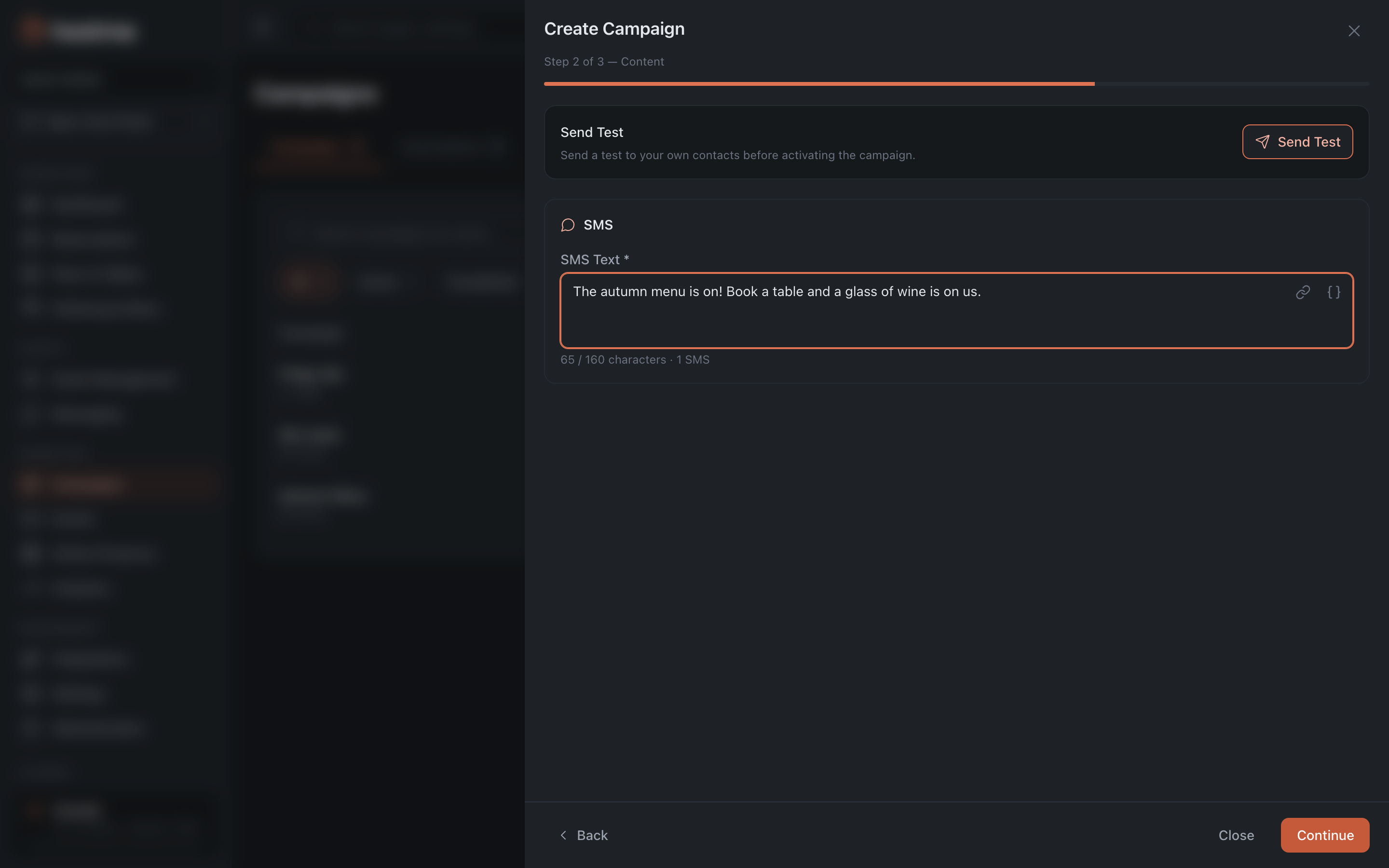
Text only — and a character counter that matters more than it looks.
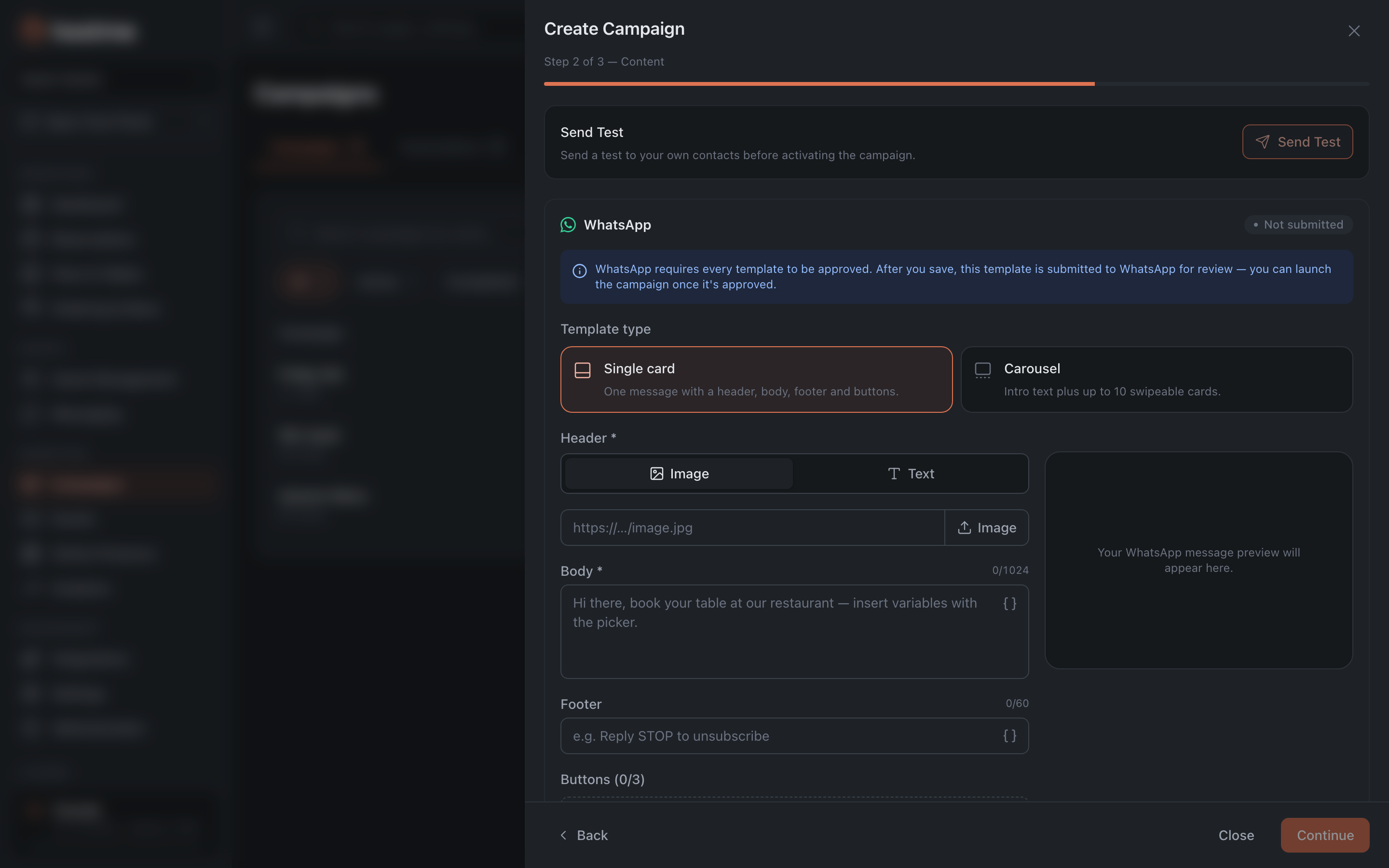
Not free text here but a template, of one of two types:
- Single card — a message with a header, body, footer and buttons.
- Carousel — an intro message and up to ten scrollable cards.
The header can be text or an image. The footer usually carries the opt-out line. You can add several buttons of three kinds: quick reply, open site (with a URL builder for the link) and call.
Variables
In all three channels you can drop variables into the text — the guest’s name, the date and time of their reservation, the restaurant’s name and phone, links to change the booking or to pay. They are what makes one campaign read like a personal message. The full list and how to insert them is in Messaging.
How changes are saved
The wizard saves a draft at every step. Launching a campaign is a separate action.