Integrations
A walkthrough of the Integrations section — an app marketplace: POS systems, payments, third-party apps, communication channels and connected integrations.
The Integrations section is a marketplace of apps that extend Hostme: POS systems, payment providers, communication channels and third-party services. This is where you connect, configure and disconnect integrations.
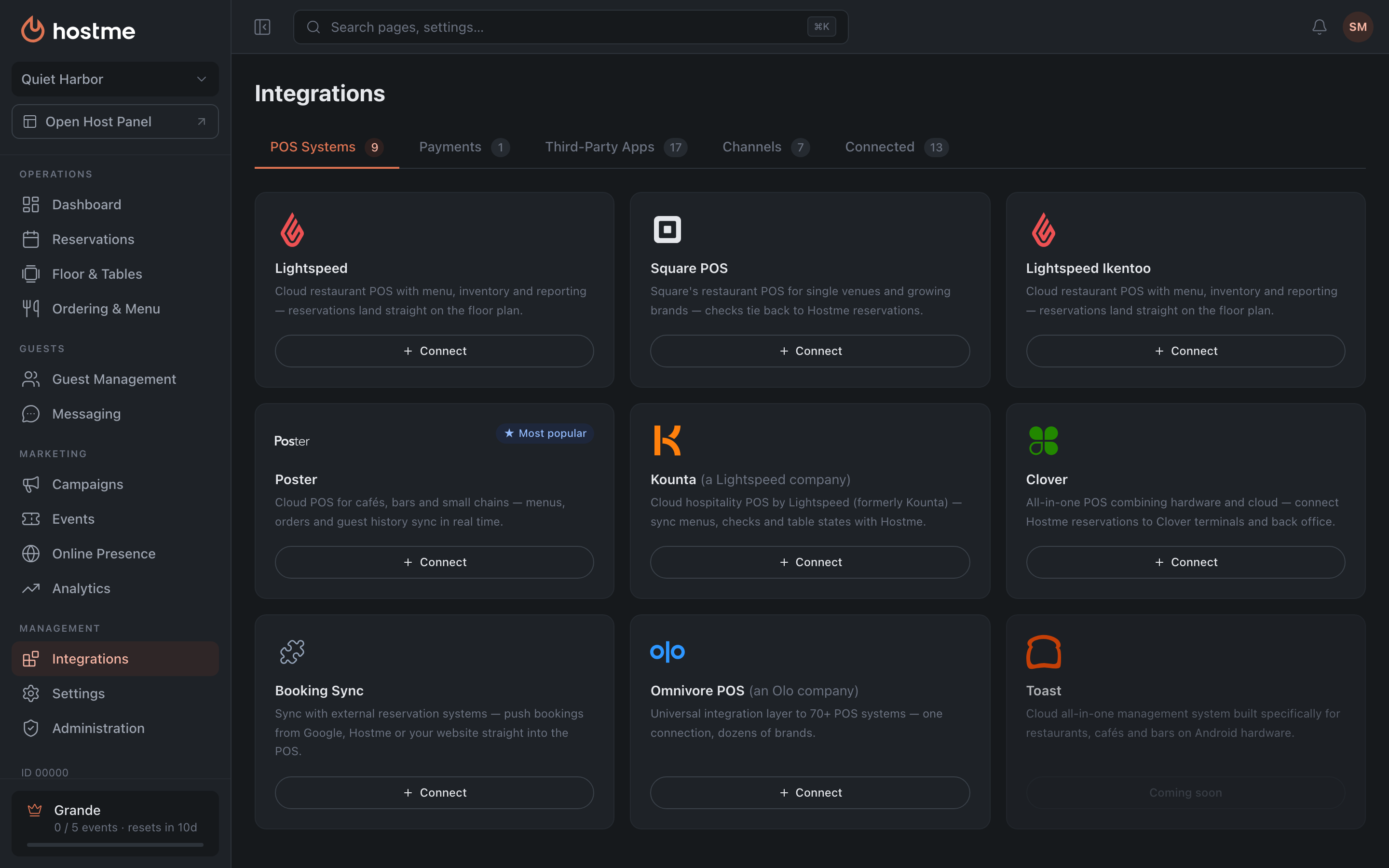
Tabs
- POS Systems — point-of-sale systems (Lightspeed, Square, Poster and others). Once connected, bookings, menus and table states sync automatically.
- Payments — payment providers for taking deposits, prepayments and payments. Required for card payments in Deposits & Fees.
- Third-Party Apps — other services that extend what you can do.
- Channels — guest communication channels (SMS, WhatsApp, Telegram).
- Connected — all your active integrations, grouped by type. The tab appears after the first connection. Category tabs show the number of available integrations in their counter; “Connected” shows the number of connected ones.
After connecting, the card moves from its category to “Connected” — don’t look for it in its old place.
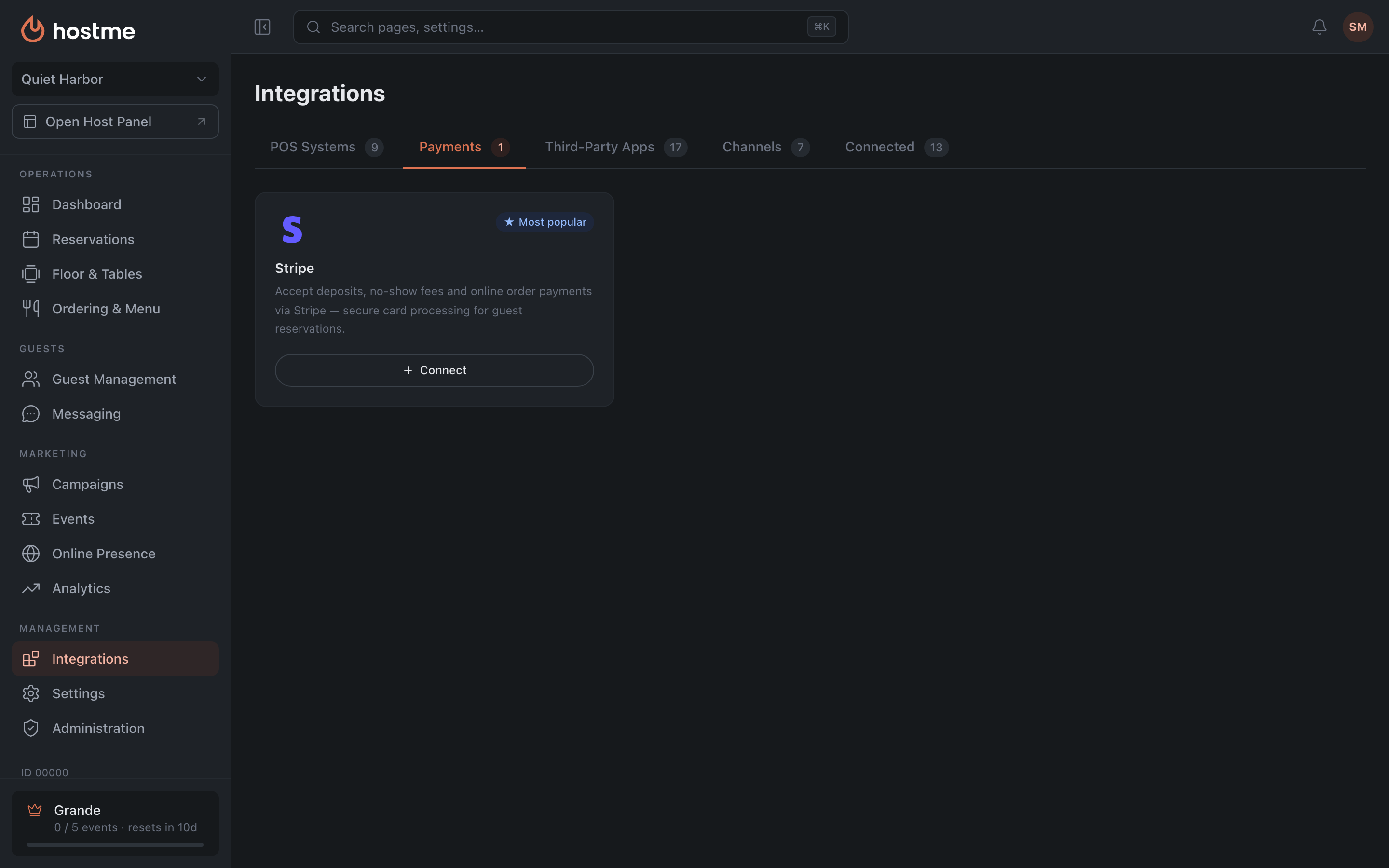
Integration card
Each integration is a card with a name, description and status:
- Not connected — the button on the right offers Connect.
- Connected — active.
- Coming soon — arriving later.
- The Most popular badge — frequently used ones.
On the right of the card there is a single button, and its label is the integration’s status: “Connect”, “Connected”, “Settings”, “Reconnect” or “Fix”. Clicking it opens a side panel — all work with the integration happens there.
The panel has two kinds of actions. Feature toggles and the credentials form apply on the save button. Reconnect and Disconnect, on the other hand, take effect immediately, without saving.
If an integration is only available on a higher plan, the card shows a button with the name of the required plan (e.g. “Grande”) instead of “Connect”: hovering shows a hint, clicking opens the plan upgrade dialog. For paid integrations the button is called “Buy”.
How to connect
Click Connect. For many integrations an authorization pop-up (OAuth) opens — finish signing in there and the list refreshes automatically. Some integrations require entering the keys you were issued (Client ID / Secret) in their settings.
Settings and disconnecting
For a connected integration, the Settings button opens its parameters. Reconnect — update credentials or switch the bot. Disconnect removes the integration (active connections and settings will be lost — confirmation is required).