Availability
A walkthrough of the Availability tab — operating hours, online booking hours with slots, and online booking exceptions.
The Availability tab (in Floor & Tables) defines when the restaurant is open, when it accepts online reservations, and on which dates online reservations follow different hours or are closed.
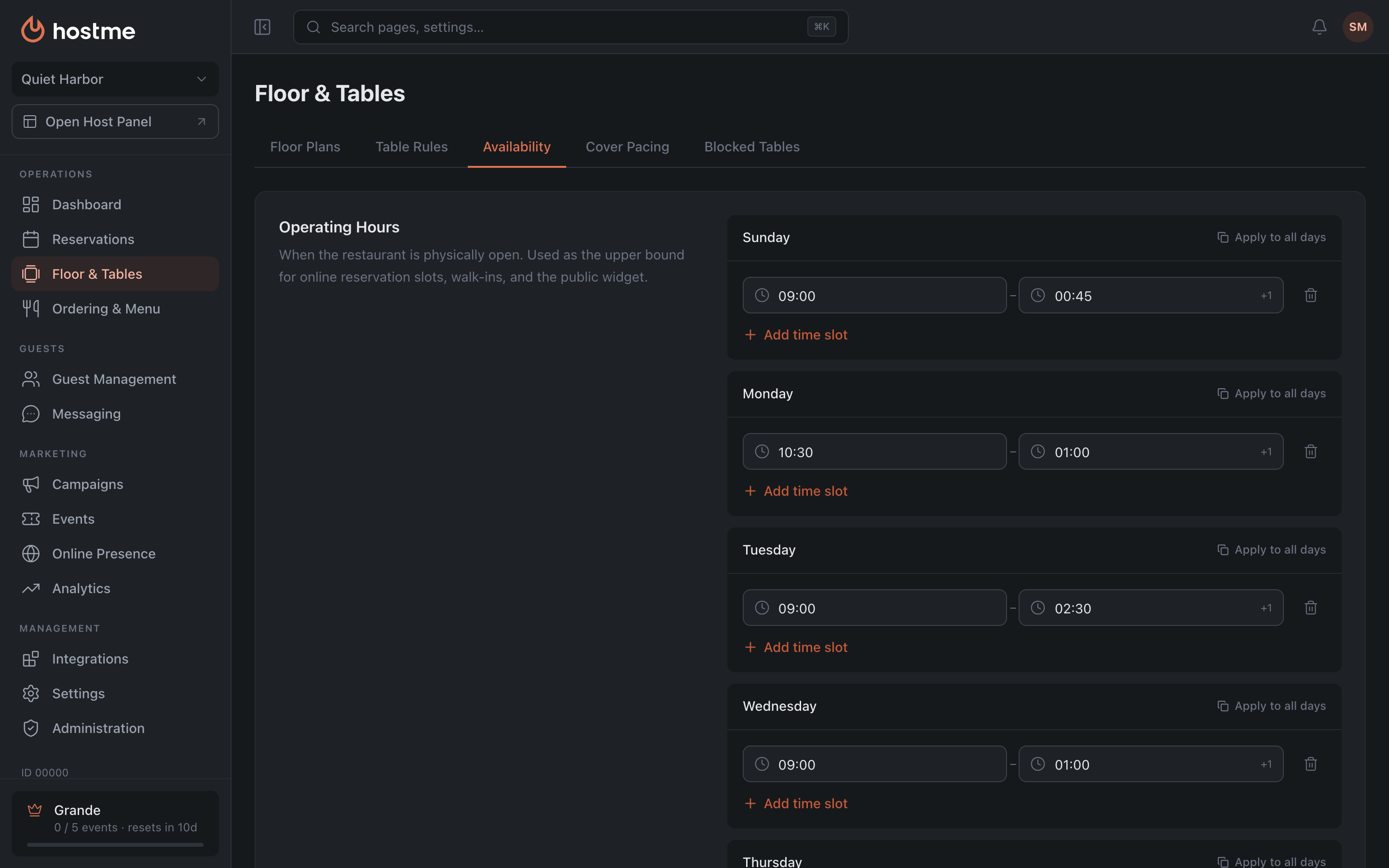
Operating Hours
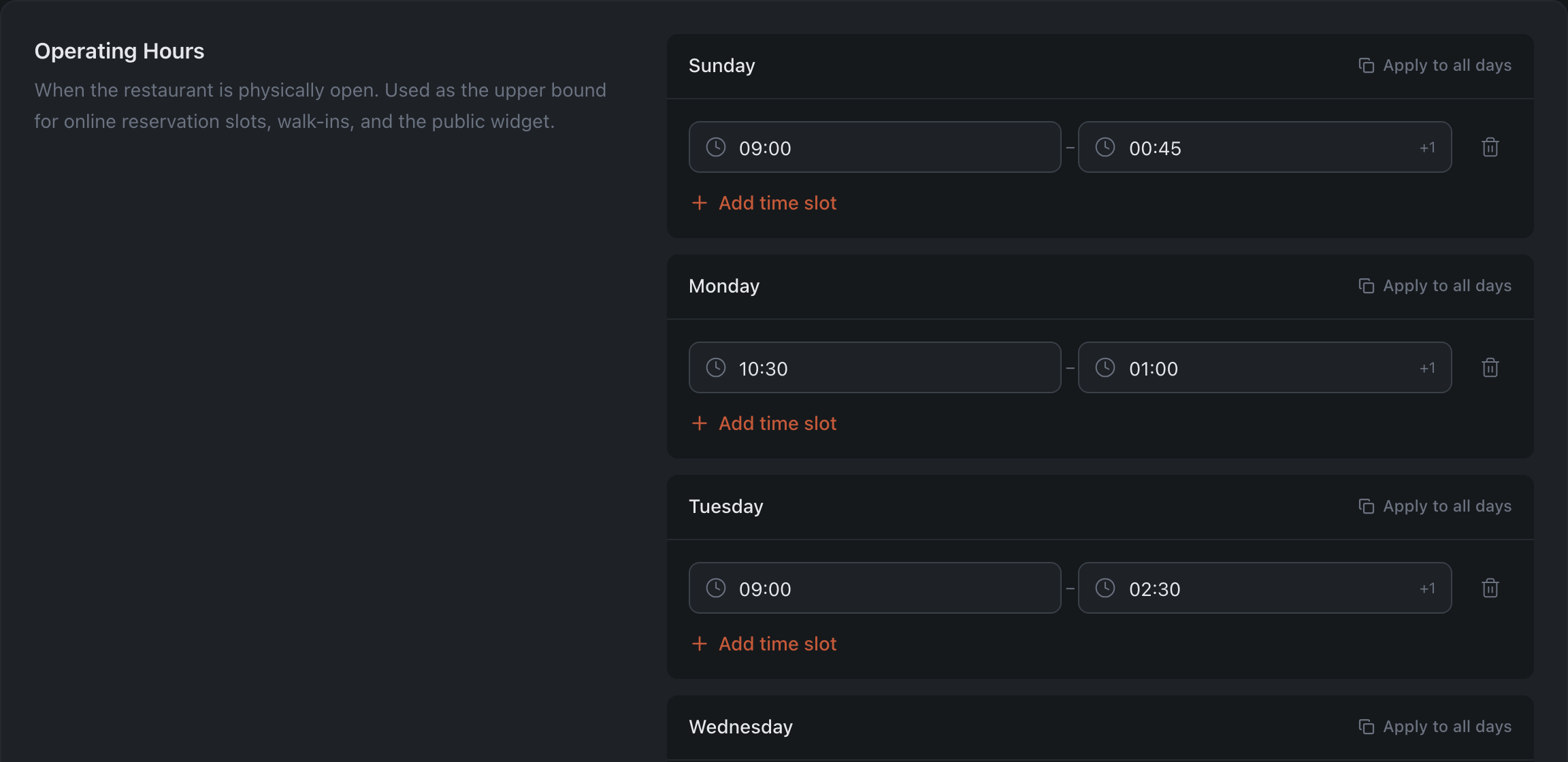
Working intervals by day of the week. For each day you can add several intervals or Apply to all days (copy the schedule). There is no separate “Closed” checkbox: remove all intervals from a day and it is shown as Closed on its own (in online booking hours such a day is labeled “Not bookable”).
24 hours. If the restaurant never closes, choose 24 hours — the last option in the time list of any interval. On a phone or tablet it is a button next to Add time slot. The day’s intervals are replaced by a single “24 hours” row: the day runs from 5:00 to 5:00 the next day, the same as a shift in the Host Panel. To go back to regular hours, delete that row with the trash button and add intervals again. Online booking hours are set the same way.
Online Booking Hours
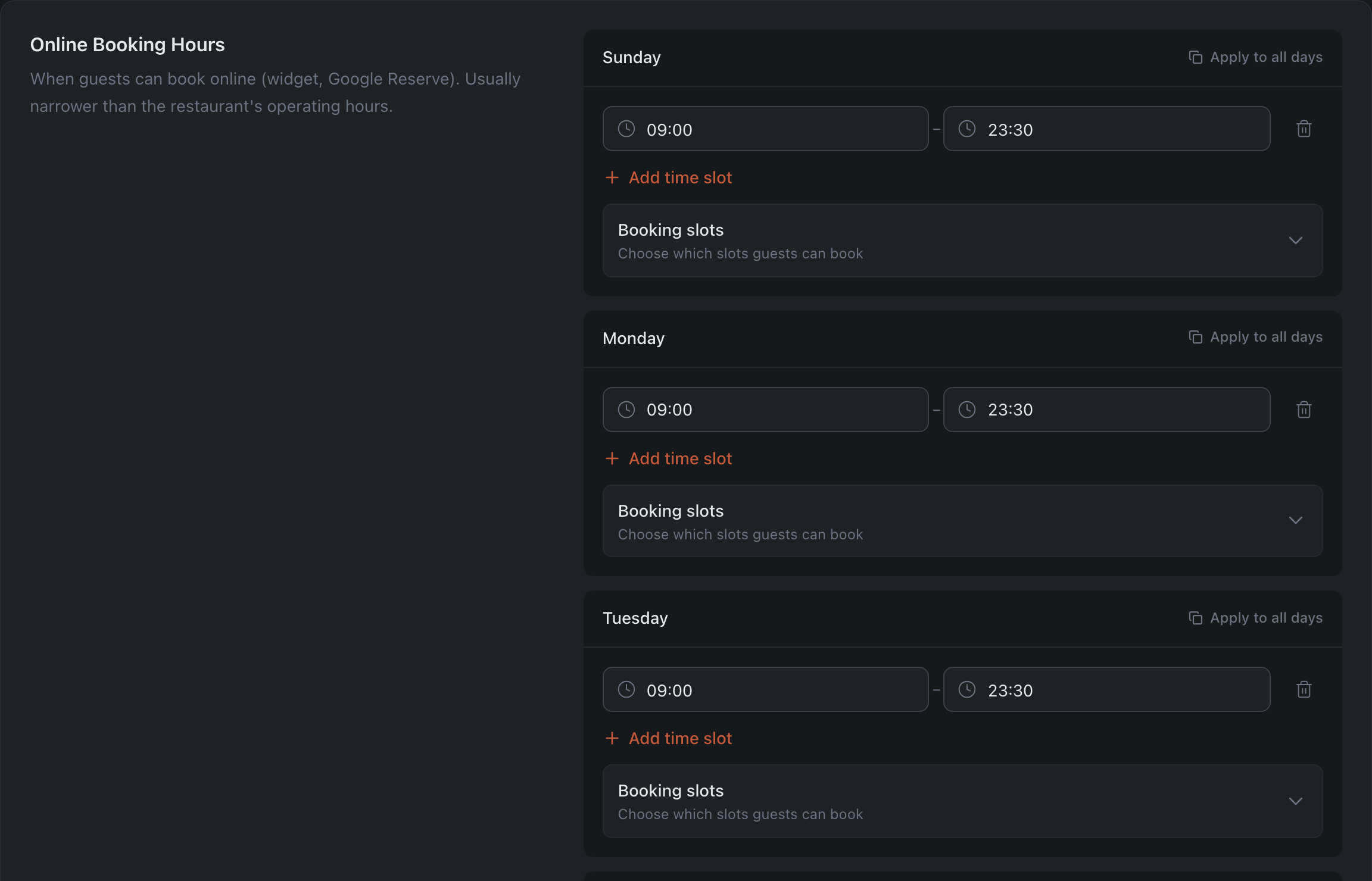
A separate schedule — when guests can book online (it may differ from operating hours). The same intervals by day.
Days that have online booking intervals get a Booking slots editor — you can turn individual slots the guest sees on and off. The summary reads “All N slots available” or “N of M available”; if some slots are turned off, an Enable all button appears. If there are no exceptions, all slots are available.
Online booking exceptions
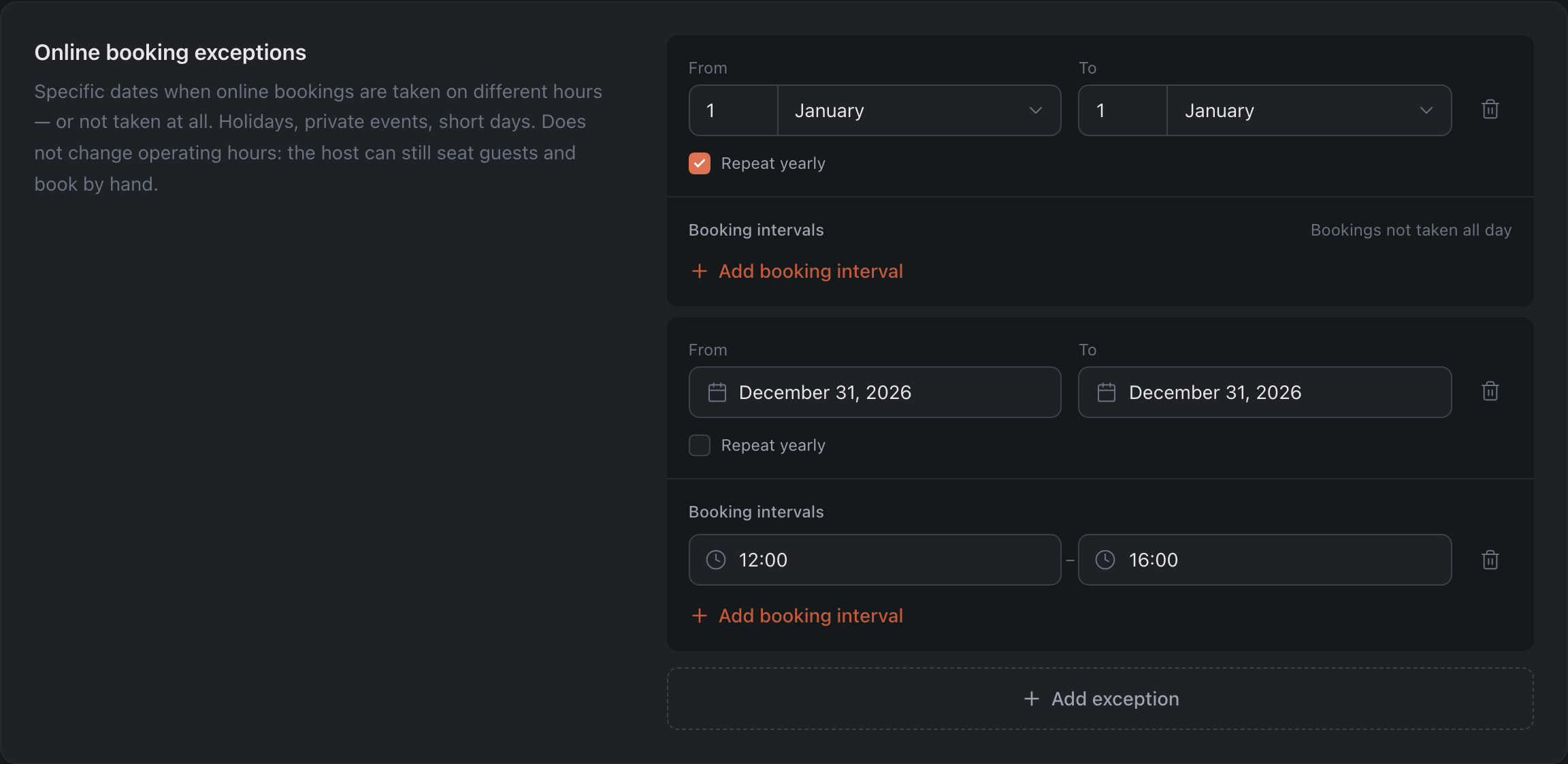
Dates when online reservations are accepted on different hours — or not at all: holidays, private events, short days. Operating hours are unaffected — the host can still seat guests and create reservations manually.
The list is empty until you add an exception (“No exceptions set”); a new one is added with the Add exception button. Pauses set from the Dashboard also land here: if you click Stop online bookings for today there, an entry for today appears in the list — for a pause until the end of the day it reads “Bookings not taken all day”, and for a pause until a specific time it is a booking interval starting from that time until the end of the day (a pause “until 18:00” produces a booking interval of 18:00–23:59). You can lift it from here as well.
For each exception:
- From / To — the dates of the period.
- Repeat yearly — for annual dates (then you specify the day and month without the year).
- Booking intervals — the hours on those dates when online reservations are accepted; added with the Add booking interval button. Until at least one interval is added, the card shows Bookings not taken all day.
Past non-repeating exceptions are marked with an Expired badge. To remove an exception, click the trash icon on its card and save your changes — you can delete the last one too, the list simply becomes empty.
How changes are saved
With the Save Changes button at the bottom (for roles with permission to edit the restaurant).