Dashboard
The Hostme home screen — a summary of the shift for the selected date: restaurant status, timeline, key numbers, guests to watch, trends and quick actions.
The Dashboard is the first screen you see after signing in. It gathers everything that matters for the shift on the selected date in one place: whether the restaurant is open, how many reservations and guests there are, who to look out for, how the week is going, and quick actions for everyday tasks.
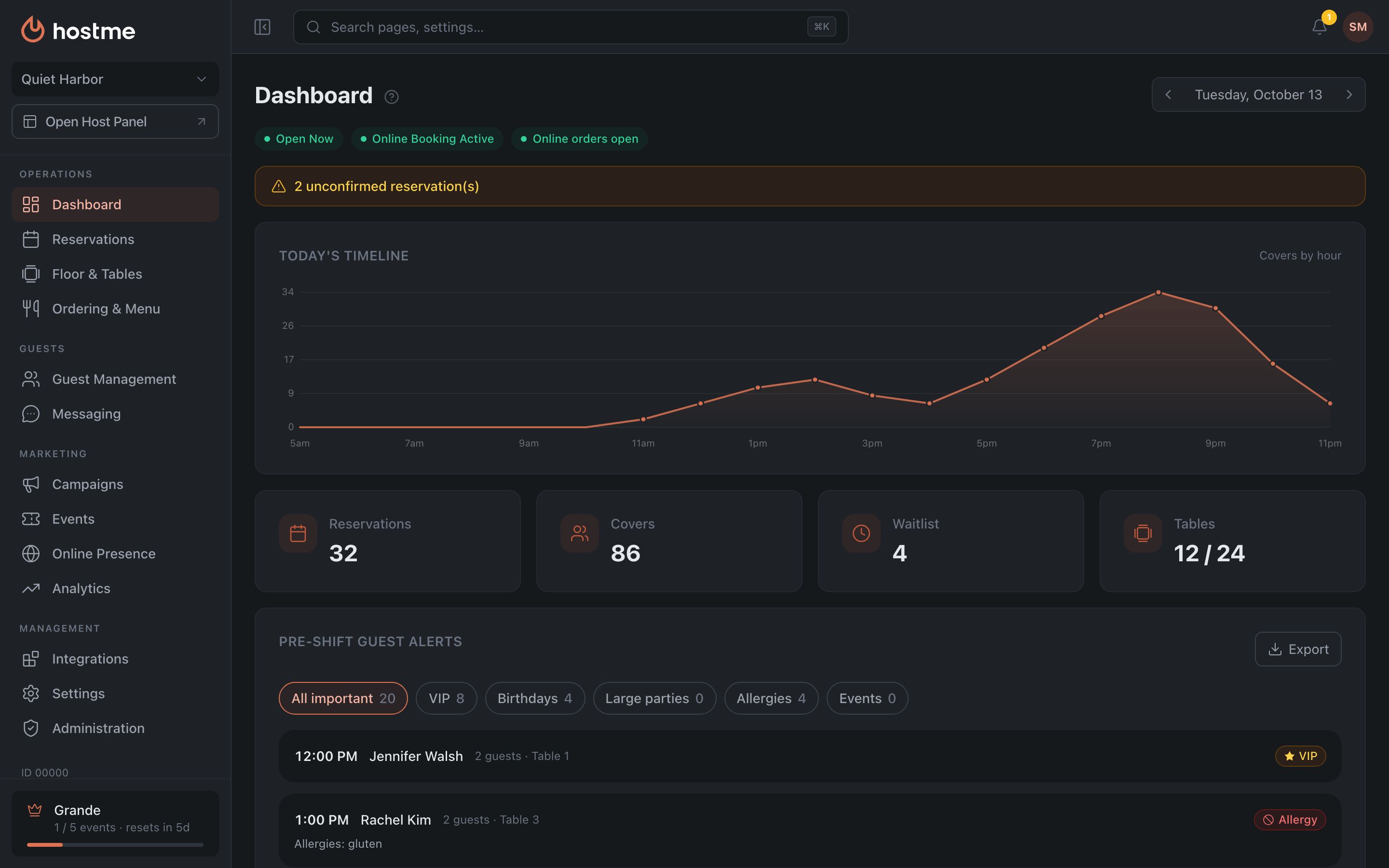
Restaurant status and online booking
Under the heading there are indicators:
- “Open Now” / “Closed Now” — whether the restaurant is currently open according to its schedule.
- Online bookings — whether they are accepted today. If online booking is turned off altogether, the indicator says “Online Booking Off” with Turn on next to it. This is not only about the widget: reservations from connected partner networks, such as Reserve with Google, stop coming in the same way.
- Online orders — whether they are accepted today; shown only if the restaurant has delivery or takeaway on.
The indicators only show the state — you cannot toggle them by clicking. To stop online bookings or online orders for today, use the buttons in the “Quick Actions” block below.
Today’s Timeline
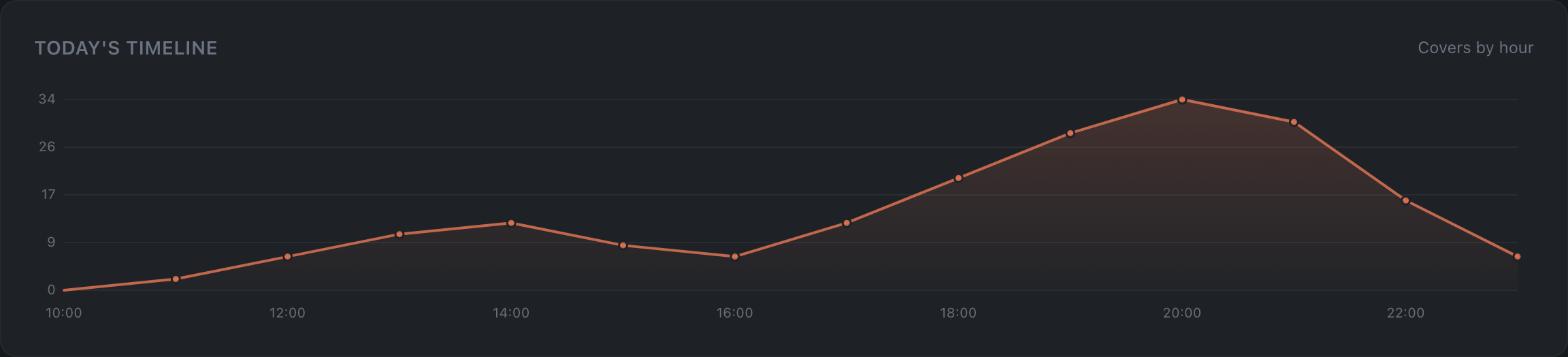
The “Covers by hour” chart shows how many guests are in the dining room in each hour, including walk-ins. Peaks and dips in occupancy are easy to spot.
Key numbers
Cards for the shift:
- Reservations — the number of reservations on the date.
- Guests — the total number of guests, including walk-ins.
- Waitlist — how many people are on the waitlist right now.
- Tables — occupied out of the total (for example, “0 / 59”).
“Waitlist” and “Tables” show the live state of the floor, so they only appear when viewing today. If you open a past or future date, these two cards are hidden and only “Reservations” and “Guests” remain.
Pre-shift guest alerts
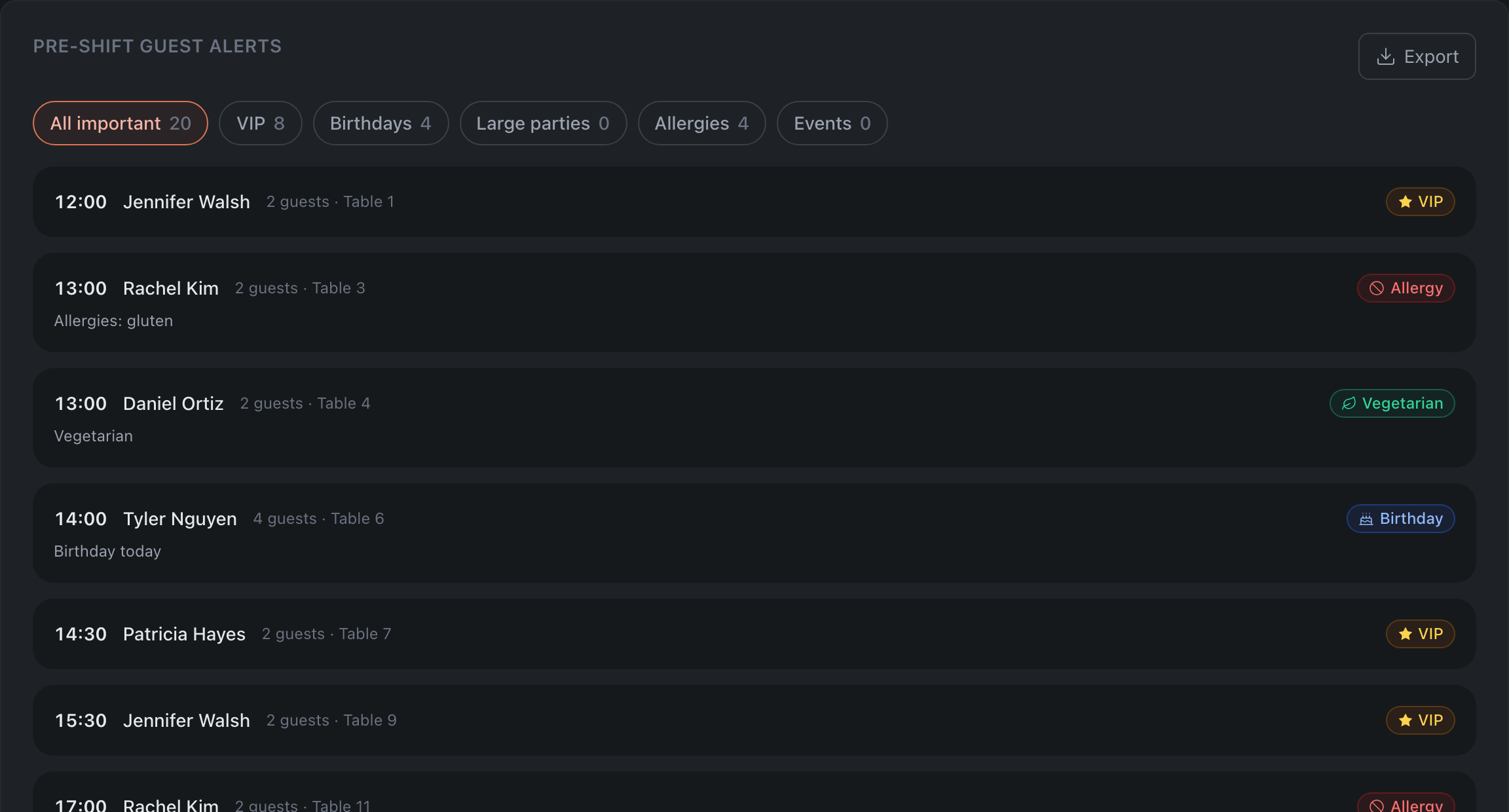
A list of guests to watch for the shift, so the team knows who needs special attention. Filters at the top: All important · VIP · Birthdays · Large parties · Allergies · Events. The “Export” button downloads only the reservations from this list — not all reservations for the day — with the columns: time, guest, party size, table, status, source, deposit, tags and notes. The whole “All important” list is exported, even if a single-category filter is currently selected. While the list is empty, the button is disabled.
7-Day Trend
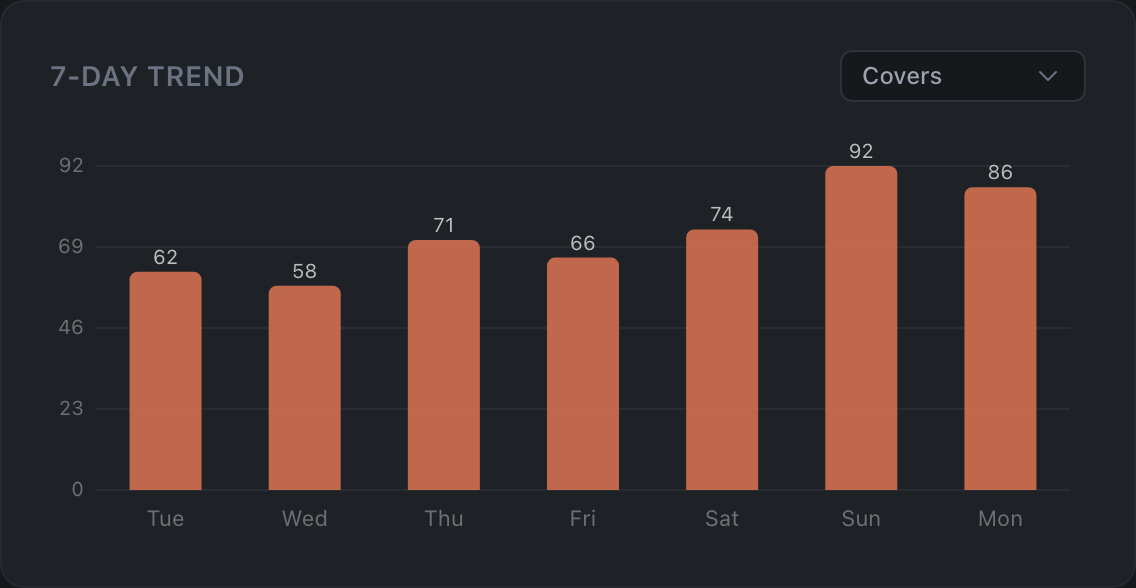
A chart of the week’s dynamics with a metric switch: Guests · Reservations · No-shows — it helps you judge whether traffic is growing and how many no-shows you get.
Quick Actions
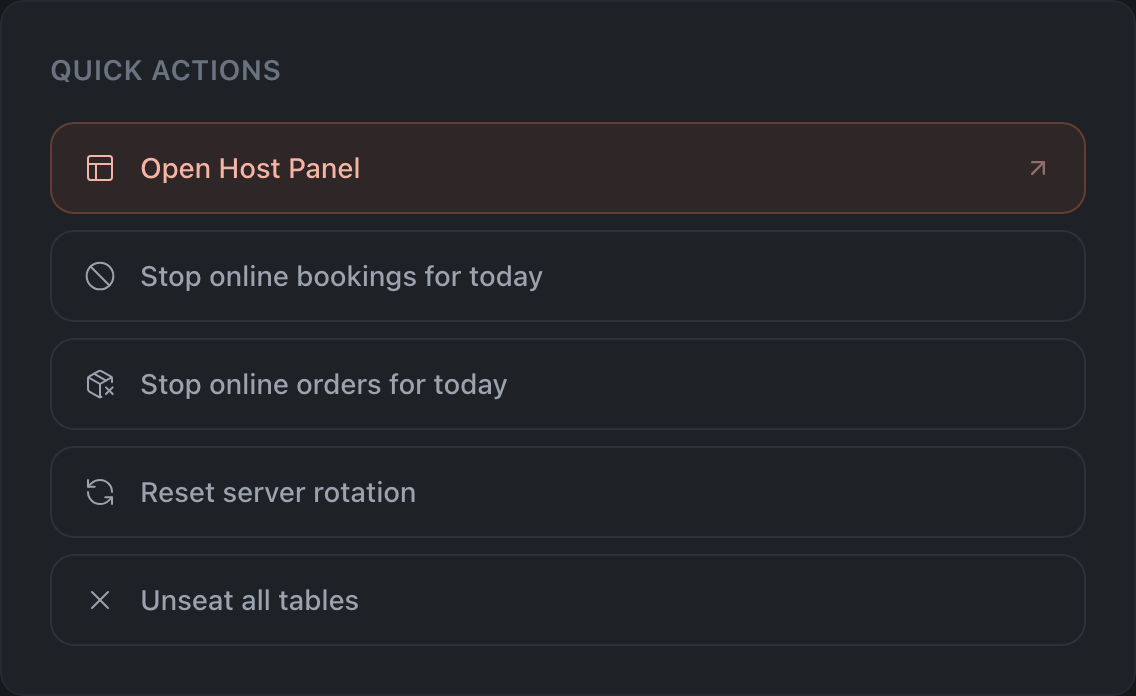
Buttons for frequent operations right from the dashboard:
- Stop online bookings for today — when the dining room is full or something unexpected happens. For the rest of the day or until a chosen hour; bookings for later times and other dates are accepted as usual, existing ones don’t change. To undo — “Accept online bookings for today again”.
- Stop online orders for today — when the kitchen can’t keep up or there are no couriers. For the rest of the day or until a chosen hour; orders for later times and other dates are accepted as usual, and table booking works separately. To undo — “Accept online orders for today again”. The button is shown only if the restaurant has delivery or takeaway on.
- Open Host Panel — go to the Host Panel.
- Reset server rotation — zero the rotation counters for the restaurant.
- Unseat all tables — clear the seating from every table.
Getting Started checklist
The dashboard carries a “Getting Started” card with progress — “N of 6 steps complete”, or, while no step is done yet, “Let’s get your restaurant ready”. Clicking it opens the full checklist. The card does not disappear on its own once all steps are complete — you need to hide it manually.
There are six steps, each with its own time estimate:
| Step | Why | Time |
|---|---|---|
| Fill in your public page | logo, description, categories, cuisine and services — this is how guests see the restaurant on its Restogram page; the item shows what is missing | ~5 min |
| Create a Floor plan | without one you can’t take reservations or seat guests; you can start from the demo plan | ~10 min |
| Adjust Availability | operating hours, online booking windows and time slots | ~5 min |
| Start accepting online reservations | approval mode, party sizes, booking window | ~5 min |
| Invite your team | the whole shift sees the same reservations, one table never goes to two parties | ~2 min |
| Adjust Floor rules | turnover, hold time, table statuses, seating | ~10 min |
Each step is marked “Done” or “To do”. The marks are set automatically based on what is actually configured — you cannot “close” a step by hand, and that’s by design: the checklist shows the real state of the restaurant, not intentions. An unfinished step is clickable and leads straight to the right tab.
Once all steps are complete, the checklist says “You’re all set!”.
The window itself has two more buttons — “Watch tutorials” and “Schedule a demo”.
Action Items
Individual task hints appear when there is something to deal with: unconfirmed reservations, pending deposits, finished campaigns (with a link to the report; this hint can be dismissed with the cross). Pending deposits are reservations whose deposit hasn’t been paid yet; clicking opens the nearest of them in the Host Panel. Unconfirmed reservations and pending deposits are collected 30 days ahead, finished campaigns — for the last 7 days. If there are no urgent tasks, the block is not displayed at all.