Host Panel
The workplace of the host and the shift manager: how to get in and what's on the screen.
The Host Panel is where the host and the shift manager work during the shift: the floor map, bookings, the waitlist, guests, chats and calls. Together with the Admin Panel it is one Hostme product: in the Admin you set things up — floors, booking rules, notifications — and in the Host Panel those settings are used on shift.
How to open the Host Panel
- From the Admin — the Open Host Panel button in the left menu.
- In the mobile app — hosts and kitchen staff land straight in the Host Panel after signing in.
The Host Panel has no sign-in of its own: the account and the sign-in are shared with the Admin. If you’re not signed in yet, the panel shows “Redirecting to sign-in…” and opens the Admin’s sign-in page. Signing out of the panel signs you out of the Admin too.
If you have several restaurants, the first time you sign in you’ll see a Select restaurant screen, with your role shown next to each name. You can switch to another restaurant later in the panel settings, in the Select restaurant section.
What’s on the screen
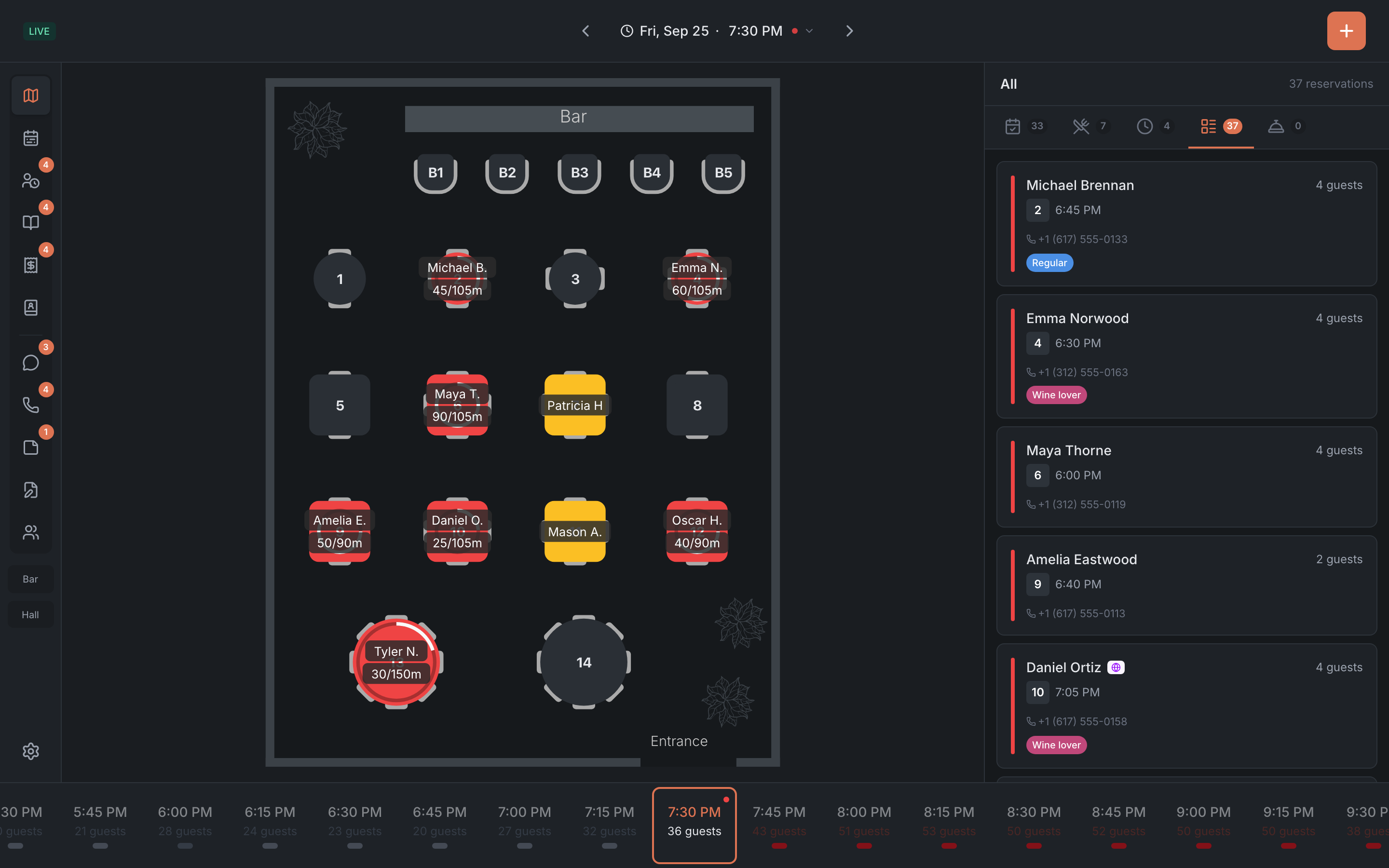

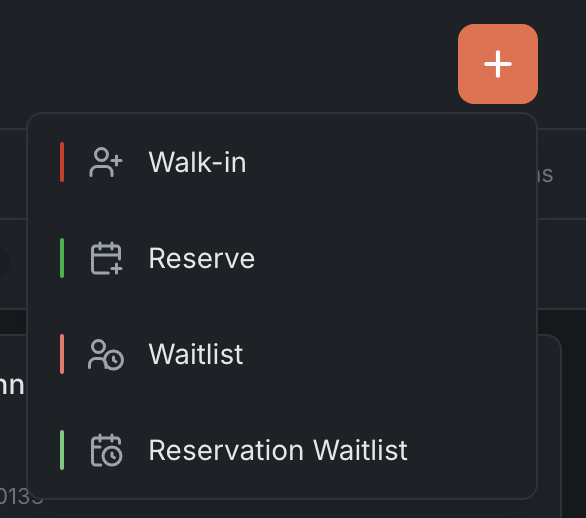
| Part of the screen | What’s there |
|---|---|
| Header | floor, connection indicator, date and time, the ”+” button |
| Tabs on the left | the panel’s sections and their counters; the settings gear at the bottom |
| Work area | whatever the selected tab shows: the floor map, the timeline, lists |
| Right panel | the list of bookings, seated guests and the waitlist; cards and forms open in the same place |
| Time strip | at the bottom of the Map and Timeline tabs: jump to any moment of the shift |
Header
From left to right:
- Floor — if the restaurant has several floors, or an event with its own room is on right now.
- Connection indicator — more on it below.
- Date and time — which moment of the shift you’re looking at. This is also where you move to another time or another day — see Date, time and shift. On the Reservations, Orders and Notes tabs this spot holds a period picker instead.
- The ”+” button — create something quickly: Walk-in, Reserve, Waitlist and Reservation Waitlist. The last item is there only if the reservation waitlist is turned on in your restaurant.
When you look at the past or the future, the header changes color, so it’s obvious at a glance that the screen isn’t showing “now”.
Tabs on the left
| Tab | What’s on it |
|---|---|
| Map | the floor plan with tables |
| Timeline | a tables × time grid for the whole day |
| Waitlist | walk-in guests waiting for a table |
| Reservations | bookings for the selected period, and requests |
| Orders | delivery, takeaway and pre-orders |
| Guests | the guest book |
| Chat | conversations with guests |
| Calls | the history of incoming calls |
| Notes | shift notes |
| Drafts | bookings that were started but never saved |
The number in a circle on a tab counts what needs attention: on Reservations — bookings waiting for approval, new online bookings, reservation-waitlist requests and late guests; on Waitlist — guests who are waiting or have already been called; then active orders for the shift, unread messages, missed calls, drafts and overdue notes.
On the Map tab, area buttons sit under the tabs: tap an area to zoom the map in on it, tap it again to bring back the whole room.
At the bottom is the settings gear. The Logout button is there too, at the very bottom of the settings panel.
Work area and right panel
The middle shows whatever you picked in the tabs. On the right, the side list is open by default: the shift’s bookings, seated guests and the waitlist — see Side list. When you pick a table or a booking, or open a form, a card appears in the same place; close it and the list comes back.
The Map tab has three display modes — Standard, Data only and Tables only; you switch between them in the panel settings.
Connection indicator
Shows whether the panel is keeping up with what’s happening in the restaurant:
| Indicator | What it means |
|---|---|
| LIVE (green) | all good: new bookings and your colleagues’ changes appear right away |
| CONNECTING… (yellow) | the panel is connecting — usually a few seconds after it starts |
| OFFLINE (red) | the panel has lost its connection to the server. It keeps working, but changes show up with a delay — up to half a minute |
If OFFLINE stays on for long, check the internet connection and reload the page. On a phone the indicator isn’t shown — the screen is too narrow.
Banners above the header
Sometimes a banner with a message appears above the header:
- New version available — the panel has been updated. Tap Update when it’s convenient: the panel reloads with the new version.
- Hello there 👋 Meet new day 🌞 — a new day has started. It appears around 5:00 AM restaurant time if the panel has been open since the night before; the Let’s go! button reloads the panel for the new shift.
- Subscription — for example, “Trial ends in 3 days” or “Subscription payment failed — some features are disabled”. The Owner and the Manager see Pay now, which leads to the Admin; everyone else sees Ask your manager. The cross hides the banner until the end of the shift.
- Switched to … — briefly, when a link to a booking on another day switched the date in the panel.
Theme
The panel has three themes: HostMe (light, the default), HostMe Dark and HostMe Classic (in the style of the previous panel). You switch them in the panel settings, the Theme section.
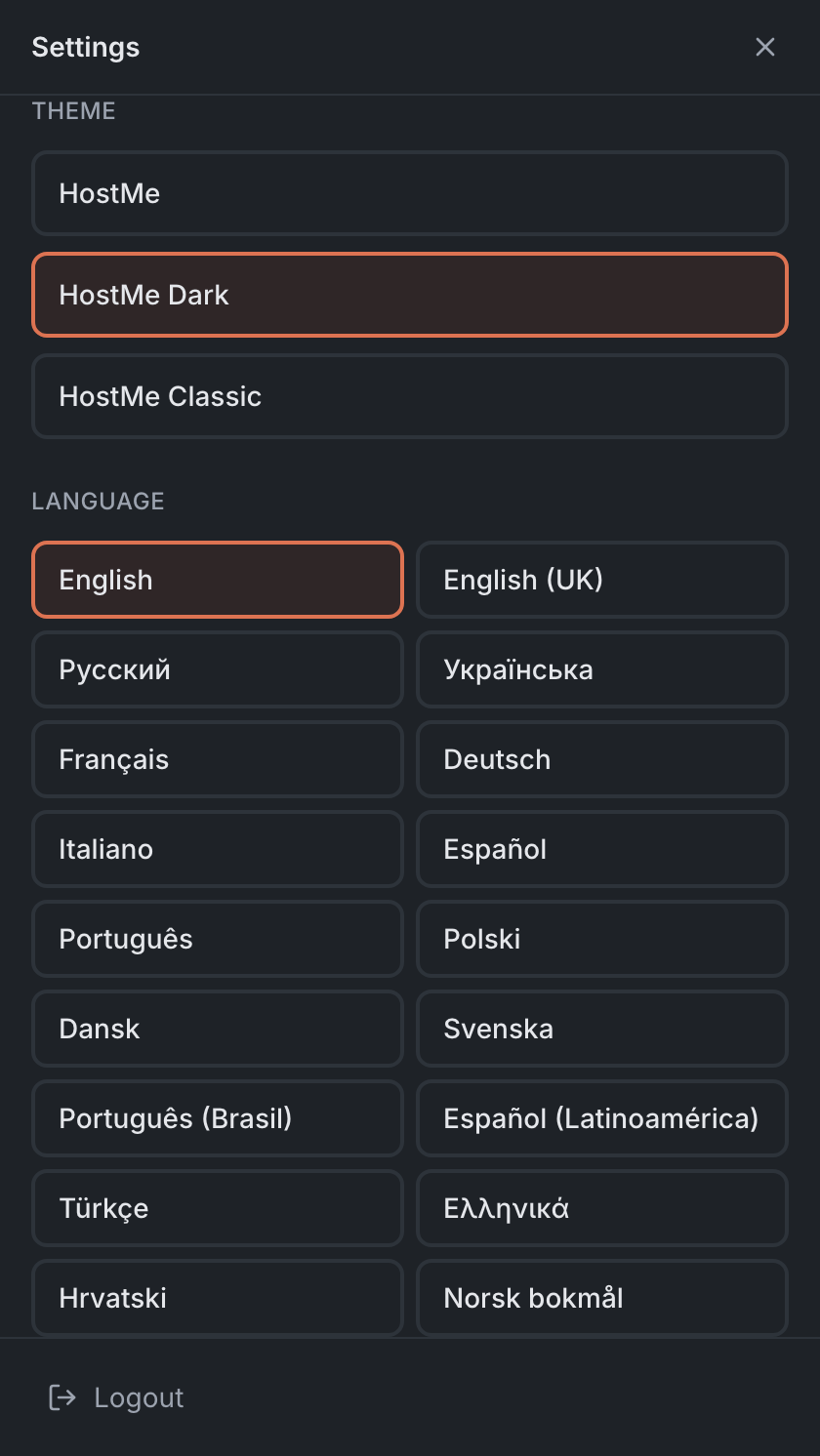
The screenshots in this help are taken in HostMe Dark. Table colors on the map and some other elements depend on the theme, so yours may look different — see the color legend. HostMe Classic differs in layout too: other tab icons, a different table card, full-screen windows instead of side forms.
What’s next
- Date, time and shift — how to look at the past and the future.
- Floor map — table statuses and what’s drawn on a table.
- Side list — bookings, seated guests and the waitlist next to the map.
- Table card — seat, release, reserve.
- Moving and combining tables — by dragging.
- Timeline — the whole day in one grid.