Waitlist
Walk-in guests waiting for a table: how to add them to the waitlist, how long to promise, how to call, seat and release a table.
The waitlist is for guests who came without a booking and are waiting for a table to free up. The guest gives a name and a phone number, you promise an approximate wait, and when the table is ready you call them and seat them.
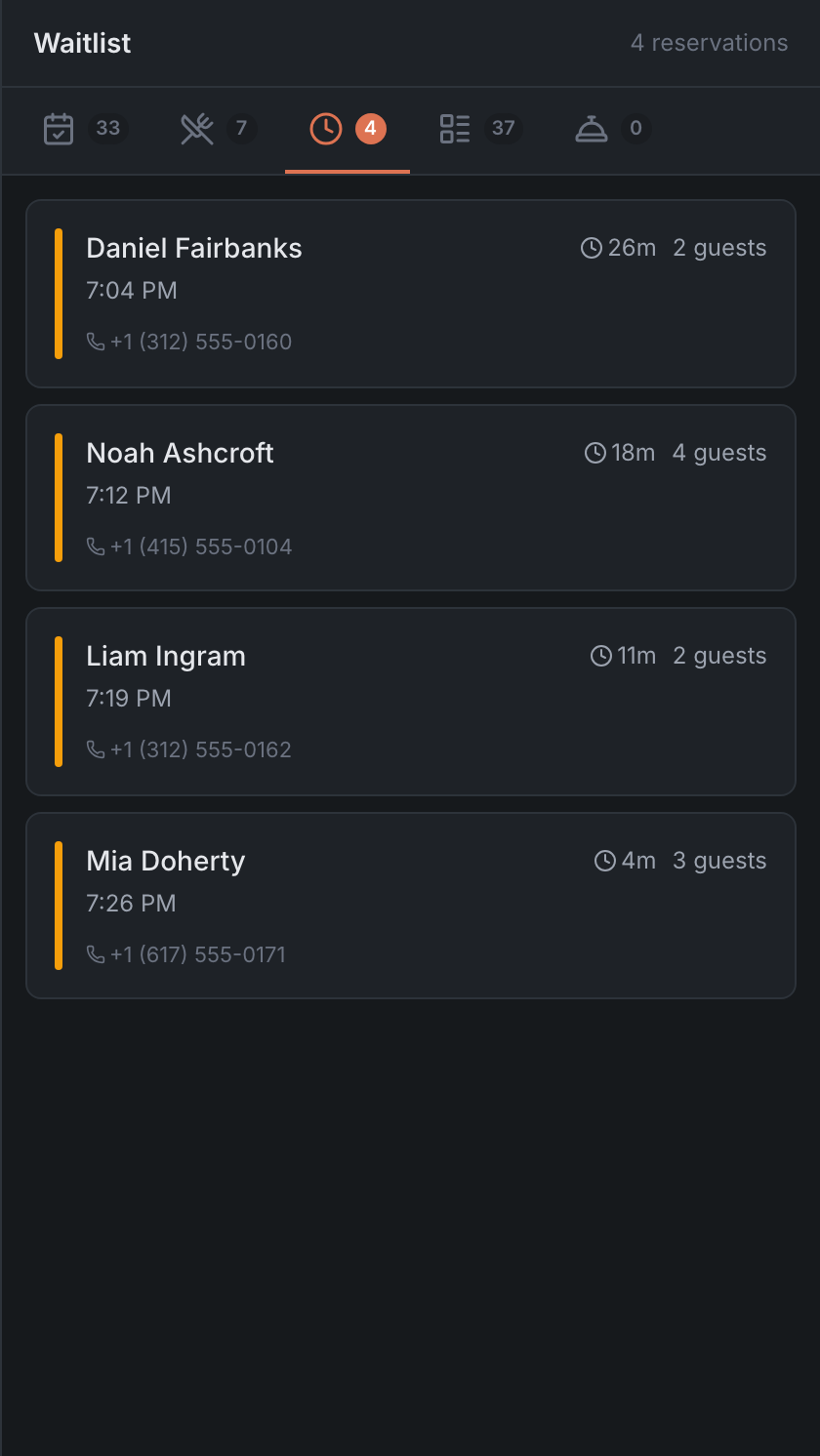
You see the waitlist in two places: on the Waitlist tab in the menu on the left and on the tab of the same name in the side list next to the map. The number on the menu item is how many guests are waiting or have already been called.
Don’t confuse the waitlist with the reservation waitlist: that one is for guests who want to come on another day or at another time. The difference is covered in Requests and the reservation waitlist.
Adding a guest
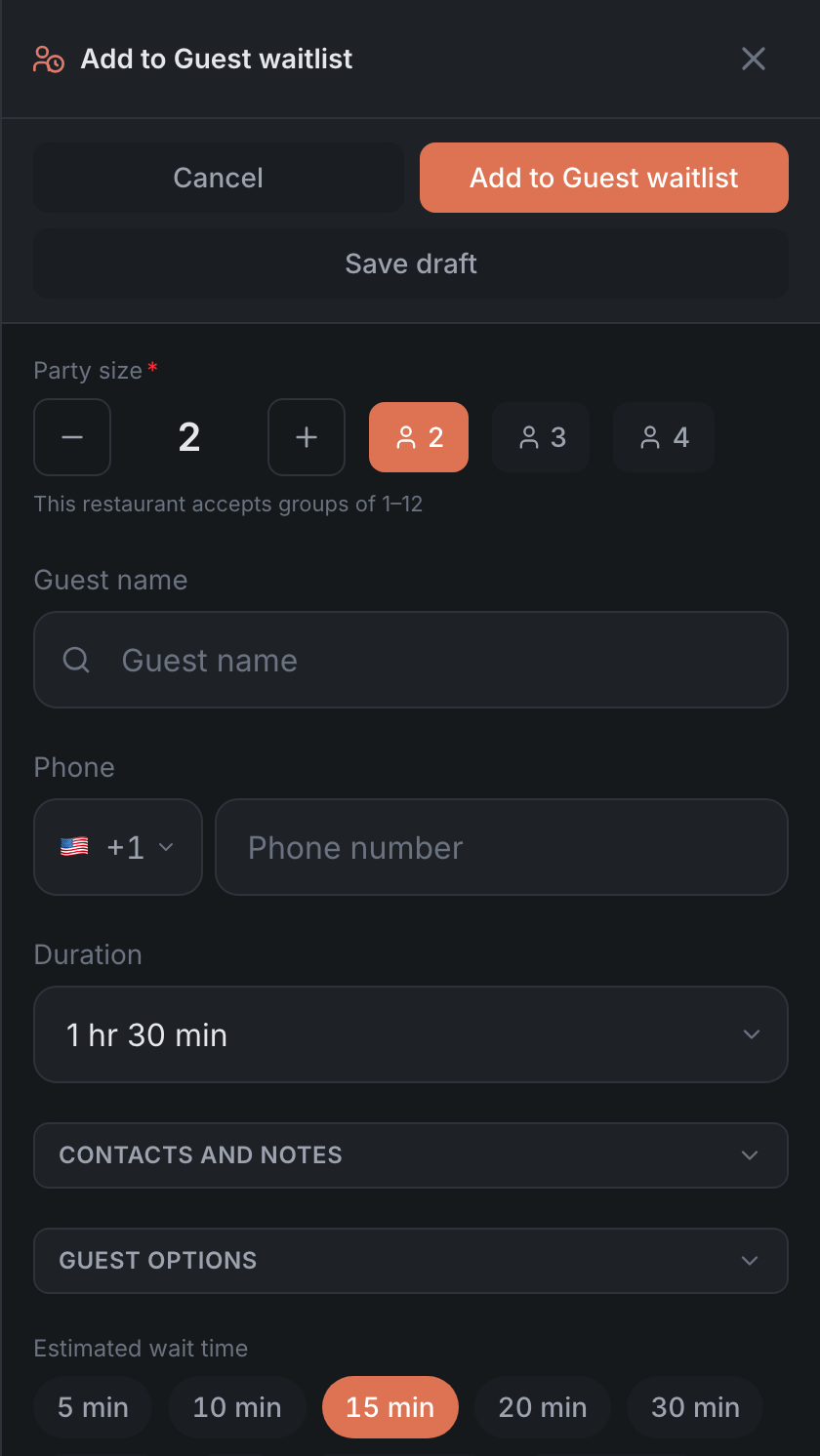
- Tap + in the header → Waitlist. The “Add to Guest waitlist” form opens.
- Enter the party size. The name and phone are optional, but with a phone number it’s easier to let the guest know the table is ready.
- Pick the Estimated wait time — from 5 minutes to 6 hours, 15 by default. The panel suggests how long people usually wait at this time: “Typical wait is about … min”.
- If the guest asks for a particular area, mark it in the Zone field. Everywhere means any.
- Tap Add to Guest waitlist.
The rest of the form’s fields are covered in Creating and editing a booking.
If “Auto-assign a table for the online waitlist” and “Adjust wait time on table assignment” are on in the Admin, the form may raise the promised time before you save: “Table … frees up later — wait time raised from … to … min”. These settings are in the Admin article Waitlist.
The waitlist screen
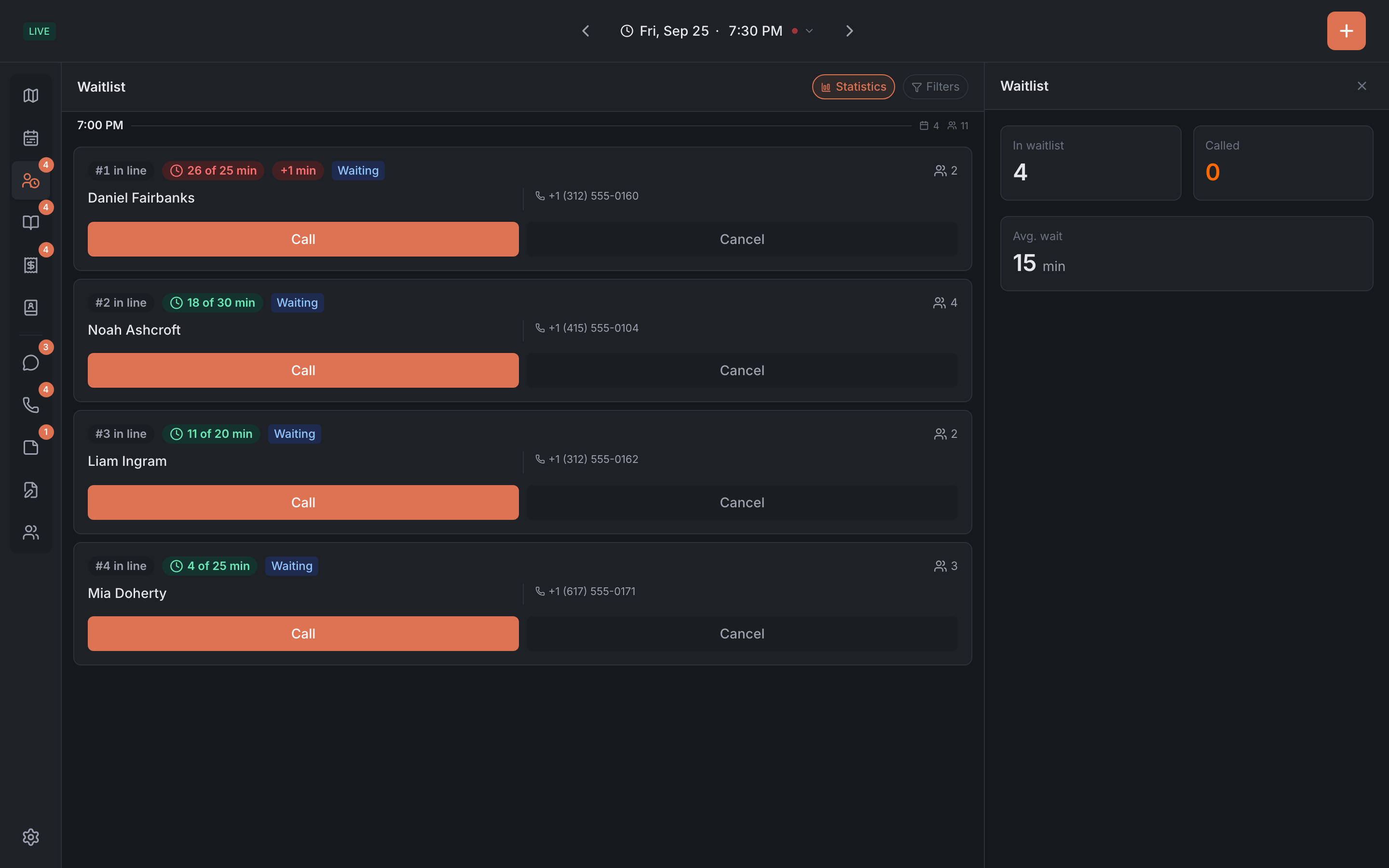
On the Waitlist tab, waiting guests are grouped by the hour they were added. Canceled ones are below. If nobody is waiting — “No guests in waitlist”.
On the right are the statistics: In waitlist, Called and Avg. wait.
You can pick the view in the panel settings, in the “Waitlist view” section: Cards — detailed, Compact rows — narrow, for when there are many guests.
What’s on a card
- ”#… in line” — the guest’s place in line. It’s counted by the time they were added and is shown only for those still waiting.
- Wait time — how long the guest has been waiting, for example “12 min”. The longer the wait, the more alarming the color: green up to 10 minutes, yellow up to 20, red after that.
- If the guest was promised a time — ”… of … min”: how much of the promised time has passed. In the last quarter the badge turns amber, and once the time is up it turns red, and how late you are appears next to it: ”+… min”.
- “called … min ago” — for called guests. After 10 minutes it turns red: time to check whether the guest is coming.
- the table, name, phone, notes and tags.
Calling and seating
| Status | Buttons | What happens |
|---|---|---|
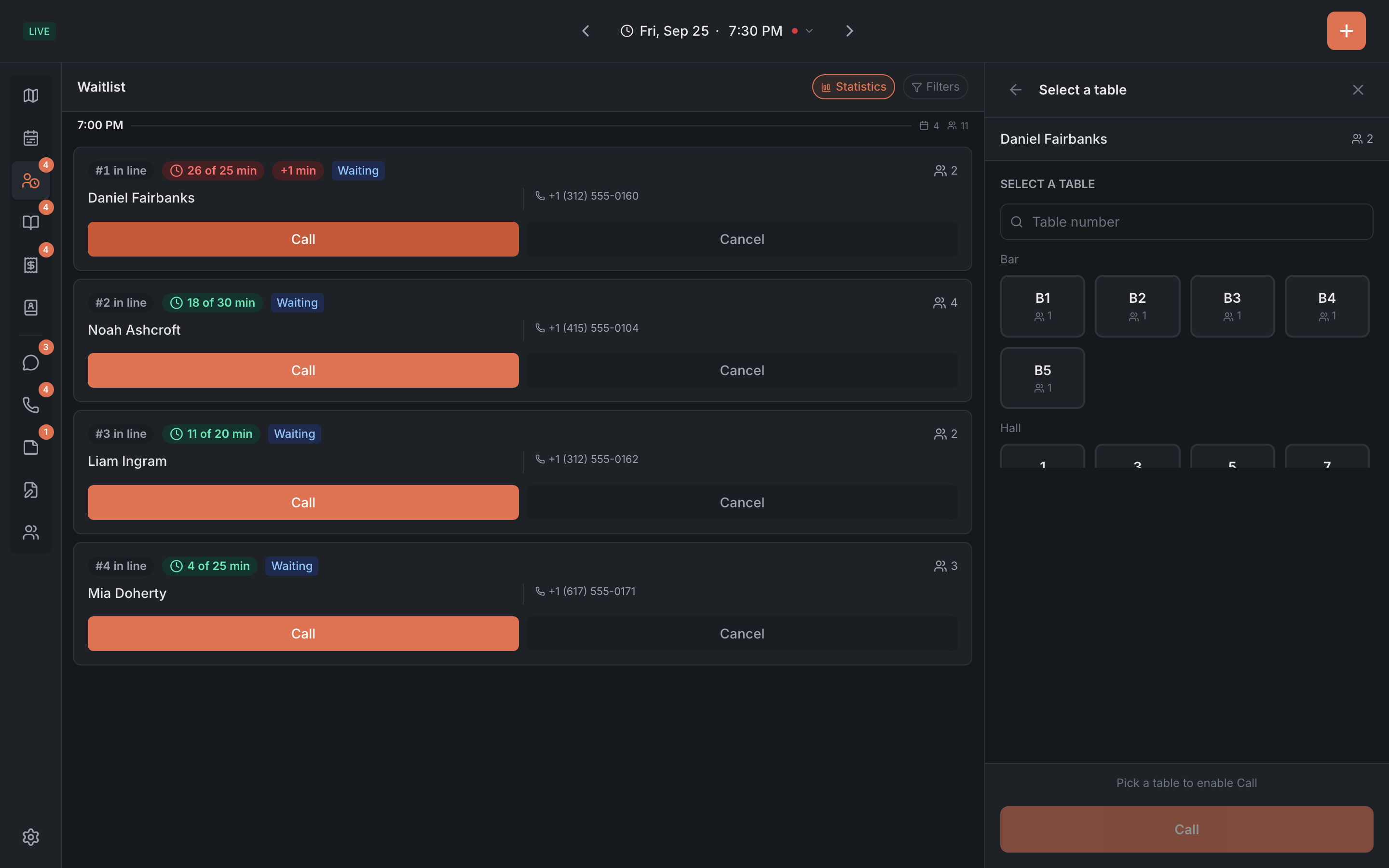
| Waiting | Call · Cancel | Call asks you to pick a table — in the list or on the map, several allowed. Until a table is picked, the button can’t be tapped: “Pick a table to enable Call”. After the call the guest gets the Called status |
| Called | Seat · Cancel | Seat seats the guest at the table picked when they were called |
| Seated | Release | the guests have left — the table is free. While the guests are seated, you can mark the course status and change the duration in their card |
| Canceled | Reopen | the guest goes back to the waitlist |
| Closed | — | the guest has been seated and has left |
If the restaurant enforces seating by capacity, you can’t call a guest to a table with fewer seats than guests.
If you called a guest manually, they stay Called until you seat or cancel them.
You can also call a waitlist guest by dragging: drag their card from the side list onto a free table — the panel calls them to that table at once, with no confirmation. This only works with a mouse.
Editing an entry
Tap a guest to open their card, open the Edit section and tap Edit booking details — the “Edit queue entry” form opens. You can change the party size, name, phone, notes, estimated wait time, duration and zone. The table can only be changed for a guest who’s already seated. For such a guest the form is called “Edit booking details” and has no wait time.
If you change the estimated wait time, the panel warns: “The guest will see the new time on their status page”.
In the side list
The Waitlist tab in the side list shows those waiting for a table or already called, each with how many minutes they’ve been waiting. Seated waitlist guests move to the Seated tab, and canceled and closed ones don’t show up in the list.