Chat
Messaging guests in the Host Panel: the conversation list, replies, delivery statuses, the guest profile and reassigning a conversation.
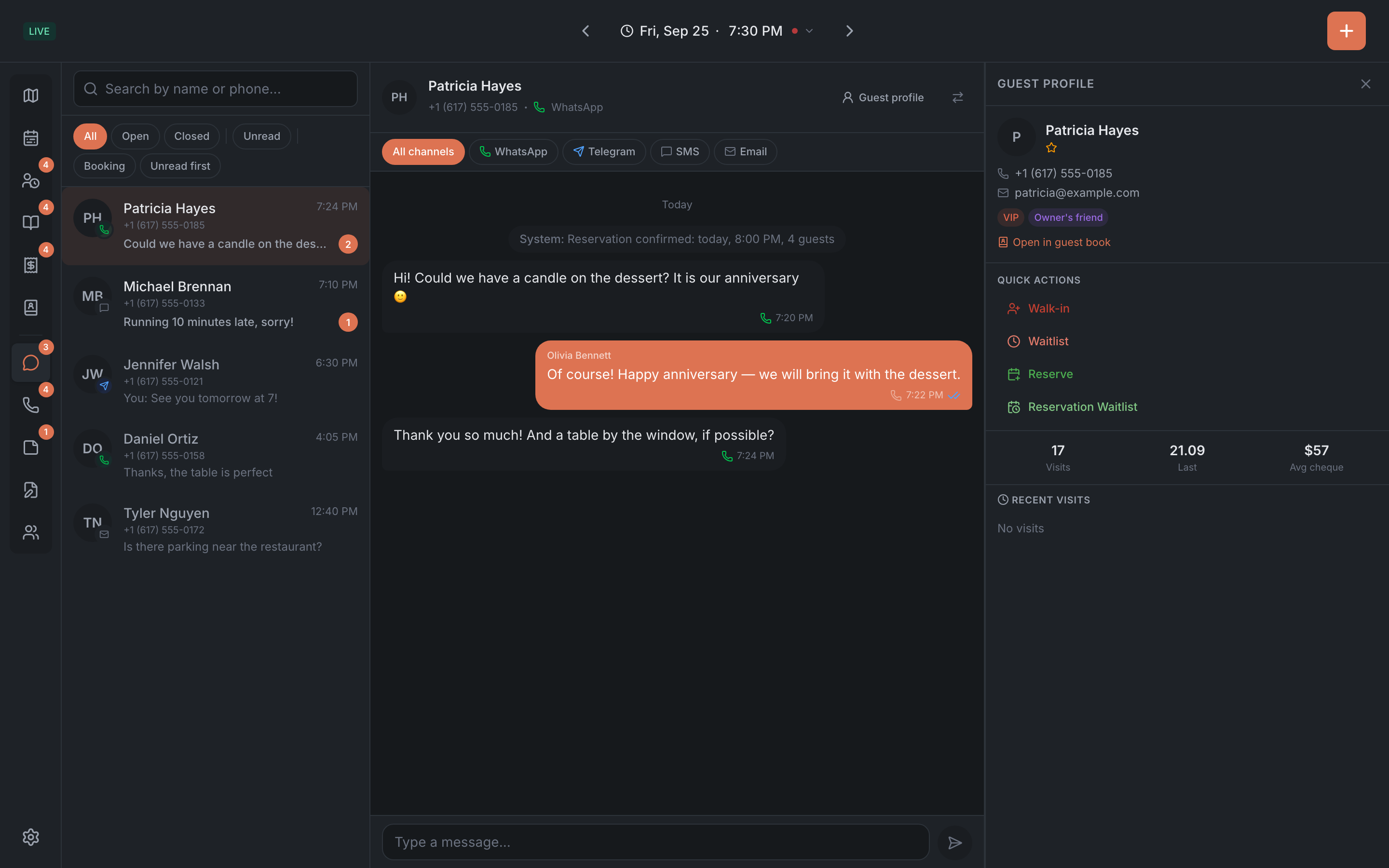
The Chat tab is where you message guests over SMS, WhatsApp, Telegram and email — whichever the restaurant has connected. Conversations are on the left, the open conversation on the right. The number on the Chat menu item is how many messages are unread.
- This is where you reply. To start a new conversation with a guest, use the booking card, on its Chat tab.
- You can’t pick the channel: the system picks it.
- The Kitchen role doesn’t have the Chat tab.
Channels are connected in the Admin — see Channels.
Conversation list
A conversation is all messages with one guest, across all their bookings. A row has the name (or the phone, or “Unknown guest”), the channel icon, the time of the last message, its beginning and the number of unread messages. A red ”!” means the last message wasn’t delivered.
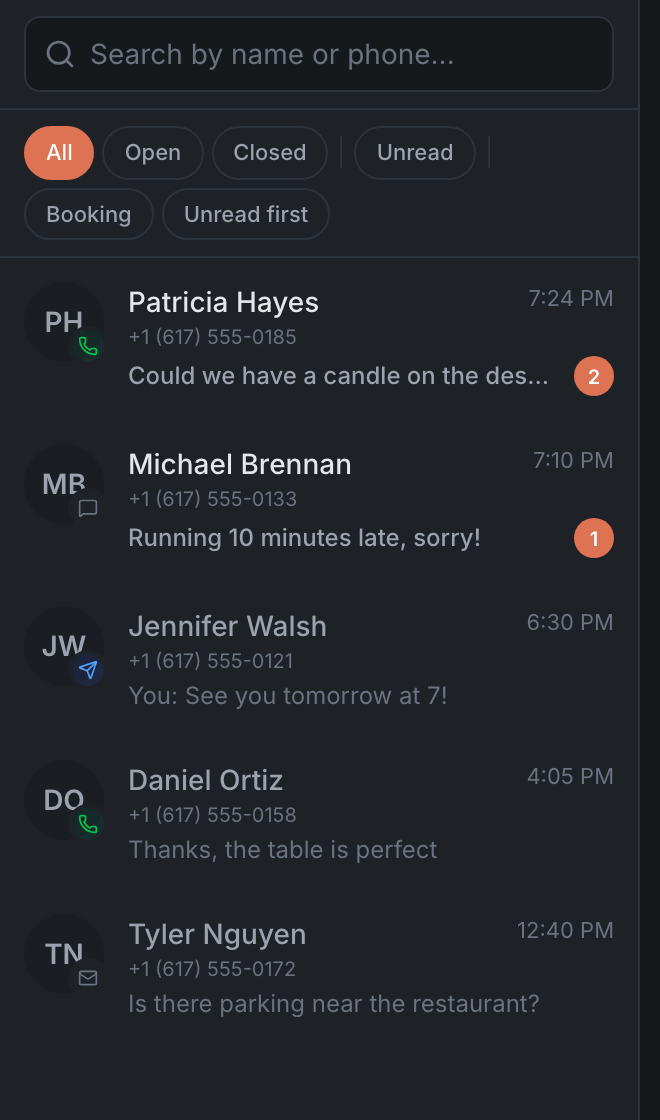
- Search — “Search by name or phone…”. It doesn’t search message text.
- The list loads more as you scroll. If there are no conversations — “No conversations”.
Filters
- All, Open, Closed;
- Unread — only conversations with unread messages;
- Booking — switches between With booking and Without booking;
- Unread first — doesn’t change the order of the list yet.
The conversation
Tap a conversation and it opens on the right. The guest’s messages are on the left, yours on the right, and system and AI Agent messages in the middle. Older messages load as you scroll up.
- The All channels, WhatsApp, Telegram, SMS and Email chips above the conversation show messages from one channel only.
- Type your reply in the “Type a message…” field. Enter sends, Shift+Enter starts a new line.
- There are no reply templates. You can’t send a file or a photo — only view the ones the guest sent.
When you open a conversation, its messages are marked as read. New messages arrive by themselves.
Message statuses
Under your message are the channel, the time and an icon:
| Icon | Status |
|---|---|
| clock | ”Sending…” |
| ✓ | “Sent” |
| ✓✓ | “Delivered” |
| blue ✓✓ | “Read" |
| "?" | "Unknown status” |
If a message wasn’t sent, the reason is written in red under it — for example, that the guest has no phone number, that the channel isn’t set up for this restaurant, or that SMS can’t be sent to that country. If a message takes longer than 5 minutes, you’ll see “Taking longer than usual to send”.
Guest profile
The Guest profile button in the conversation header shows on the right who this is: name, icons, phone, email, tags, allergies, a note, visits and average check, the current visit, Upcoming bookings and Recent visits. On a computer with a mouse the profile opens by itself; on a tablet, with the button.
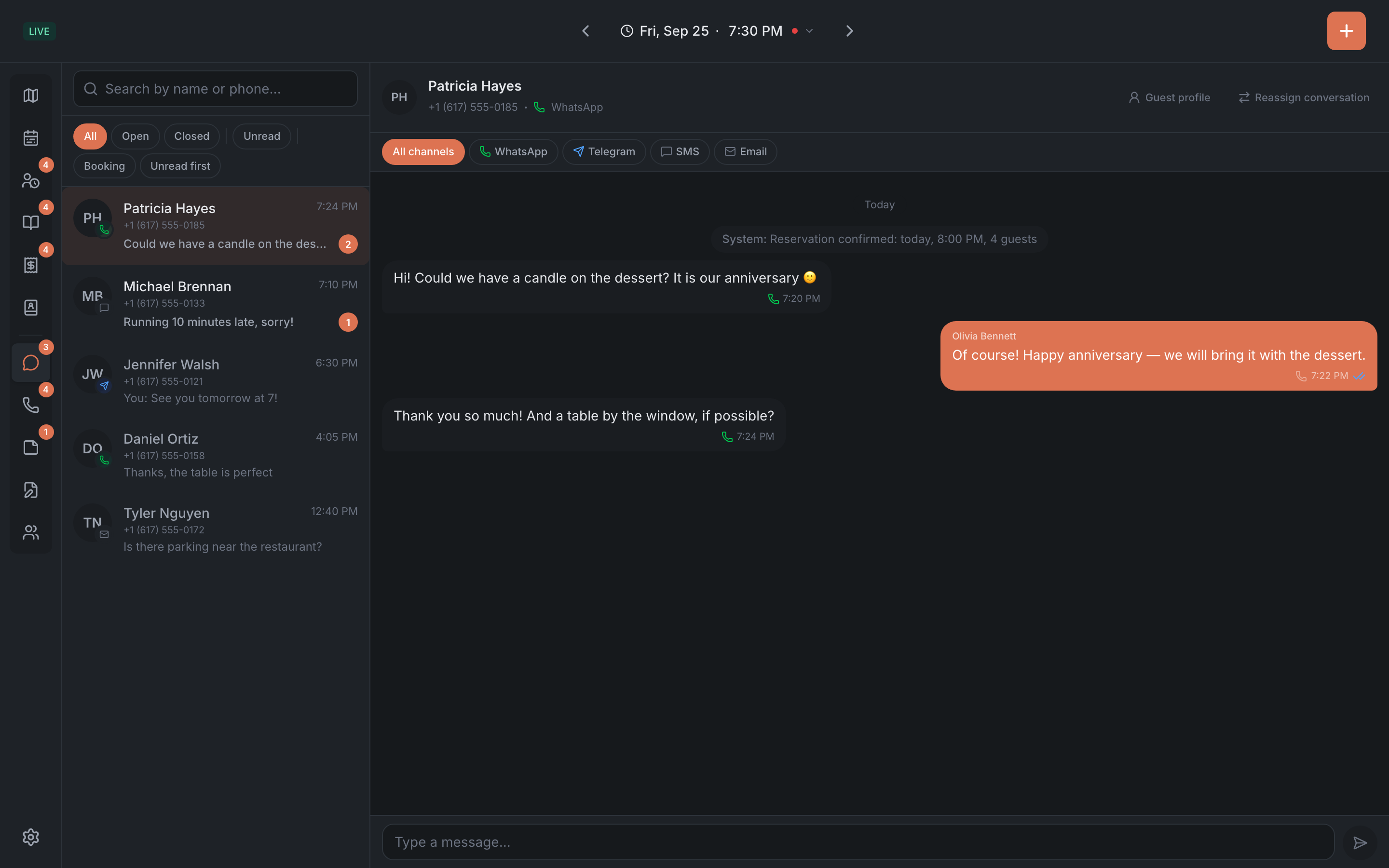
- Open in guest book — the full guest card, see Guests.
- Quick actions — Walk-in, Waitlist, Reserve and Reservation Waitlist: the form opens with the guest’s name and phone.
- If the guest isn’t in the guest book — “Guest not linked to a profile”, but the quick actions are still there.
Reassigning a conversation
If a guest wrote to the wrong restaurant in your group, tap Reassign conversation in the header and pick the restaurant — “Search restaurant…”. The conversation moves there at once and disappears from your list — with no confirmation. You can only reassign to a restaurant in the same organization.