Timeline
The whole day in one tables × time grid: how to read booking bars, zoom the grid and move bookings between tables and times.
Timeline is the whole day in one grid: tables run as rows, time as columns, and bookings lie on them as bars. The map answers “what’s happening in the room now”, the timeline — “how will the whole evening go”: where it’ll be packed, where it’ll be empty, and where to seat a party of eight.
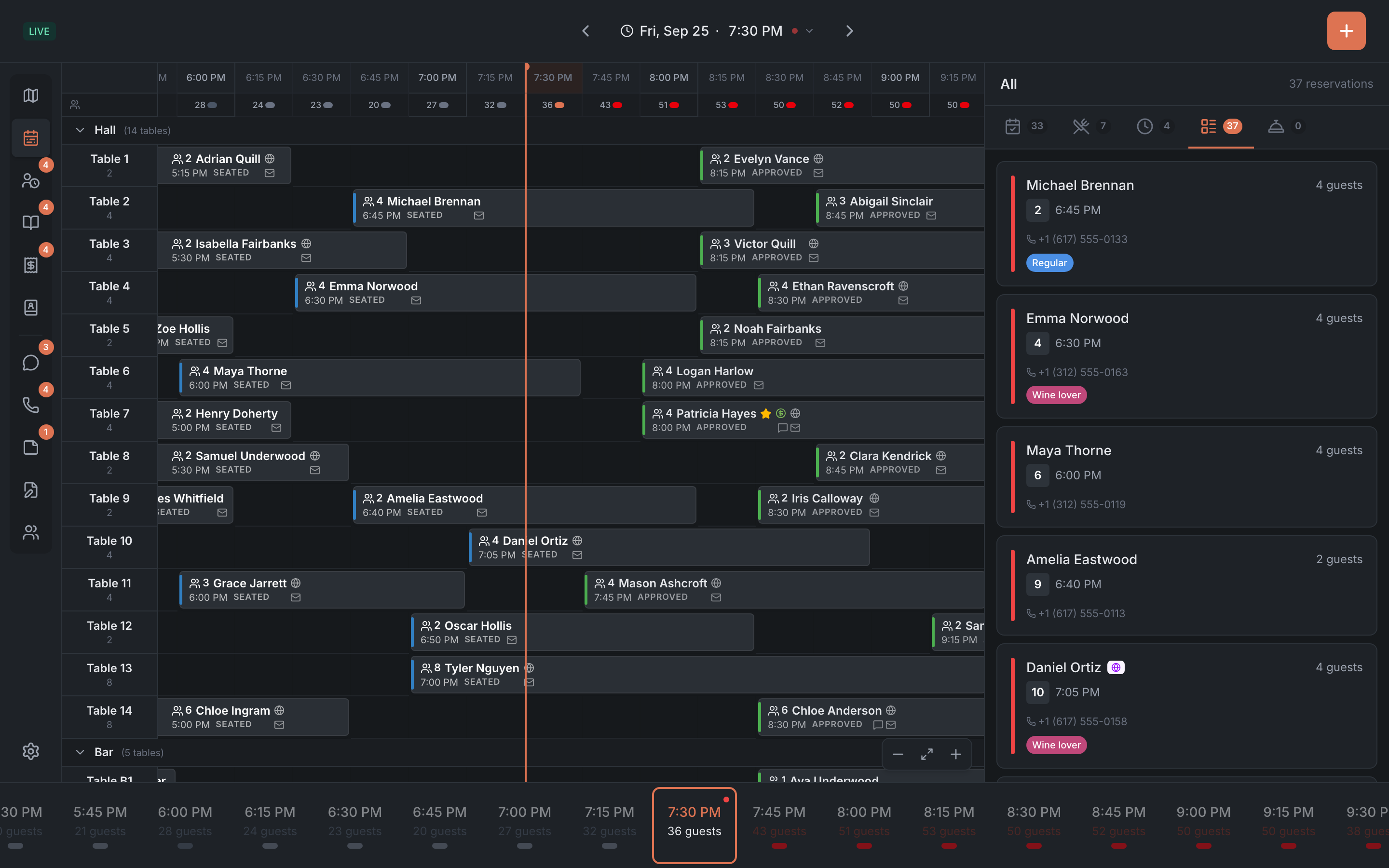
How the grid is laid out
- Rows are tables of the selected floor, grouped by area. The floor is switched in the header, as on the map. At the start of each row are the table number and how many seats it has. Tap an area’s name to collapse or expand its tables.
- Columns are time. Each hour is separated by a more visible line. The current time is highlighted.
- Above the grid is a load row: how many guests are in the room at each moment and a load bar. Today it’s grey for past time and red for the future; on other days it’s all grey.
- The “now” line — vertical, the full height of the grid. It’s shown for today only. It’s in the theme’s accent color: green in HostMe Dark.
The grid adjusts the row height so that all tables fit without scrolling. If there are many tables, rows get lower and some details on the bars are hidden.
Booking bar
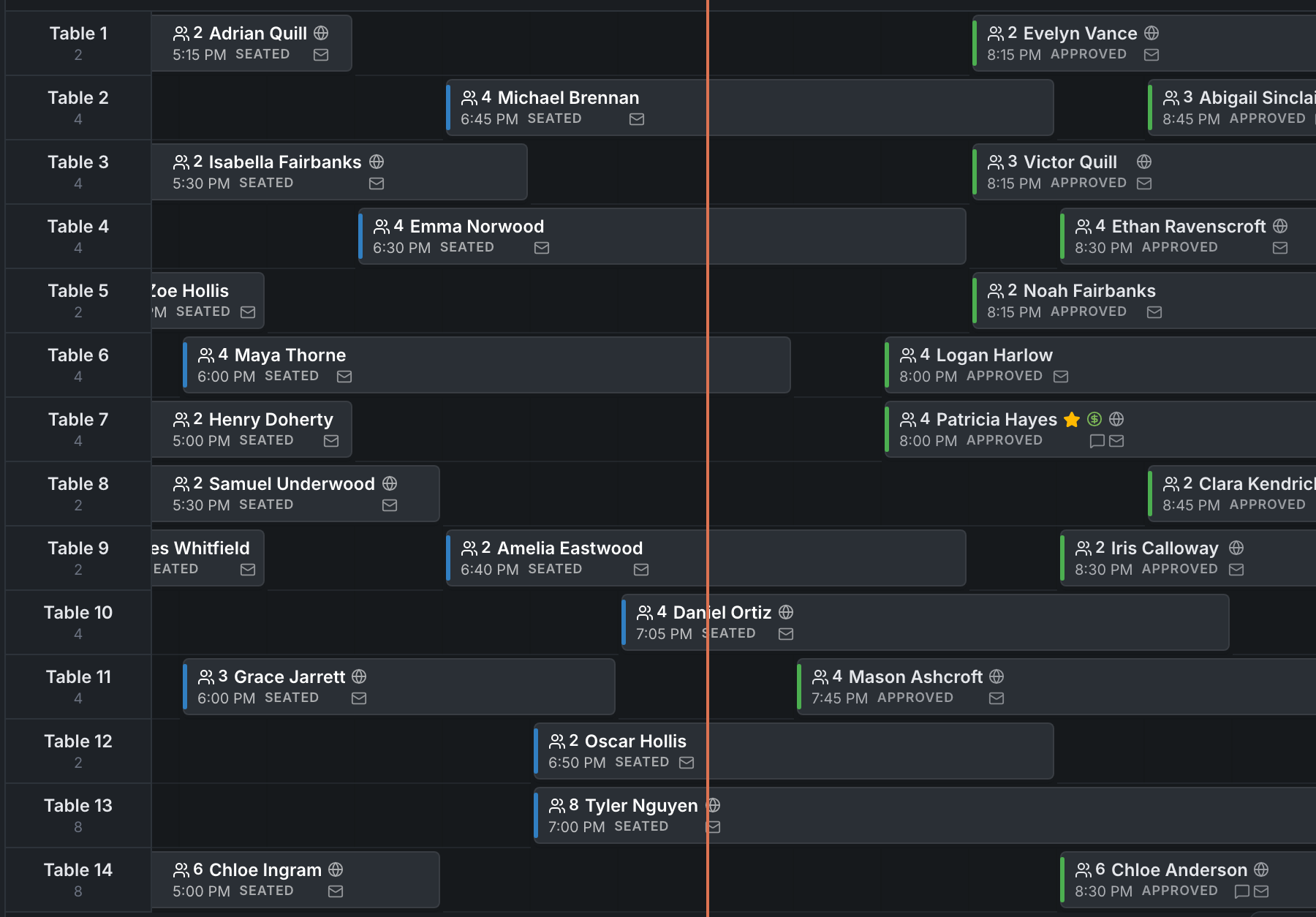
A bar covers the time the table is taken by a booking. A booking’s bar starts at its real time — the table’s preparation before a booking isn’t shown on the timeline, unlike on the map.
The bar’s color is the table status, as on the map. The colored mark on the left is the booking status:
| Mark on the left | Booking status |
|---|---|
| green | approved |
| orange | waiting for approval |
| blue | guests are seated |
| coral | guest has been called |
| grey | canceled |
What’s written on a bar:
- on the first line — the party size, the name, the VIP star, the blacklist icon, the deposit icon and an icon for where the booking came from (website, phone, device);
- on the second, if the row is tall enough and the bar long enough — the time, the dining stage or the status, and icons: wheelchair access, vegetarian, guest comment, has a phone.
Zoom
Buttons at the bottom right of the grid:
- Zoom out (−) and Zoom in (+) — make the columns narrower or wider;
- Fit the whole day — fit the whole day to the screen width.
The panel remembers the zoom you picked.
Tap a booking
Tap a bar — it gets a frame, and the booking card opens on the right. If a booking takes several tables, hovering over it with a mouse highlights all of its bars.
Tapping an empty cell does nothing: on the timeline, time is picked with the time strip at the bottom or in the header — see Date, time and shift.
Moving a booking to another table or time
- Press and hold a booking bar — for about a third of a second.
- Move it to another table, another time, or both. The panel shows where the booking will land.
- Let go — a confirmation panel opens on the right.
What it offers depends on where you moved the booking:
| Where you moved it | Option |
|---|---|
| to another table, same time | Move to table … — “Booking time stays the same” |
| to another time, same table | Reschedule to … — “Table stays the same” |
| to another table and another time | Move booking — with the old and the new table and time |
| the guests are already seated | Move guest to table … — seated guests keep their time, only the table changes |
On a tablet, scroll the grid by its empty cells, the header or the tables column: if you start the movement on a booking bar, it starts dragging rather than scrolling.
How the timeline differs from the map
| Map | Timeline | |
|---|---|---|
| What you see | the room at the selected moment | the whole day at once |
| How tables are grouped | as they stand in the room, by floor | as a list, by area, one floor |
| Prepping for a booking | the table changes color in advance | not shown, the bar starts at the booking time |
| What’s on a booking | up to three pills on the table | the name, party size and icons on the bar |
| What can be moved | a table — to another table | a booking — to another table and another time |
A handy combination on shift: plan the evening on the timeline, seat guests on the map.