Shift notes
The restaurant's shared notes for the shift: how to write down a task or a reminder, mark it done and not miss an overdue one.
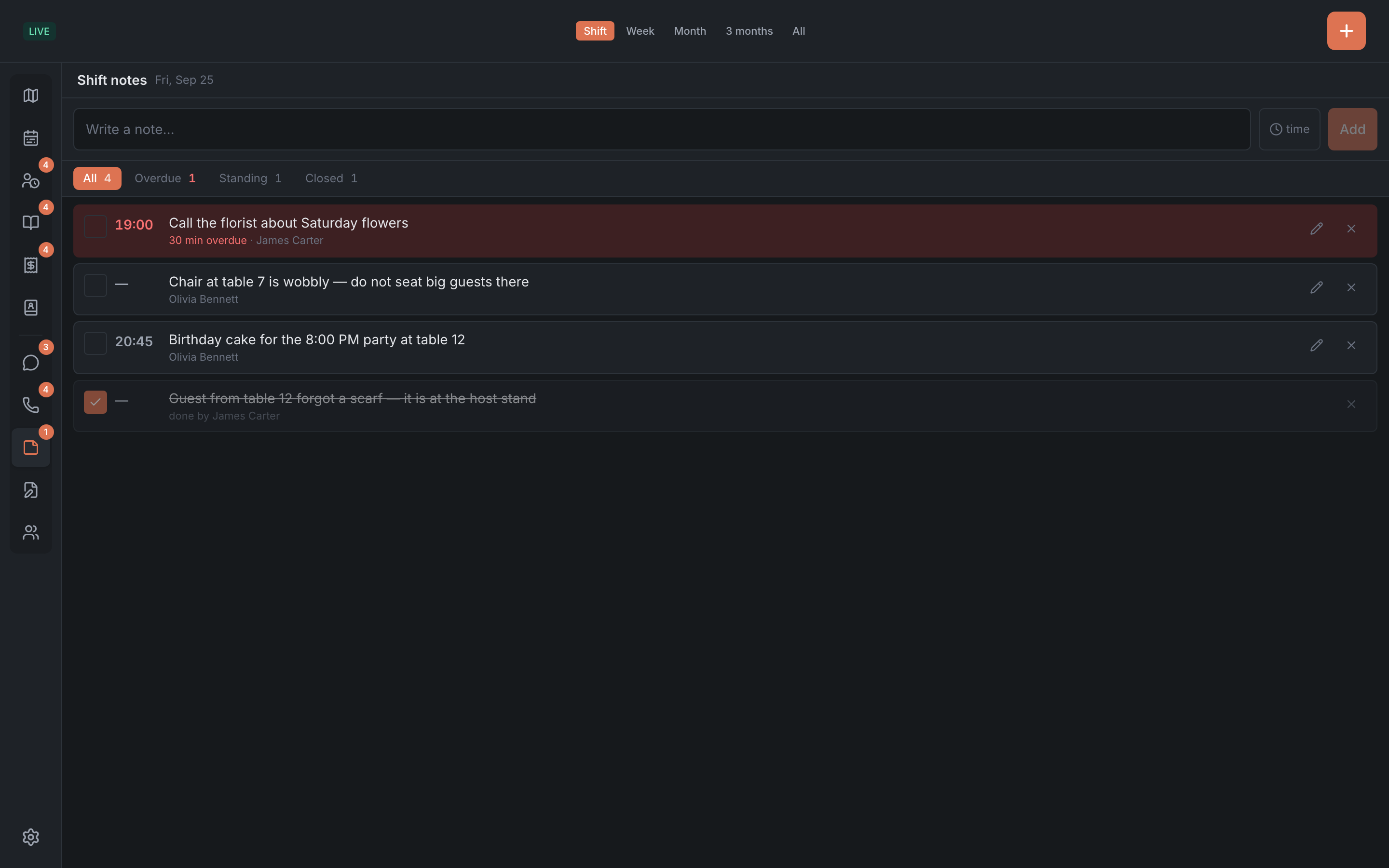
Shift notes are like sticky notes on the host stand: “check the chairs on the terrace”, “call the supplier at 6 PM”, “the guest from table 12 forgot a scarf”. Notes are shared across the whole restaurant: every staff member sees them on every device. While the Notes tab is open, colleagues’ changes arrive by themselves.
Notes don’t send notifications. Overdue ones are flagged only by the number on the Notes item in the menu on the left — it’s visible from any tab.
Adding a note
- Type the text in the Write a note… field.
- If you need a reminder, tap time and pick a time. Next to it you can pick a day: “Reminder day. Empty — current shift”. A day without a time doesn’t set a reminder — the note becomes standing. A time before 5:00 AM without a date belongs to this shift’s night.
- Tap Add or press Enter.
A note without a time is standing: it stays until someone closes it. A note has no assignee, priority or link to a booking or table — only the text and the time. Each note shows who wrote it.
Sub-tabs
- All — all notes for the selected period.
- Overdue — the reminder time has come, and the note isn’t closed.
- Standing — notes without a time.
- Closed — notes marked as done.
The order in All: overdue first, then standing, then by time, then other days, and closed ones at the end. The panel remembers the sub-tab you picked on this device.
Period
The header has Shift, Week, Month, 3 months or All. The period decides two things:
- which future notes are shown — for the shift, a week ahead and so on;
- how far back to show closed ones.
Overdue and standing notes are always shown, whatever the period.
Overdue notes
When the reminder time comes, the note moves to the top and gets a red background, with ”… min overdue” or ”… h overdue” under it. The number of overdue notes is on the Notes item in the menu.
Marking, editing, deleting
- The checkbox on the left — Done. The note is struck through and moves down, and who closed it appears under it. Untick it and the note is back in progress.
- The pencil — Edit: change the text, time or day right in the row. Save or Enter saves, Cancel or Esc leaves without changes. Closed notes have no pencil.
- The cross — delete. It turns into a Delete? button — tap it within 4 seconds, or Cancel if you change your mind. A deleted note can’t be brought back.