How to set up the booking widget
Generate a booking widget and embed it on your website — choosing the type, embed style, settings and getting the code.
The booking widget is a form you embed on your website so guests can book a table without leaving your page. The widget is built in Online Presence → the Widget Generator tab: you choose the type and look, and the system gives you ready-made code to paste.
Step 1. Open the widget generator
In the left menu choose Online Presence, then open the Widget Generator tab.
Step 2. Choose the widget type
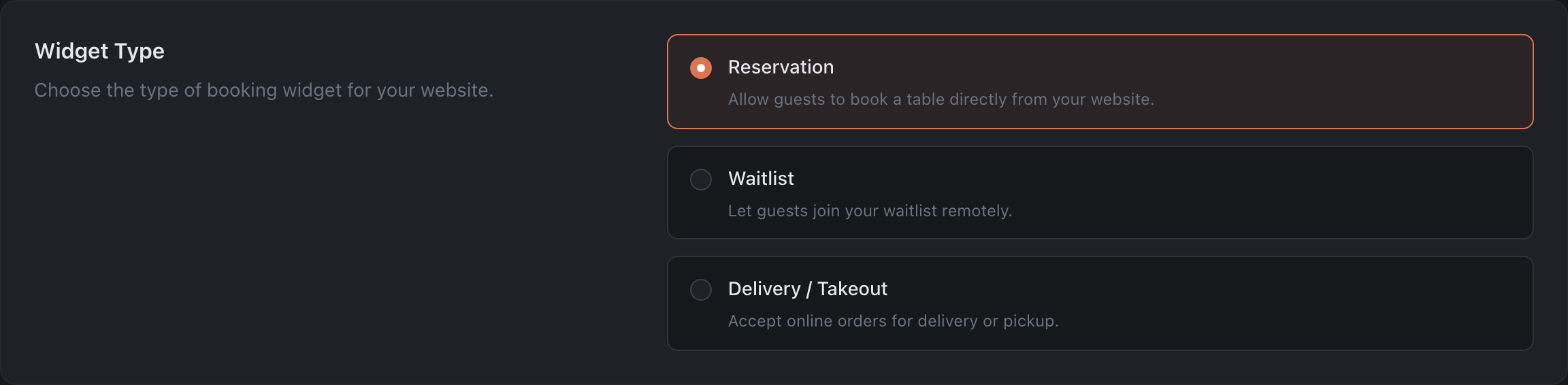
- Reservation — guests book a table right from your website.
- Waitlist — guests join the waitlist remotely.
- Delivery / Takeout — take online orders for delivery or pickup.
For the booking widget choose Reservation.
Step 3. Choose the embed style and configure the look
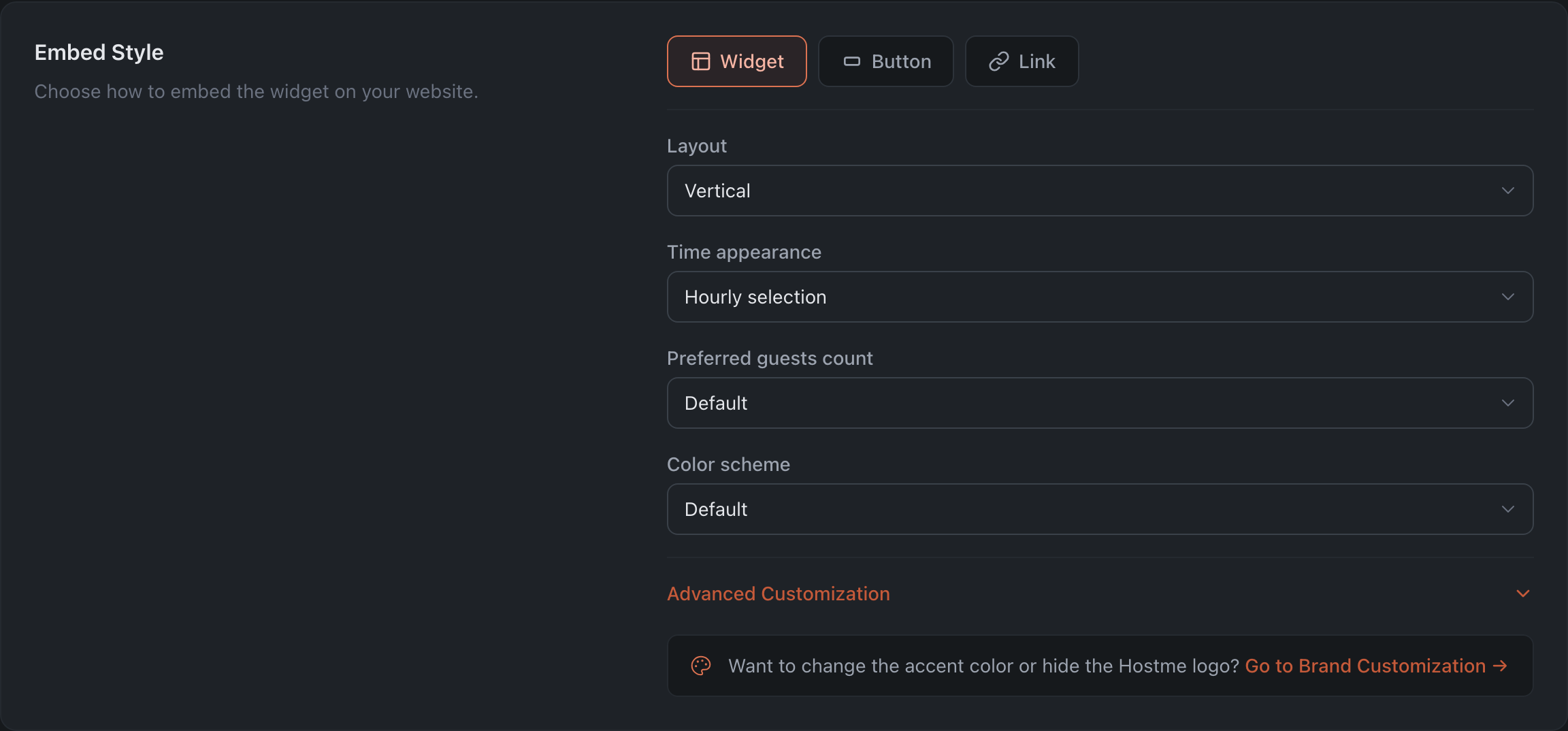
First choose the embed style:
- Widget — the booking form is embedded right in the page.
- Button — a compact button that opens the form.
- Link — a plain text link to the booking page.
Then configure the look (for the “Widget” style):
- Layout — Horizontal, Vertical or Adaptive.
- Time appearance — Calendar format, Hourly selection, Periods of the day or Hidden.
- Preferred guests count — the pre-filled number of guests (or “Default”).
- Color scheme — Default, Dark or Light.
The Advanced Customization block offers the widget language, required fields (guest / date / time selection), “Hide header”, “In Place” (the guest completes the booking without going to a separate page) and “Multiple restaurants”.
Step 4. Copy the code and paste it on your website
Below the widget you’ll see a preview (how it will look for a guest) and the ready-made embed code:

Click Copy and paste this code on the page of your website where the widget should appear. The code updates automatically as you change the settings above — copy it after you’ve configured everything.
Step 5. Or use direct links
If you don’t want to embed code (e.g. for a button on social media or in an email), take the ready-made direct link to the booking page:

What’s next