How to take a booking over the phone
From the call to a saved booking: the call card, the booking form, picking a table. If there's no room — a reservation waitlist request.
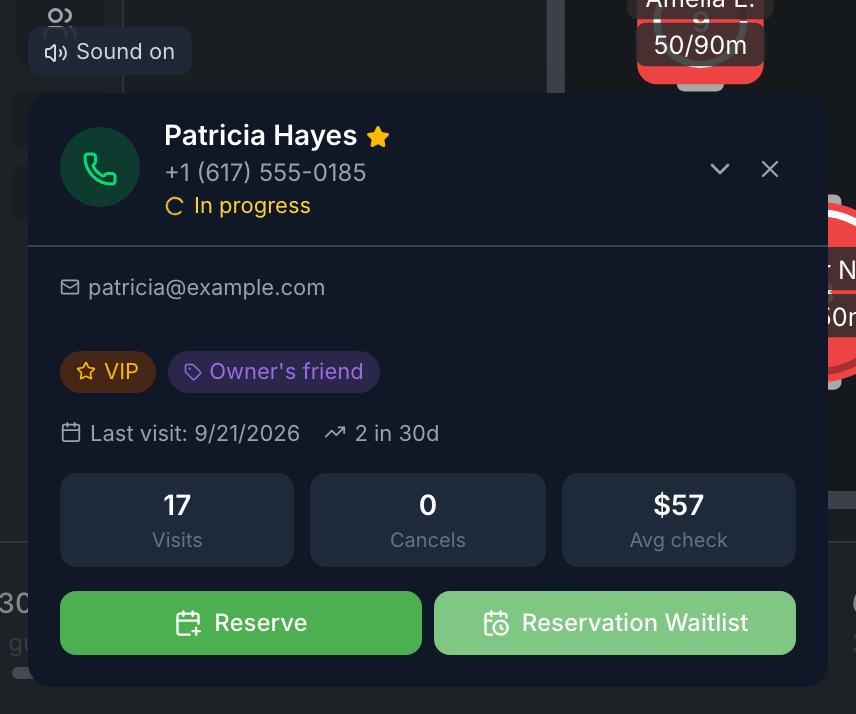
A guest calls and wants to book a table. If the restaurant has telephony connected, the panel shows who’s calling — the name, VIP, allergies and upcoming bookings.
What to do
-
Expand the call card at the bottom left — tap its header. That marks the call as answered. See Calls.
-
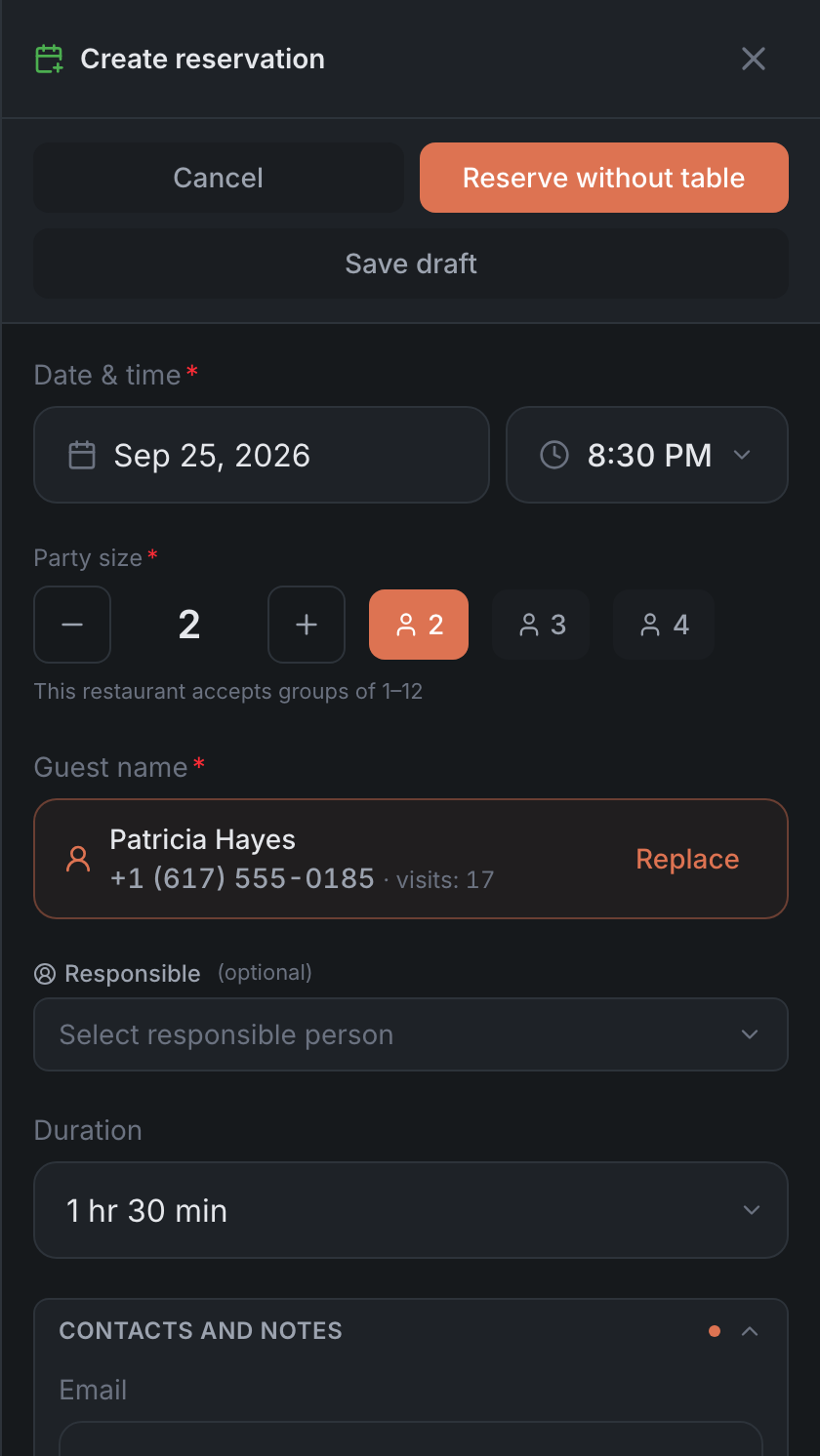
Tap Reserve in the call card. The form opens with the guest’s name and phone. Without telephony — + in the header → Reserve.
-
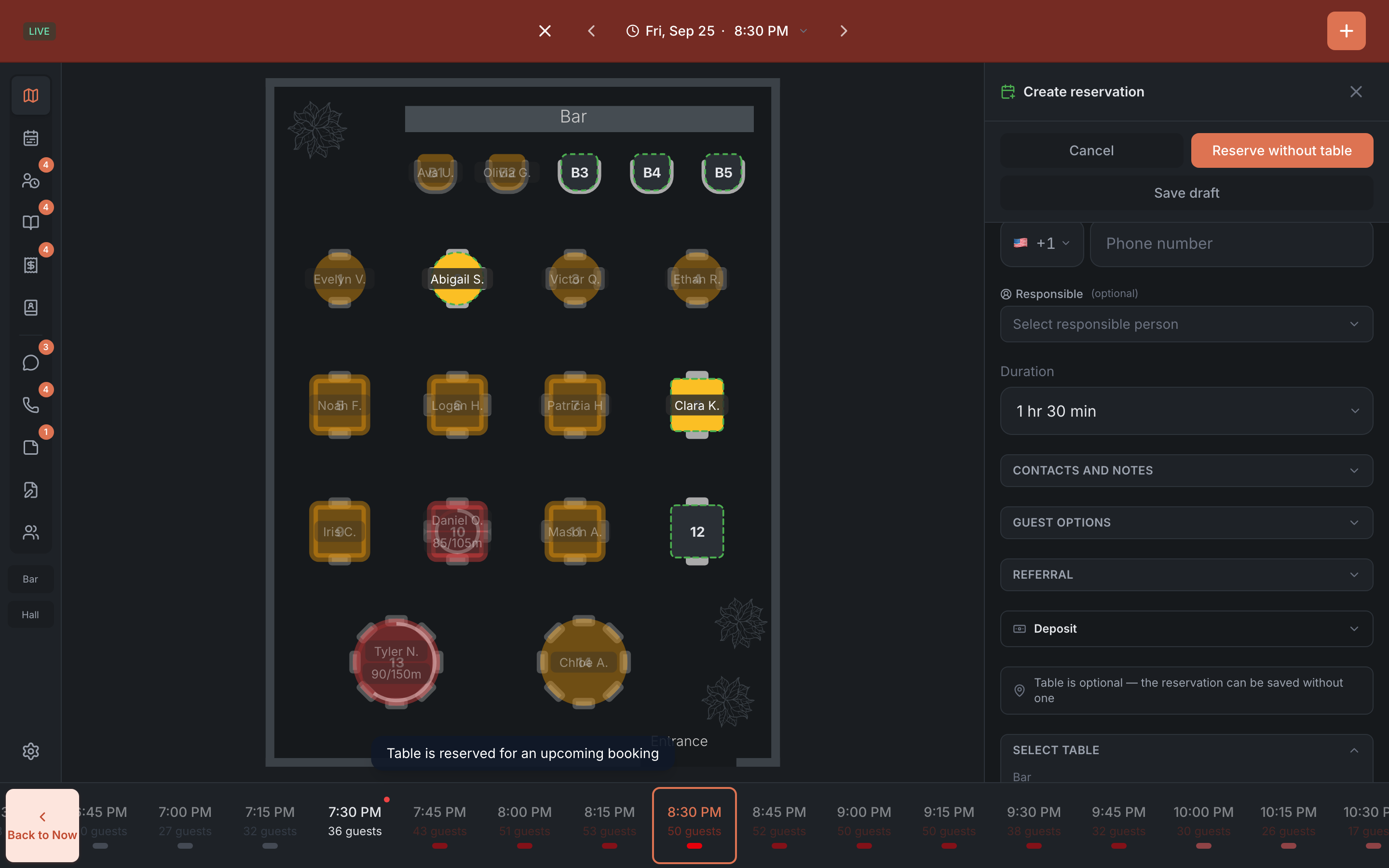
Pick the date, time and party size. It helps to set the time on the time strip first — the form opens at that time.
-
Pick a table in the Select table section or right on the map. For a large party — several tables. If a table doesn’t fit, the panel tells you why. See Creating and editing a booking.
-
Tap Create reservation. You’ll see “Reservation created”, and the call becomes Handled.
If there’s no room: tap Reservation Waitlist in the call card and create a request for the date and time the guest wants. When a table frees up, it can be turned into a booking.
Result: the booking is saved, the guest is in the guest book, and the call is closed.