How to move guests and seat a large party
Move a booking or guests to another table, add a table to a booking, swap two bookings, book several tables at once.
The party has grown, the guests don’t like their table, or two tables need to swap — all of this is done by dragging right on the map.
What to do
-
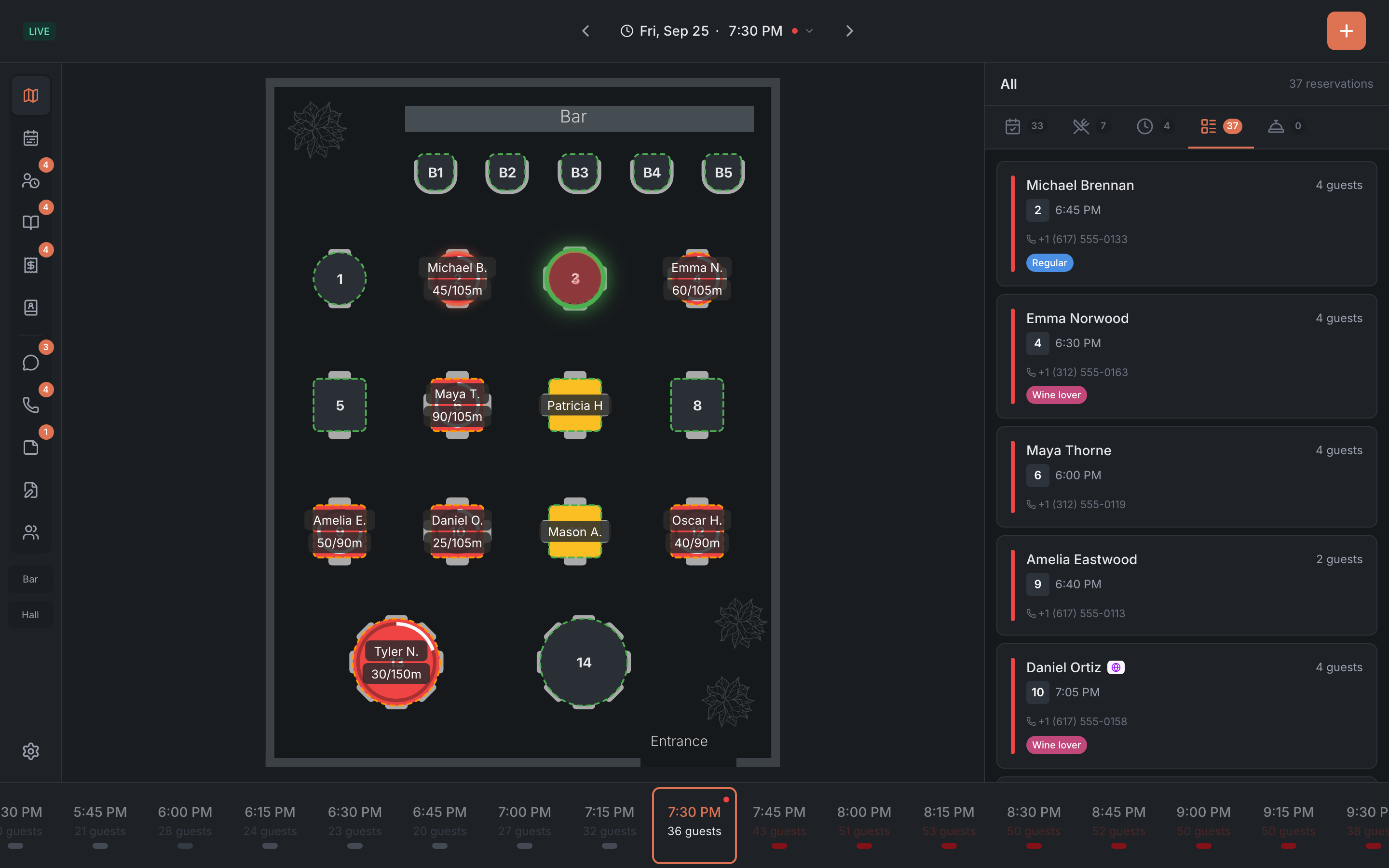
On the Map, press and hold an occupied or reserved table — for about a third of a second.
-
Without letting go, drag it to the table you need and let go. The Confirm action panel opens on the right.
-
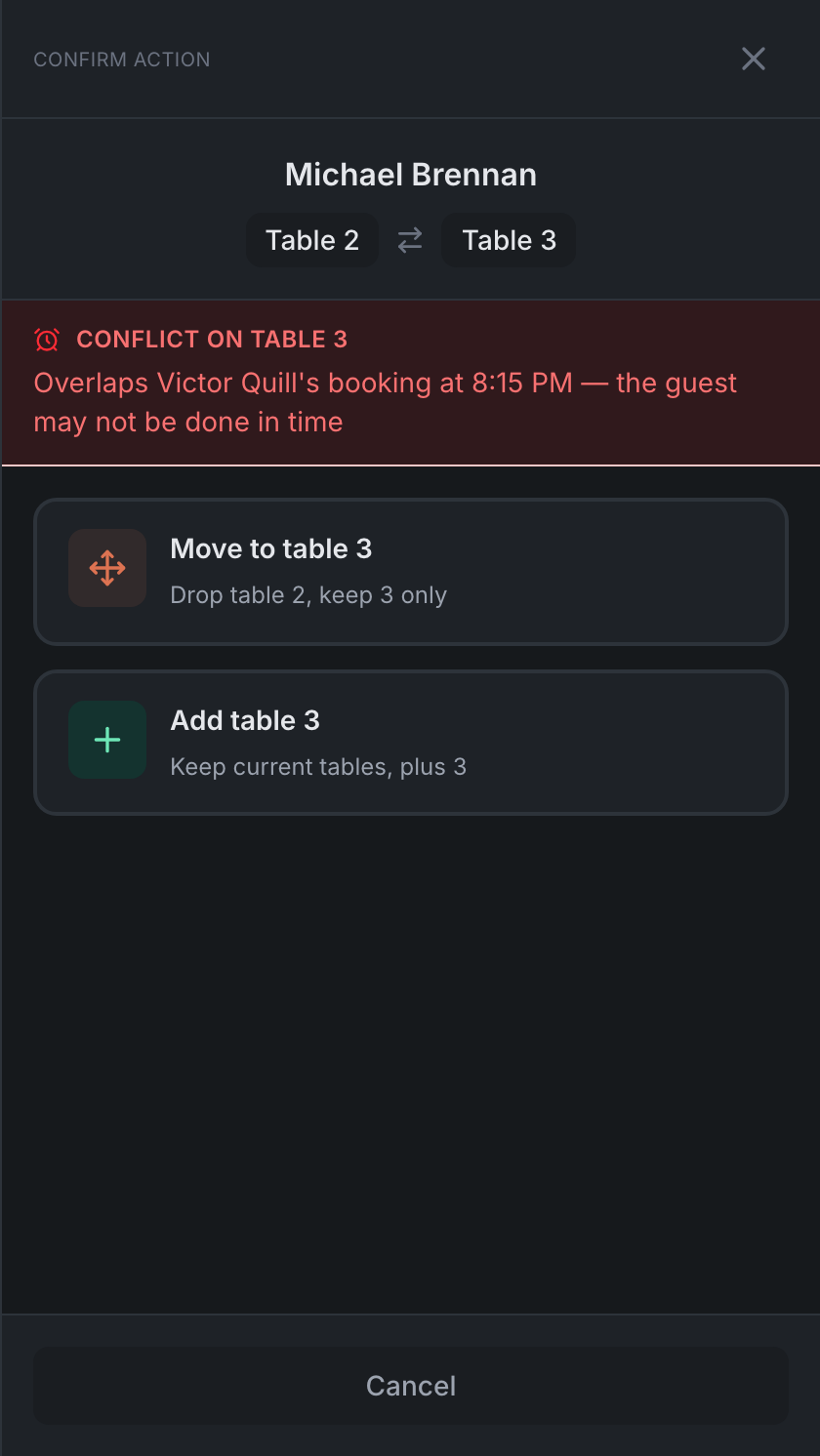
Pick what to do:
- Move to table … — the guests move, and the old table is freed;
- Add table … — the table is added to the booking: that’s how you seat a large party;
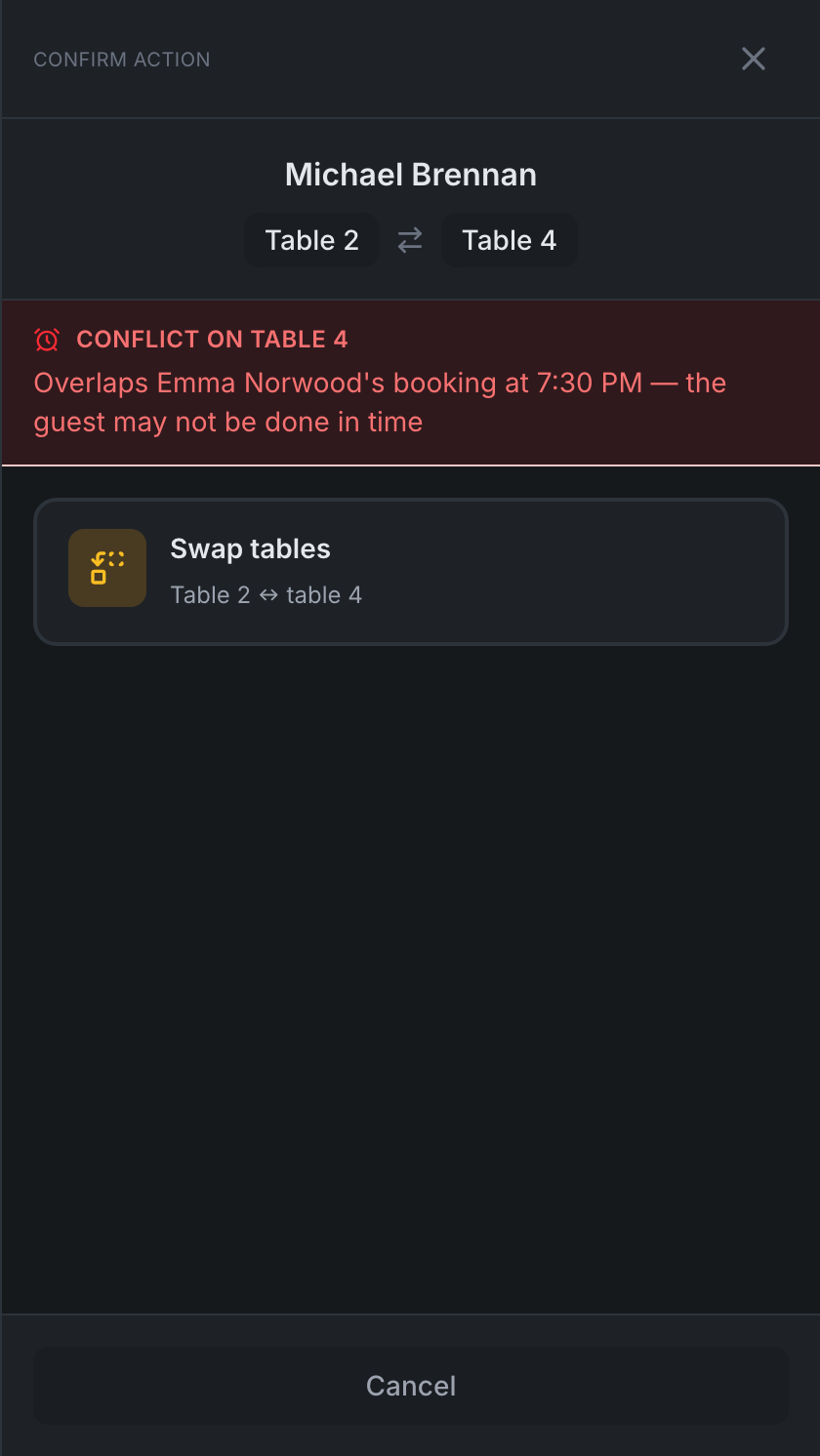
- Swap tables — if the target table has another booking.
-
Check Next booking on table … at the bottom of the panel — so you don’t get in the way of the next guests. If the panel says “Conflict on table …”, better pick another table.
All the options are in Moving and combining tables.
Booking a large party in advance: in the booking form, pick several free tables — the Multiple tables button or taps on tables on the map. See Creating and editing a booking.
Moving a booking to another time: on the Timeline tab, drag the booking bar — to another table and another time. See Timeline.
Result: the guests are at the right tables, and the panel warned you if a move got in the way of the next booking.