How to find who changed a setting
The Activity Log: search, filters by team member and operation type, and how to read what exactly changed.
“Why did online booking turn off?”, “who changed the table turn time?” — questions like these are answered by the Activity Log: it records who changed what in the restaurant settings, and when.
What to do
-
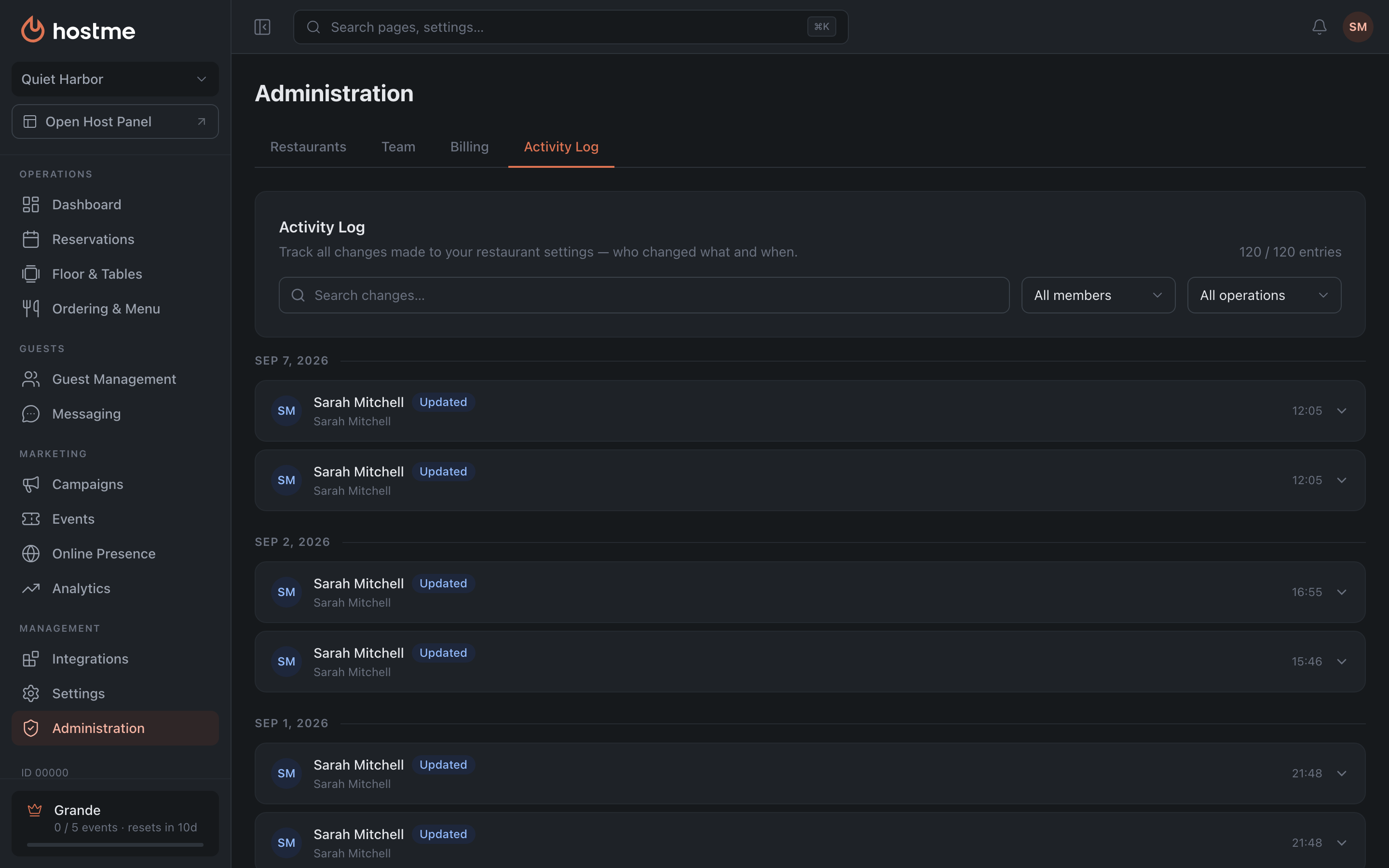
Open Administration → the Activity Log tab.
-
Narrow the selection — three tools work together:
- Search through the text of changes;
- a filter by team member (default All members);
- a filter by operation type (default All operations): Created, Updated, Deleted, plus the system ones Disabled and Activated.
-
Expand the entry you need — inside you can see exactly what changed, in a “was → became” format.
-
Didn’t find it — click Reset and try a different filter.
How to read an entry
Changes are shown in a human-readable form, not as raw JSON:
- “Field — enabled” / “Field — disabled” — a toggle.
- “Field: “old” → “new”” — a value was replaced.
- “Field set to “value”” — a field was filled in from empty.
- “Field cleared” — a value was erased.
- “N item(s)” — a list changed, for example the set of areas or rules.
If the change couldn’t be parsed, the panel says plainly that there are no structured changes and offers Show raw JSON — the raw form of the entry. This is rare, but useful when contacting support: the JSON can be attached to the request.
What the log doesn’t contain
The log tracks restaurant settings. Don’t look there for:
- work with reservations and guests — that’s operational data, not settings;
- a team member’s personal settings — interface language, dark mode, notification sounds. They are stored on the device and aren’t visible to the team (see Profile & Account);
- switching a device to the classic Admin — also a personal browser setting.
What’s next
- Administration — the whole section.
- Roles & Permissions — who could have changed it in the first place.
- Profile & Account — what belongs to the team member rather than the restaurant.