How to get a tablet ready for the shift
Sign in to the Host Panel, pick the restaurant and set up the device for your host stand: what's shown on tables, which tabs you need, the theme.
Almost all Host Panel settings are stored on the device itself. So each tablet at the host stand is set up once, separately — and from then on it works the way that stand needs.
What to do
-
Open the Host Panel in the app or with the “Open Host Panel” link in the Admin’s left menu. The sign-in is shared with the Admin — there’s no separate password. See Overview.
-
Check the restaurant. If you have several restaurants — the gear at the bottom of the left column → Select restaurant.
-
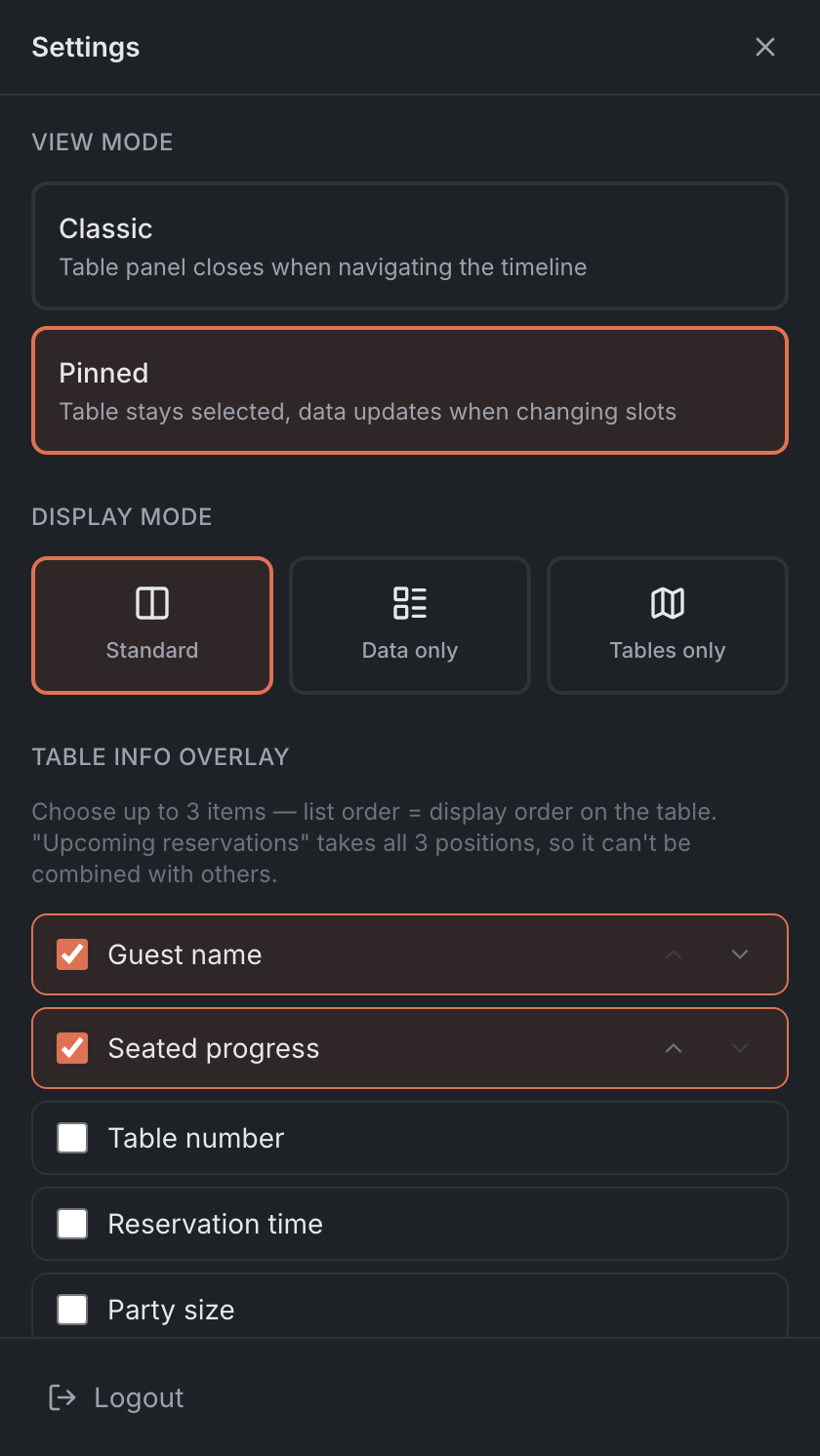
Set what’s shown on tables — Table info overlay: for example, Guest name and Seated progress. Up to three items.
-
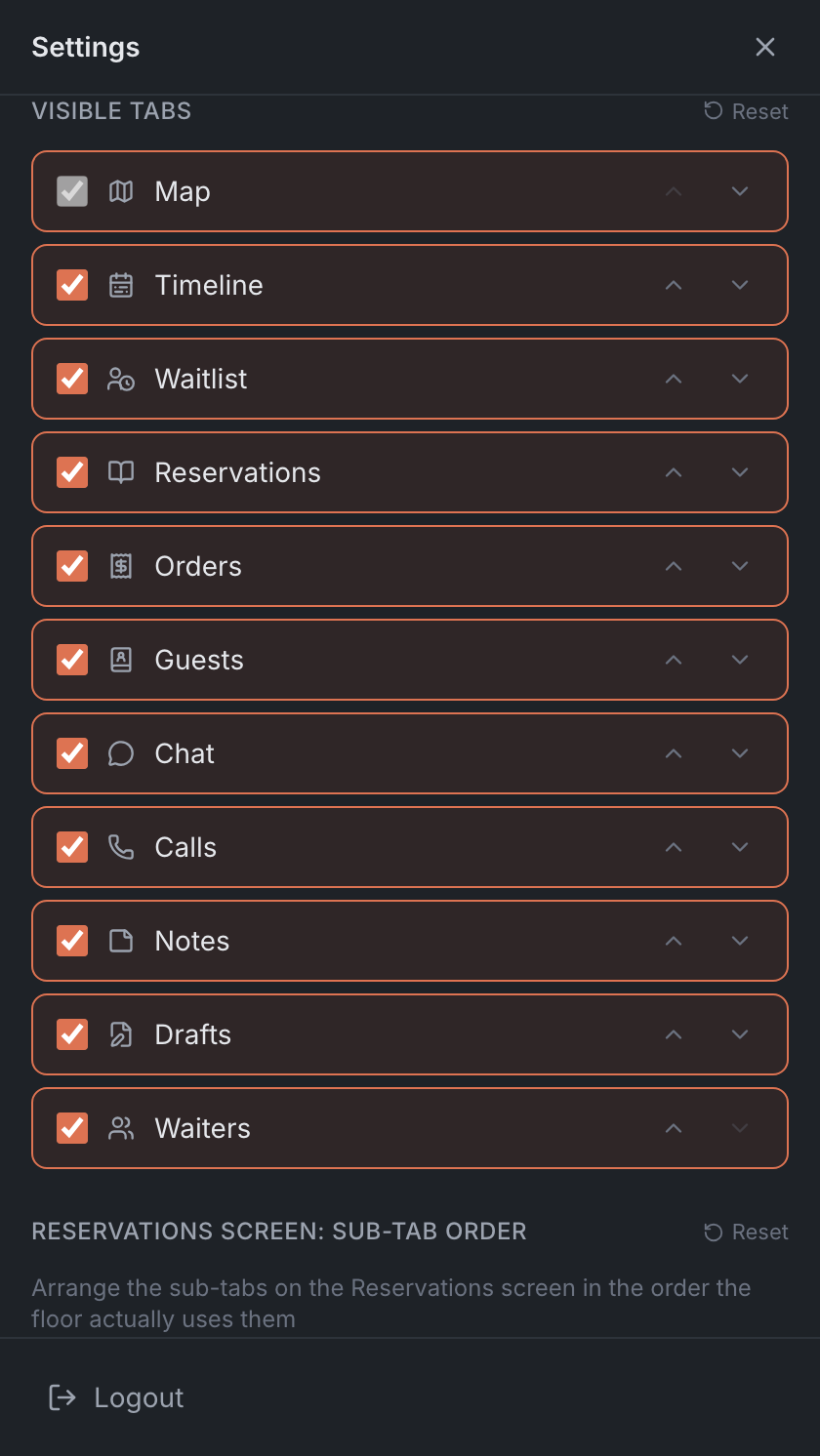
Hide tabs you don’t need — Visible tabs. If this stand doesn’t take orders or calls, untick them.
-
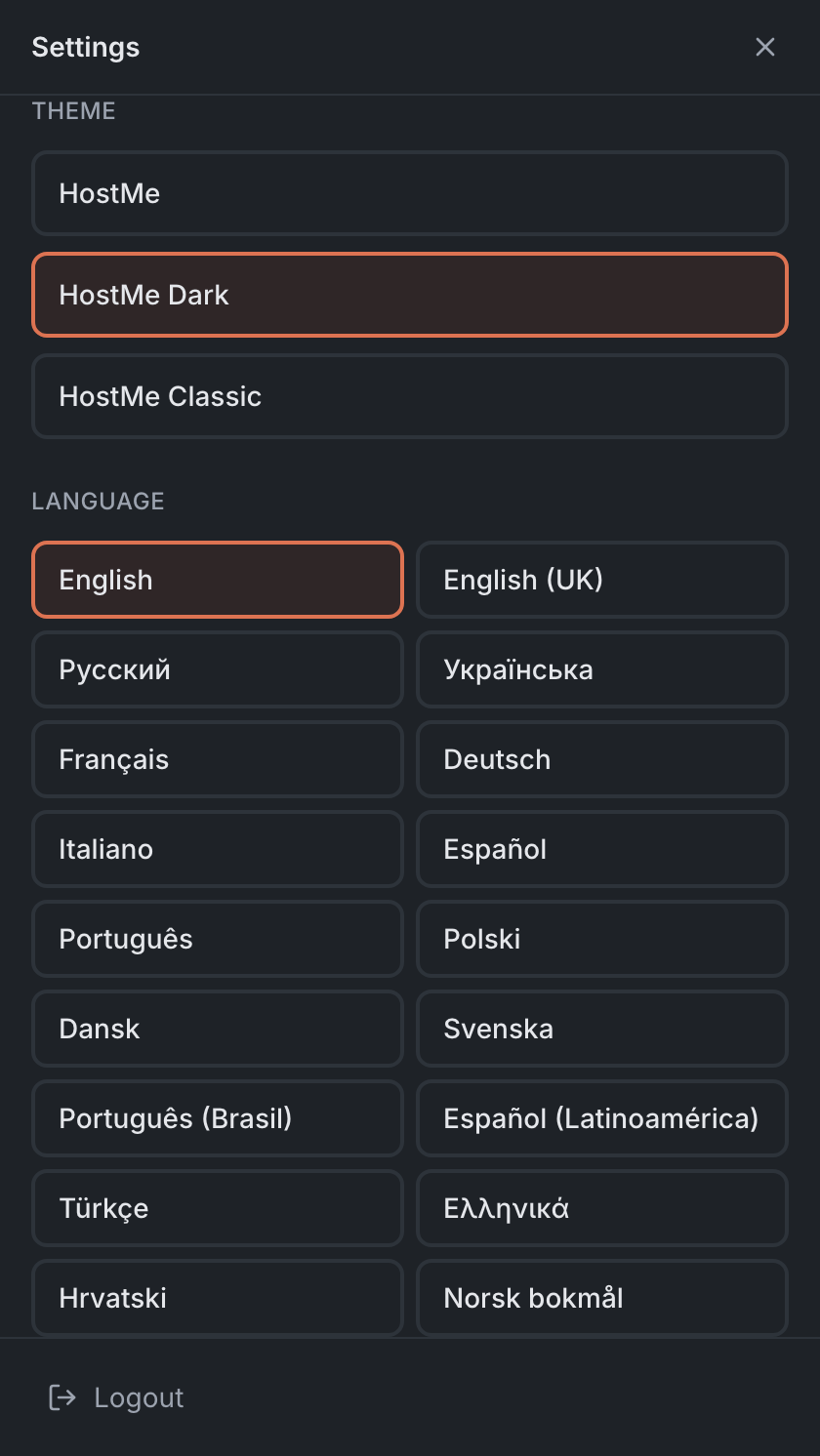
Pick a theme — Theme. For an evening shift in a dim room, HostMe Dark is easier on the eyes.
-
Check the connection — the header should say LIVE on the right.

-
Look at Notes — in case the previous shift left something important. See Shift notes.
Result: the tablet is ready for the shift and will remember its settings until next time.