How to launch delivery and a QR menu
From an empty catalog to a widget that takes orders: products, menus, settings, fees.
Launching online ordering is done in one particular order, and the order matters: delivery settings need a ready menu, and a menu needs products that already exist. Start from the end and you’ll run into empty dropdowns.
Step 1. Products
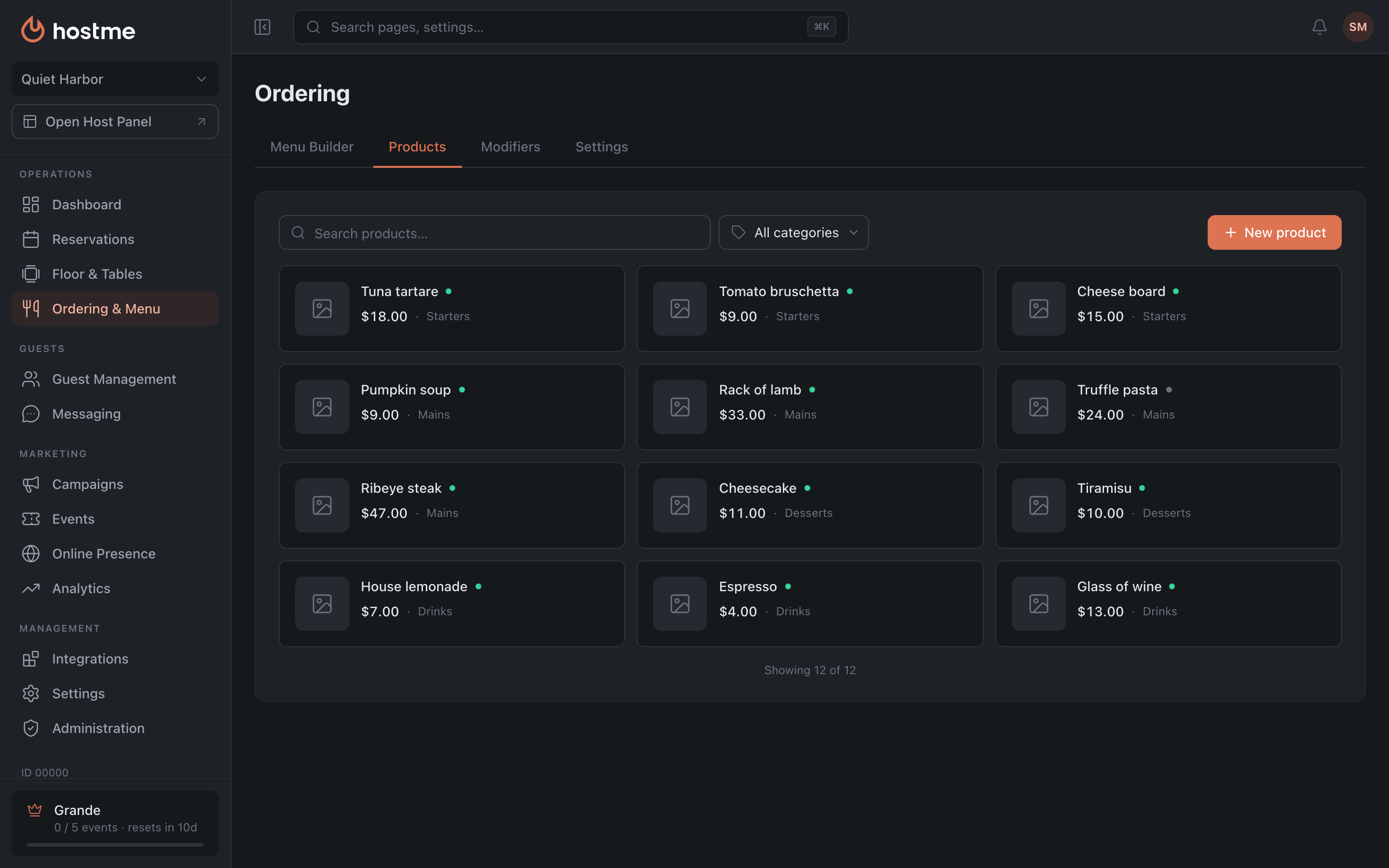
Open Ordering & Menu → the “Products” tab.
- Create categories — “Starters”, “Mains”, “Drinks”.
- Add products: name, description, price, photo.
- If the delivery price differs from the dine-in price, fill in “Delivery price”. If it doesn’t, leave it empty — the base price is used.
- Check the “Available” toggle — it applies to the product as a whole; availability isn’t set separately for delivery and pickup. If a dish doesn’t survive the trip, don’t add it to the delivery menu.
Details — Products and categories.
Step 2. Modifiers (if needed)
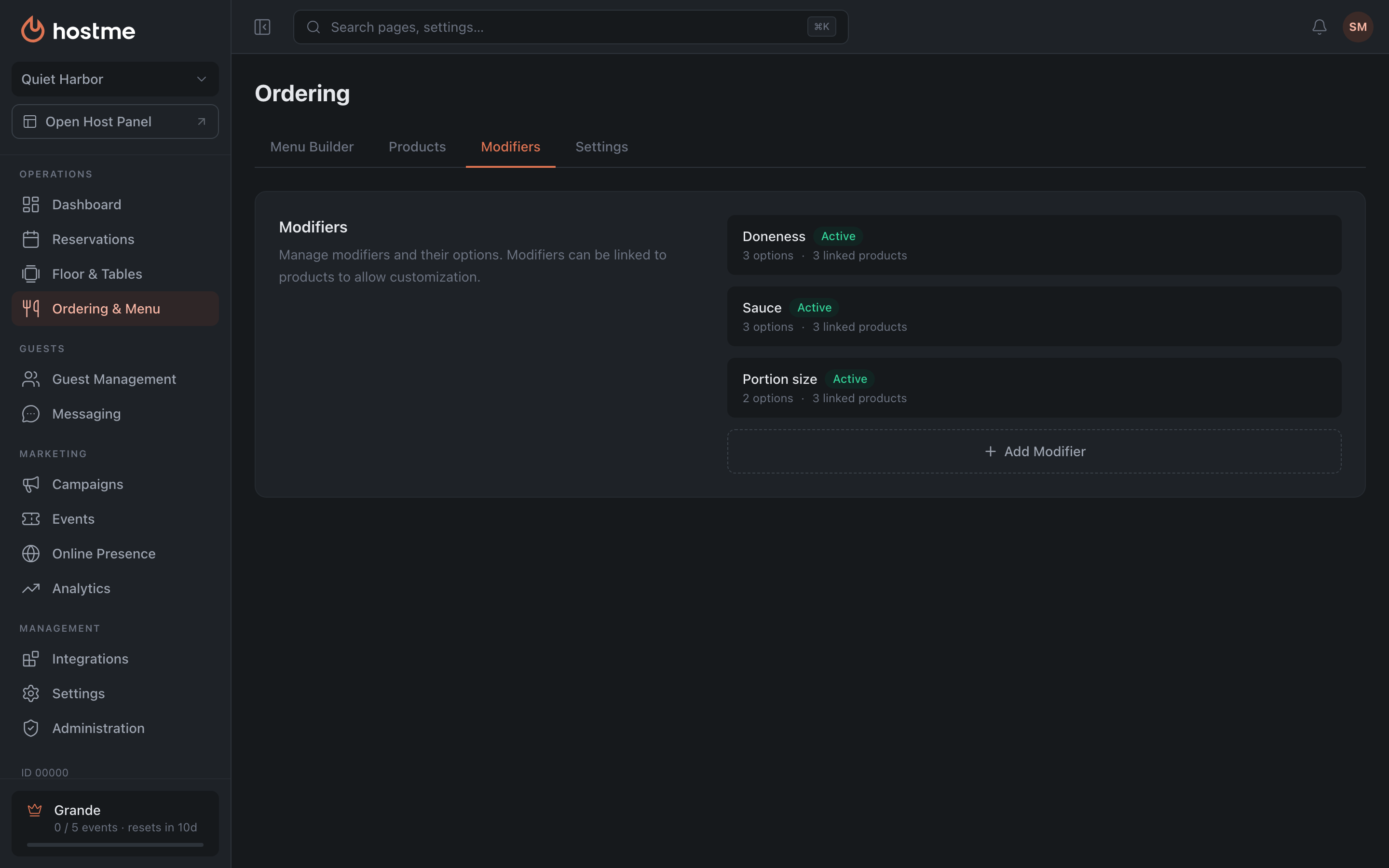
Doneness, sauces, sizes — the “Modifiers” tab. They are created once and linked to several products at a time.
If you want the guest to have to pick something, set “Min selections” = 1.
Details — Modifiers.
Step 3. Menu
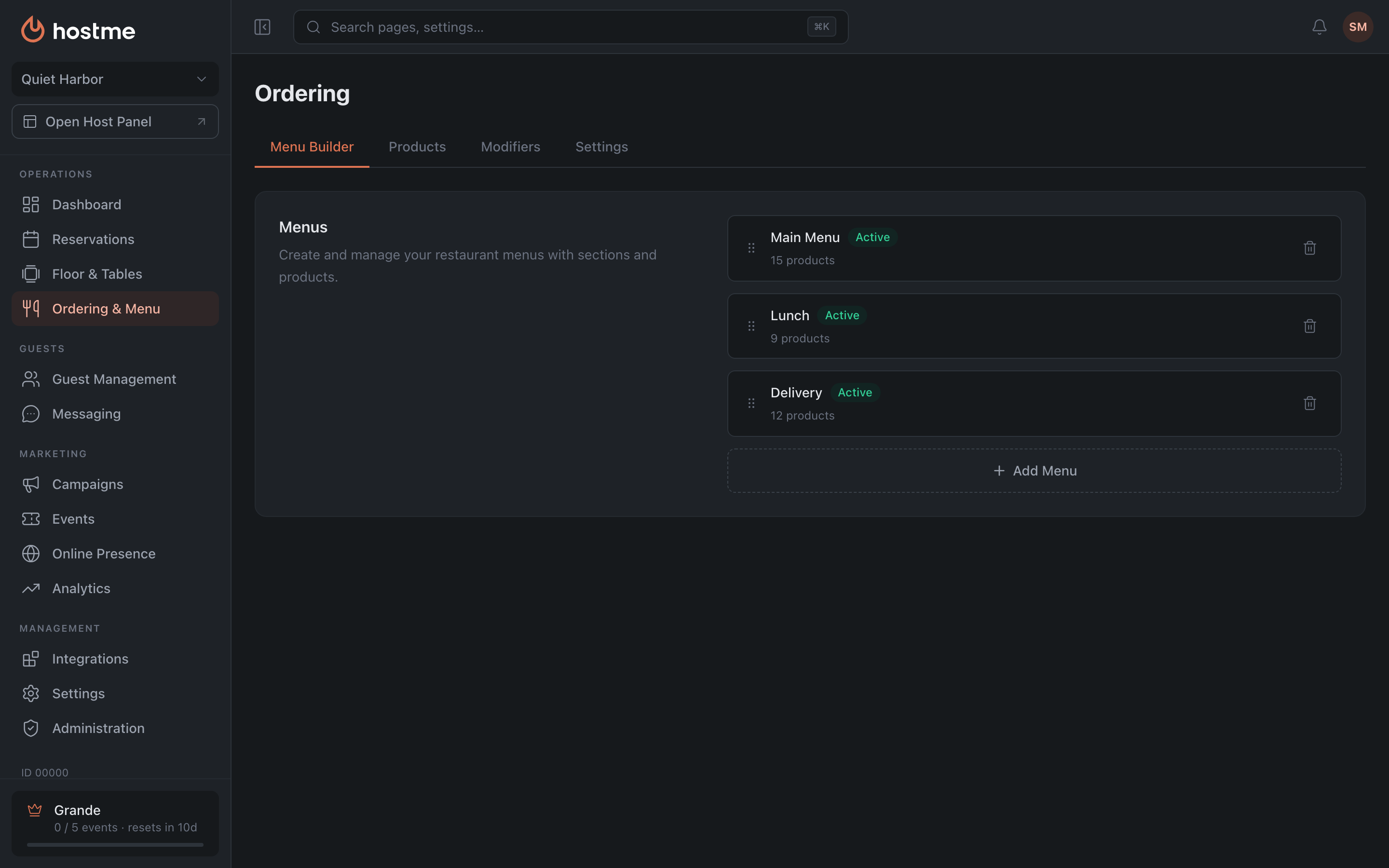
The “Menu Builder” tab. Create a menu, add sections, fill them with products.
Details — Menu Builder.
Step 4. Delivery settings
The “Settings” tab → the “Delivery” block.
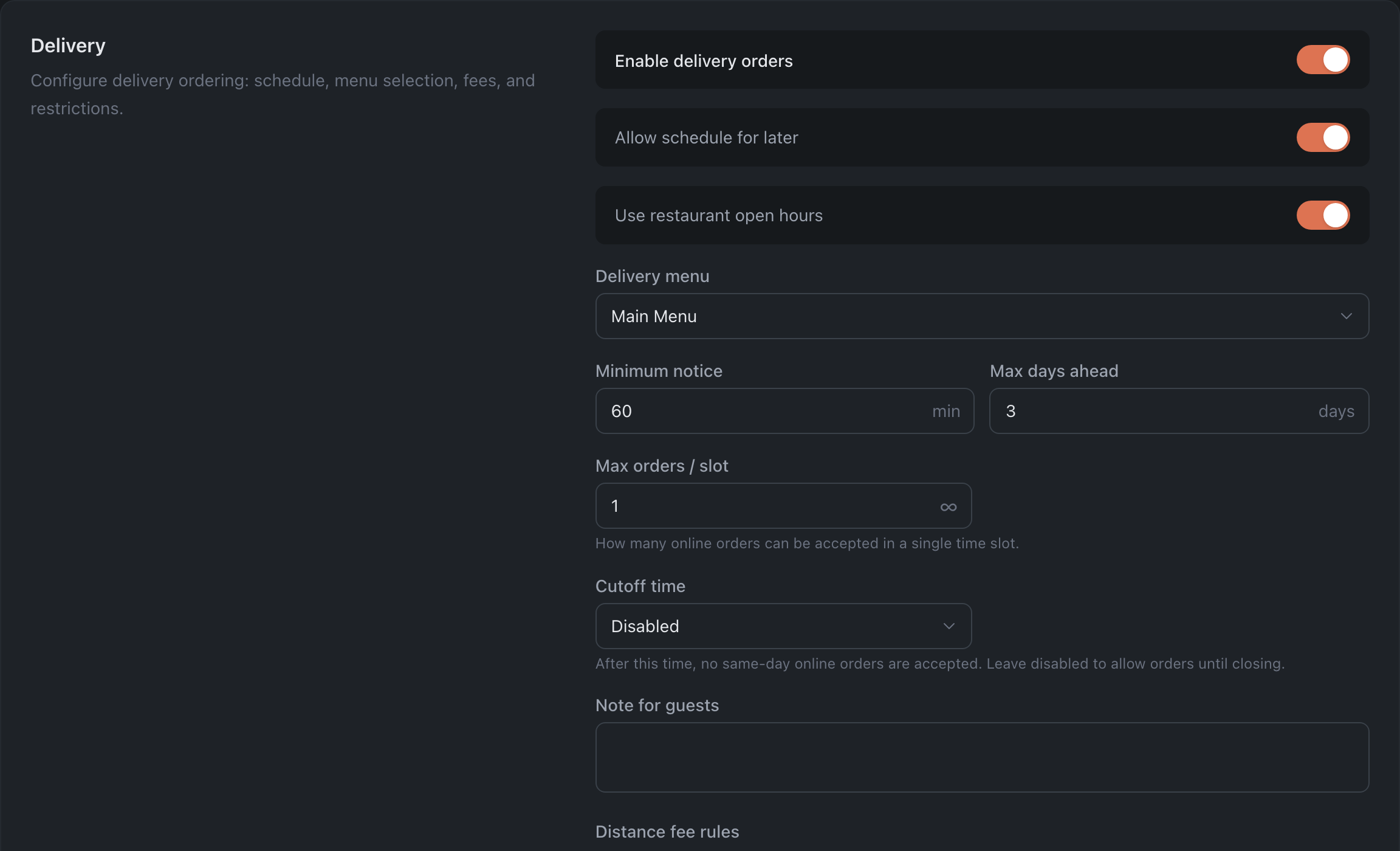
- Turn on “Enable delivery orders”.
- Pick the “Delivery menu” — the one from step 3.
- Set “Minimum notice”: how much time the kitchen needs. Leave a margin — an order accepted with no time to spare hurts the impression more than having no delivery at all.
- Set “Max orders / slot” based on the kitchen’s real throughput.
- Fill in “Distance fee rules”: distance → fee and minimum order amount.
Step 5. QR menu
The “Digital Menu” block: turn it on and pick a menu. Guests open it via a QR code or a link — just to browse, without ordering.

This is the fastest way to get value from the catalog: the QR menu works even if you’re not launching delivery yet.
Step 6. Check before launch
- Tips — turn on and set the percentage options.
- Taxes — whether VAT is included in the displayed prices.
- Ordering Statuses — “Out For Delivery” only makes sense for delivery; check that it applies.
- “Special Request Options” — contactless delivery and the like.
Details — Ordering settings.
What’s next
- Ordering & Menu — an overview of the section.
- Set up the widget — how to place it on your website.