How to create an event with its own rules
Create a special event (a dinner, a concert) with its own booking rules, deposit and floor plan.
An event is a special occasion with settings that differ from everyday operation: its own deposit, its own booking window, its own floor plan. Regular reservations on that date don’t interfere with the special seating.
What to do
-
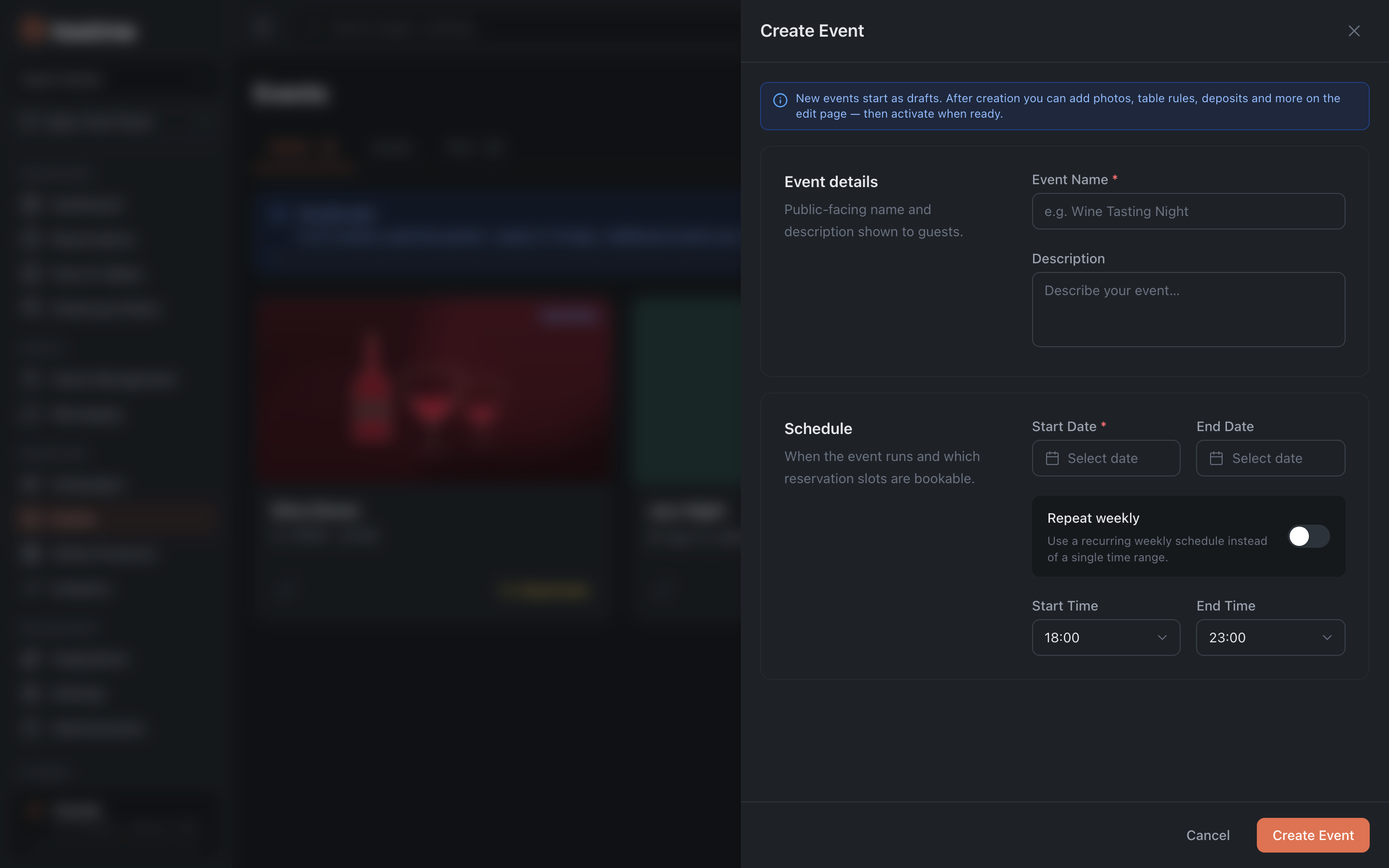
Open Events → Create Event.
-
Fill in the form: Event Name, Description, the Start Date/End Date and times. The event is created as a draft and is shown on the restaurant’s public page by default.
-
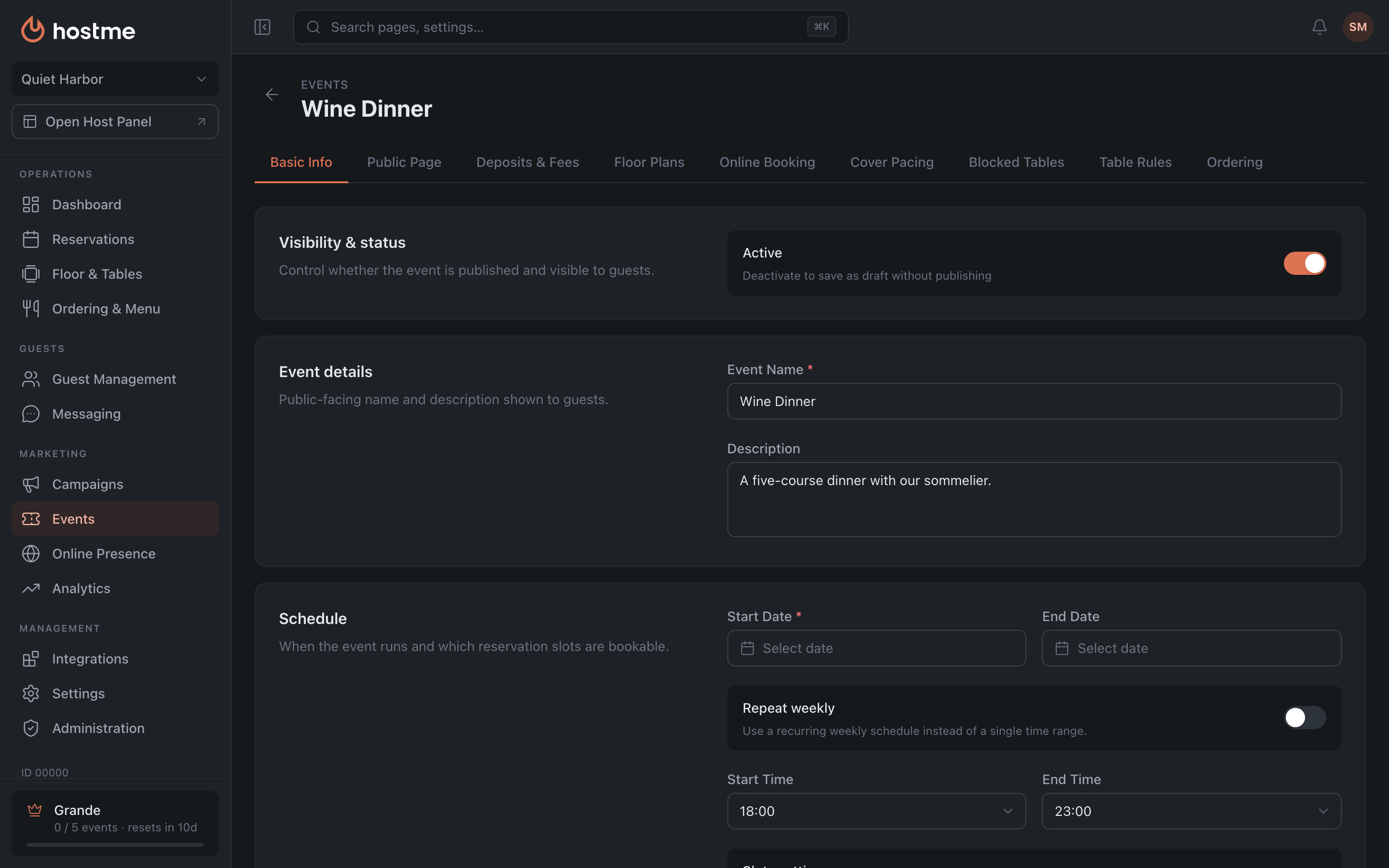
The event editor opens. Configure its tabs — they apply only to this event:
- Deposits & Fees — a higher deposit for the event.
- Online Booking — its own window and acceptance rules.
- Floor Plans — which floor plan is used.
- Cover Pacing, Blocked Tables and others.
- Public Page — this is where the Show on Restaurant Page toggle lives: turn it off if the event should be private. The public link to the event for guests is here too.
-
Activate the event. There are two ways: the Active toggle on the editor’s “Basic Info” tab — then the change is applied with the Save Changes button; or the Activate button on the event card in the Drafts tab — it takes effect immediately. An active event’s card has “Deactivate”, and an event that has already ended has “Archive”.
Result: guests book the event under its special rules, without conflicting with regular reservations.