How to export the guest database and reports
Export guests and analytics to CSV — for mailings, accounting or analysis.
Data from Hostme can be exported to CSV — for example, to analyze it in a spreadsheet or hand it over to another system.
Exporting the guest database
-
Open Guests → Guest Book.
-
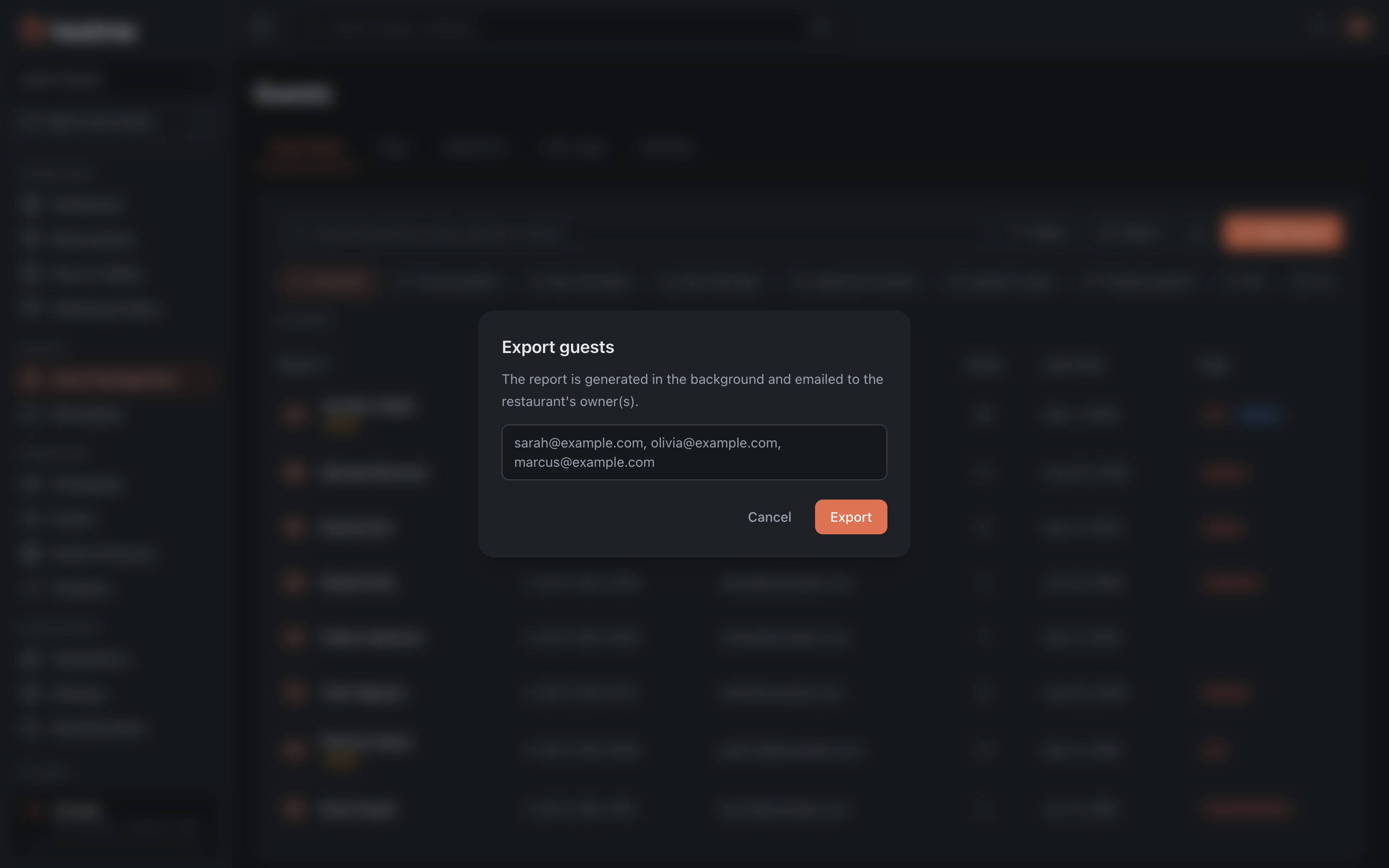
Click the export icon (next to “Add Guest”). The “Export guests” dialog opens with the recipients’ addresses — confirm with the Export button.
-
The file arrives at the restaurant owner’s email — if there are several owners, each of them gets it (the export is generated in the background).
Exporting analytics reports
-
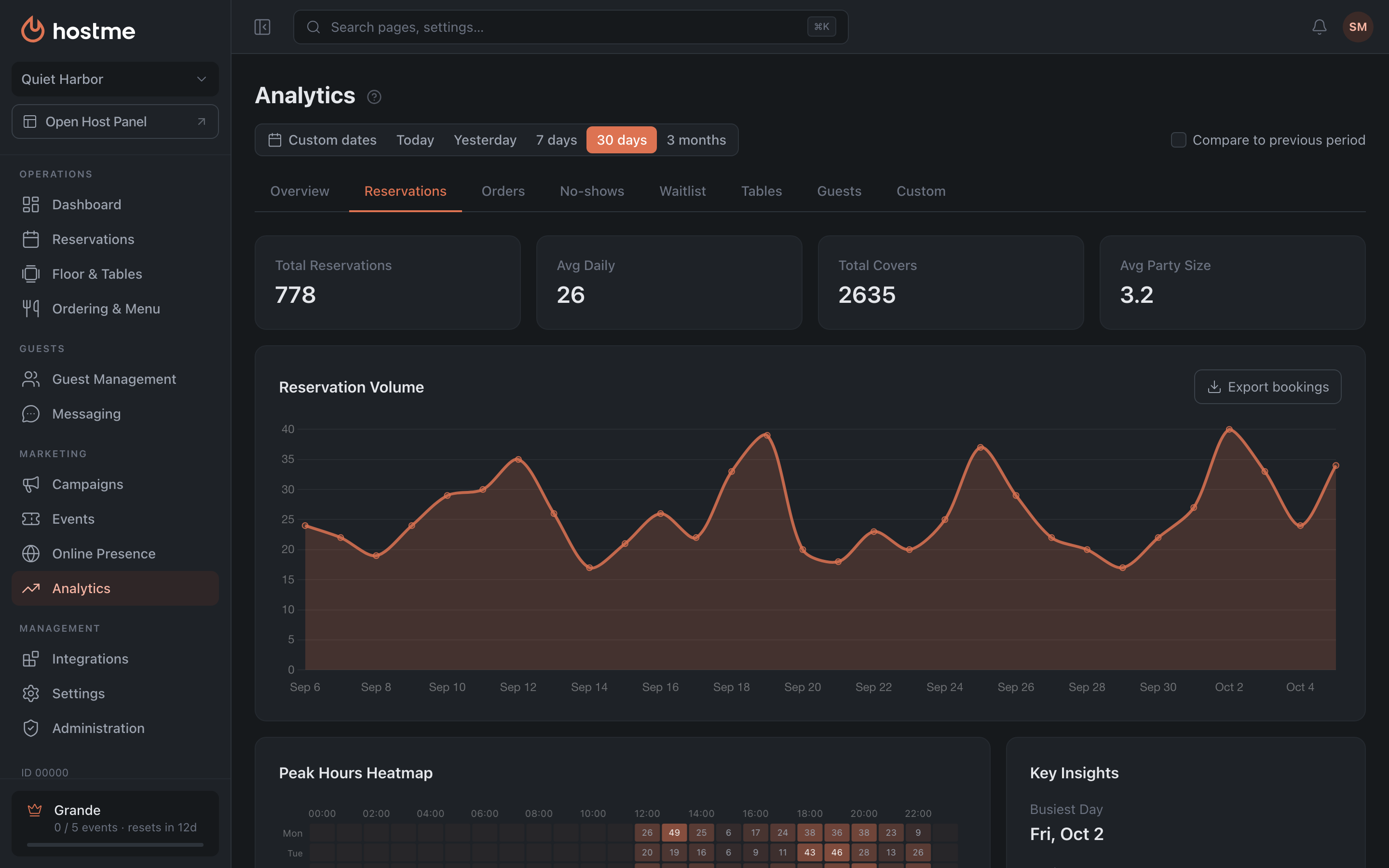
Open Analytics and pick a period: for example, 30 days or Custom dates — from the first to the last day of the month. You can export up to 90 days at a time.
-
To export every visit — bookings, walk-ins and the waitlist — click Export visits in the “Daily Covers” card on the Overview tab. For bookings only, use the Reservations tab and its Export bookings button in the “Reservation Volume” card. The file is built right away.
-
Delivery, takeaway and preorder orders — the Orders tab, the Export orders button in the “Daily Orders” card. This one takes a moment: the button shows how many orders are ready.
-
The tables on the No-shows, Tables and Guests tabs are exported the same way — there the button is called Export.
Result: the data you need is in a CSV file, ready for further work.