How to handle requests and waitlist requests
The morning check: approve or reject online bookings waiting for a decision, and turn reservation waitlist requests into bookings.
While the restaurant is closed, guests book online. Some bookings wait for your decision, and some guests left a request because there was no room. It’s best to handle them at the start of the shift: the guest is waiting for an answer.
What to do
-
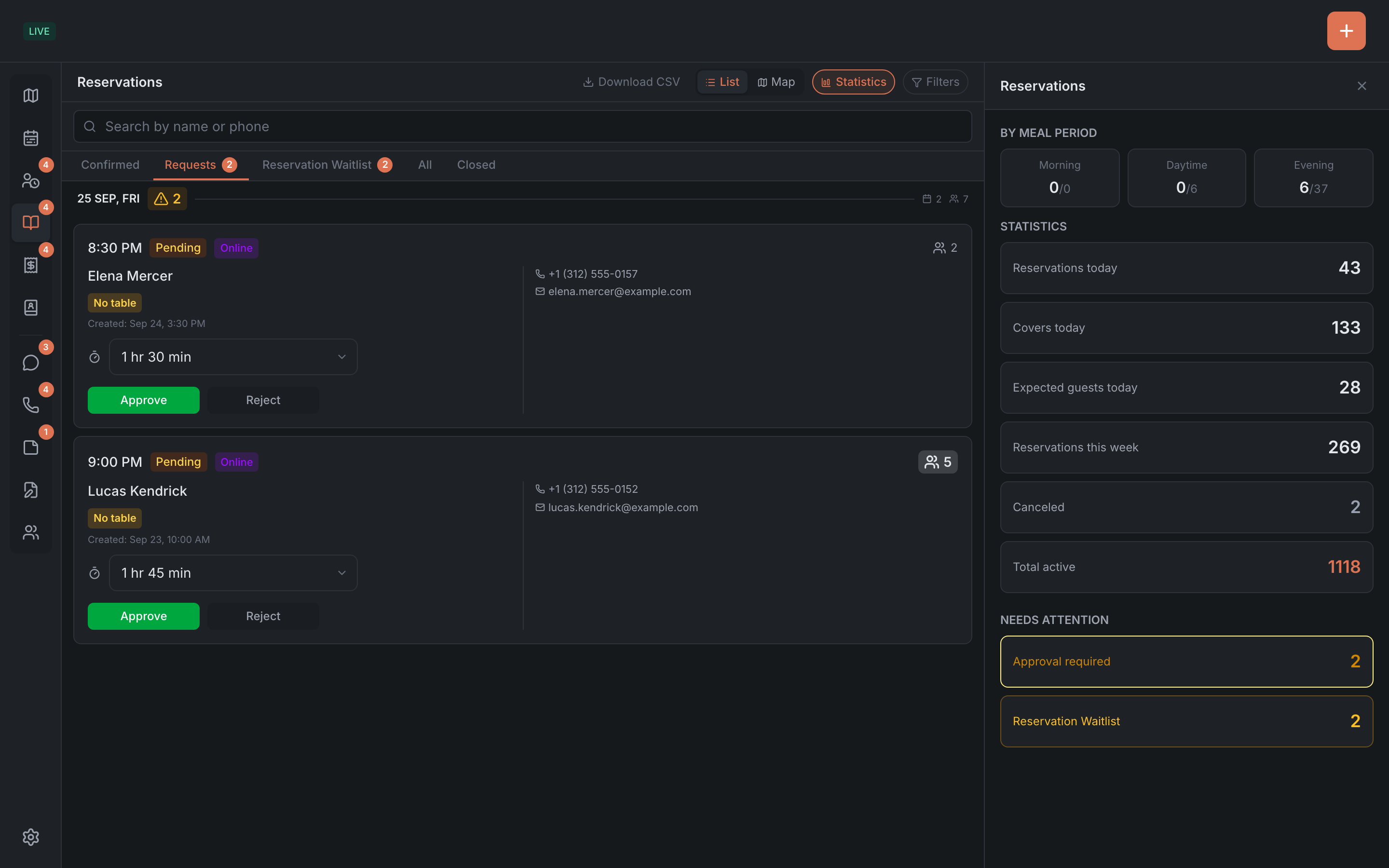
See how many are waiting. The number on the Reservations item in the menu on the left is everything that needs attention.
-
Open Reservations → Requests. Here are bookings for all dates that are waiting for a decision.
-
Approve or reject each one:
- Approve opens the form — check the table and time and save;
- Reject from the list works at once. If you want to be asked first, open the booking and reject it from the card.
-
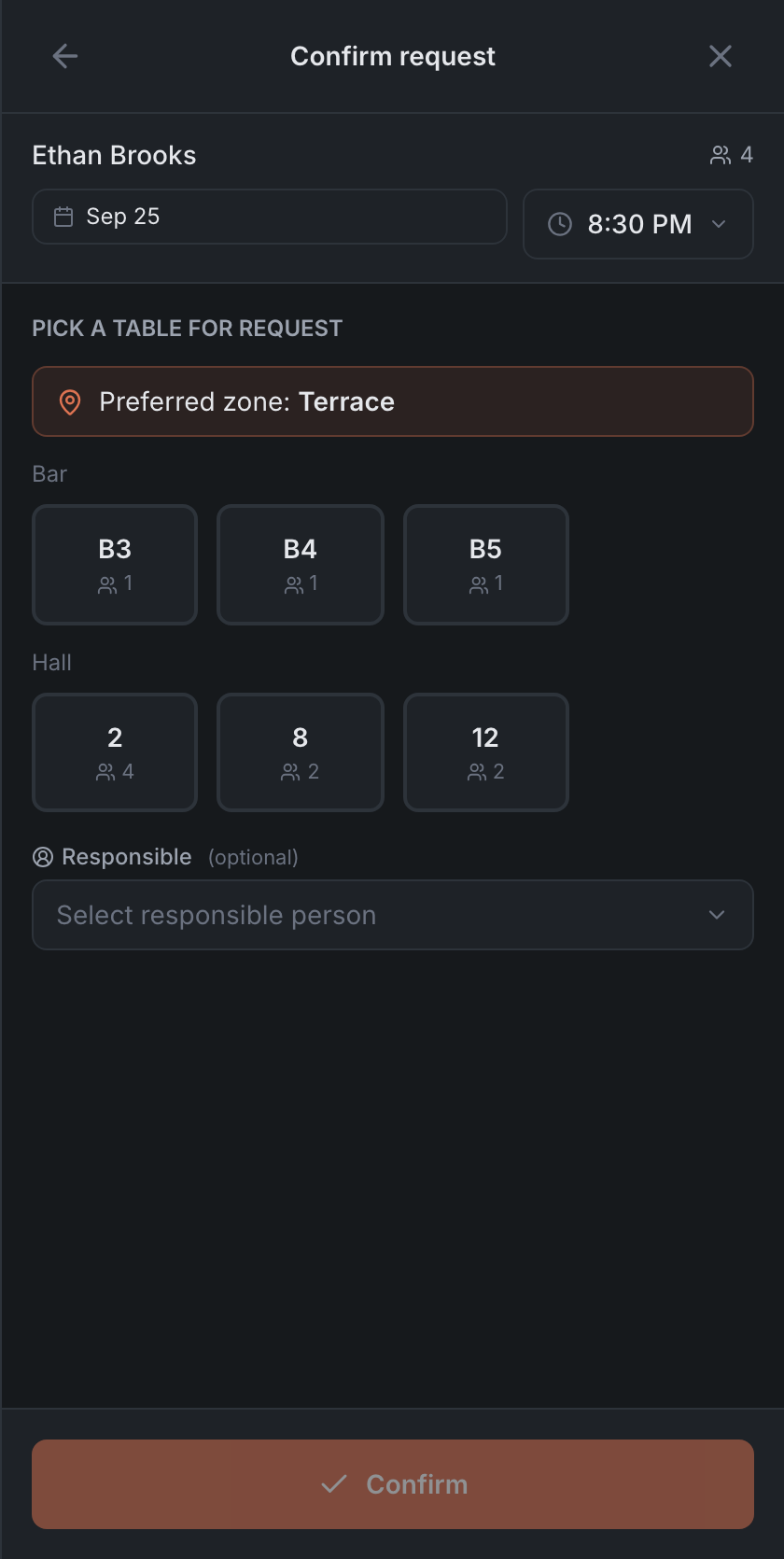
Open Reservation Waitlist — this sub-tab is there only when it has something in it.
-
For each request that now has room, tap Confirm, pick a table and tap Confirm again — a regular booking appears. Details in Requests and the reservation waitlist.
Result: all online bookings are approved or rejected, and the requests that found room have become bookings.