Sign-up, sign-in and password recovery
How to create an account from scratch, sign in via an invitation, and get your access back if you've forgotten your password.
There are three ways to get into the panel: sign up yourself, accept an invitation to someone else’s team, or simply sign in. And one way to get back in if you’ve forgotten your password.
Signing up a new restaurant
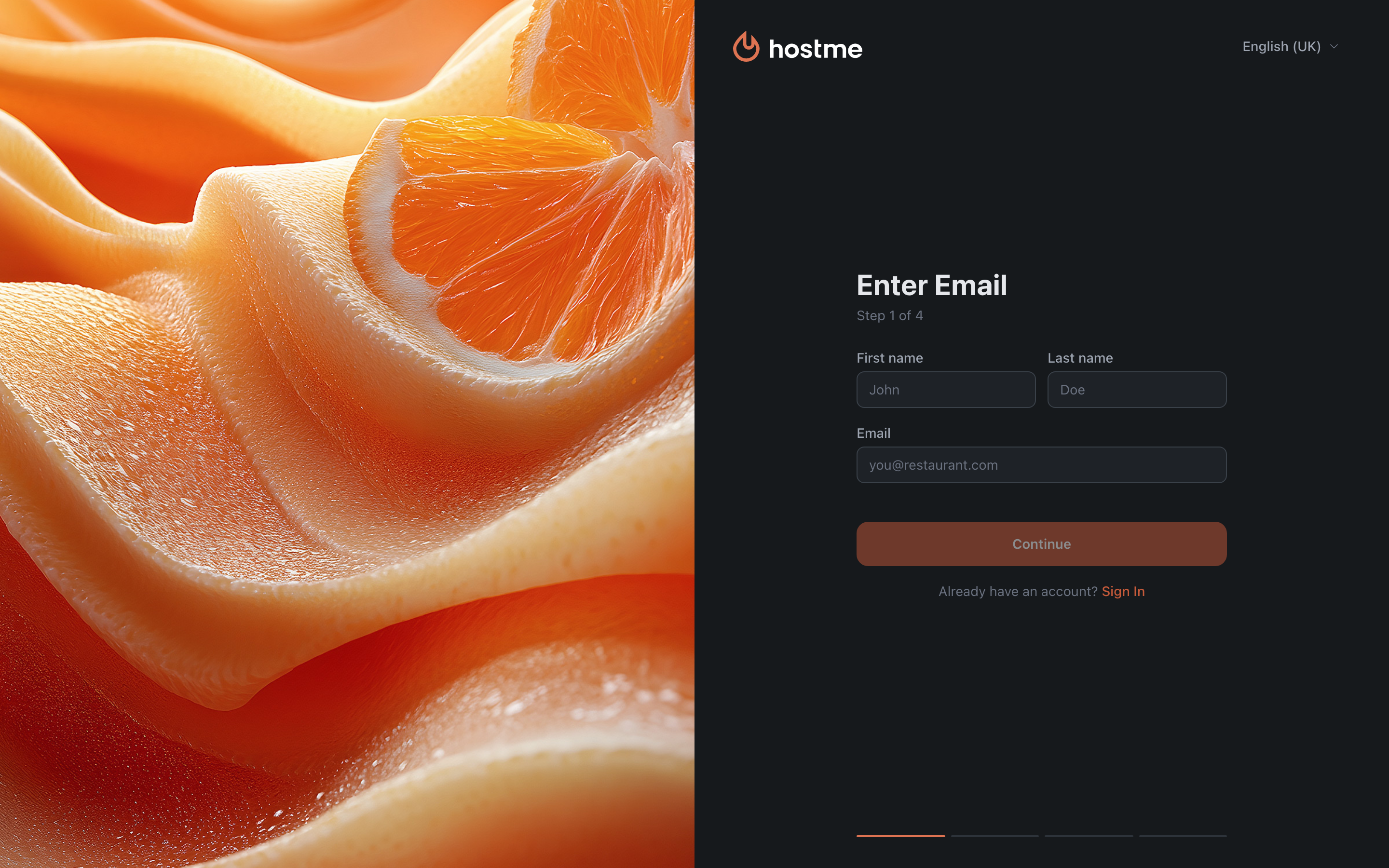
Sign-up takes four steps; the number of the current one is shown on screen.
-
Enter Email. First and last name go here too; all three fields are required. A code will be sent to this address, and the account will be tied to it.
-
Verify Email. A 6-digit code arrives by email and is valid for 6 minutes. If it didn’t arrive, the resend button unlocks after a few seconds — the countdown is shown on the button itself. The number of entry attempts is limited: once they run out, you need to request a new code.
-
Create Account. A password (at least 6 characters) with confirmation, and Your phone — it is required and goes with its country code: pick the country to the left of the number. The Your role in the restaurant field is optional.
-
Your Restaurant. Name, address and phone are required; the website can be left blank. The language is preset to your interface language — you can change it. This step is about the venue: the phone here is the restaurant’s phone, not the one you entered on the previous step.
After that you are the owner of a new restaurant and land in the panel.
Signing in via an invitation
If the restaurant already exists and you’ve been invited to it, there is no need to sign up separately. The link in the email takes you to the “Join Your Team” page with the venue’s name — all that’s left is to enter your name and a password; the phone is optional.
An invitation lives for a limited time. If the link has stopped working, the panel will say so — “This invitation has expired or is no longer valid”: ask a colleague to send a new one from Administration → Team.
Forgot password
-
On the sign-in page, click Forgot password?.
-
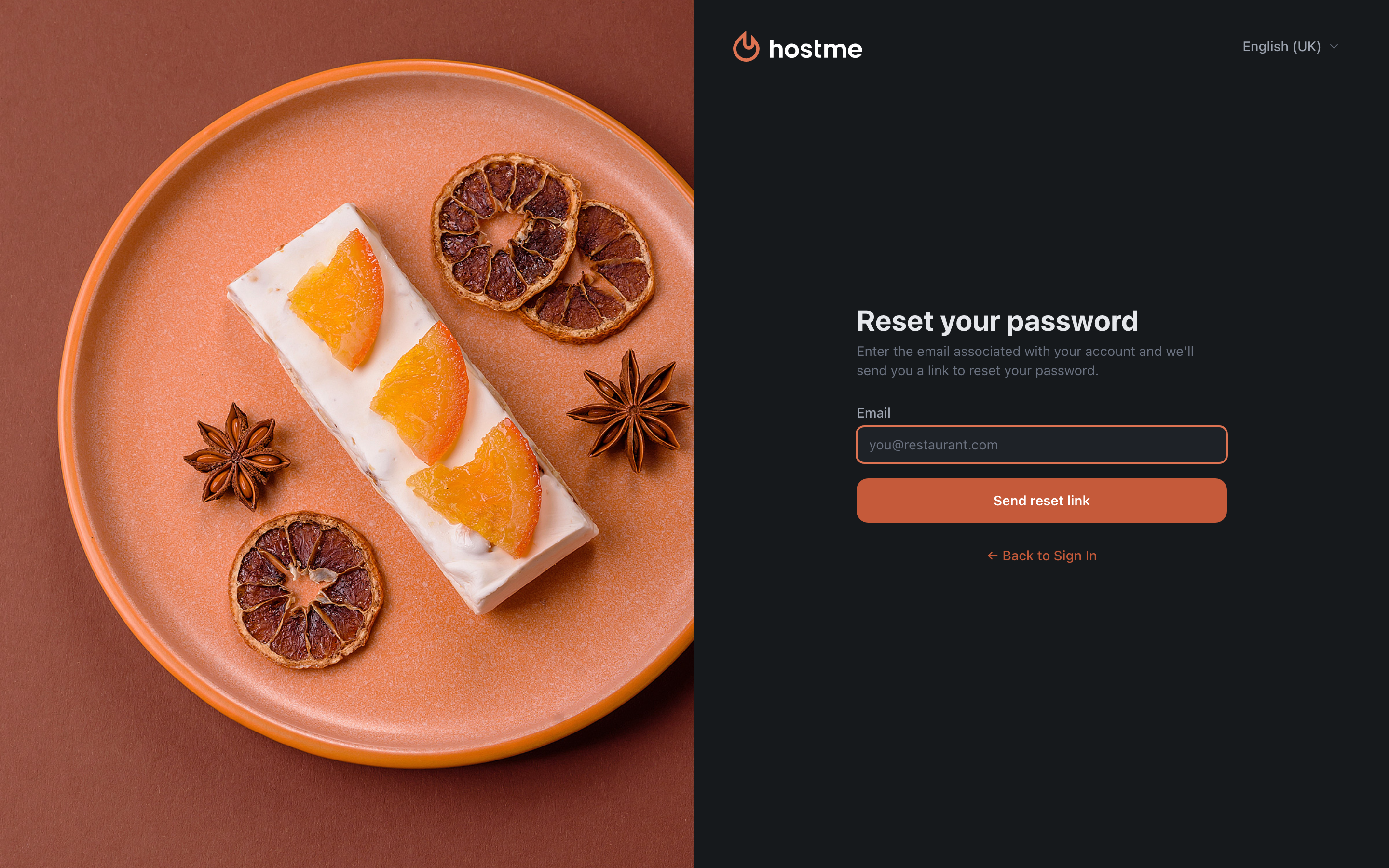
Enter the email the account is tied to and click Send reset link.
-
The panel replies “Check your inbox”. The reply is the same whether or not such an account exists — so the form can’t be used to check whether someone else’s address is registered.
-
Follow the link in the email. It is valid for one hour.
-
Set a new password — at least 6 characters, with confirmation.
The link is single-use: if it has expired or has already been used, the panel will offer to request a new one.
If you can’t sign in
- “Invalid email or password” — check your keyboard layout and letter case. The password isn’t truncated, but a leading or trailing space counts as a character.
- “Connection error” — the server couldn’t be reached. This isn’t about your credentials: try again in a minute.
- The account was created with a different email than you remember — ask a colleague with the Owner role to look at the staff list in Administration; the addresses are visible there.
What’s next
- Profile & Account — your details, password, language, notifications.
- Guide: add a team member — how to invite a colleague.
- Getting Started — what to set up first.