Profile & Account
The avatar menu: your details, password change, panel notifications, interface language, dark mode, sign-out and account deletion.
Everything that concerns you personally rather than the restaurant lives in the avatar menu — the circle with your initials in the top right corner.
The distinction matters: restaurant settings are seen by the whole team; account settings — only by you. Interface language, dark mode and notification sounds are individual to each team member.
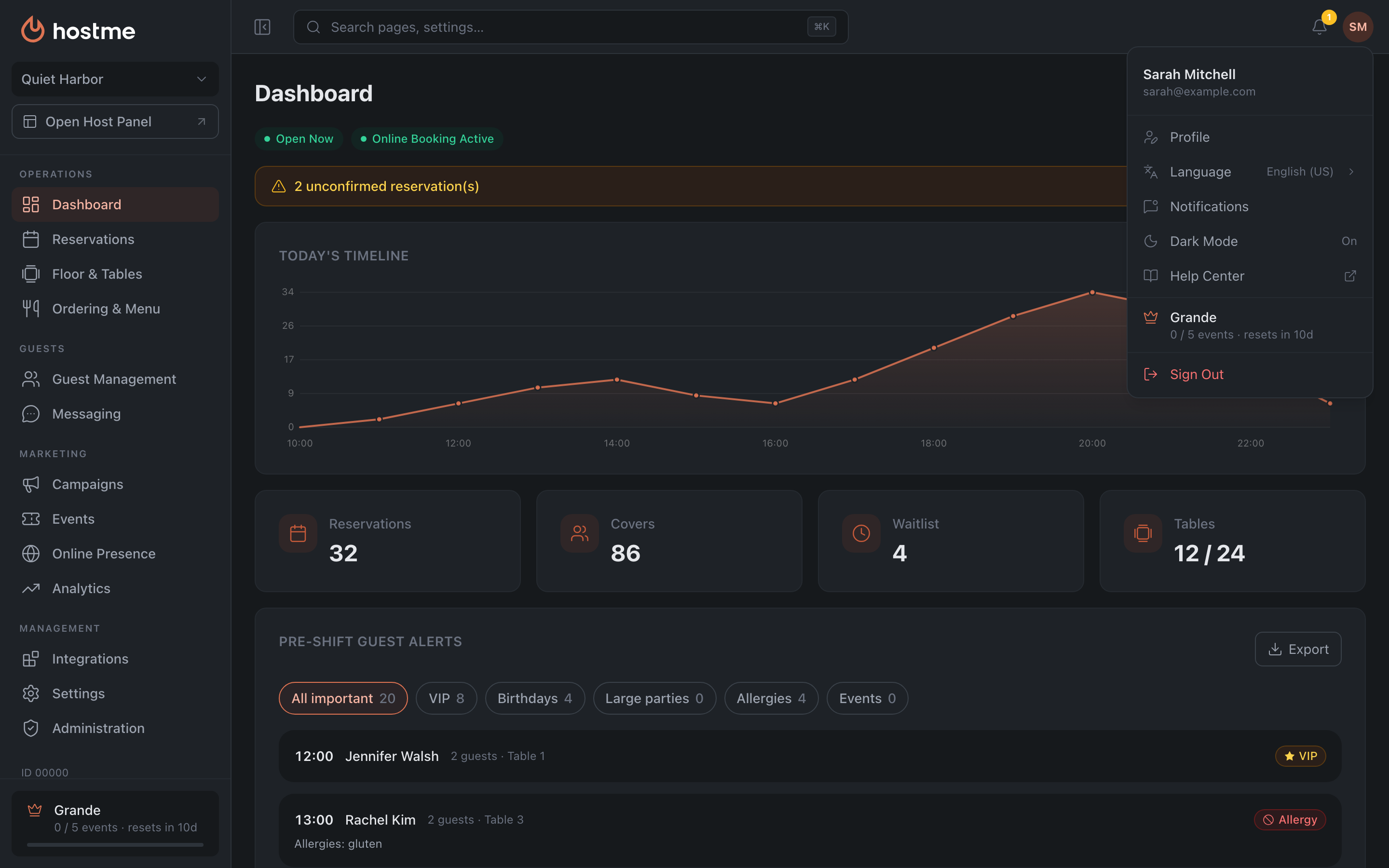
What’s in the menu
- Profile — your details and password change.
- Language — the panel’s interface language.
- Notifications — push notifications.
- Dark Mode — a toggle with an On / Off status.
- Help Center — this help center.
- Sign Out.
The same menu holds the current plan card with a link to Billing; not every role sees it.
Profile
The “Profile” item opens a window with two tabs.
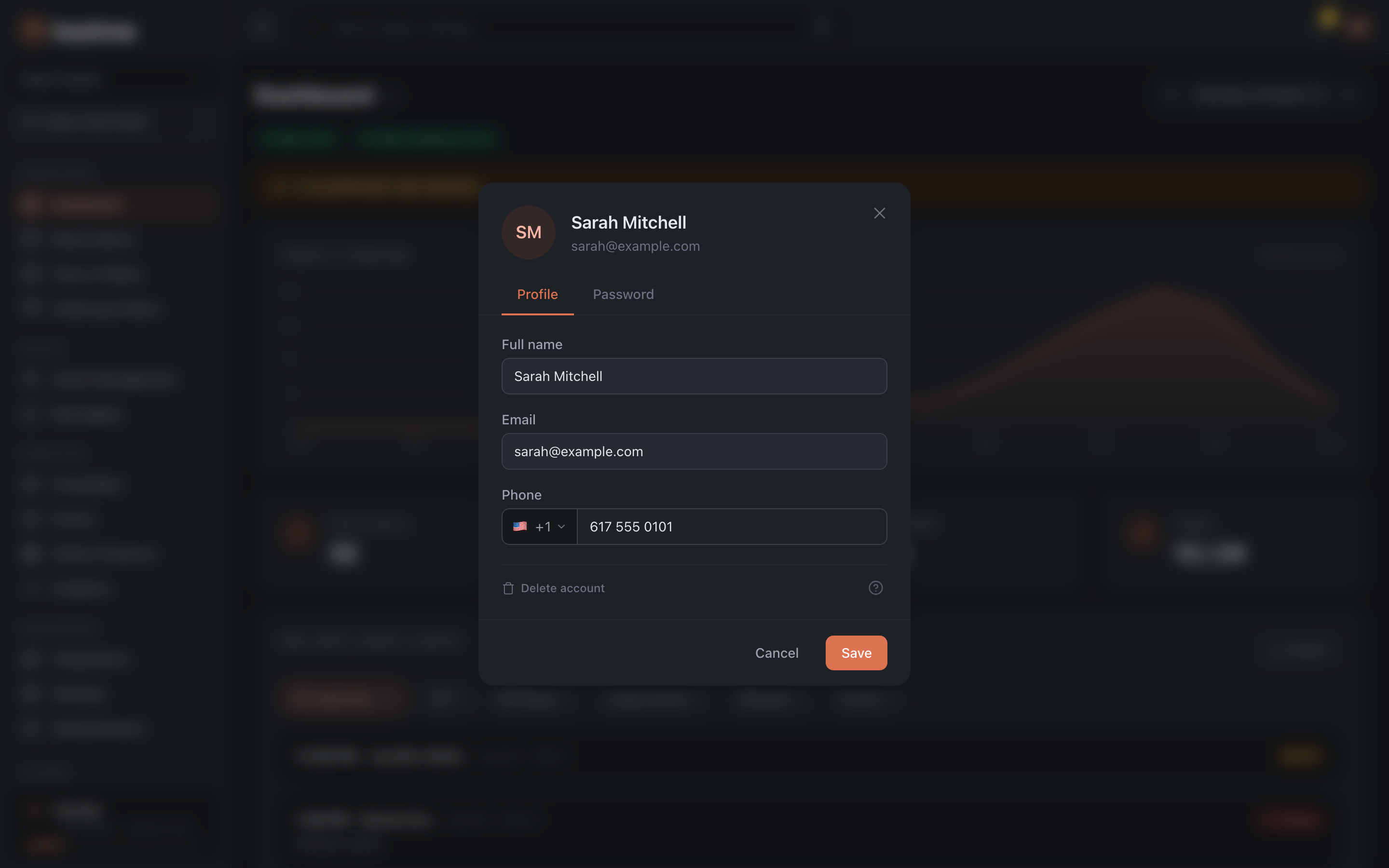
The “Profile” tab
Three fields: “Full name”, “Email”, “Phone”. At the bottom of the tab is the “Delete account” button: how it works, and why deletion does not always go through, is covered in Deleting your account.
All three are effectively required: the panel won’t let you save without a name and an email, and the server rejects an empty phone. The phone goes with its country code: pick the country with the flag to the left of the number. The phone must be unique — if the number is already linked to another account, the panel refuses: “This phone number is already used by another account.”
The “Password” tab
Three fields: “Current password”, “New password”, “Confirm new password”. The minimum length of the new password is 6 characters.
Changing the password requires knowing the current one — you can’t reset it from here without remembering the old one. Forgot it — sign out and use recovery via the emailed link on the sign-in page.
Panel notifications
The “Notifications” item opens a separate window with two tabs: “Restaurants” — which venues alerts come from — and “Types” — which alerts exactly.
Restaurants
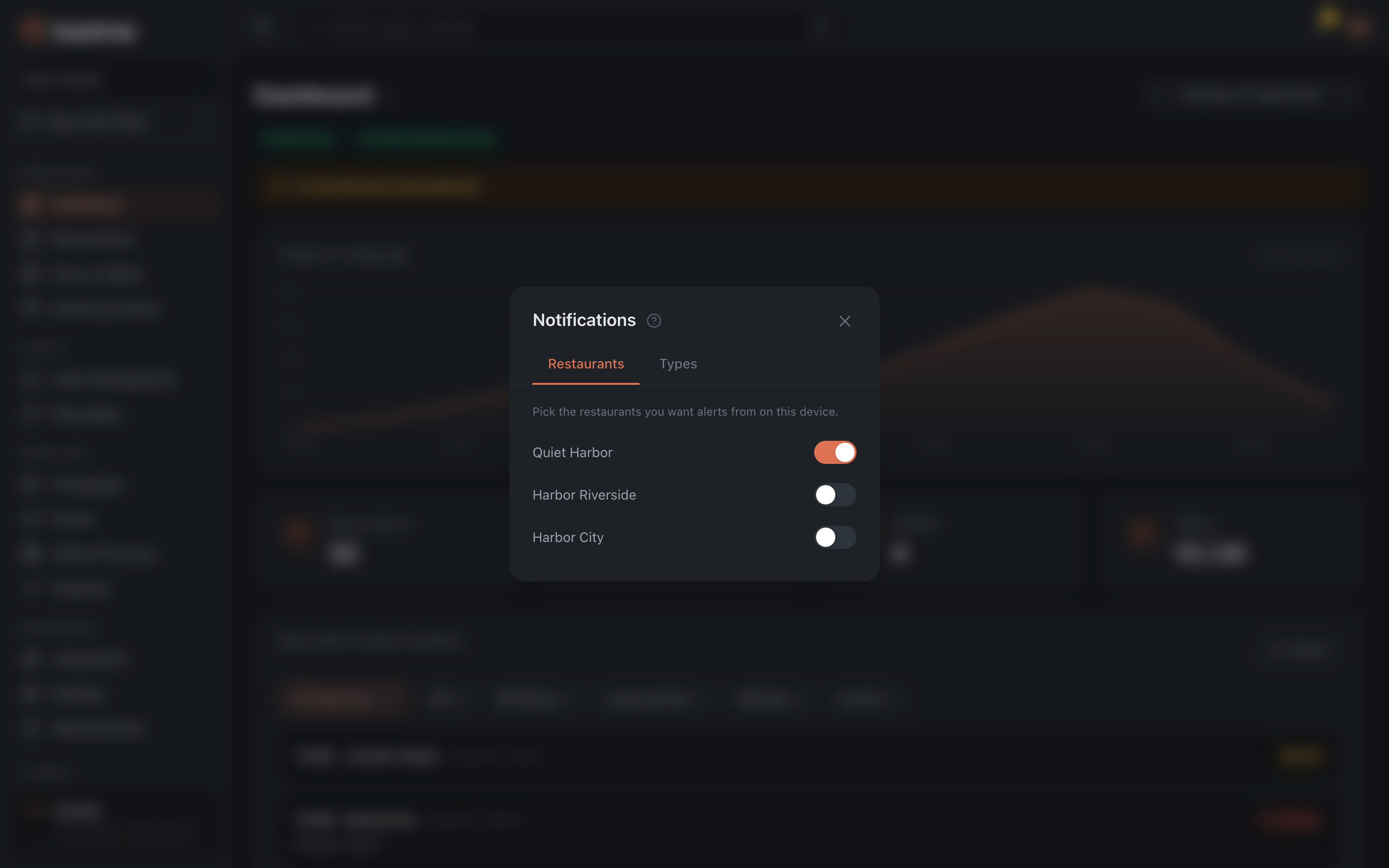
A list of all your restaurants with a toggle each. Turn on the ones you want alerts from on this device: a new reservation, a waitlist entry or a guest message reaches you even when the panel’s tab is closed.
Permission is asked by the browser, and it is asked the moment you turn on the first toggle — the panel has no right to bother you with it earlier. Decline and the toggle stays off: it shows the fact of a subscription, not the intent.
If notifications are blocked at the browser level, the panel says so. You can’t turn them on from the panel then — only in the browser’s own settings; turning off a restaurant that is already on still works, that needs no permission.
The subscription belongs to the device and the browser: enable it on the work computer and nothing arrives on your laptop at home — turn it on there separately. Signing out removes the subscription, so the next person at that computer doesn’t receive your alerts.
In the mobile app this tab works differently. There the subscription turns itself on, for all of your venues at once — someone who installed the app and allowed notifications has already said “I want to know about bookings”. The toggles are there to remove the ones you don’t need. If you declined notifications at first launch, the app explains how to fix it and offers to open the phone settings: the system prompt is shown once per installation, and after a refusal that is the only way back.
Types
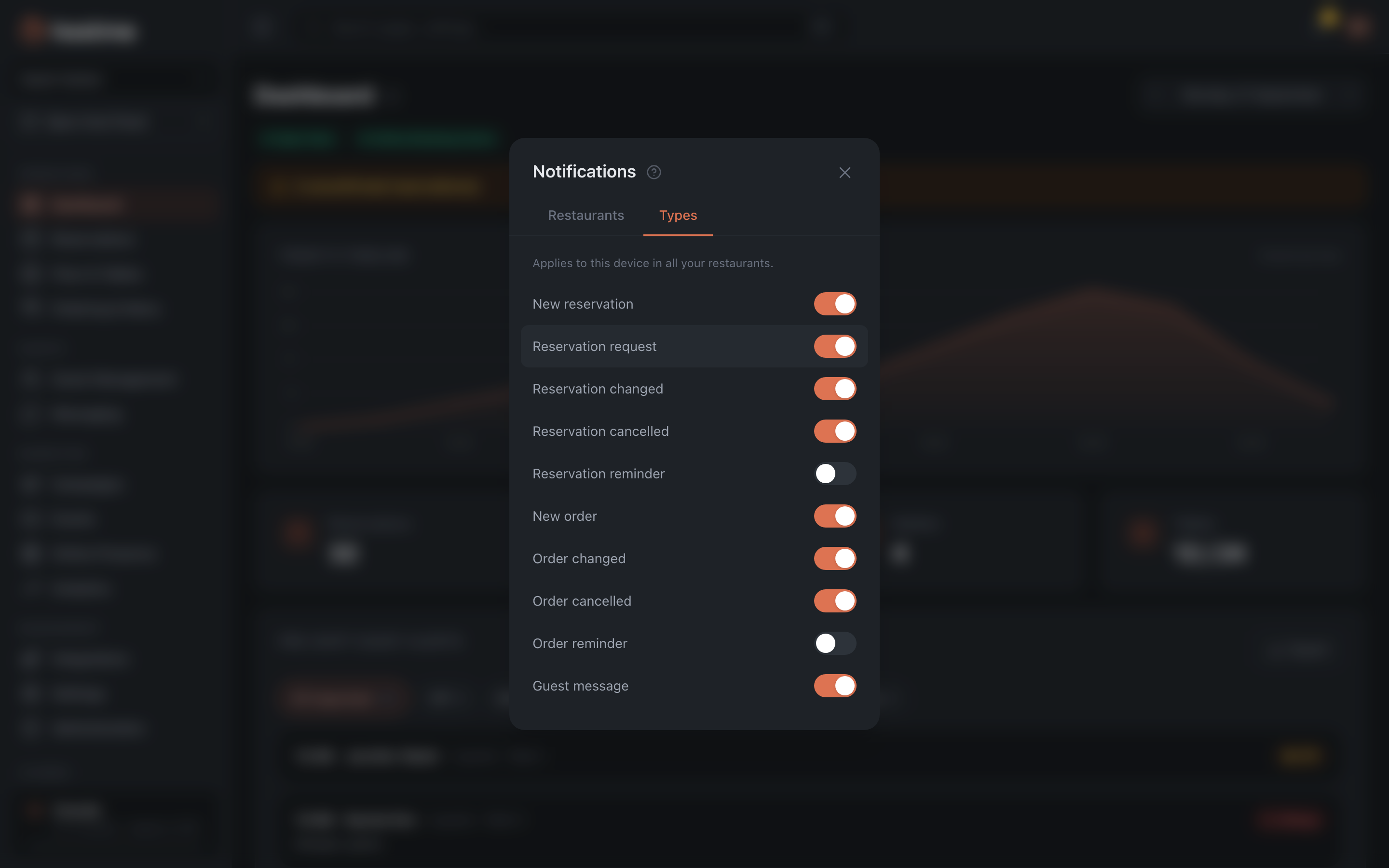
Which alerts reach this device. The set is a single one and applies to all of your restaurants at once: switch off “Reservation changed” and it won’t arrive from any venue.
There are ten types today:
- New reservation, Reservation request, Reservation changed, Reservation canceled, Reservation reminder
- New order, Order changed, Order canceled, Order reminder
- Guest message
The set belongs to the device, not to the account: your phone and your computer each have their own. If the device becomes a new one for us — after reinstalling the app, for instance — the toggles return to their initial state and every type arrives again.
Interface language
The panel is translated into 23 languages, including two Chinese ones — Simplified (简体中文) and Traditional (繁體中文). In the list, each language is labeled in itself — “Português”, not “Portuguese” — so it’s easier to find even if an unfamiliar language is currently active.
This is the interface language for you: the choice is remembered on the device and saved to your profile. The language in which guests receive emails and SMS is a separate restaurant setting and lives in Settings.
Dark Mode
The toggle is right in the menu. The theme is personal too and is stored on the device.
Deleting your account
This is the right-to-erasure mechanism: under GDPR you can ask for your personal data to be deleted, and the “Delete account” button at the bottom of the “Profile” tab does exactly that — not hide, but erase.
You need to enter your password to confirm.
Deletion won’t always go through. The check happens after you enter the password and press the button: if something is in the way, instead of deletion you’ll see a list of reasons and the names of the restaurants blocking it.
- One of the restaurants has a subscription that hasn’t been cancelled — active or with an outstanding balance. Cancel it first: Administration → Billing.
- You are the only owner of a restaurant that still has team members or data. Transfer ownership to another team member or delete the restaurant itself — Administration → Team.
This protects against accidentally losing a venue together with its team and guest base.
What’s next
- Administration — team, roles, restaurants, billing.
- Roles and permissions — who sees what.
- Settings — restaurant settings shared by everyone.
- Sign-up, sign-in and password recovery