Guest Management
A walkthrough of the Guests section — the Guest Book, tags, segments, auto-tags and settings, plus the guest profile.
The Guests section (labeled “Guest Management” in the menu) is your guest database (CRM): this is where you search for guests, maintain tags and segments, and review visit history and preferences.
Tabs
Guest Book
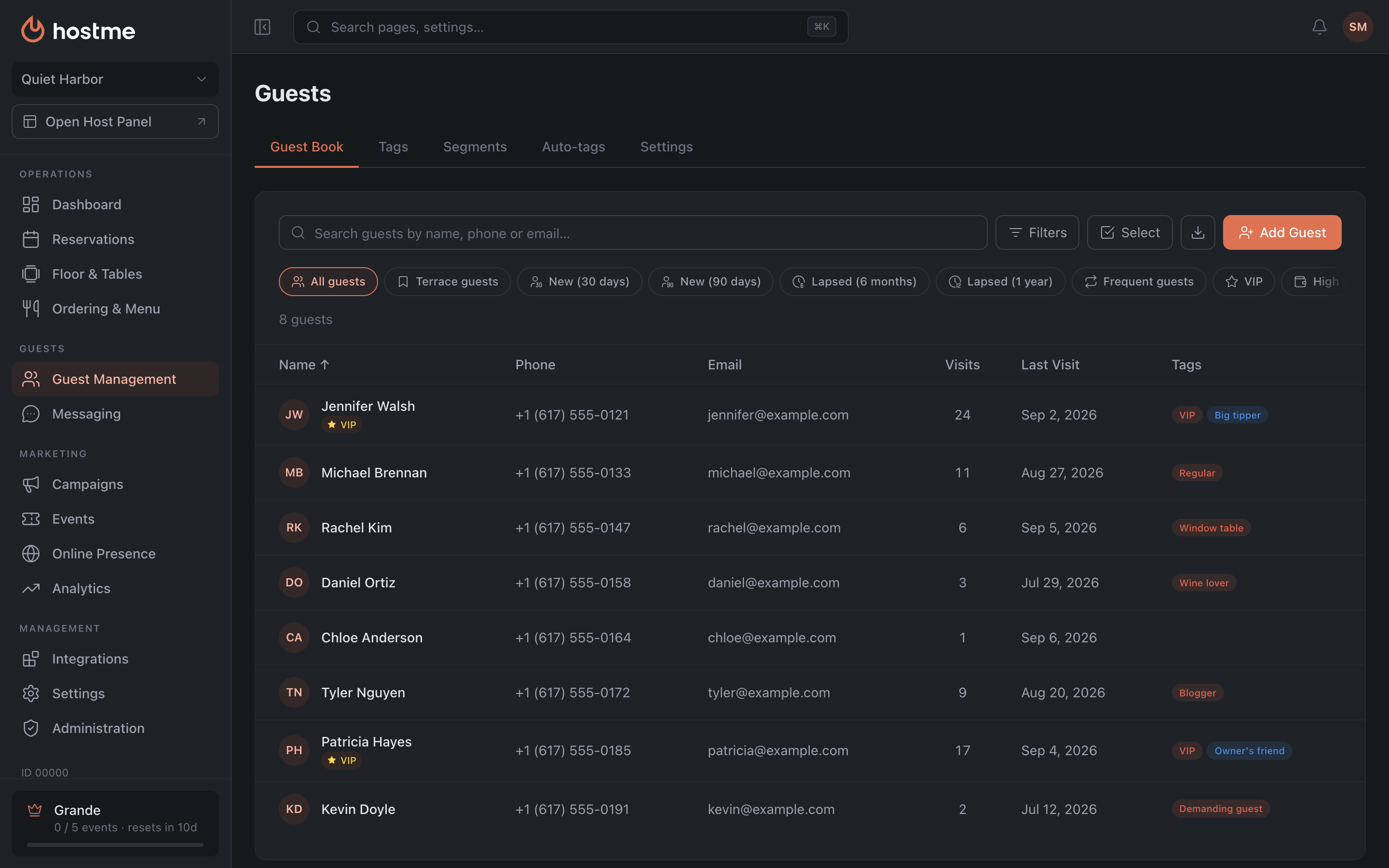
A list of every guest, with search (by name, phone or email) and filters:
-
Columns: Name, Phone, Email, Visits, Last Visit, Tags. VIP guests get a “VIP” badge (on mobile — a star next to the name); blacklisted guests get a “Blacklisted” label.
-
Filters work on two levels. Above the table is a strip of quick chips: built-in presets and your saved “My segments” in one click, plus a chip for each applied condition with an “x” to clear it. The Filters button opens the full segment builder: tags, language, special requests, join and last-visit dates, visits, reservations, cancellations, spend, birthday, events, marketing consent and more. There is also a separate Blacklisted toggle — show only guests on the blacklist; it is available in the Guest Book and on the Segments tab, but in campaigns and automations it disappears as soon as a sending channel is selected.
Period-based conditions let you pick a window. For visits it is 30 / 45 / 90 / 180 days, and the 45, 90 and 180-day windows are counted approximately. Total spent and average cheque offer the same windows plus All time, which is the default.
-
Select — bulk-selection mode: apply tags to many guests at once or delete profiles. Note that bulk tagging only adds tags on top of the existing ones and never removes anything — a tag can only be removed one guest at a time, from the guest profile.
-
Export — exports the current selection, not the whole database: all applied filters and segments are respected, but the text in the search box is not. The report is generated in the background and emailed to the restaurant owner; the addresses are shown right in the confirmation dialog.
-
Add Guest — manually (first name, last name, phone, email).
-
Clicking a row opens the guest profile.
Tags
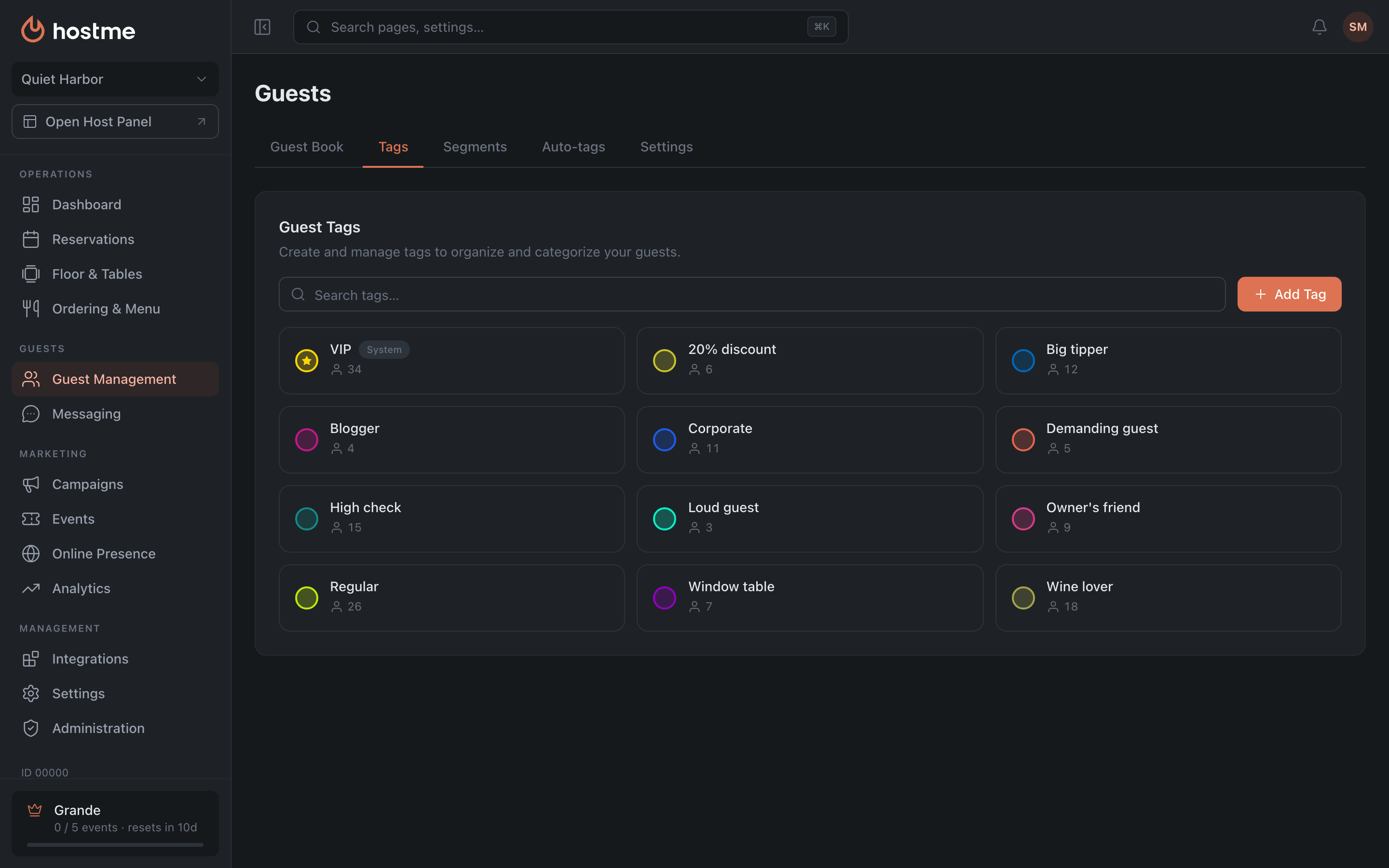
Create and manage guest tags (the Add Tag button: color + name). Clicking a tag automatically filters the guest list. System tags (such as VIP) are created automatically, marked with a “System” badge, and cannot be deleted or edited.
A tag is something your team knows about the guest that no profile field holds: “Big tipper”, “Owner’s friend”, “Regular”, “Wine lover”, “Blogger”, “High check”, “Window table”, “Corporate”, “Demanding guest”, “Loud guest”, “20% discount”.
Segments
Saved guest filters: Built-in presets — the ready-made selections available on any plan — and My segments Grande, the ones you built yourself. Clicking a segment applies the filter to the Guest Book.
Everything about segments — the presets, the condition builder and saving — is on its own page, Segments.
Auto-tags
Tags the panel assigns on its own — from guest activity and visit history. The feature is in closed testing, so the tab is not visible to everyone.
More on the separate Auto-tags page.
Settings
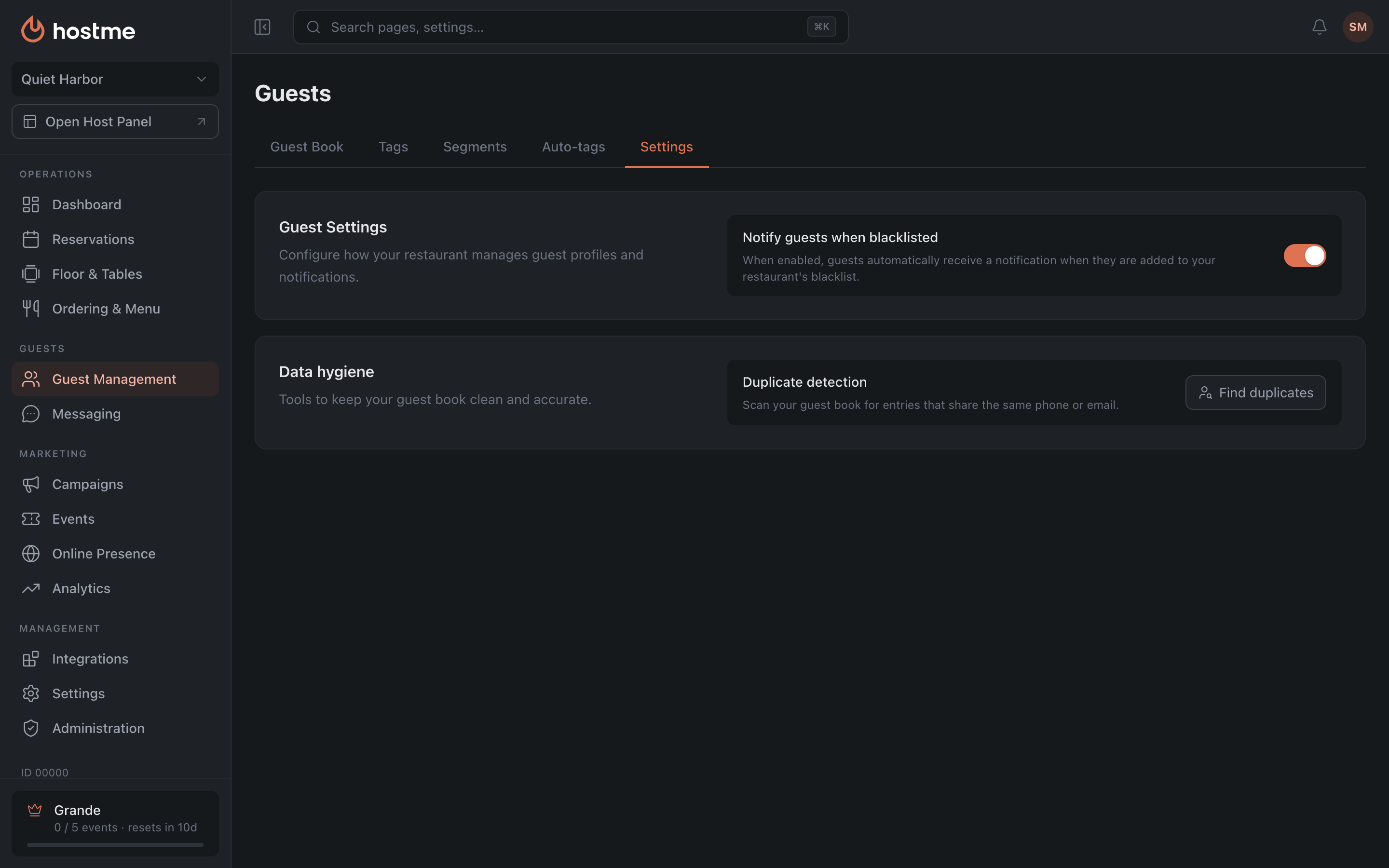
Notify guests when blacklisted — when this is on, a guest automatically gets a message when they are added to the restaurant’s blacklist.
Data hygiene
The second block on the same tab — the tools that keep the base tidy.
Find duplicates opens the Find duplicates dialog. The Scan button walks the whole guest book and groups entries that share a phone number or an email; a “Scanning… N / M” counter runs during the pass, and afterwards you see how many guests were scanned in total.
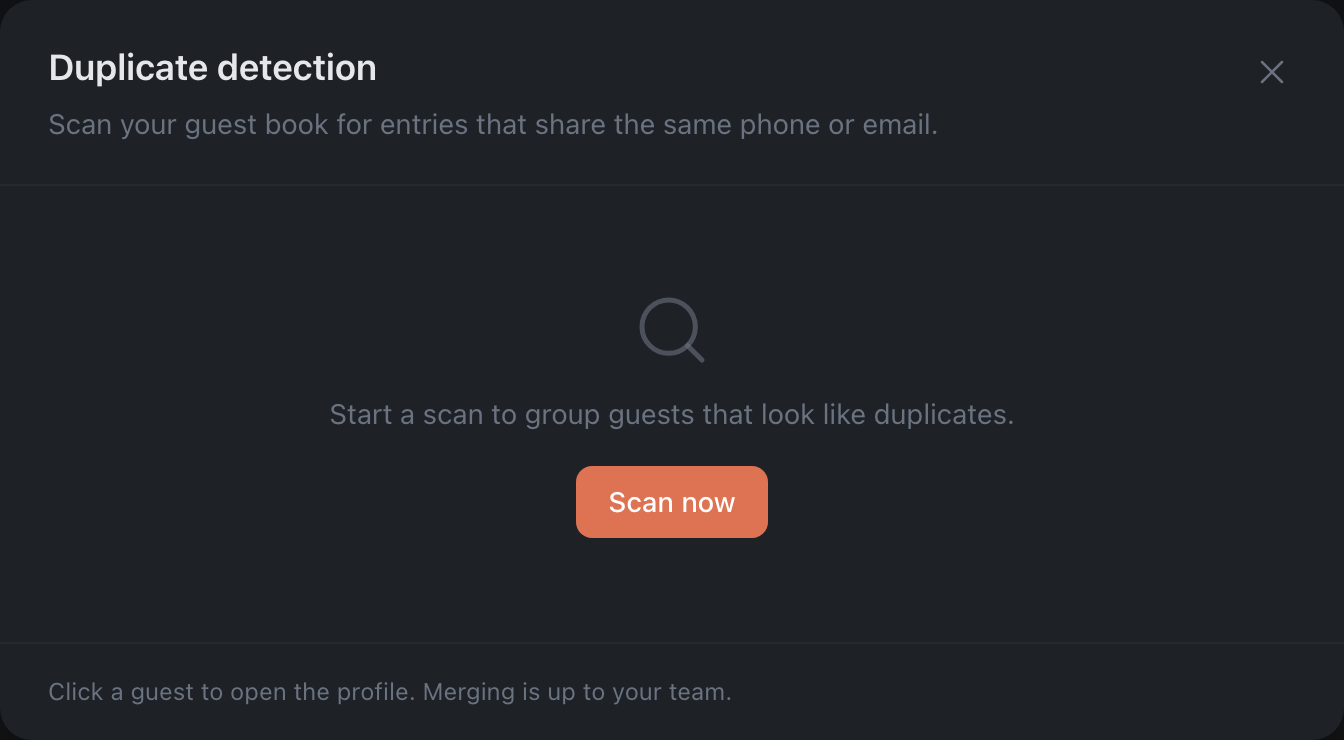
The result is two lists, By phone and By email. Each group shows the shared contact, how many guests it affects and the visit count for each entry — the visit counts are usually what tells you which entry is the real one.
Guest profile
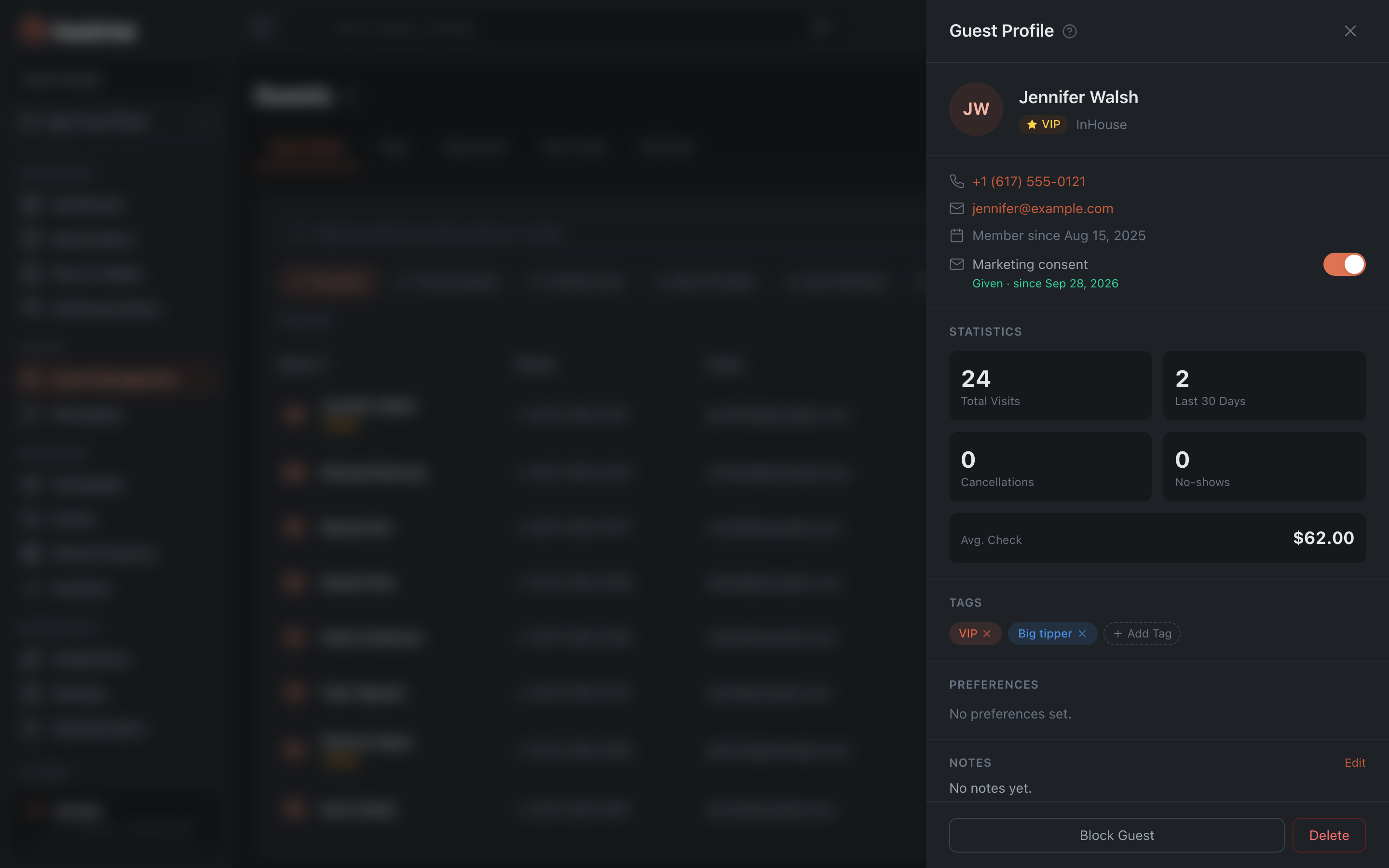
A side panel that opens when you click a guest’s name or row. It contains:
- Header and contacts — photo/avatar, name, status, phone and email, the date the guest joined the system, and marketing consent.
- Statistics — cards with all-time counters: Total Visits, Last 30 Days, Cancellations, No-shows.
- Tags and Notes — blocks for quickly applying tags and keeping internal text notes for the team.
- Preferences — a read-only block: vegetarian, wheelchair accessible, allergies, table preference, birthday and anniversary. This data comes from the guest’s own profile and cannot be edited in the panel. If nothing is filled in, the block shows “No preferences set.”
- Reservations tab — an aggregated summary by channel: Total Reservations, Online Reservations, Host Reservations, plus the average cheque when there is data for the guest.
- Visit History tab — up to the 10 most recent visits, without pagination.
- Bottom bar — the quick-action buttons Block Guest (add to the blacklist; for a blacklisted guest it becomes Unblock Guest) and Delete — deleting a profile asks for confirmation.
Marketing consent
The Marketing consent row in the contacts shows the guest’s latest answer to this restaurant, and the switch next to it shows whether they get marketing messages:
| Shown under the row | Switch |
|---|---|
| Given · since Sep 28, 2026 | on |
| Not asked — the guest gets marketing messages by default | on |
| Withdrawn · Oct 9, 2026 | off |
Guests can also give consent on their own: at the end of the booking form in the widget there is a checkbox “I would like to receive [your restaurant] email updates with news, special offers, and promotions…”. It is unchecked by default.
The guest asked not to get marketing — turn the switch off, this records an opt-out. They changed their mind and agree again — turn it on, this records Given. The change is saved right away. You can’t go back to Not asked: it only means the guest hasn’t answered yet.
An opt-out is recorded for this restaurant only. If the guest has a general marketing opt-out, a warning appears under the row: marking Given lifts it. In a chain, this means the guest will again get marketing from every restaurant of the chain where they haven’t opted out separately.
The switch is shown to staff who can edit guests; everyone else sees only the answer. You can pick guests by consent in segments.
How changes are saved
Guest actions are applied immediately (adding, tagging, blocking). There is no separate save button on these tabs.