Online Presence
A walkthrough of the Online Presence section — the restaurant's public page, widget customization and partner networks.
The Online Presence section controls how guests find and see your restaurant online: the public page on Hostme, widget styling and connections to partner networks. There are 4 tabs here; the Widget Generator is covered separately in the guide How to set up the booking widget.
Public Page
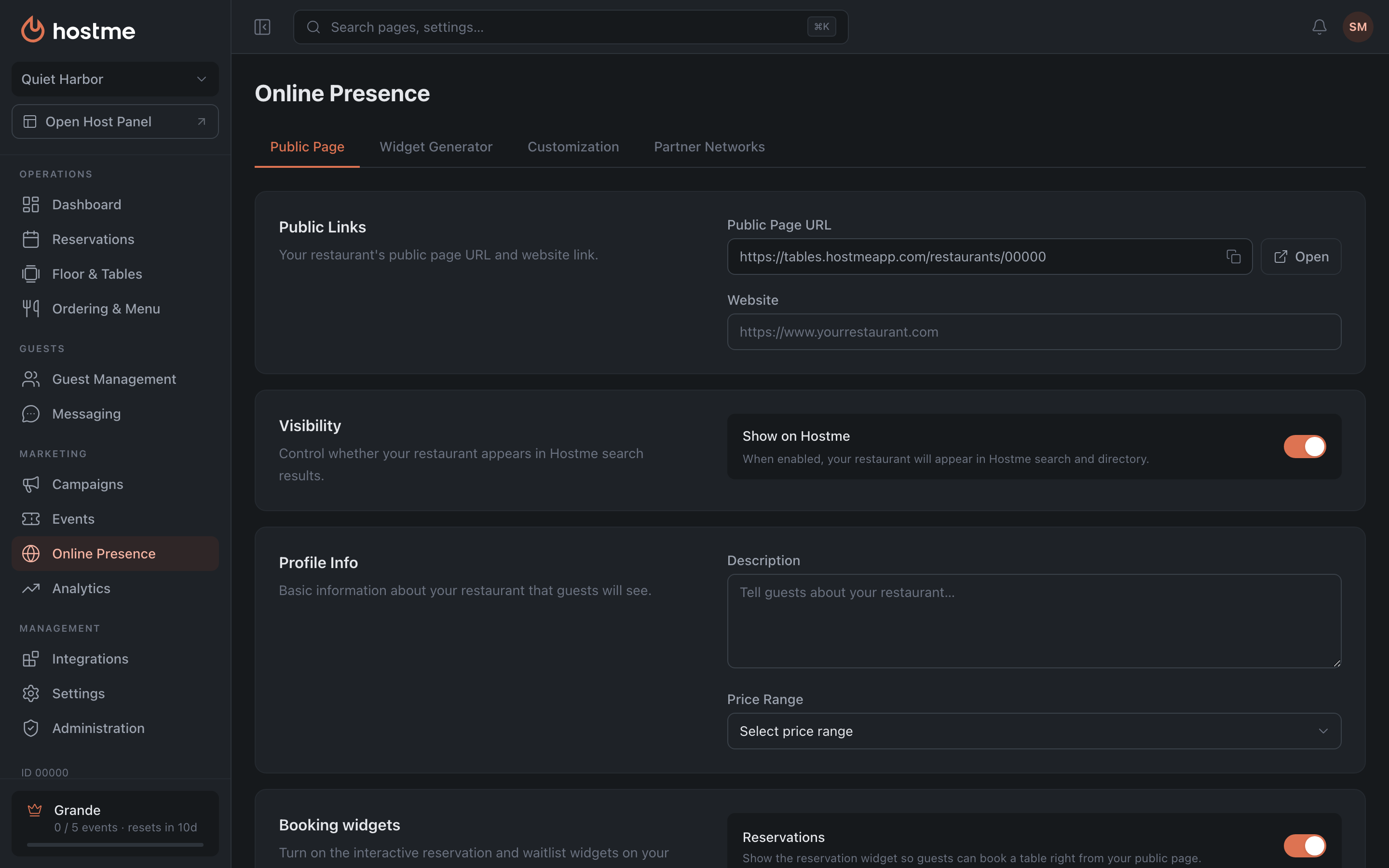
The restaurant profile that guests see. The tab is long, but it is built from independent blocks — you can fill them in one at a time, in any order.
Public Links

Public page URL — the address of your card on Hostme. You can copy it with a button or open it to see the page through a guest’s eyes. This is the link worth putting in your social profiles, your email signature and your map listings — it works even for a restaurant with no website of its own.
Website — your own site’s address. It appears on the public page as a link, so a guest can move on to you instead of staying on Hostme.
Visibility
A single Show on Hostme toggle: whether the restaurant takes part in Hostme search and the directory.
Turning it off hides the card from search but does not close the page itself — a direct link still opens it, and the widget on it keeps taking reservations. If the goal is to stop taking requests, that is done elsewhere: see Online Booking and the exceptions in Availability.
Profile Info
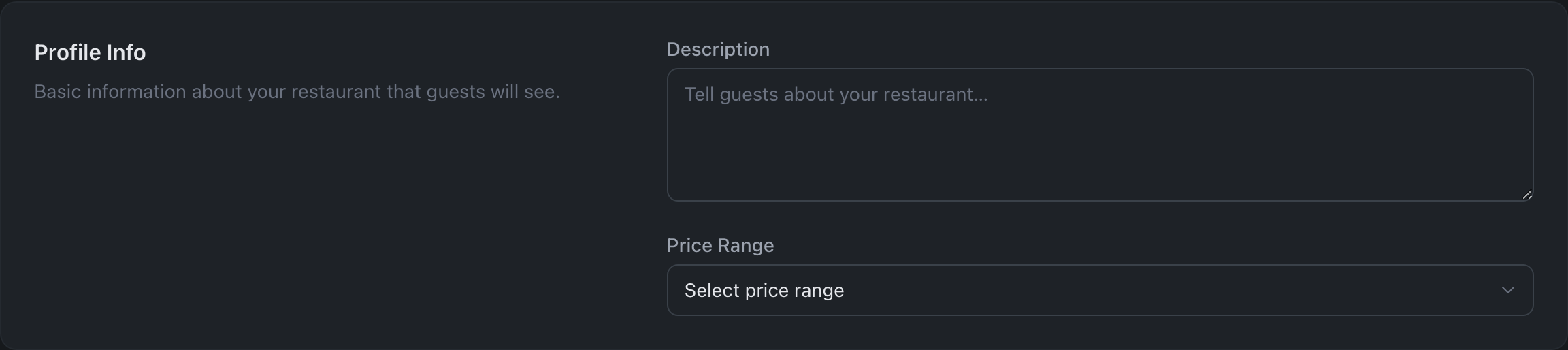
Description — free text about the restaurant. It is the first thing a guest reads after the name, so a short, concrete paragraph works better than a promotional one: the cuisine, the format, what makes you different.
Price range — four steps: $ (Budget), $$ (Moderate), $$$ (Upscale), $$$$ (Fine dining). Guests filter the listing by it, so an understated range brings the wrong guests and an overstated one turns away your own.
Widgets

Two toggles — which widgets to show on your public page:
- Reservations — the booking widget: the guest picks a date, a time and a party size and books a table right from your public page. It works only while online booking is on.
- Waitlist — the waitlist widget. It works only while the online waitlist is on: while it is off, the toggle is unavailable. If you hide the widget, guests can still join from your own website and the QR code.
These are the widgets on the Hostme page. The same widget for embedding on your own site is built on the “Widget Generator” tab — step by step in the guide How to set up the booking widget.
Services
Eleven marks shown on the page as icons: Delivery · Takeout · Outdoor seating · Free Wi-Fi · Kid friendly · Cash only · Cards accepted · Vegetarian options · Business lunch · Entertainment · Dress code.
Only mark what you actually have: “Kid friendly” or “Outdoor seating” is a common reason a restaurant gets picked, and a guest notices the mismatch immediately.
Categories
Twenty-nine marks for format and occasion — from “BBQ” and “Pizza” to “Romantic”, “Live Music” and “Creative Cocktails”. They are how the restaurant is found in the directory, so pick the ones people would actually search you by, not every one that fits.
Cuisine
Sixteen cuisines: American, Asian, Chinese, French, Indian, Italian, Japanese, Korean, Mediterranean, Mexican, Middle Eastern, Seafood, Southern, Spanish, Thai, Vietnamese. It differs from “Categories” in describing the food rather than the format of the venue: “Italian” is a cuisine, “Romantic” is a category.
Branding Images
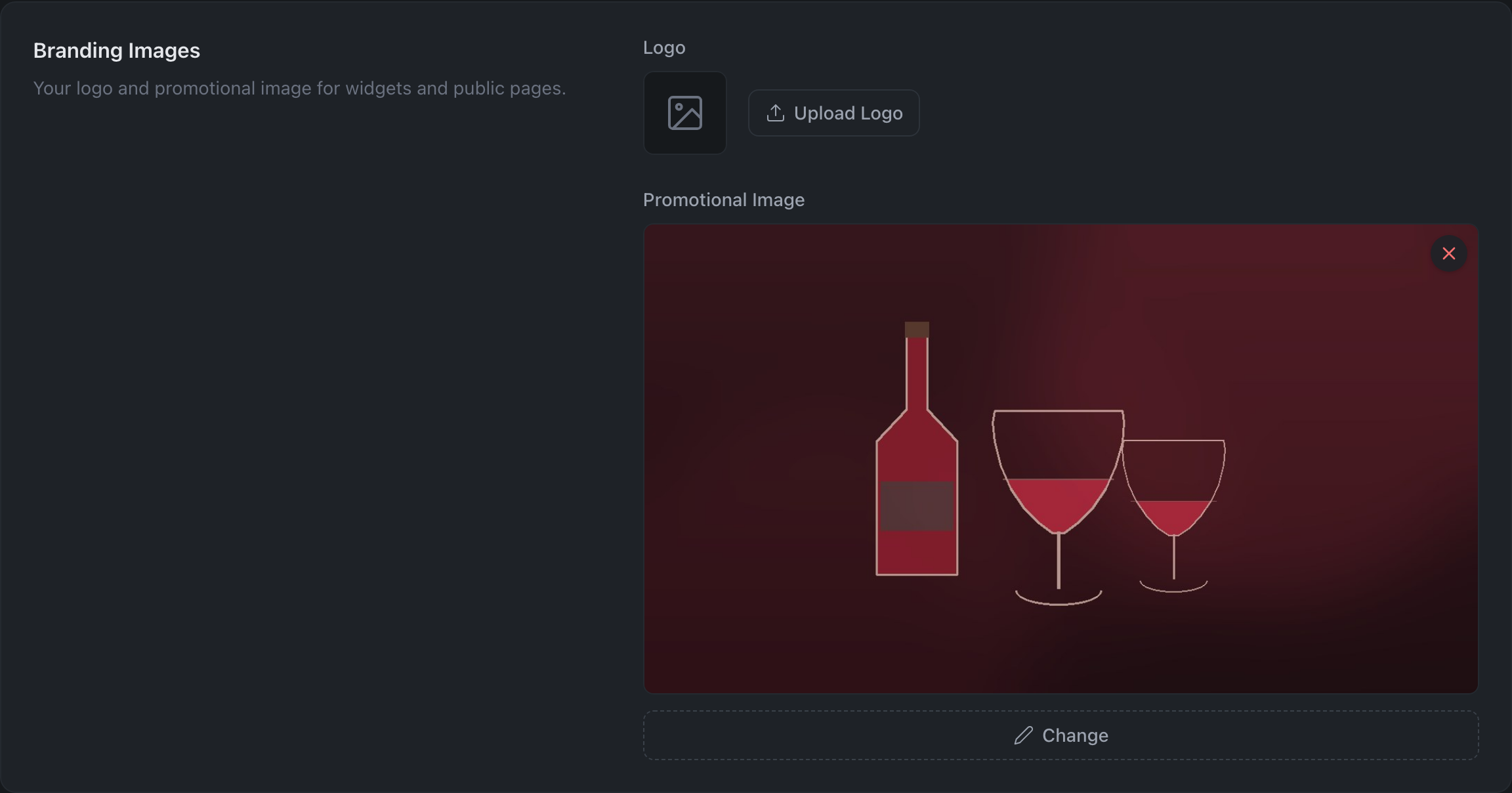
Logo — shown in the widgets and on the public pages.
Promotional image — the large picture on the restaurant card. This is a shop window: a shot of the room or a dish belongs here, not a poster with text — text is unreadable at preview size.
Photos
The restaurant gallery. Each photo gets a category — Drinks, Food, Interior, Outdoor, Style, Other — and the shots are grouped by it on the page.
Social Media
Links to Facebook, X (Twitter), Instagram, YouTube, Pinterest. The ones you fill in appear on the public page as icons; empty fields simply aren’t shown.
Import Data
Foursquare place ID and Google place ID — your venue’s identifiers in those external services. Hostme uses them to pull reviews and other data from those services onto the public page.
Customization
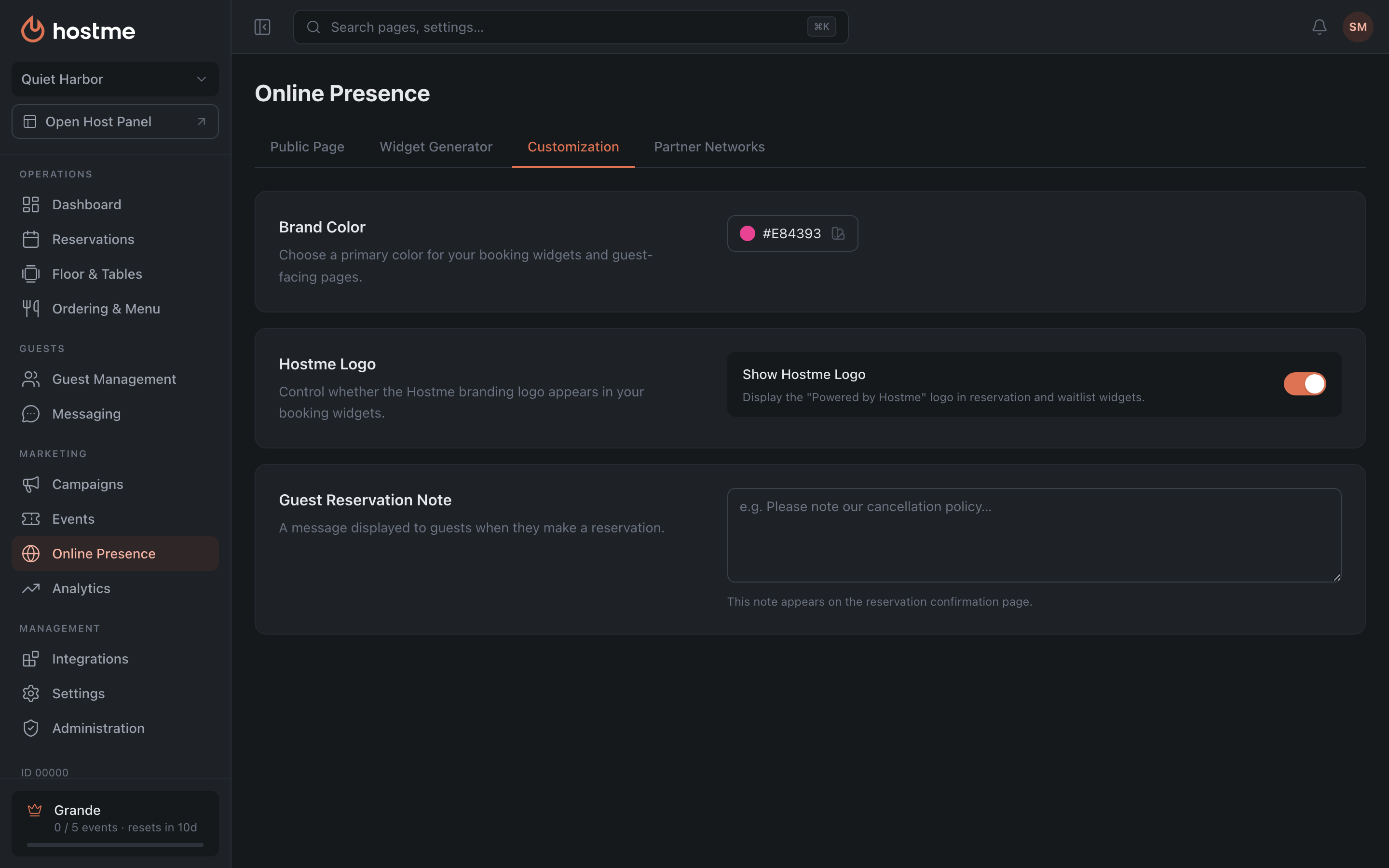
How the guest widget looks and what it says.
Brand Color Grande
The accent color of the booking widgets and the public page: it paints the buttons, the selected dates and the active elements. Twelve ready presets, or your own color by HEX code.
The point of the setting is that the widget on your site shouldn’t look like someone else’s insert. Take the color straight from your brand guide rather than a “close enough” one: next to your own buttons, half a tone of difference shows.
Hostme Logo Grande
The Show Hostme logo toggle — whether the “Powered by Hostme” line appears in the booking and waitlist widgets. Turning it off makes the widget entirely yours: the guest doesn’t see which service they are using.
Guest Reservation Note
The text a guest sees on the booking confirmation page — that is, at the moment the reservation is already made and they are certainly reading the screen. A good place for what has to be said before the visit: the cancellation policy, parking, a dress code, “the deposit is charged on a no-show”.
The setting is available on any plan.
Partner Networks
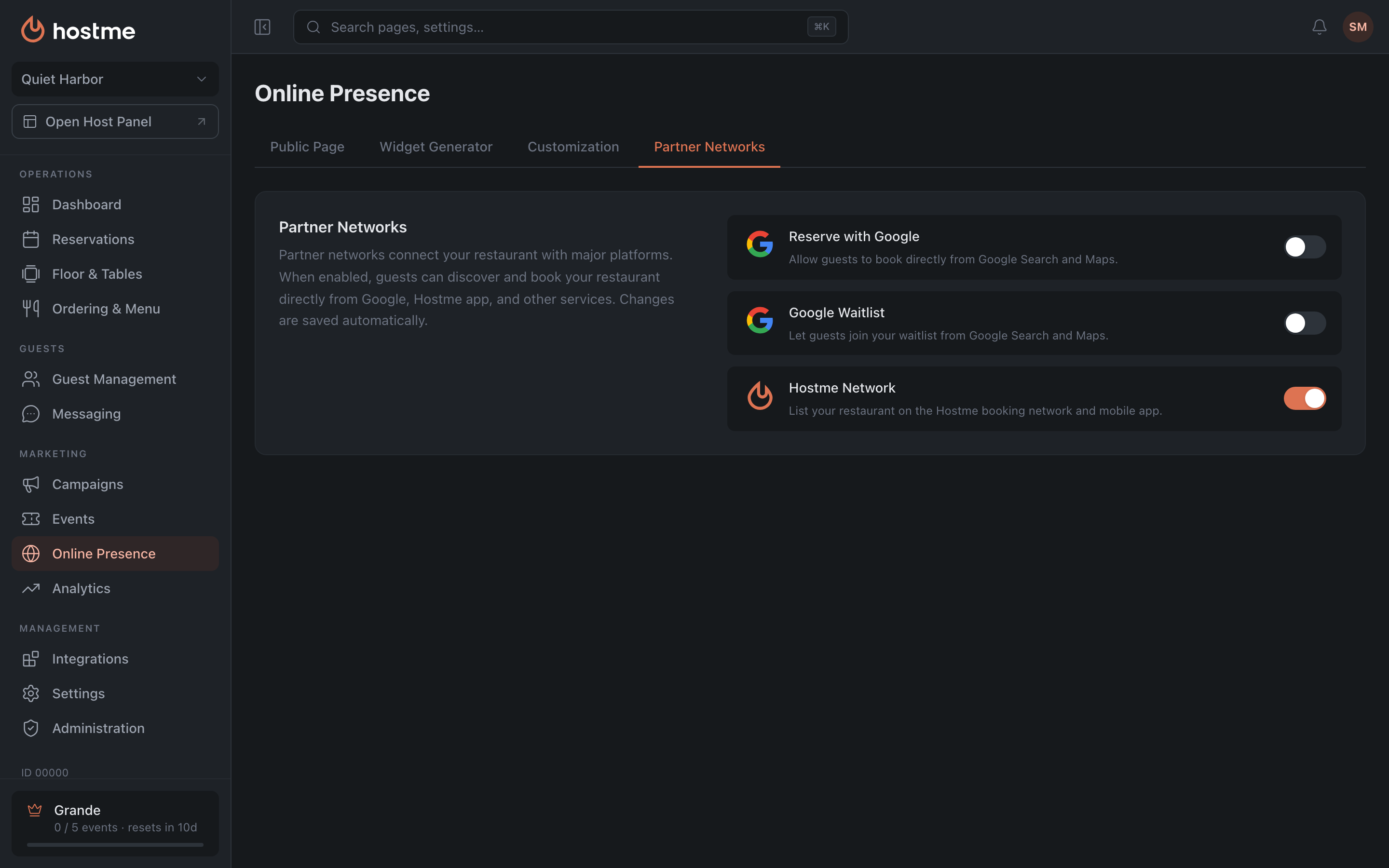
Connecting external booking channels:
- Reserve with Google and Google Waitlist — take bookings straight from Google services (updating and syncing data on Google’s side can take up to 24 hours — this applies to switching off as well; to stop taking bookings immediately, use exceptions in Availability). Google Waitlist works only while the online waitlist is on: while it is off, the toggle is unavailable. Likewise, Reserve with Google works only while online booking is on.
- Hostme Network — the restaurant’s visibility in the Hostme directory and the widgets on its public page. Switching it off hides the restaurant from search and turns off both widgets, but doesn’t close the online waitlist: guests can still join from your own website and the QR code. After switching it back on, the waitlist widget stays off — it is turned on in the “Widgets” card.
- Region-specific networks Grande — the panel shows partner networks based on the restaurant’s country, so the list here depends on where you operate. A card you’ve seen elsewhere may simply not apply to your region.
How changes are saved
Public Page and Customization — with the Save Changes button at the bottom. Partner Networks are saved immediately when toggled.