Table Rules
A walkthrough of the Table Rules tab — seating duration, seating policy, table combinations, status workflow and server rotation.
The Table Rules tab (in Floor & Tables) defines how long tables are held, how guests are seated, which tables can be combined and how work is distributed among servers.
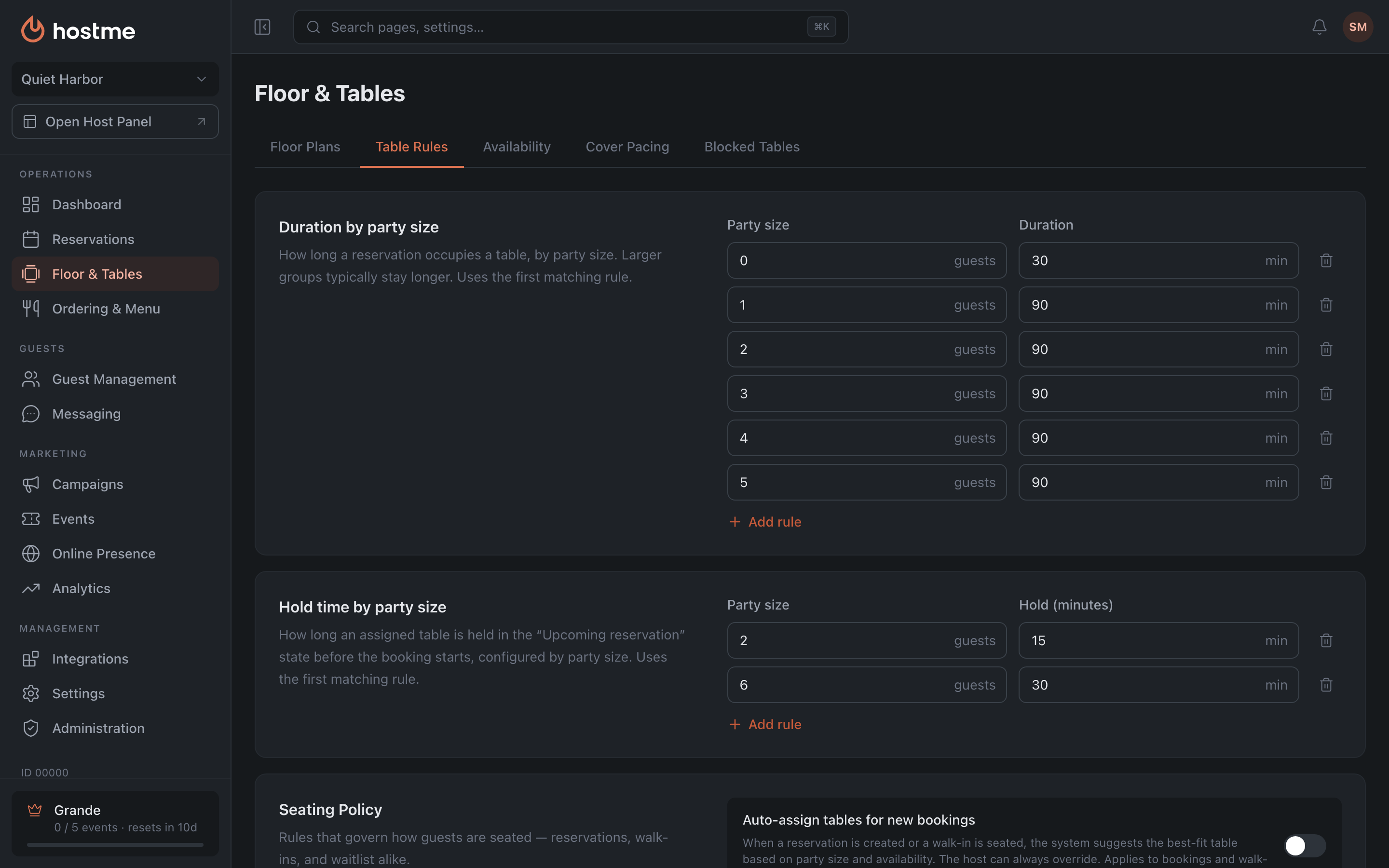
Duration by party size
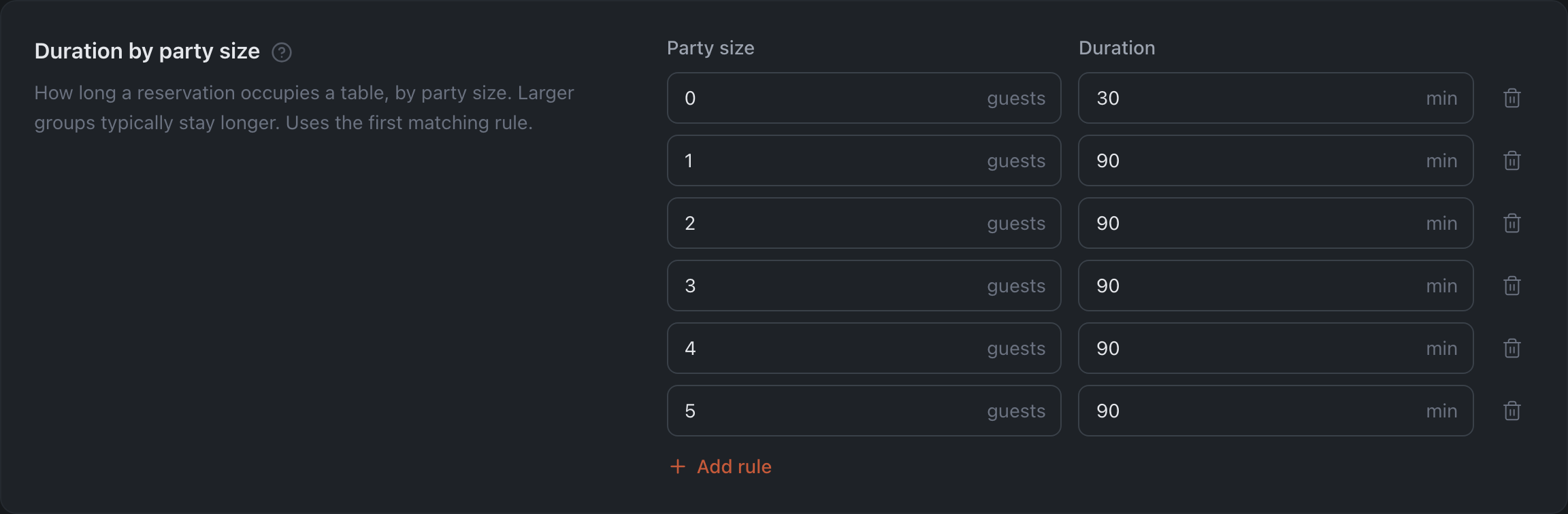
How long a reservation occupies a table, depending on the party size — a table with the Party size and Duration columns. The Add rule button adds a row; the trash icon removes it.
The first matching rule applies, so the row order matters: a “up to 4 guests” rule placed above “up to 8” will catch a party of three and a party of four alike.
This duration is what decides when a table counts as free again — and therefore which slots the panel offers the next guest.
Hold time by party size

A separate table below the previous one, with the Group size and Hold (minutes) columns. It answers a different question: how long before the reservation starts the assigned table stops being free and moves into the “Upcoming reservation” status.
The difference from duration matters, and the two shouldn’t be confused:
| What it sets | When it applies | |
|---|---|---|
| Duration | how long the table is taken after the booking starts | during the visit |
| Hold | how long the table is closed before the booking starts | ahead of the visit |
An example: a booking at 7:00 pm with a 30-minute hold — from 6:30 pm the table is marked as an upcoming reservation, and the host won’t seat a walk-in there.
Rules are set by party size, and here too the first matching rule applies. The logic is the same as with duration: a large party takes longer to gather, so it makes sense to close their table earlier.
Seating Policy
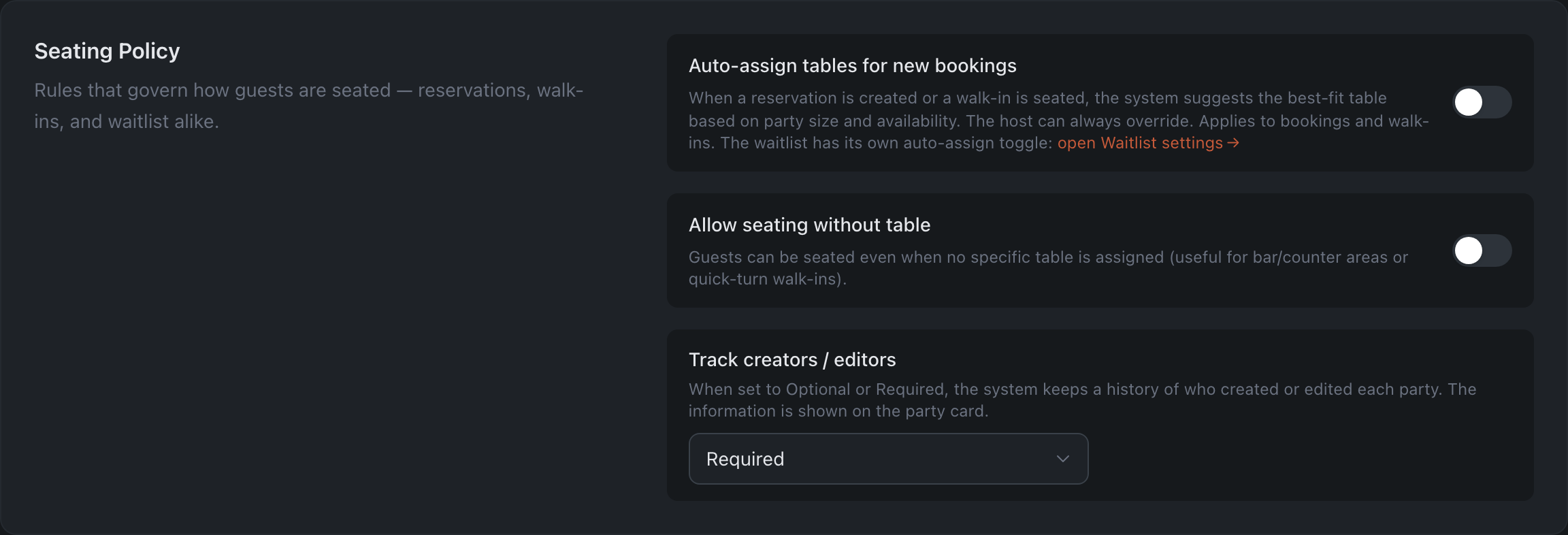
How guests get to their tables — with a reservation, without one, and from the waitlist.
- Auto-assign tables for new bookings — the system picks the table itself.
- Allow seating without table — a guest can be seated without assigning a specific table.
- Track creators / editors — record who created/edited the booking: Off / Optional / Required.
Table Combinations
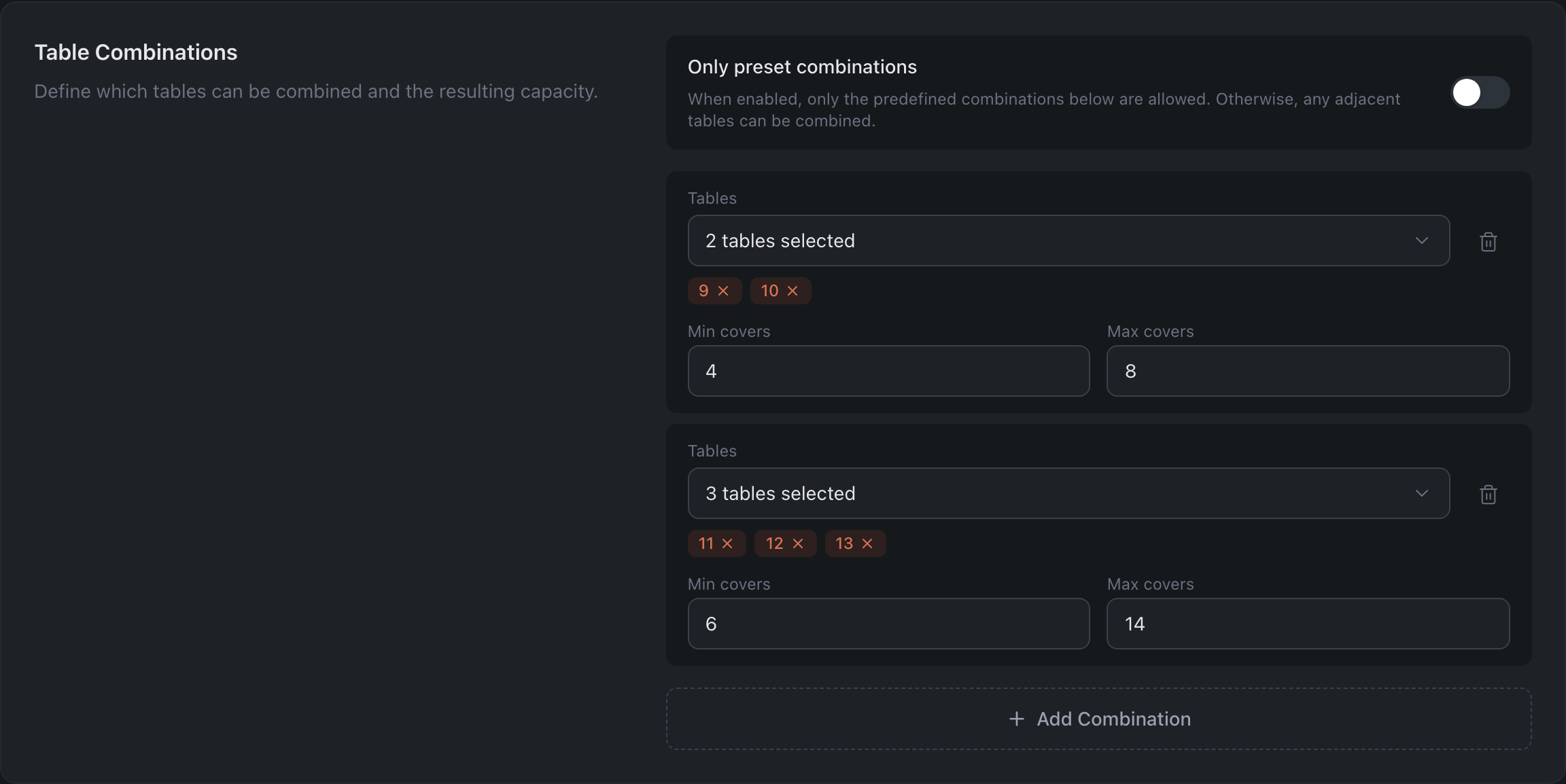
A combination is a set of neighbouring tables pushed together for a large party: the guests sit at one made-up table, and its capacity counts as a whole. Here you define which tables may be combined and how many people fit in the end.
- Only preset combinations — when on, only the sets listed below may be combined. When off, any neighbouring tables can be pushed together.
- Each row is one set: the Tables field and the resulting capacity (Min covers / Max covers). The table picker has a search box, and when there is more than one floor plan, a group-by switch: by area or by floor. A new set is added with Add Combination; an unwanted one is removed with the cross on the right.
Step by step — How to combine tables for large parties.
Table Status Workflow
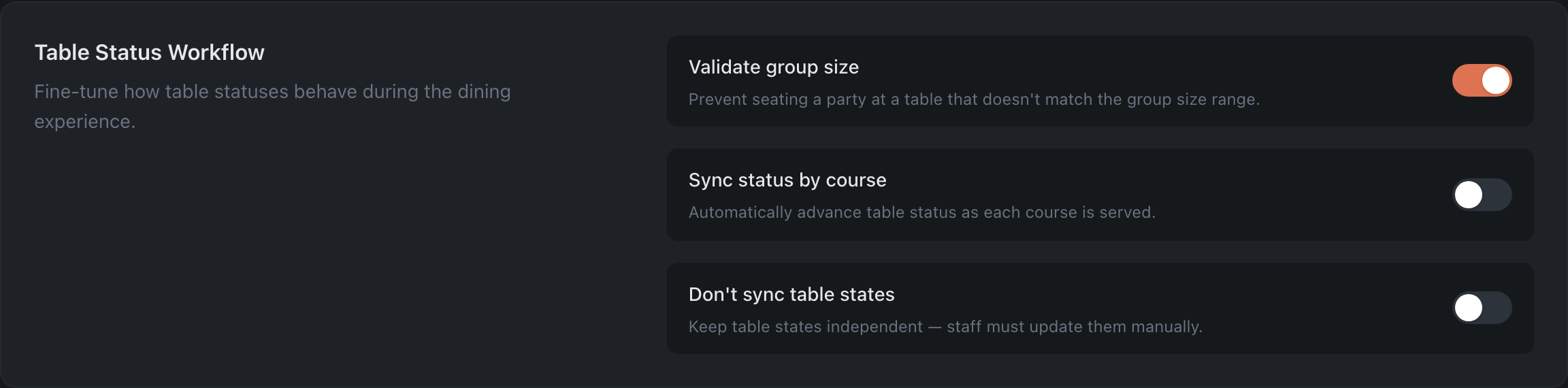
How a table’s status changes during service: moving on by itself, or kept up to date by staff.
- Validate group size — don’t seat a party at a table whose capacity doesn’t fit.
- Sync status by course — automatically advance the table status through the stages of serving dishes (courses).
- Don’t sync table states — table statuses are independent; staff update them manually.
Server Rotation
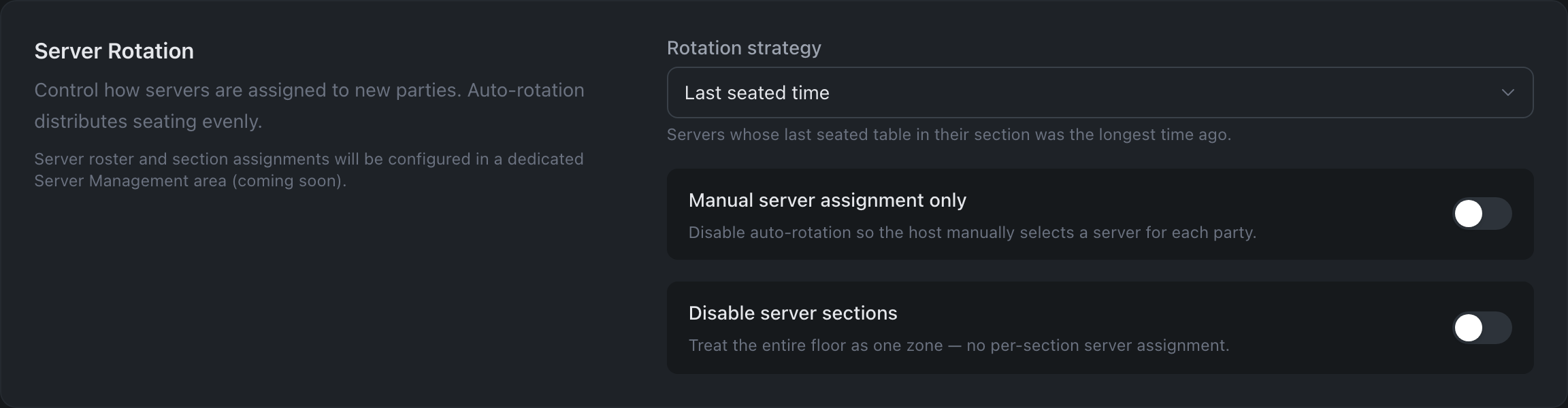
Who gets the next party. Auto-rotation spreads seatings evenly across servers so the shift does not pile up in one section.
- Rotation strategy — how to distribute new guests among servers: by last seated time, by the lowest number of parties / tables / guests, in alphabetical order. The select is visible until “Manual server assignment only” is enabled.
- Manual server assignment only — turn off auto-rotation (the host assigns).
- Disable server sections — work without assigned areas.
How changes are saved
With the Save Changes button at the bottom (for roles with the right to edit table rules).