Segments
A walkthrough of the Segments tab — built-in presets, your own segments and the condition builder.
A segment is a saved guest filter. Describe who you mean once (“frequent guests with a high average cheque”, “haven’t been in for six months”) and from then on you apply it in one click: in the Guest Book, in Campaigns and in Automations.
Segments live in Guests → the “Segments” tab.
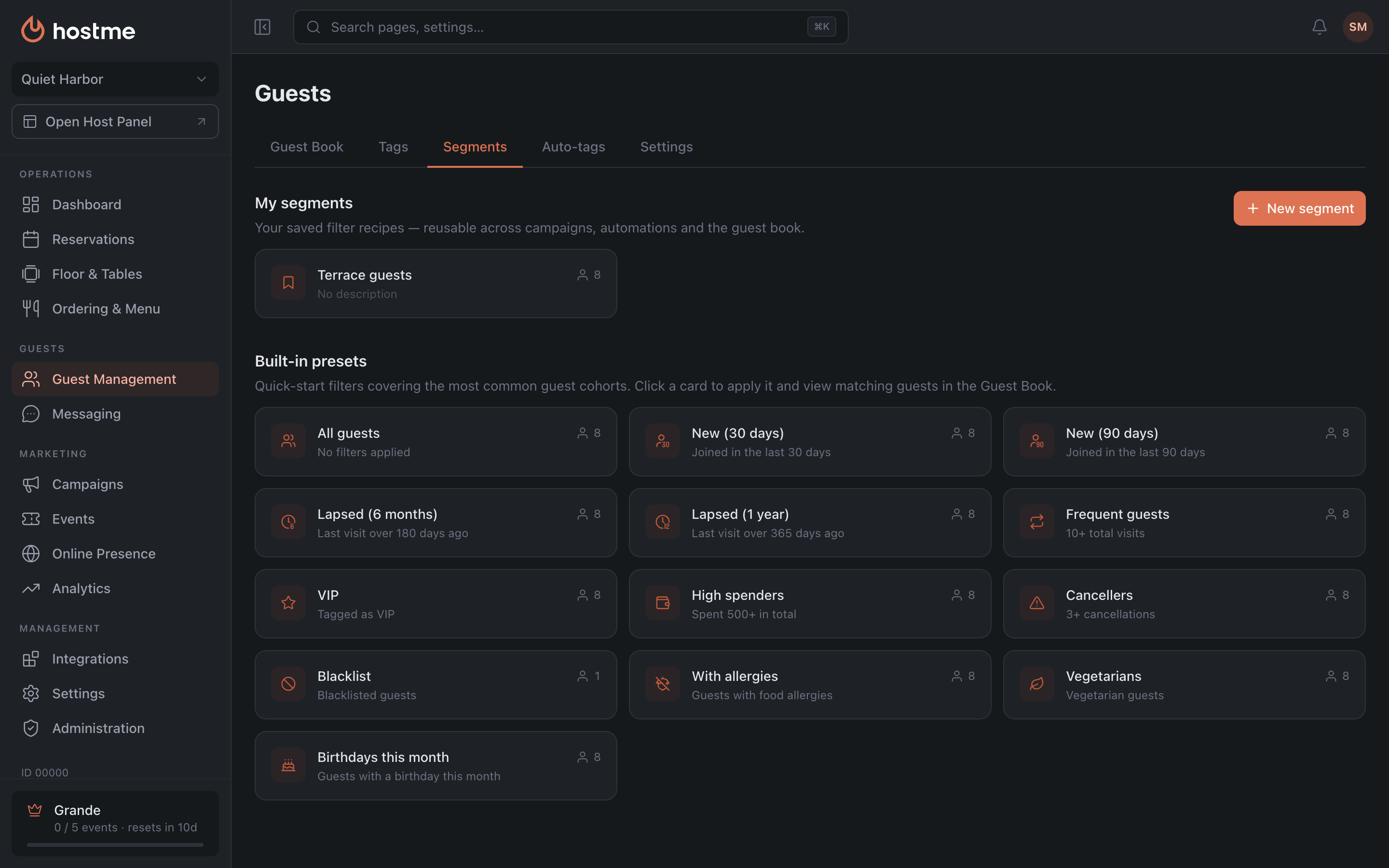
Built-in presets and your own segments
The tab holds two lists.
Built-in presets are the ready-made selections available on any plan: all guests, new in the last 30 and 90 days, lapsed (6 months and 1 year), frequent guests, VIP, high spenders, cancellers, blacklist, with allergies, vegetarians, birthdays this month.
My segments Grande are the ones you built yourself. Clicking a card applies the filter to the Guest Book; the pencil opens the segment in the builder.
Segment builder
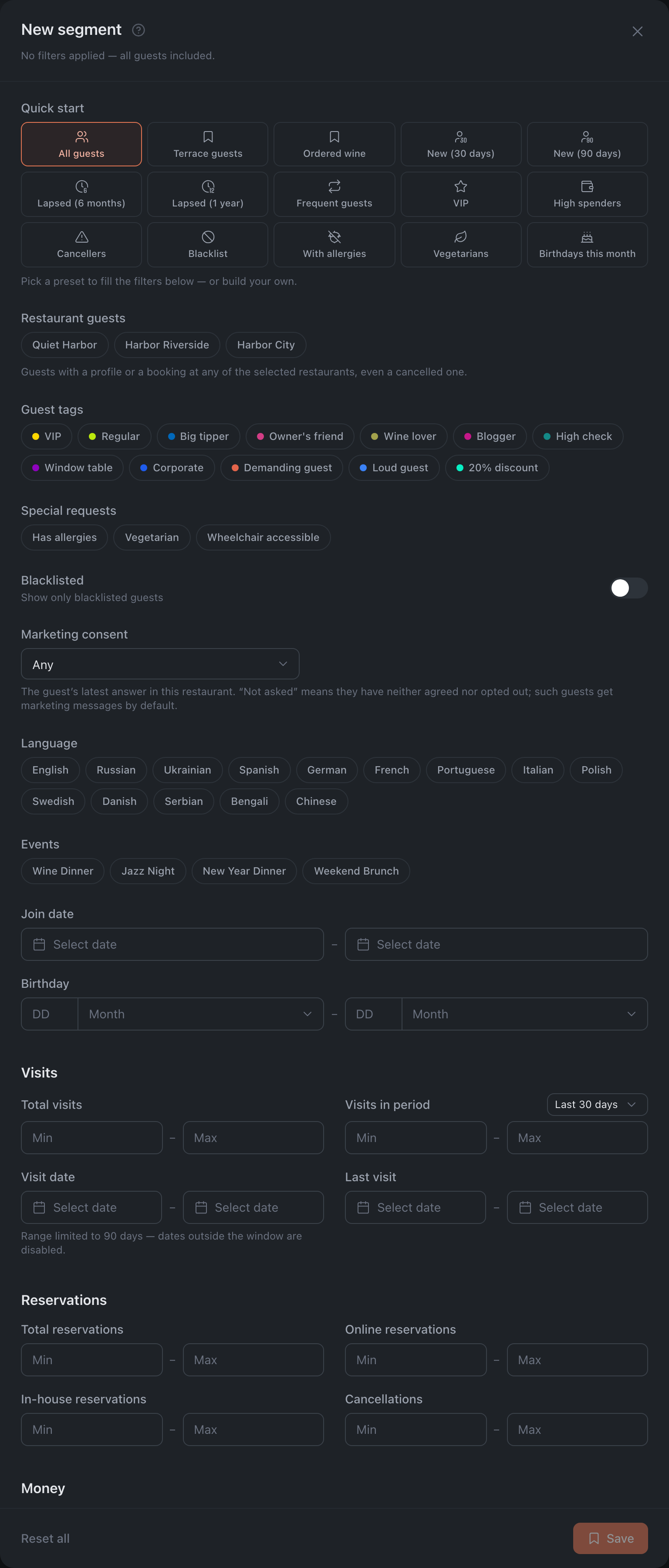
The New segment button opens the builder. For a saved segment the same builder opens via the pencil icon on its card — its tooltip reads “Open in builder”.
At the top is Quick start: the selected preset fills in the filters below, which you can then refine. This is easier than building from scratch: take “Frequent guests” and add “Average cheque from…”. When editing a saved segment, this block is absent.
Conditions are grouped into three sections — Visits, Reservations, Money — plus groups outside any section:
| Section | Conditions |
|---|---|
| Visits | Last visit · Visit date · Total visits · Visits in period |
| Reservations | Total reservations · Online reservations · In-house reservations · Cancellations |
| Money | Total spent · Average cheque |
| No section | Guest tags · Language · Birthday · Join date · Special requests (has allergies, vegetarian, wheelchair accessible) · Events · Blacklisted · Marketing consent · Campaign history |
Numeric conditions are set with a pair of fields, Min and Max — you can fill in both or just one. Periods come from a fixed set: last 30 / 45 / 90 / 180 days, and money conditions also offer All time.
The Restaurant guests group appears only for chains, and Blacklisted is hidden when a segment is being chosen for a campaign.
Marketing consent
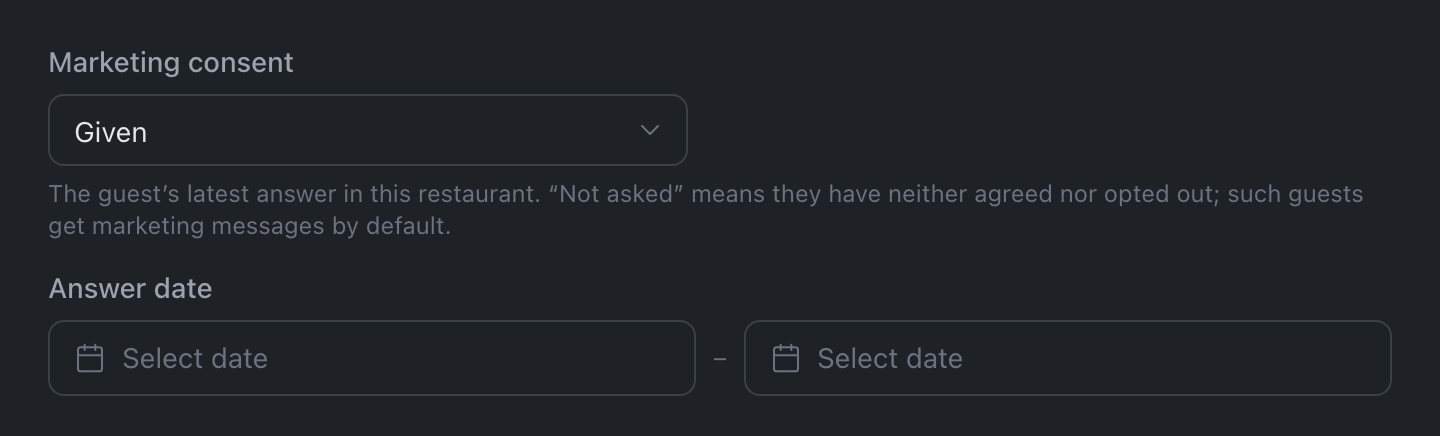
This condition picks guests by their latest answer to this restaurant. Choose it from the list:
- Any — consent isn’t taken into account. This is the default.
- Given — the guest agreed to receive marketing: on their own, with a checkbox while booking in the widget, or a staff member recorded it in the guest profile.
- Not asked — the guest has neither agreed nor opted out. Such guests get marketing messages by default.
- Withdrawn — the guest unsubscribed via the link in an email or by replying STOP to an SMS, or a staff member recorded the opt-out. Guests who opted out of marketing from the whole chain are here too.
With Given or Withdrawn, an Answer date appears — for example, to take only those who gave consent in the last month.
Campaigns and automations don’t offer Withdrawn: a guest who opted out never gets a mailing. Saved segments with Withdrawn aren’t offered there either.
In a chain, each restaurant has its own consent: consent given to one restaurant doesn’t extend to the others.
Campaign history
This condition picks guests by whether they received your campaigns. The list shows one-off campaigns that have already gone out and automations, newest first, with a search. For each one you choose Received, Did not receive or Any.
“Received” means the campaign reached the guest on at least one channel. With several campaigns marked, the segment includes guests who received at least one marked “Received” and none marked “Did not receive”. Each list holds up to 20 campaigns.
For example, you can repeat an offer for guests who didn’t receive the first campaign, or leave out of a new offer those who already got a similar one. The condition also works in an automation’s audience.
How a segment is saved
The finished set is saved with the Save button — it opens the Save segment dialog with a “Name” field and an optional “Description”. A saved segment is available in the Guest Book, in campaigns, and in automations.
In a chain, a segment is deleted for every restaurant at once — the panel warns you about this on deletion.