New order
How to take a delivery or takeaway order in the Host Panel: time, guest, dishes from the menu, payment.
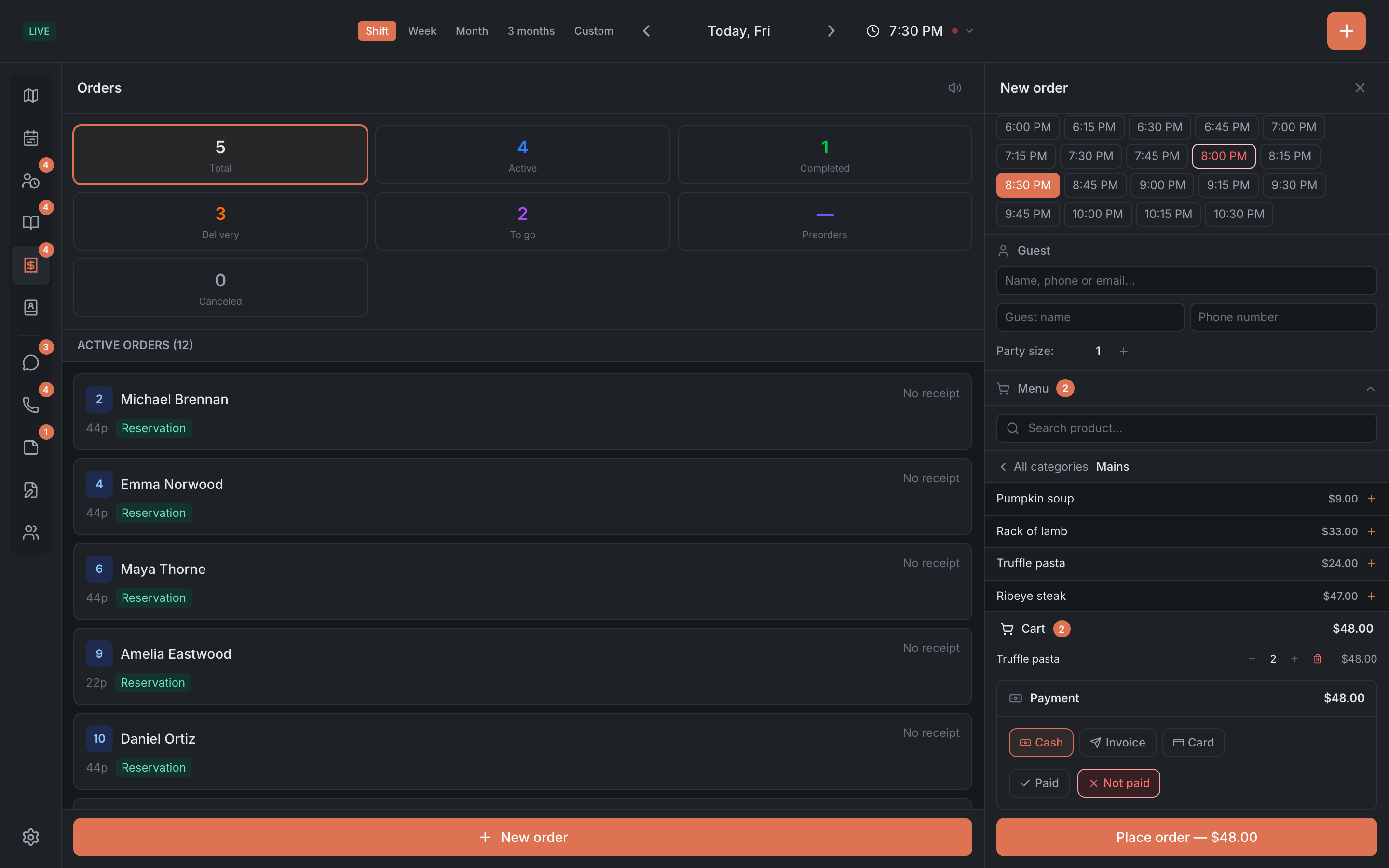
You can take a delivery or takeaway order right in the Host Panel — for example, when a guest calls. The new order form opens on the right, where the list usually is.
How to open it
On the Orders tab, tap New order at the bottom of the list. The + button in the header doesn’t create orders — it’s for bookings, walk-ins and the waitlist.
If the restaurant’s subscription isn’t paid, you can fill in the form, but when you tap Place order the panel shows the “Please pay your subscription” window and the order isn’t created. Existing orders work as usual.
Type and time
- Pick the type: Delivery or To go. A preorder or a dine-in order can’t be created in the panel — guests place preorders themselves, online.
- Date — the day selected in the header. If you change the date in the form, the header and the order list move to it too.
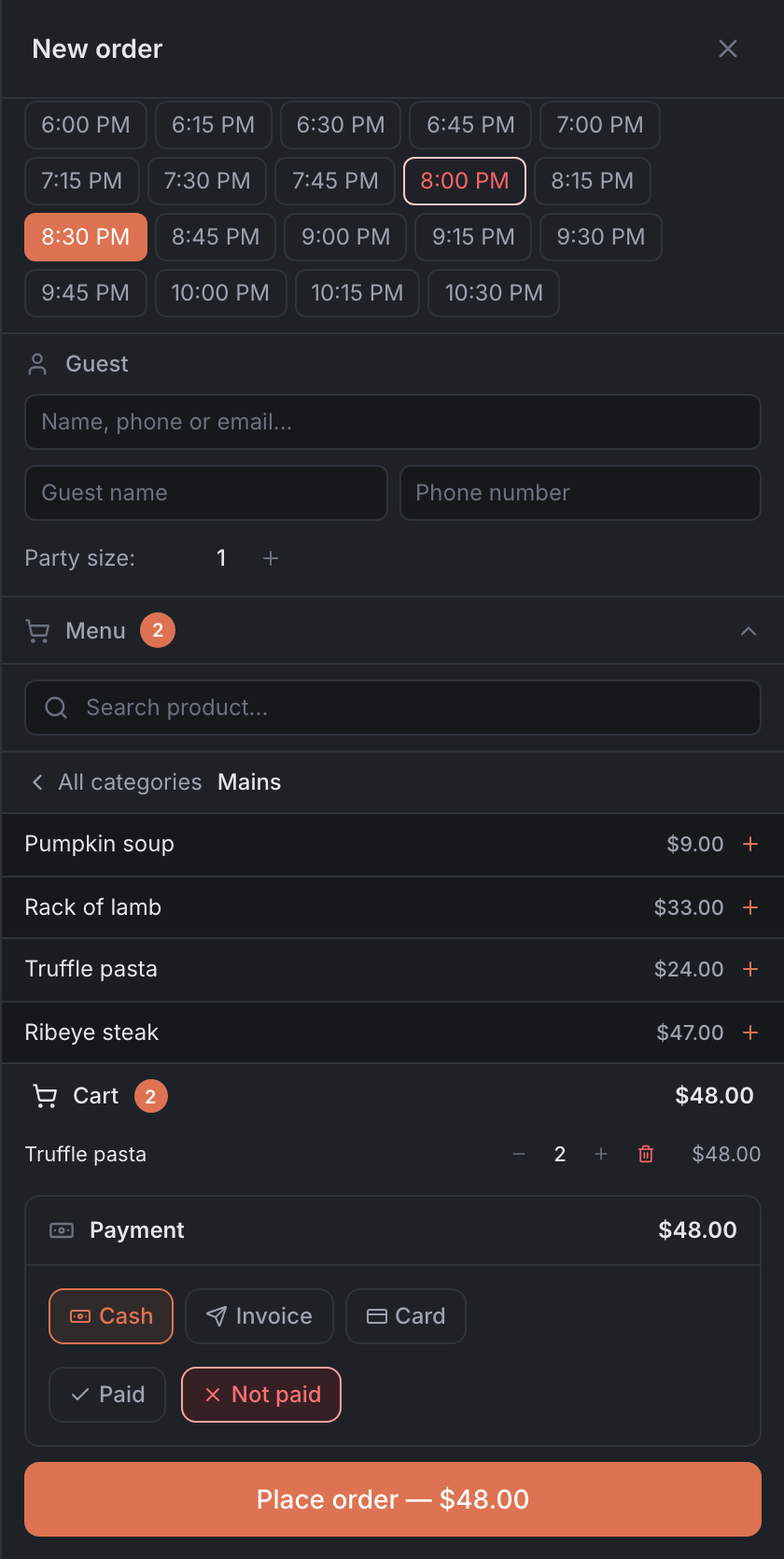
- Time — “Select time” from the free slots. Busy slots can’t be tapped, and a pink dot marks an event’s time. If there’s no free time — “No available time slots”.
Guest
- Find the guest in the guest book: “Name, phone or email…”. The selected guest appears as a chip — the cross clears it.
- Or just type a name and a phone number. Neither is required, but without a phone you can’t call the guest if something goes wrong.
- Party size — from 1 to 20.
Menu and cart
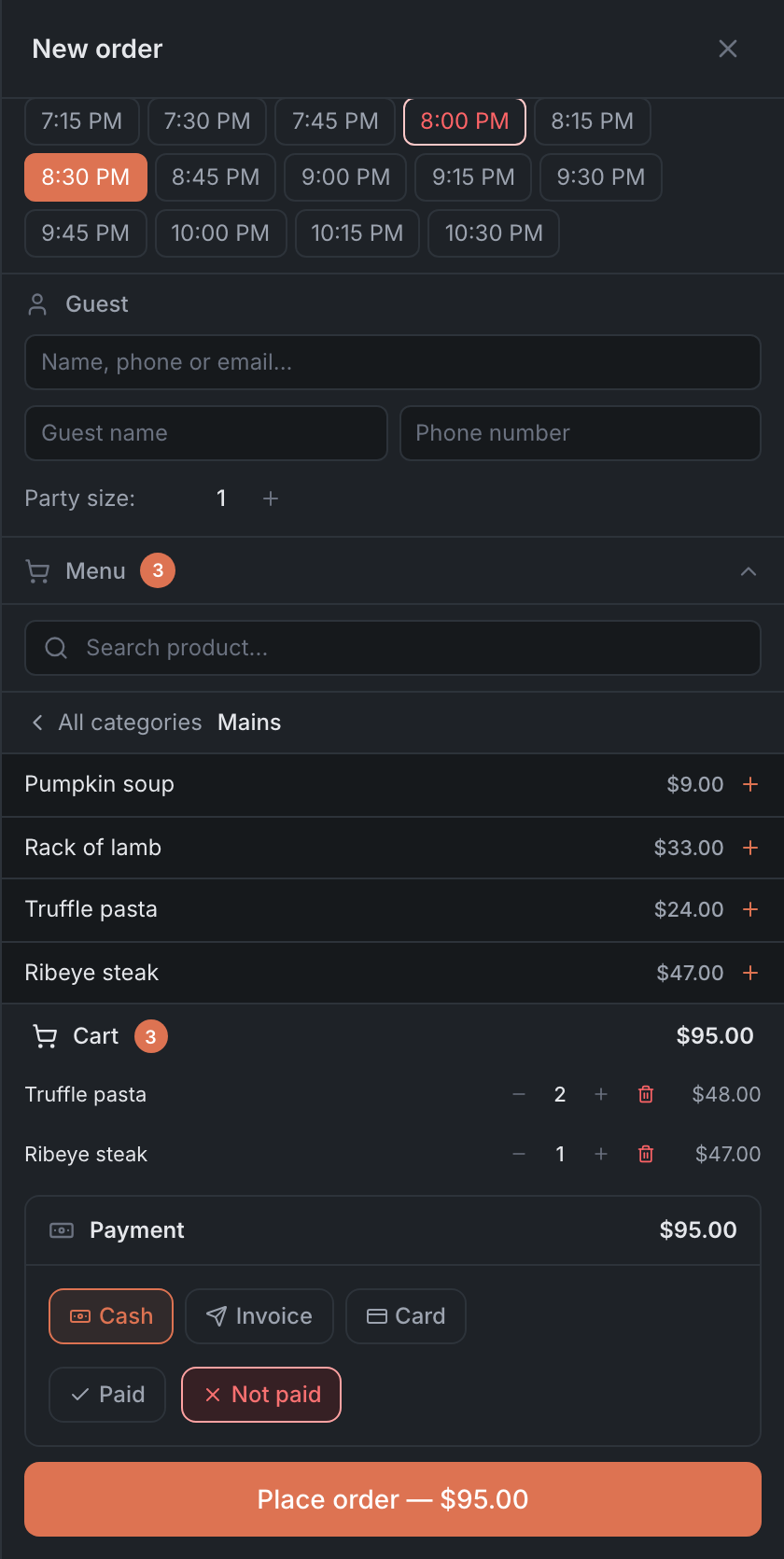
The Menu block has the dishes from the restaurant’s menu, which is set up in the Admin (Menu builder). Only dishes that are shown to guests in the Admin are visible.
- If there are several menus, pick one in the list.
- Pick a category — or All categories. Or find a dish: “Search product…”.
- Tap a dish and it goes into the Cart. In the cart, − and + change the quantity, and the cross removes the dish.
- The price is the delivery or takeaway price if the restaurant set one, otherwise the regular price. See Products & categories.
Modifiers — size, sauce, extras — can’t be picked in a new order.
The total at the bottom is recalculated automatically, with taxes and delivery.
Payment
In the Payment block, pick a method: Cash, Invoice or Card. Only the methods that work for the restaurant’s delivery are shown; card and invoice need online payments to be connected.
- Cash — tick Mark paid or Mark unpaid.
- An invoice goes to the guest: fill in “Phone for invoice” or “Email for invoice”.
- Card — Attach card. If online payments aren’t connected — “Card payments are not configured”.
Placing the order
The Place order button with the total becomes active once the cart has dishes, a time is picked and payment is filled in. Tap it — you’ll see “Order created successfully”, the form closes, and the order shows up in the list in a couple of seconds.
If the order doesn’t show up in the list and the header says OFFLINE, reload the page.