Floor map
How to read the map: table statuses and colors, what's drawn on a table, areas, floors and display modes.
Map is the main tab of the Host Panel: the floor plan exactly as it was drawn in the Admin (see Floor plans). It shows the host which tables are free, where guests are seated and which tables are waiting for a booking.
The map shows the room at a specific moment — usually “now”. Scroll the time strip at the bottom and the tables show what will happen in the evening or what happened in the morning — see Date, time and shift.
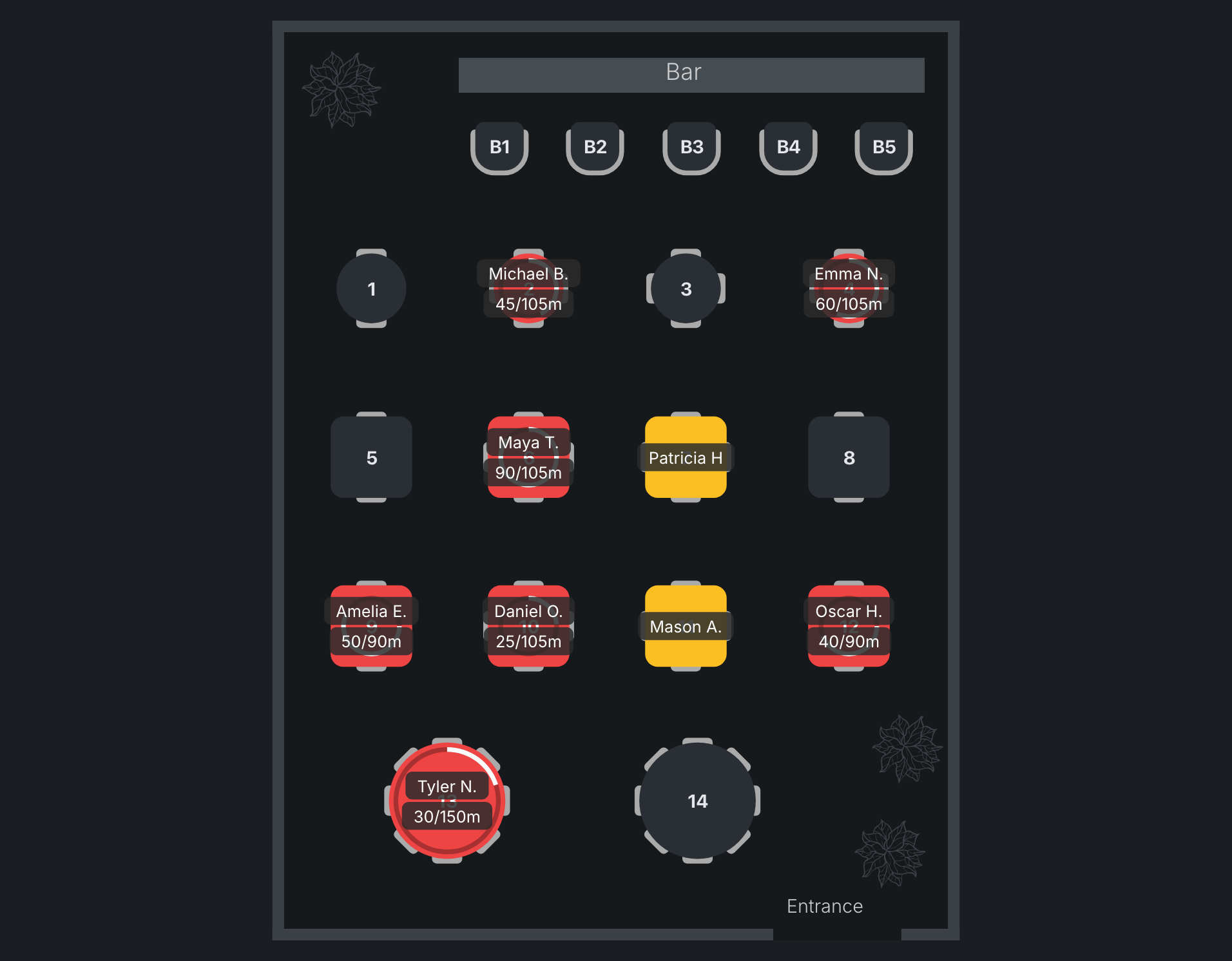
Table statuses
| Status | What it means |
|---|---|
| Available | nobody is at the table |
| Occupied | guests are seated |
| Reserved | the table is waiting for booked guests |
| Prepping for a booking | a booking is coming up soon, so the table is held. How many minutes — the restaurant sets it in the Admin, in the table rules (hold time) |
| Blocked | the table is temporarily unavailable. Blocks are set in the Admin — see Blocked tables |
The table card shows whether a table is free and what status its booking has — tap a table and it opens on the right. The card also has the buttons for what you can do with the table — see Table card.
Table colors
A table’s color depends on the theme. The screenshots in this help are taken in the dark HostMe Dark theme.
| Status | HostMe Dark | HostMe and HostMe Classic |
|---|---|---|
| Available | green | light grey |
| Occupied | red | dark red |
| Reserved | amber | grey-green |
| Prepping for a booking | yellow-amber, almost like a booking | yellow (orange in HostMe Classic) |
| Blocked | grey | dark grey |
The area colors you set in the Admin don’t repaint tables on the Map.
What’s drawn on a table
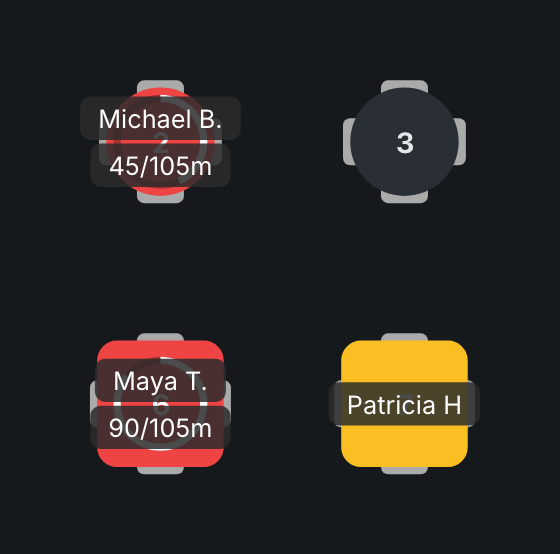
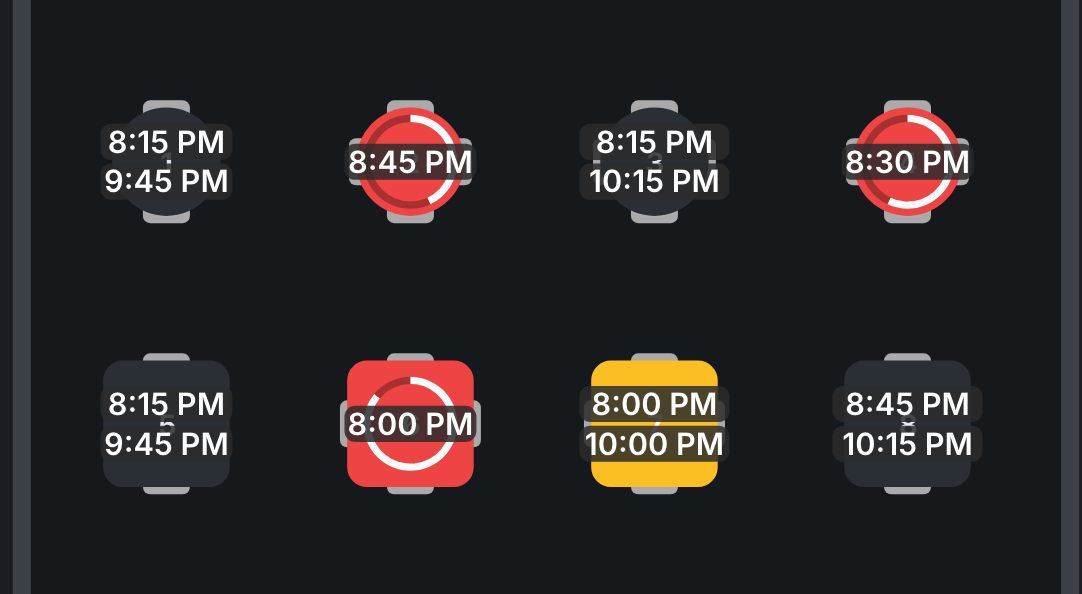
- Shape and chairs — one chair per seat, as in the floor plan.
- Table number.
- A ring inside the table — on occupied tables, when the planned seating time is known. The ring fills clockwise as that time passes. It has no numbers on it.
- Info pills — up to three per table. What to show is chosen in the panel settings, in the Table info overlay section:
| Pill | What it shows |
|---|---|
| Table number | the number, large |
| Guest name | first name and the initial of the last name, for example “Jennifer W.” |
| Reservation time | what time the booking is for |
| Seated progress | how long the guests have been seated out of the planned time, for example “45/90m”. Once the time is up, the pill turns red |
| Party size | how many people are in the party |
| Dining state | the current stage, if your restaurant uses them |
| Upcoming reservations (up to 3) | the times of the next confirmed bookings on this table. Takes all three spots and can’t be combined with other pills |
The order of the pills in the settings is the order on the table.
What isn’t on a table: VIP, allergy, deposit and comment icons. All of that is on the cards in the side list and in the table card.
Areas and floors
Floors. If the restaurant has several floors, the switcher is on the left of the header; on a phone — in the menu. It can have an “All floors” item, and while an event with its own room is on — the Event floors and Regular floors groups. An event floor is visible while the event is on. The panel remembers which floor you looked at last — except All floors.
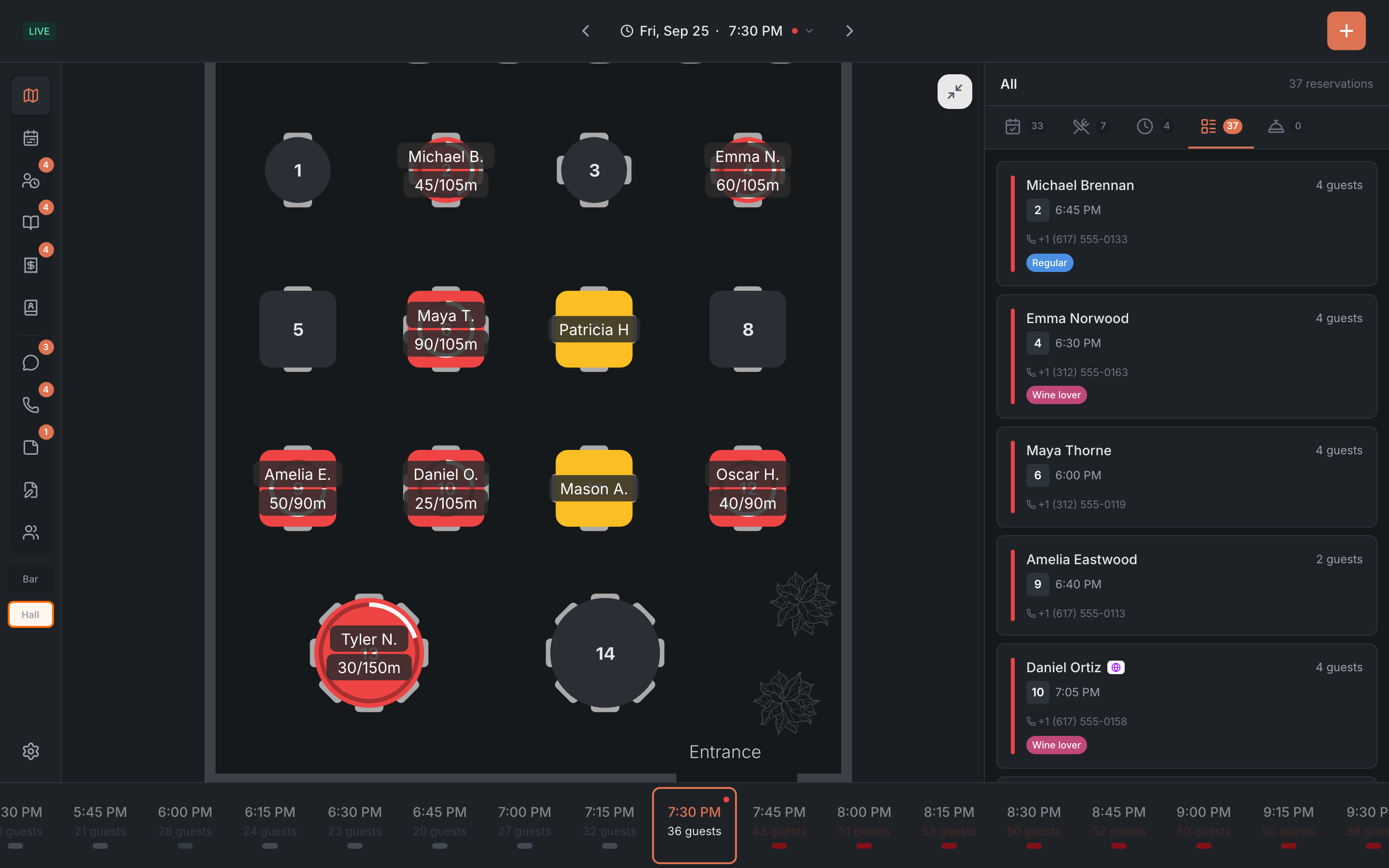
Areas. Area buttons sit under the tabs on the left. Tap an area — the map zooms in on it, and the other tables turn into outlines, without numbers or details. Tap it again — the whole room comes back. If there are more than four areas, the first three are shown and the rest are in a menu under the arrow next to them.
Zoom. You can zoom the map in with two fingers — up to six times. A zoomed-in map is moved with one finger, and the Reset zoom button in the top right brings back the original view. While the map is zoomed in, tables can’t be dragged.
Tap a table
Tapping a table opens its card on the right — with the status, the guests, the booking and action buttons. On a phone the card slides in from the right edge of the screen. It closes with the cross; tapping the same table again doesn’t close it.
Everything you can do with a table is covered in Table card. You can reseat guests or add a table to a booking right on the map, by dragging — see Moving and combining tables.
Display modes
The Map tab has three modes. You switch them in the panel settings, the Display mode section.
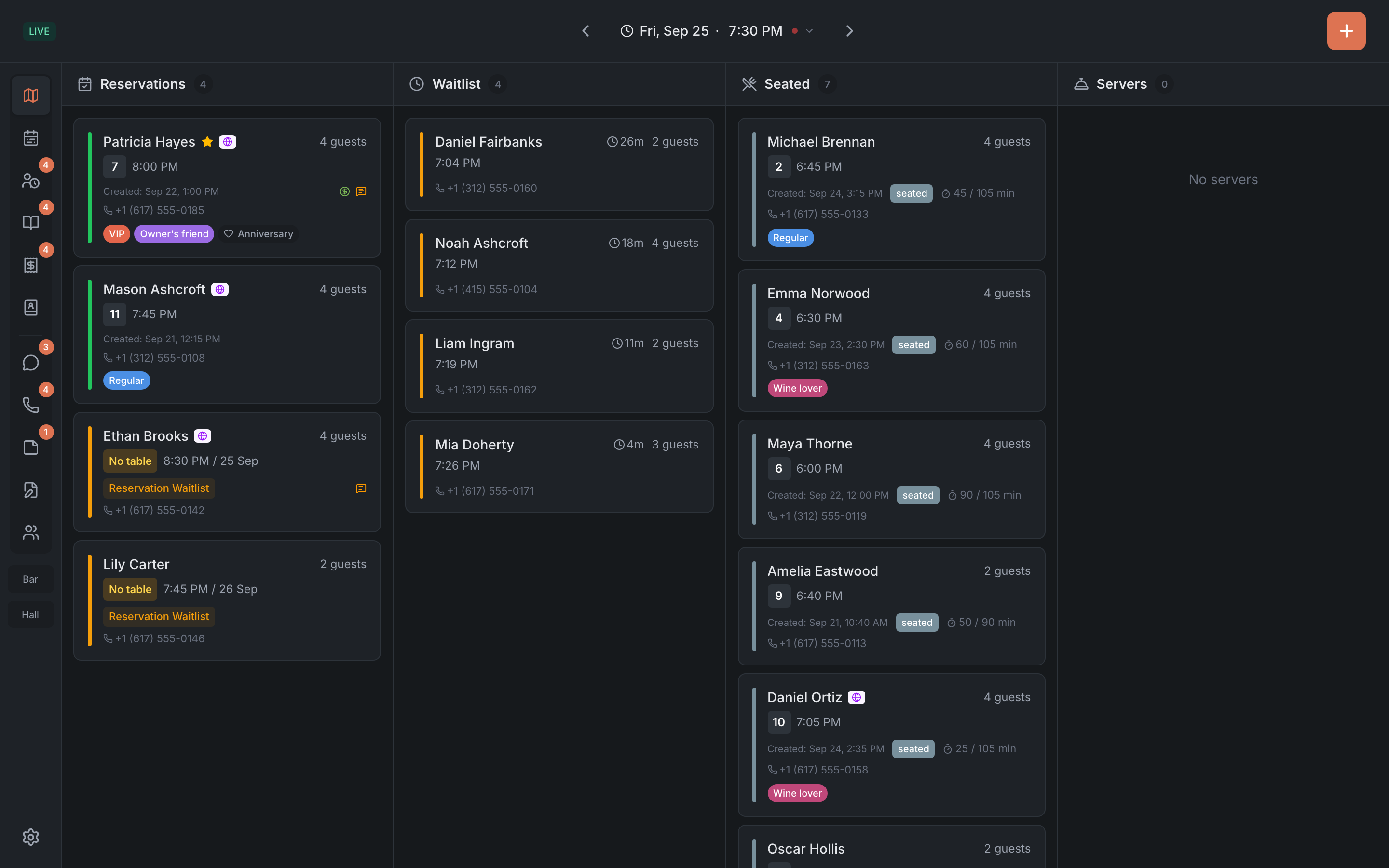
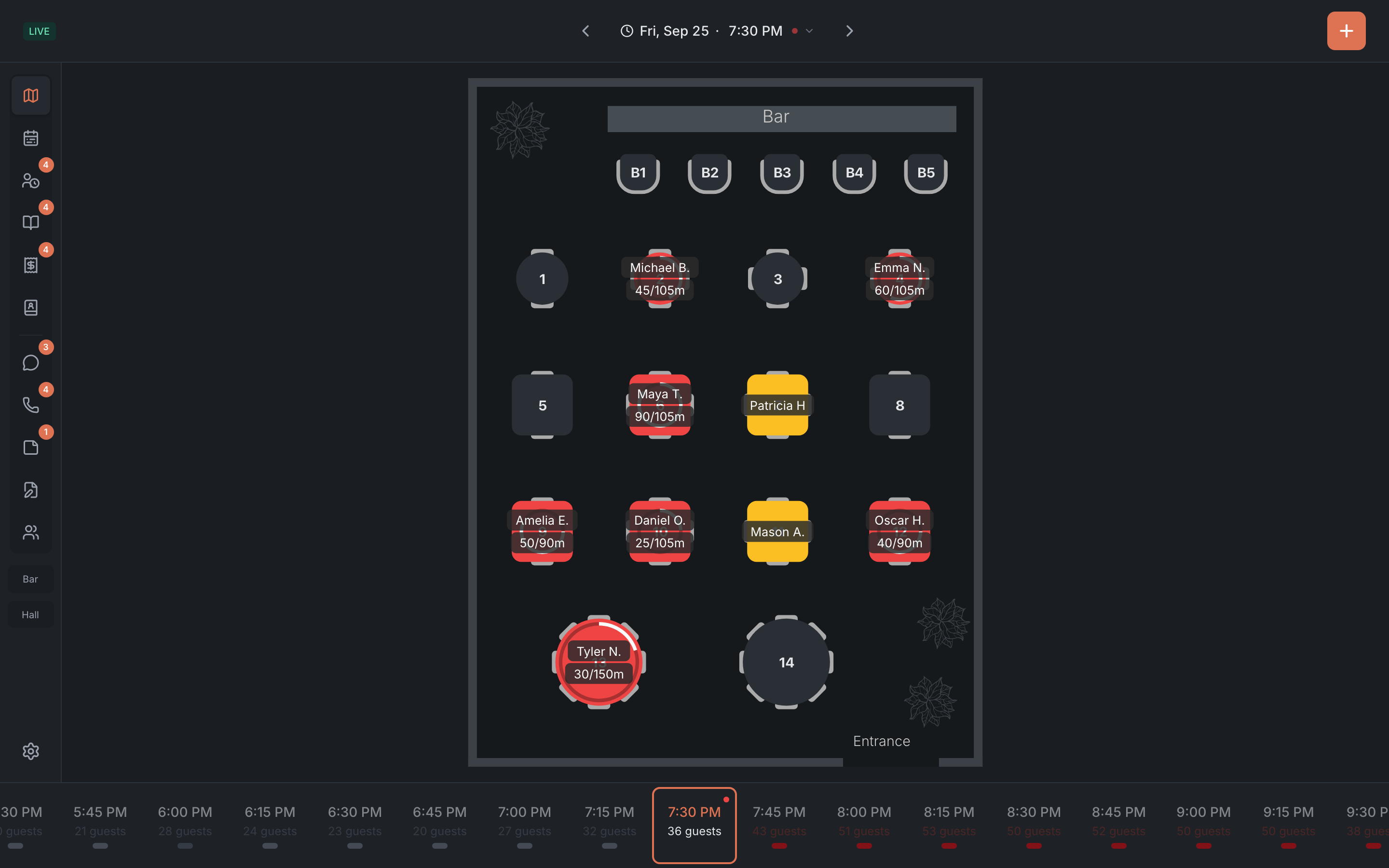
| Mode | What it looks like |
|---|---|
| Standard | the map with the side list next to it |
| Tables only | the map fills the screen. A table or booking card appears on top of the map when you pick something |
| Data only | instead of the map — four columns: Reservations, Waitlist, Seated and Servers. There’s no time strip in this mode |
When guests overstay
If guests stay longer than planned, the Seated progress pill turns red, and the timer on their card in the side list turns red too.
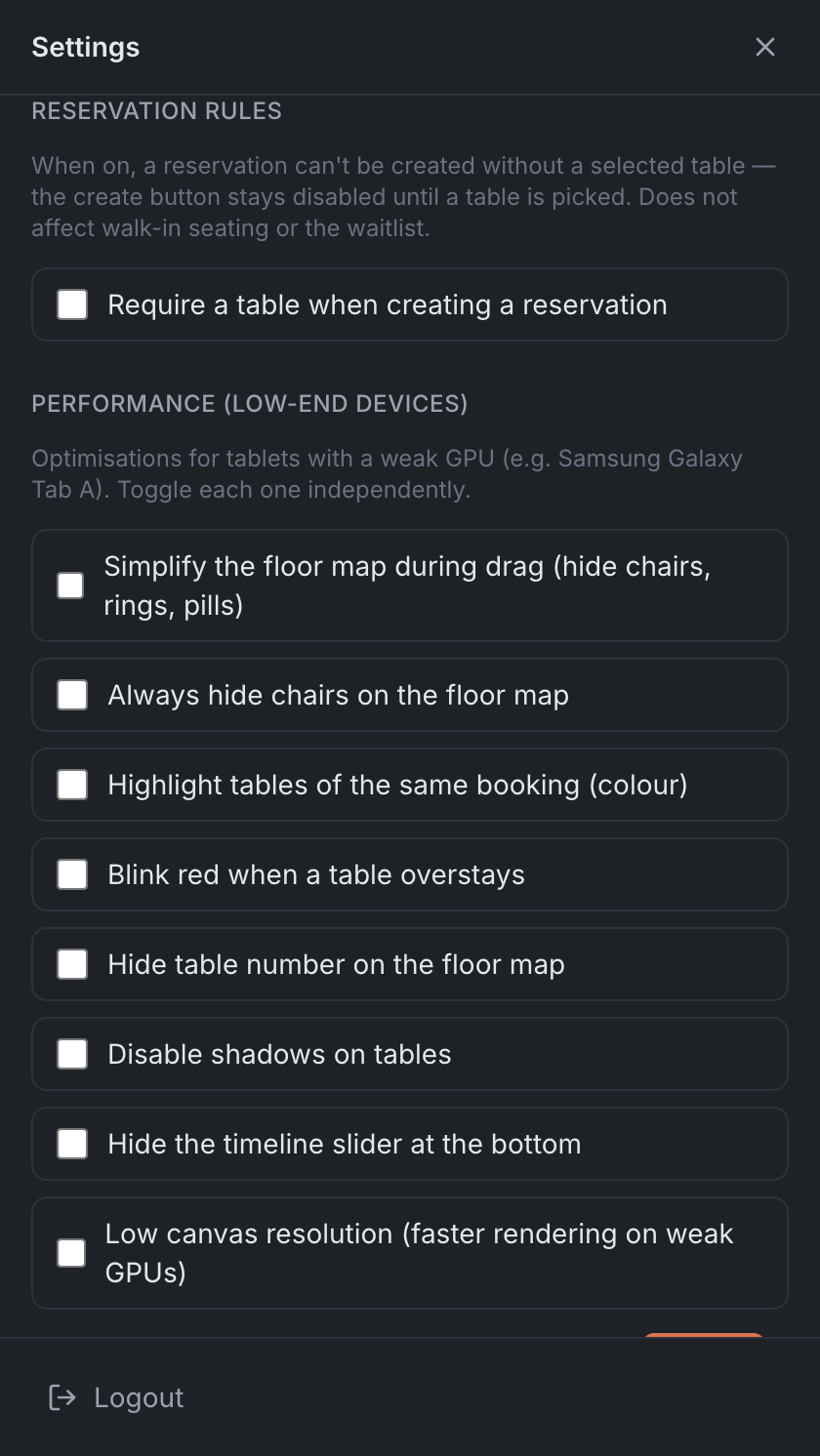
You can make it more noticeable: turn on “Blink red when a table overstays” in the panel settings, and a pulsing red halo appears around such a table. This setting is off by default.
If the map is slow
On weaker tablets the map can lag behind your finger. In the panel settings, in the “Performance (low-end devices)” section, you can make the map lighter: hide chairs, turn off shadows, simplify the map while dragging, lower the resolution. After changing anything, tap Reload.