Guests
The guest book in the Host Panel: search, sorting and filters, the guest card, editing, the blacklist, tags and export.
The Guests tab is the restaurant’s guest book: everyone who has ever booked, visited or ordered. Inside, the screen is called Guest Book, and the number next to the title is how many guests it has.
You can’t create a guest by hand: a guest appears in the book by themselves, with their first booking, walk-in, request or order.
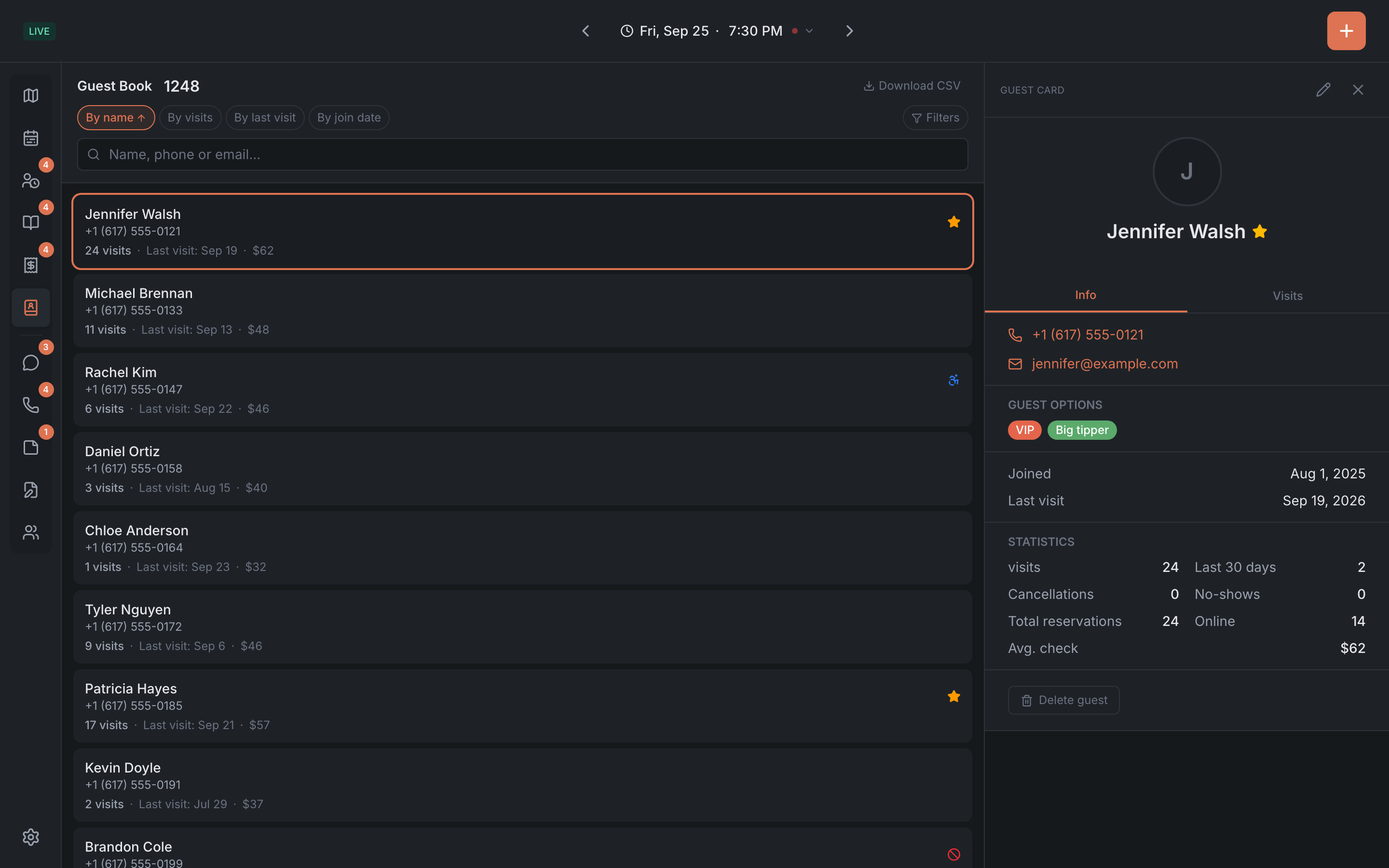
The guest list
A guest’s row has the name, a phone or email and icons: a star for VIP, a no-entry sign for the blacklist, a wheelchair for accessibility, a note for a saved note. Below are the number of visits, the last visit date and the average check.
The list loads more as you scroll down. If nobody is found — “No guests found”.
Search and sorting
- Search — “Name, phone or email…”. It starts from the first character and shows up to 25 guests — if the one you need isn’t among them, make the query more specific.
- Sorting — the By name, By visits, By last visit and By join date chips. Tapping again reverses the order.
Filters
The Filters button opens a panel on the right. Filters apply by themselves a moment after you pick them, and the button shows how many are on.
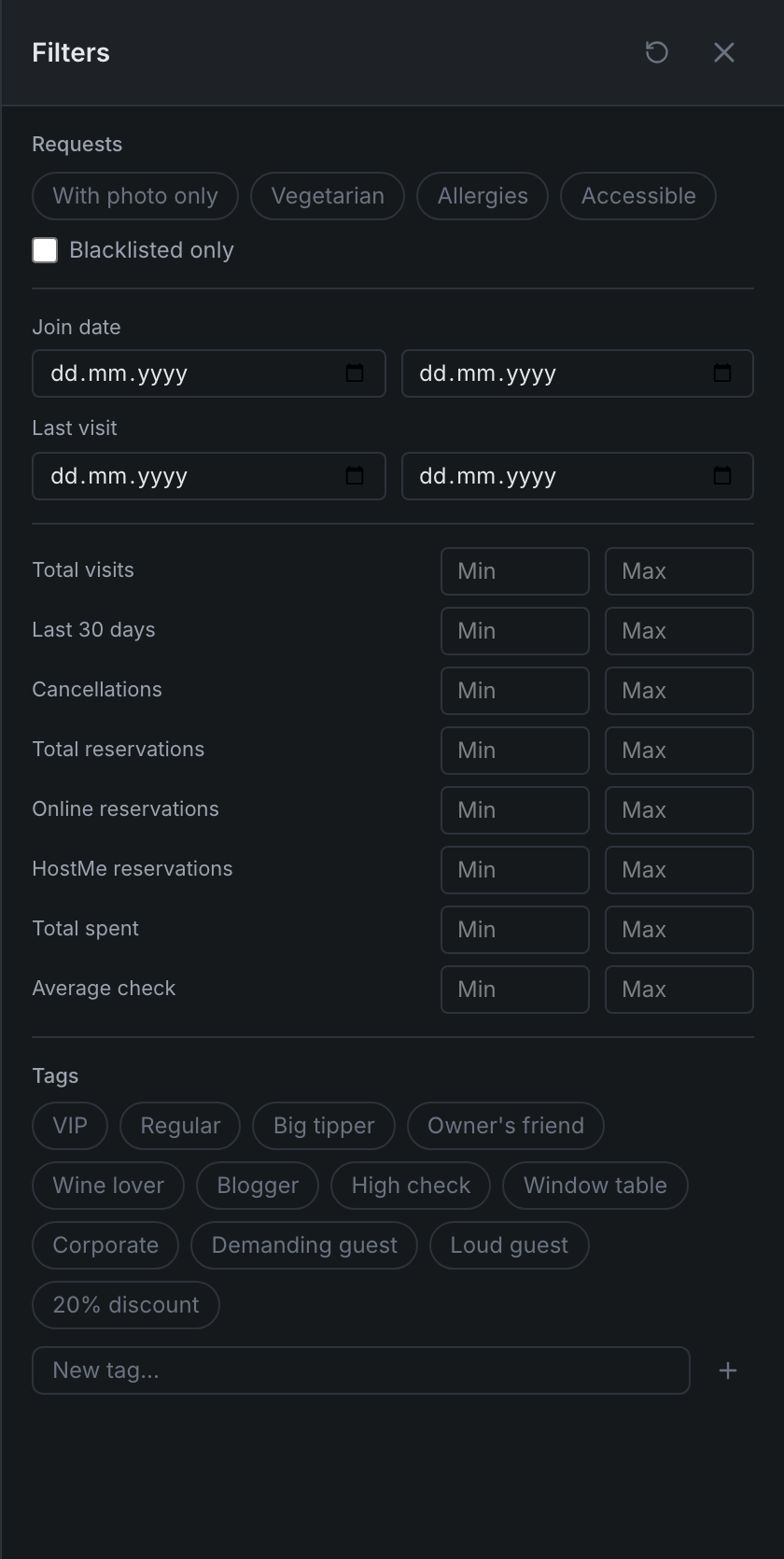
- With photo only, Vegetarian, Allergies, Accessible and Blacklisted only;
- Join date and Last visit — from and to;
- Min and Max for numbers: Total visits, Last 30 days, Cancellations, Total reservations, Online reservations, HostMe reservations, Total spent, Average check;
- Restaurants — if you have several restaurants;
- Tags — plus the “New tag…” field to create a tag right away.
Active filters show as chips above the list — tap a chip to remove that filter, or Reset to remove them all.
Guest card
Tap a guest and the Guest Card opens on the right:
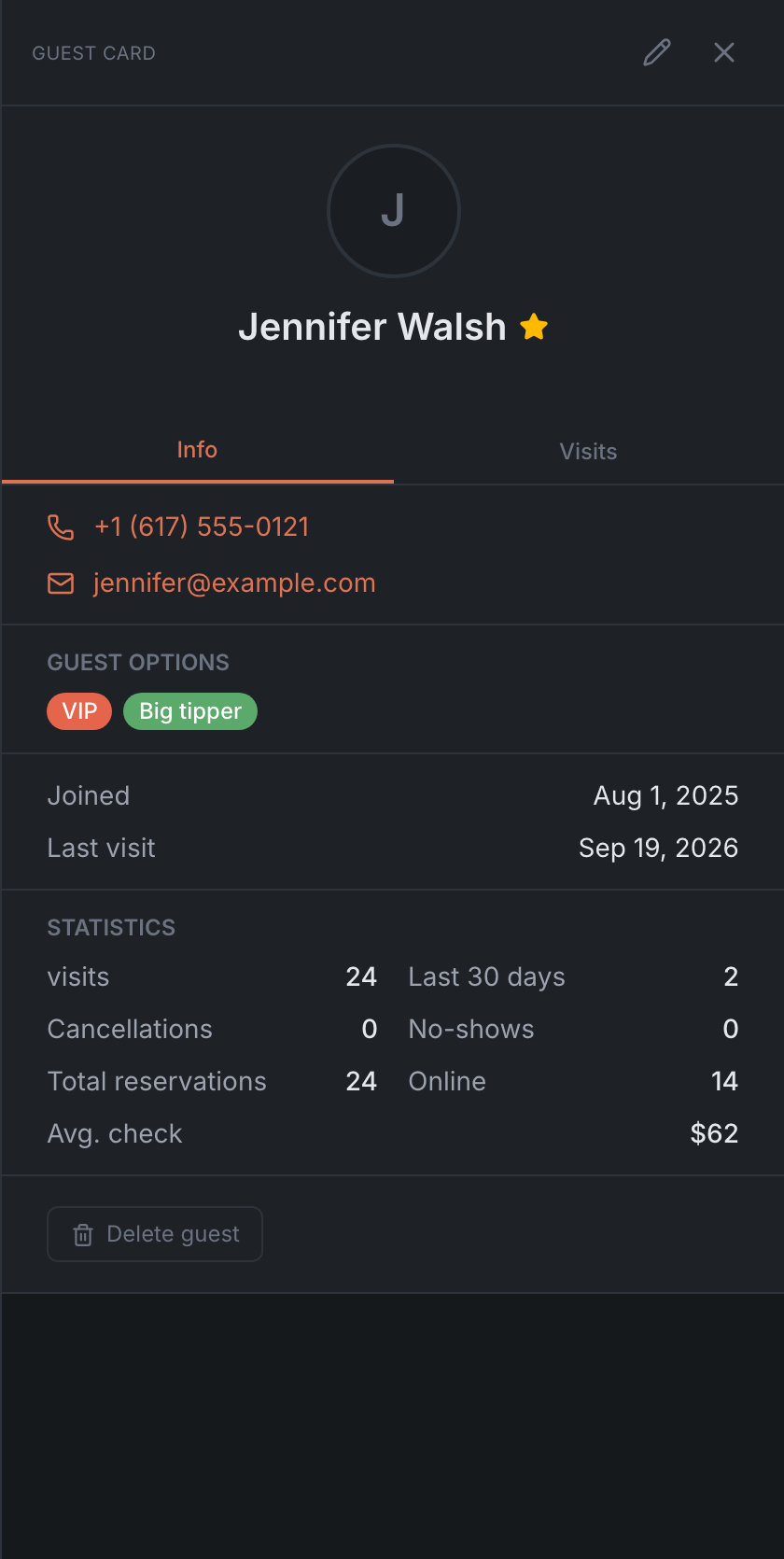
- the photo, name, VIP star, Blacklisted, Accessible, loyalty level and points;
- the Info tab: phone and email, Guest options — tags, vegetarian, Wheelchair (the same as Accessible), allergies — Notes, dates (birthday, anniversary, join date, last visit), Additional info — company, work phone and address, Table preferences — and Statistics: visits, cancellations, no-shows, reservations, average check;
- the Visits tab — past and upcoming visits. Tap a visit to open the booking card.
Editing a guest
Tap the pencil in the card’s header — it has no label. The card switches to editing:
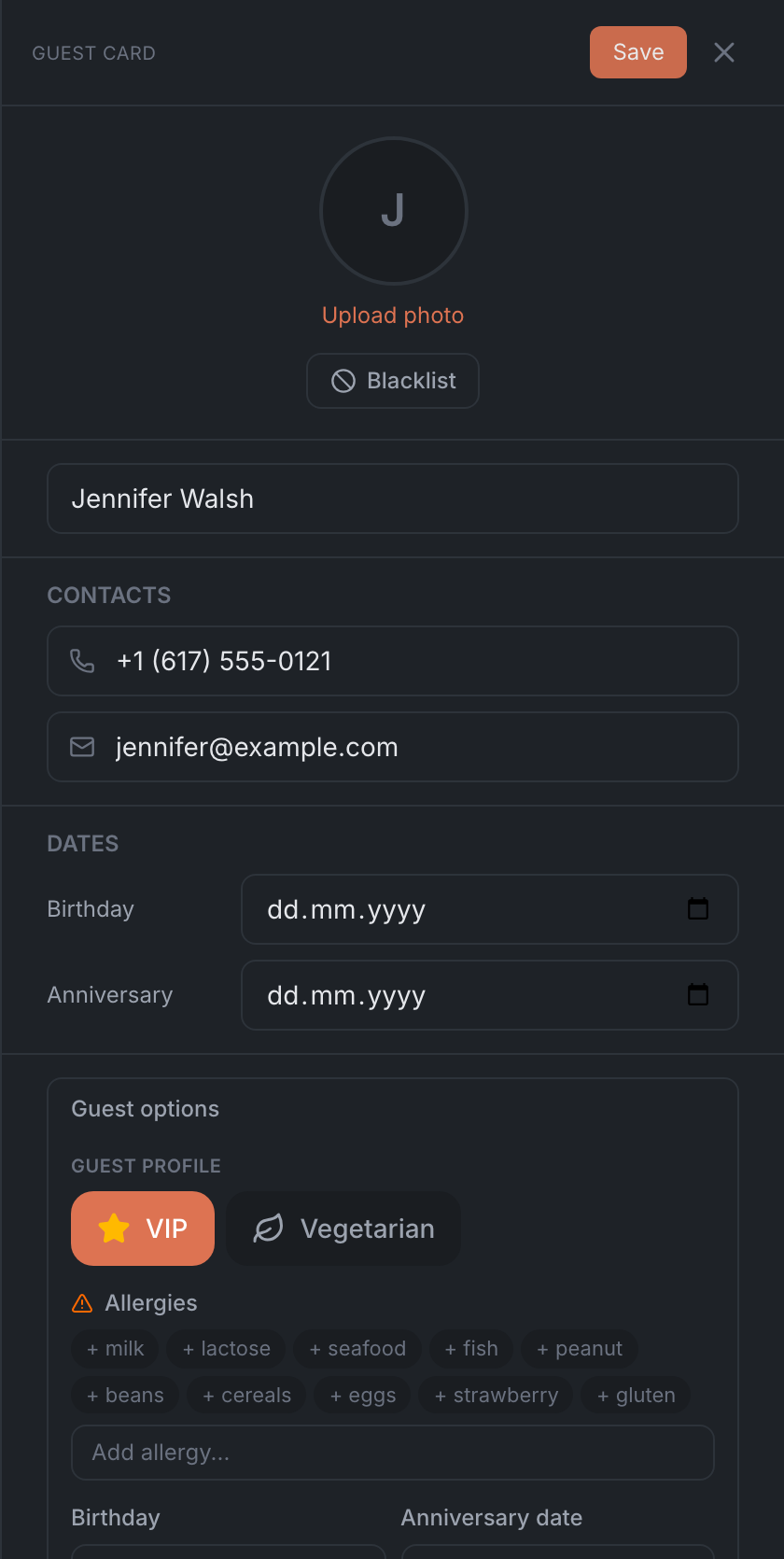
- photo — Upload photo, Change photo, Remove photo;
- Blacklist or Remove from blacklist;
- name, phone, email, birthday and anniversary;
- Guest options — VIP, allergies, tags;
- Additional info and Notes.
Changes are saved only with the Save button in the header. The cross or Cancel leaves without saving.
- VIP is the “VIP” tag. The VIP option adds or removes that tag.
- The blacklist is set without a confirmation, but it’s saved only together with the rest of your edits.
Tags
A guest’s tags show in the guest card, on bookings and in calls. To add one, tap Add, then find a tag or create a new one: “Search or create tag…”.
Automatic tags are marked with the letter “A” — the system sets them by the restaurant’s rules. You can’t add one by hand, and it can only be removed from the booking card, by the Owner, Manager, Marketing and Support roles. Whether automatic tags are shown at all is up to the “Show automatic tags” panel setting.
Export
The Download CSV button exports guests with the current filters. Tap it and confirm with Confirm. The file isn’t downloaded right away: it arrives by email — “Export requested — check your email”. If the restaurant’s subscription isn’t paid, export isn’t available.
Deleting a guest
At the bottom of the card — Delete guest, then Confirm deletion. A deleted guest can’t be brought back.