Booking card
Everything about a booking in one panel: the guest, the time, the deposit, action buttons, editing, canceling with a refund, the change history and messages with the guest.
Tap a booking anywhere — in the side list, on the Reservations tab, on a timeline bar, or with the View details button in the table card — and the booking card opens on the right. It has everything known about the booking and the guest, and every action you can take on it.
The card opens on top of any tab, so you can look at a booking without leaving the map.
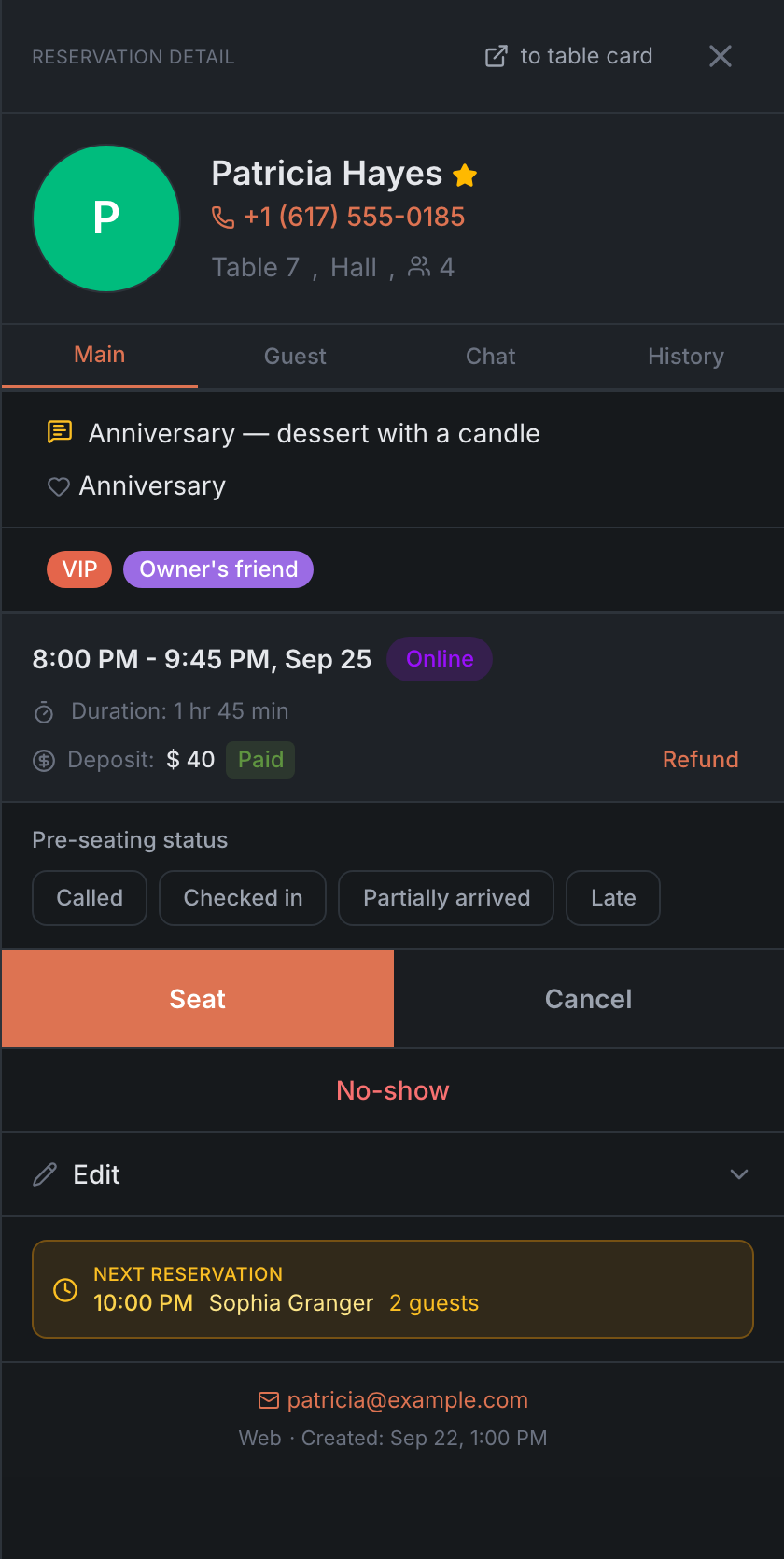
What’s at the top
- The title — Reservation Detail, or Walk-in Detail once the guests are seated.
- to table card — an icon next to the cross: it closes the booking and opens the card of its table. It’s there when the booking has a table.
- The guest — a photo or the first letter of the name, the name and the VIP star. Tap the name to open the guest’s card in the guest book.
- The phone — tap it to call: on a phone or tablet the dialer opens.
- The “Table 5, Terrace, 4” line — the table, the area and the party size. You can tap the table number and the party size — editing opens (in the HostMe Classic theme, right on that step). This works for bookings in the Pending, Approved and Seated statuses. If there’s no table, it says “No table” instead of the number — tap it to pick a table.
- The event — a pink badge if the booking is for an event.
Below are four tabs: Main, Guest, Chat and History. The Kitchen role doesn’t have the Chat tab.
Main tab
From top to bottom:
- “Reservation time has already passed.” — a red bar if the booking is approved and its time has passed.
- Everything about the visit — the guest’s comment, the occasion, options (high chair, stroller, accessibility and others), allergies, the restaurant’s comment about the guest, the guest’s tags, Booking comment and Referral. Only what’s filled in is shown.
- The time and date — for example “7:00 PM - 8:30 PM, May 8”, if the duration is known. If not, the time and date are shown separately, and you can tap them to change them. Next to it are the Late and Online badges, if they apply. Below are the duration and the deposit.
- Pre-seating status — chips like Called, Checked in, Partially arrived, Late. They’re there until the guests are seated, and only if the restaurant has set up such statuses in the Admin — see Statuses & Workflows.
- Action buttons — see below.
- Edit — a collapsed section for editing the booking.
- Next reservation — an amber badge: who’s next at this table, when and how many guests. Tap it to open that booking. On the Timeline tab this badge isn’t shown.
- At the bottom — the guest’s email, where the booking came from and when it was created. If the restaurant keeps a staff history, also Created by and Edited by (if another staff member edited it). If the booking came from a partner service, you’ll see Created via and its logo.
The card doesn’t spell out the booking status: the title and the buttons show it.
If the highlighter and “Colour the booking detail card” are on in the panel settings, the time block is filled with the mark’s color.
Action buttons
| Status | Buttons |
|---|---|
| Pending | Approve · Reject |
| Approved | Seat · Cancel · No-show |
| Approved, no table | Assign table instead of Seat · Seat without table, if the restaurant allows seating without a table |
| Seated | Release |
| Canceled, No-show, Closed | Reopen |
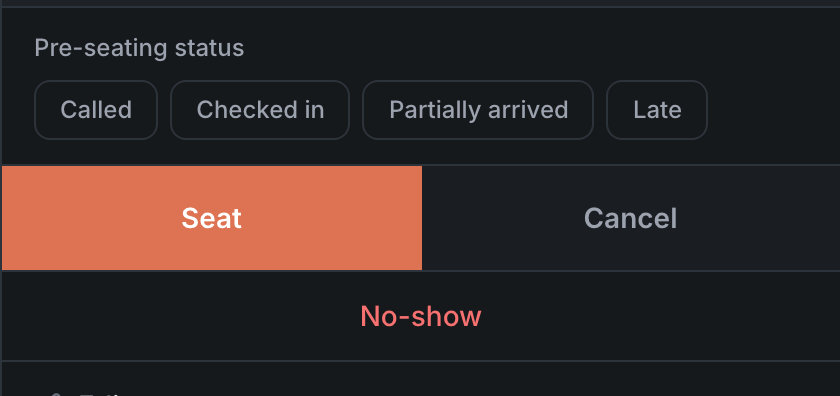
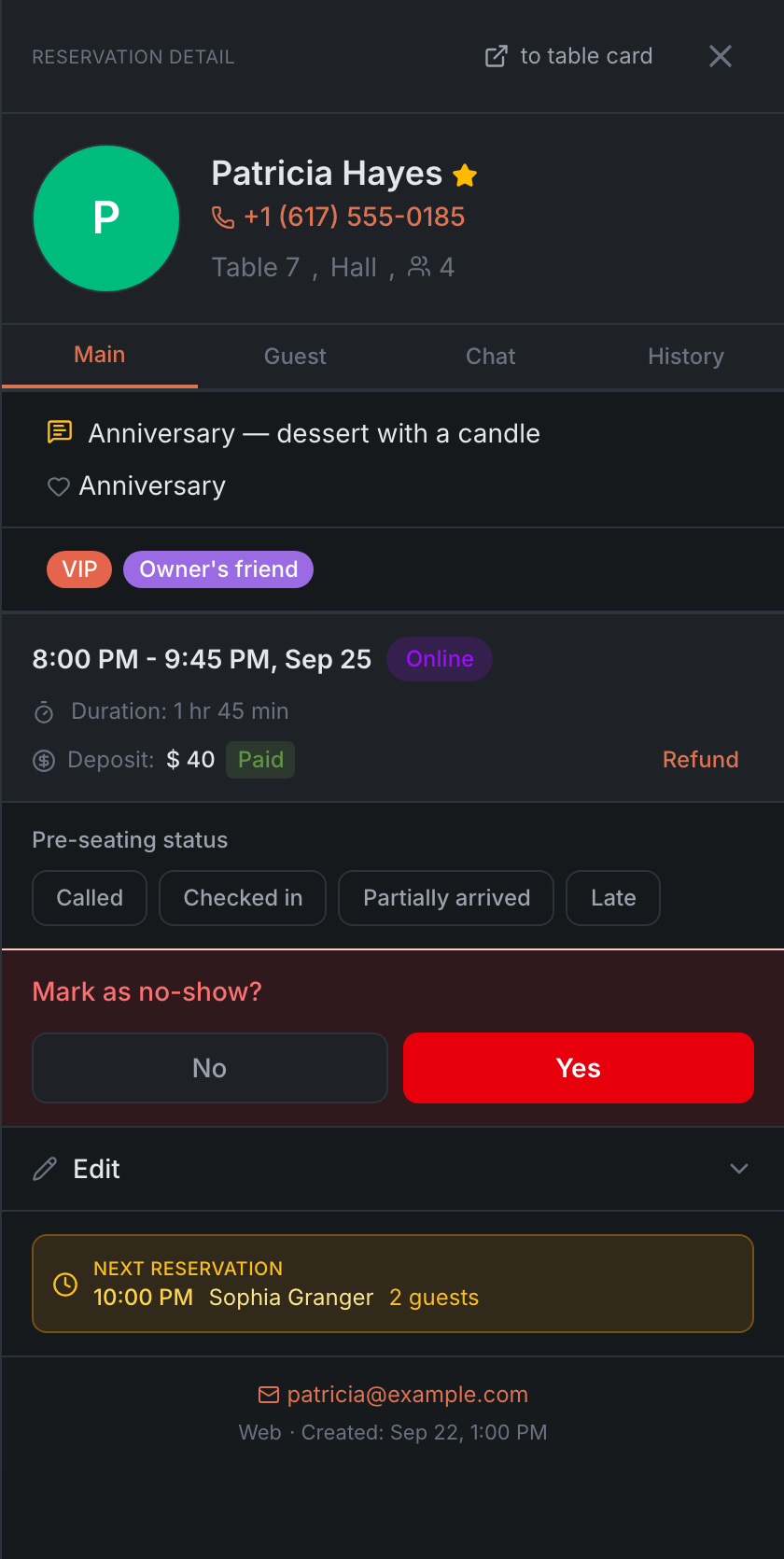
- Approve opens the form with the booking’s details: you can adjust the table or the time. The booking is approved when you save the form.
- Reject, No-show and Release ask first — “Reject this reservation?”, “Mark as no-show?”, “Release this table?” — and only work after Yes.
- Cancel opens the cancellation panel with a reason and a deposit refund — see Canceling a booking.
- Reopen works at once and brings the booking back.
After an action, the panel confirms briefly — for example, “Guest seated” or “Reservation canceled”. If something goes wrong, a red bar with the reason appears — it stays until you close it.
Edit section
It’s collapsed so it doesn’t get in the way. Open it — inside:
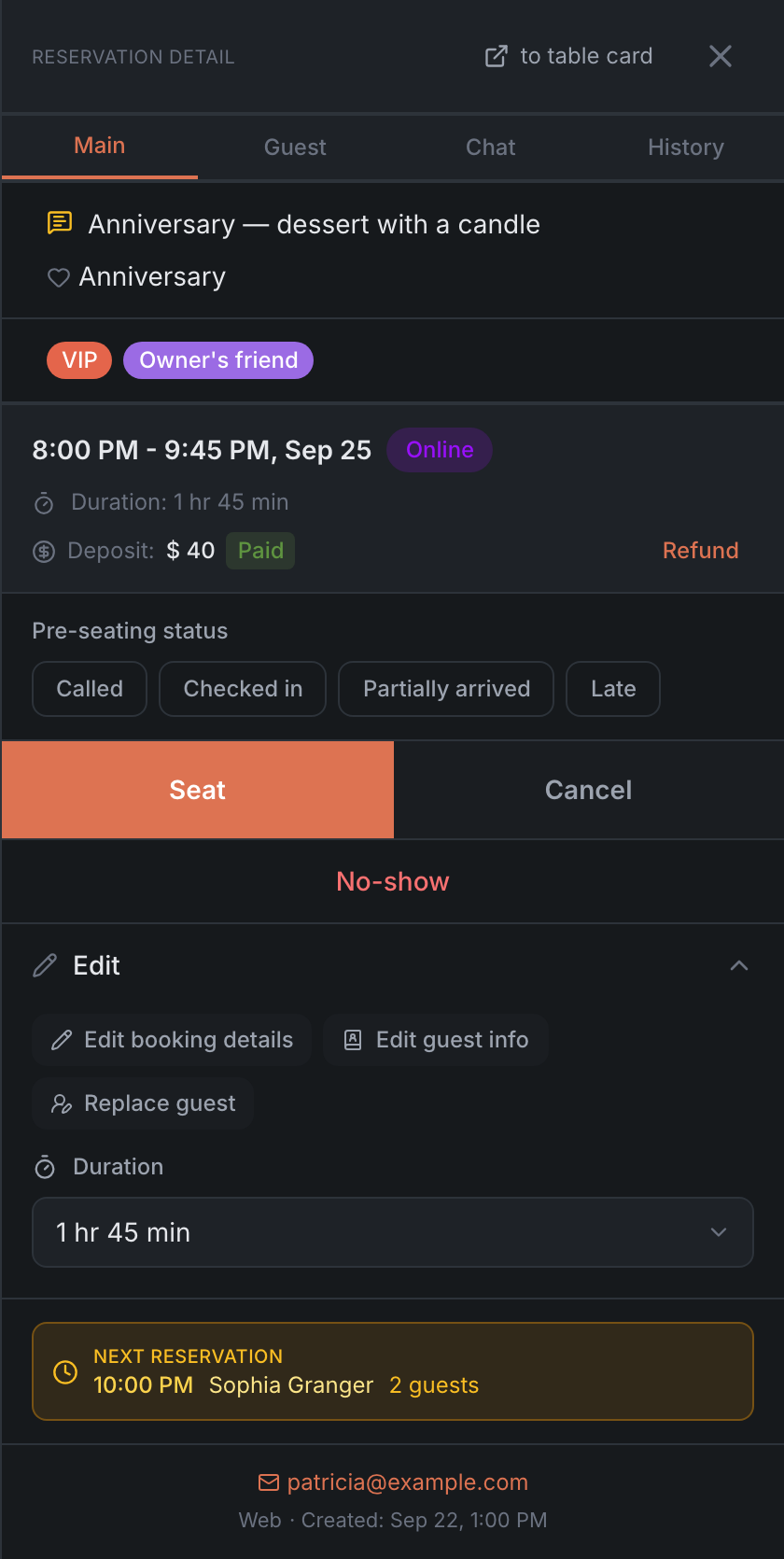
- Edit booking details — the booking form: time, table, guests, comments. How the form works is covered in Creating and editing a booking.
- Edit guest info — opens the guest’s card in the guest book. The button is there when the guest is in the book.
- Replace guest — see Replacing the guest.
- Duration — how long the guests are planned to stay. Pick a value — it saves right away.
The section is there for bookings in the Pending, Approved and Seated statuses. A canceled or closed booking has to be reopened first.
Deposit and refunds
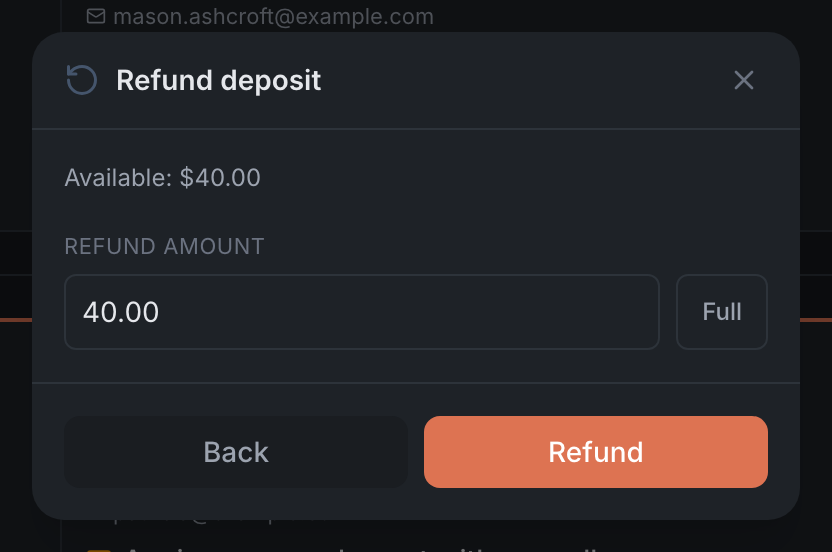
If the booking has a deposit, the amount and a badge with its state are shown under the time:
| Badge | What it means |
|---|---|
| Paid | the restaurant has the money |
| Not paid | the guest hasn’t paid yet |
| No card | no card is attached for payment |
| Card on file | a card is attached, the money hasn’t been charged yet |
| Refunded | the money went back to the guest |
| No-show fee paid, refunded after the visit | the guest paid the fee; it comes back when the guest shows up |
| No-show fee retained | the restaurant kept the fee |
| Canceled by guest, deposit kept by venue | the guest canceled, and the money stayed with the restaurant |
Sometimes there’s a note under the badge. For example, “Temporary booking, cancels at …” — the guest hasn’t paid the deposit by the link yet, and if they don’t, the booking cancels by itself. Or the reason the fee was retained: “guest did not show up”, “late cancellation” or “arrival not marked within a day of the booking. If the guest came, refund the fee”.
How to refund. The Refund button is there if the deposit was paid by card or invoice and hasn’t been fully refunded yet. It opens the Refund deposit window: it shows how much is available, and you can refund part of it or tap Full. If the restaurant charges a no-show fee, the button is called Refund fee. After a partial refund it’s Refund remainder, and under the amount you’ll see “Refunded … of …”. A cash deposit has no Refund button.
Canceling a booking
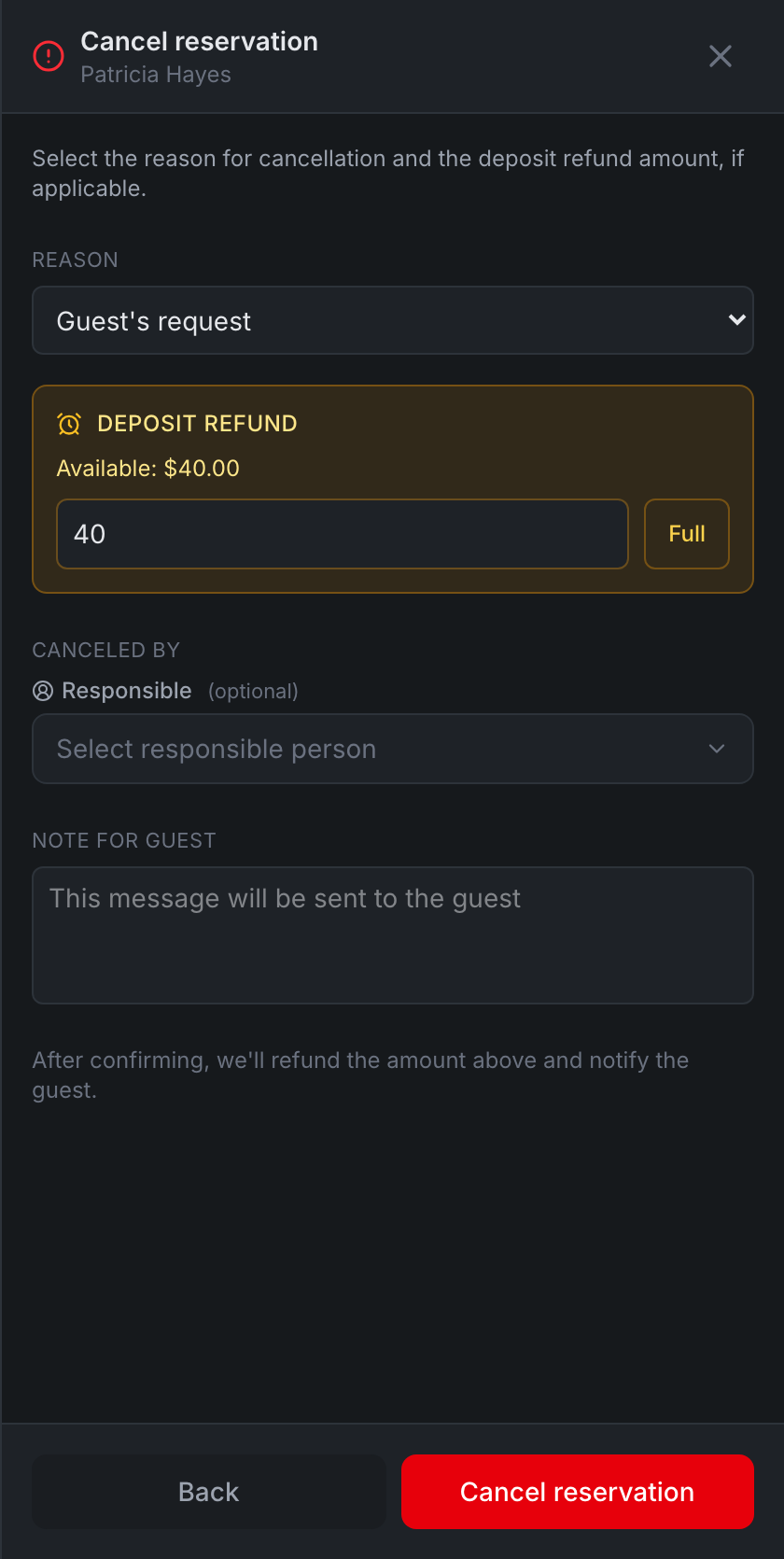
The Cancel button in the card opens the Cancel reservation panel:
- Reason — pick one of the reasons the restaurant has set up in the Admin (Booking rules). The first one is preselected.
- Deposit refund — if the booking has a paid deposit and the restaurant doesn’t charge a no-show fee. The amount is filled in by the restaurant’s refund rules; you can change it or tap Full.
- No fee — a checkbox instead of the refund if the restaurant charges a no-show fee: tick it to not keep the fee.
- Canceled by — which staff member is canceling. If the restaurant requires this, you can’t cancel without picking someone.
- Note for guest — “This message will be sent to the guest”.
Tap Cancel reservation. The panel refunds the money first, then cancels the booking. If the refund fails, the booking isn’t canceled: “Refund failed — the reservation was not cancelled. Please try again.”
Replacing the guest
If the booking was made for the wrong guest, open Edit and tap Replace guest:
- Find the right guest by name, phone or email. If they’re not in the book — Enter new guest, then the name, the phone and Select this guest.
- Check who you’re replacing with whom: “Current guest → New guest”. The time, the table and everything else in the booking stay the same.
- Tap Confirm replacement — you’ll see “Guest replaced”.
Guest tab
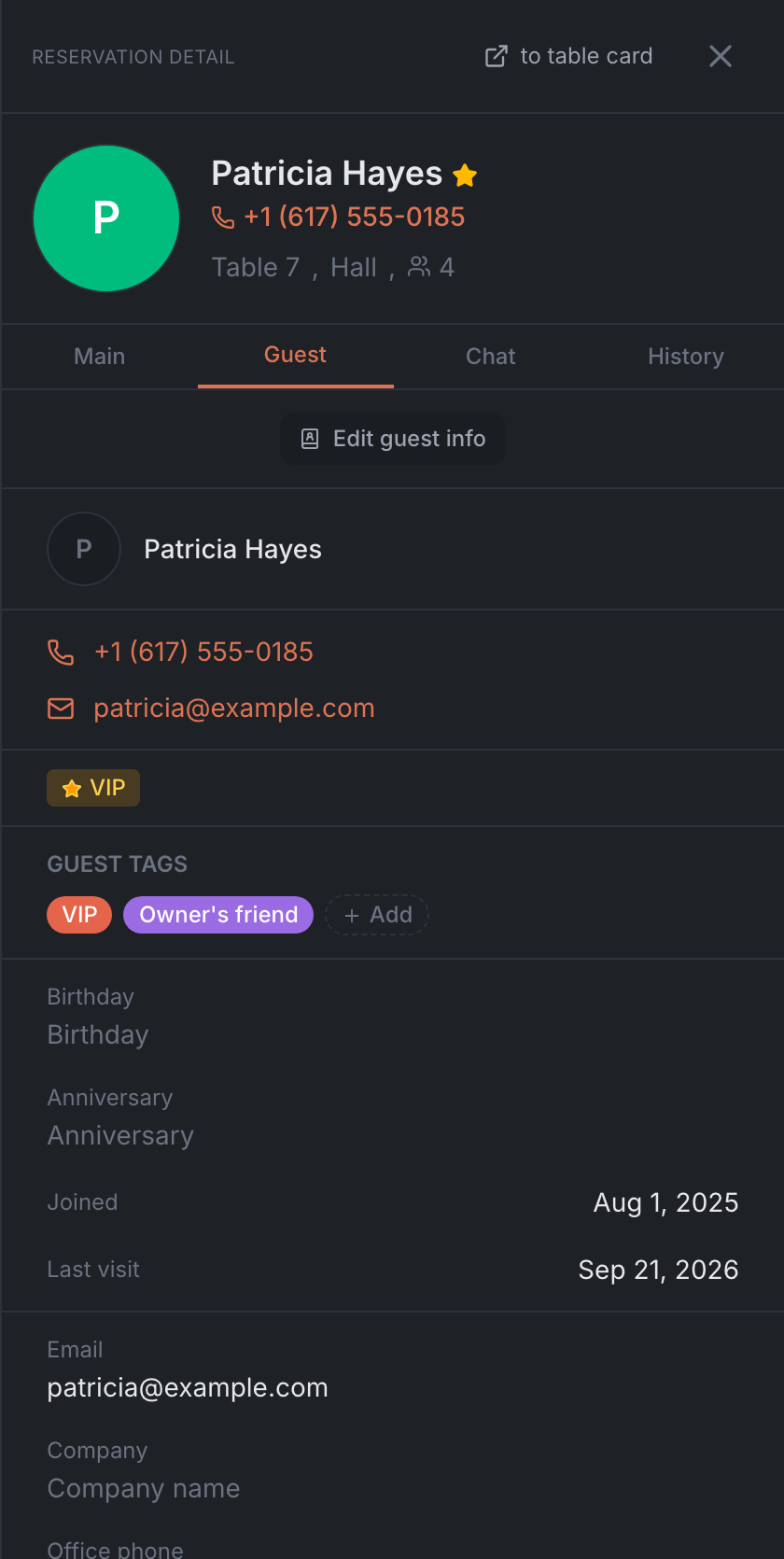
Everything the restaurant knows about the guest from the guest book:
- phone, email, the VIP, Blacklisted and Accessible badges;
- Guest tags — you can add or remove them right here. Automatic tags are marked with the letter “A”, and only the Owner, Manager, Marketing and Support roles can remove one;
- loyalty level and points;
- Diet & Allergies and Notes;
- birthday, anniversary, email, company, work phone and address, Table preferences — tap a field to edit it, then Save;
- Statistics — visits, cancellations, no-shows, online bookings, average check.
The Edit guest info button at the top opens the guest’s full card in the guest book.
If it’s the guest’s first visit, the tab says: “First visit — guest profile will be available after the visit is completed”.
Chat tab
Messages with the guest about this booking — SMS, WhatsApp, Telegram or email, depending on which channels the restaurant has connected. Only messages about this booking land here. For the whole conversation with the guest, use the Chat tab in the menu on the left.
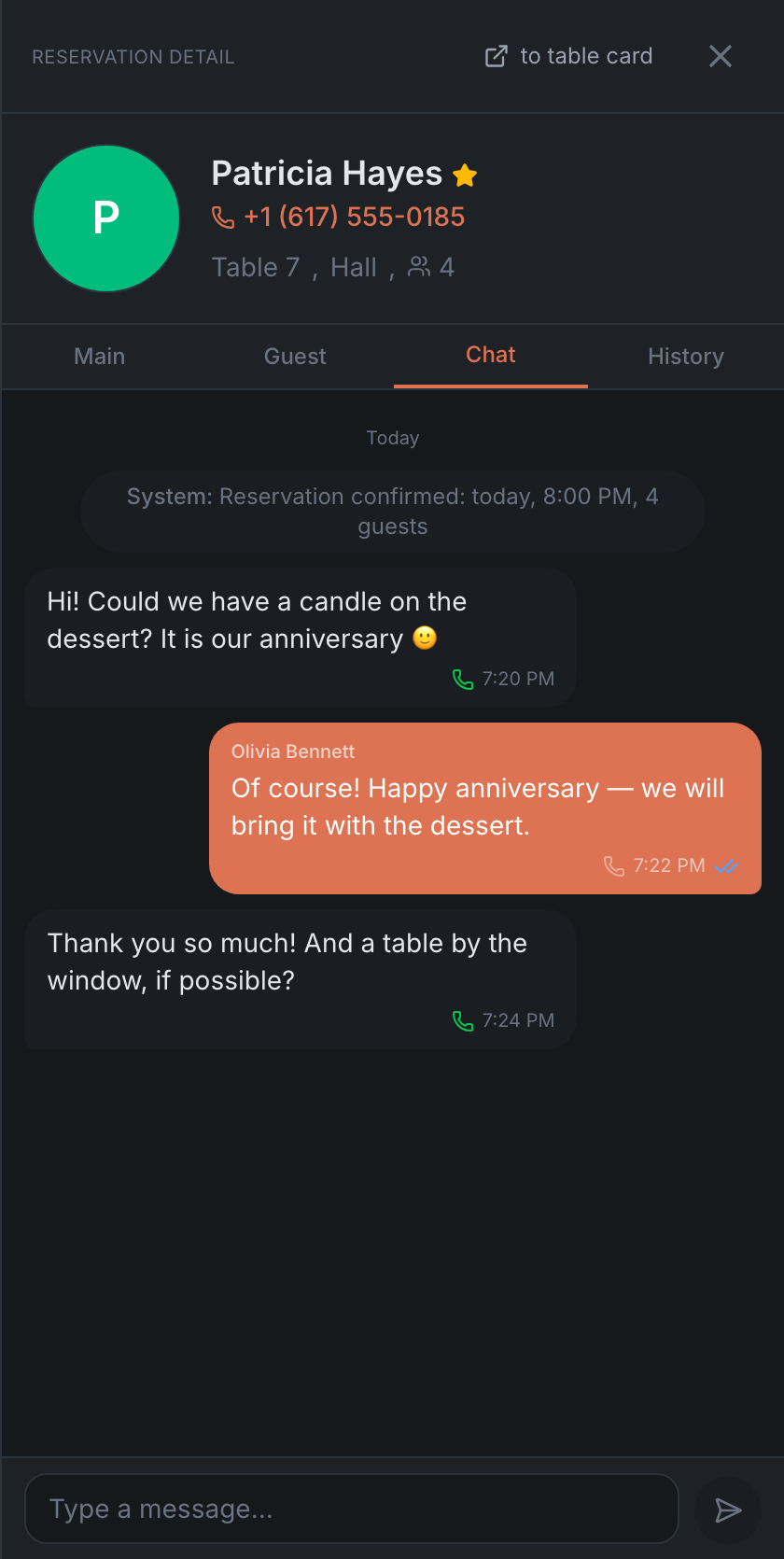
- If there are no messages yet — “Send the first message to the guest”: type your text and send it.
- Enter sends, Shift+Enter starts a new line.
- Under each message you can see the channel it went through, the time and the status: “Sending…”, “Sent”, “Delivered”, “Read” or “Failed” with the reason.
History tab
A booking has three sub-tabs:
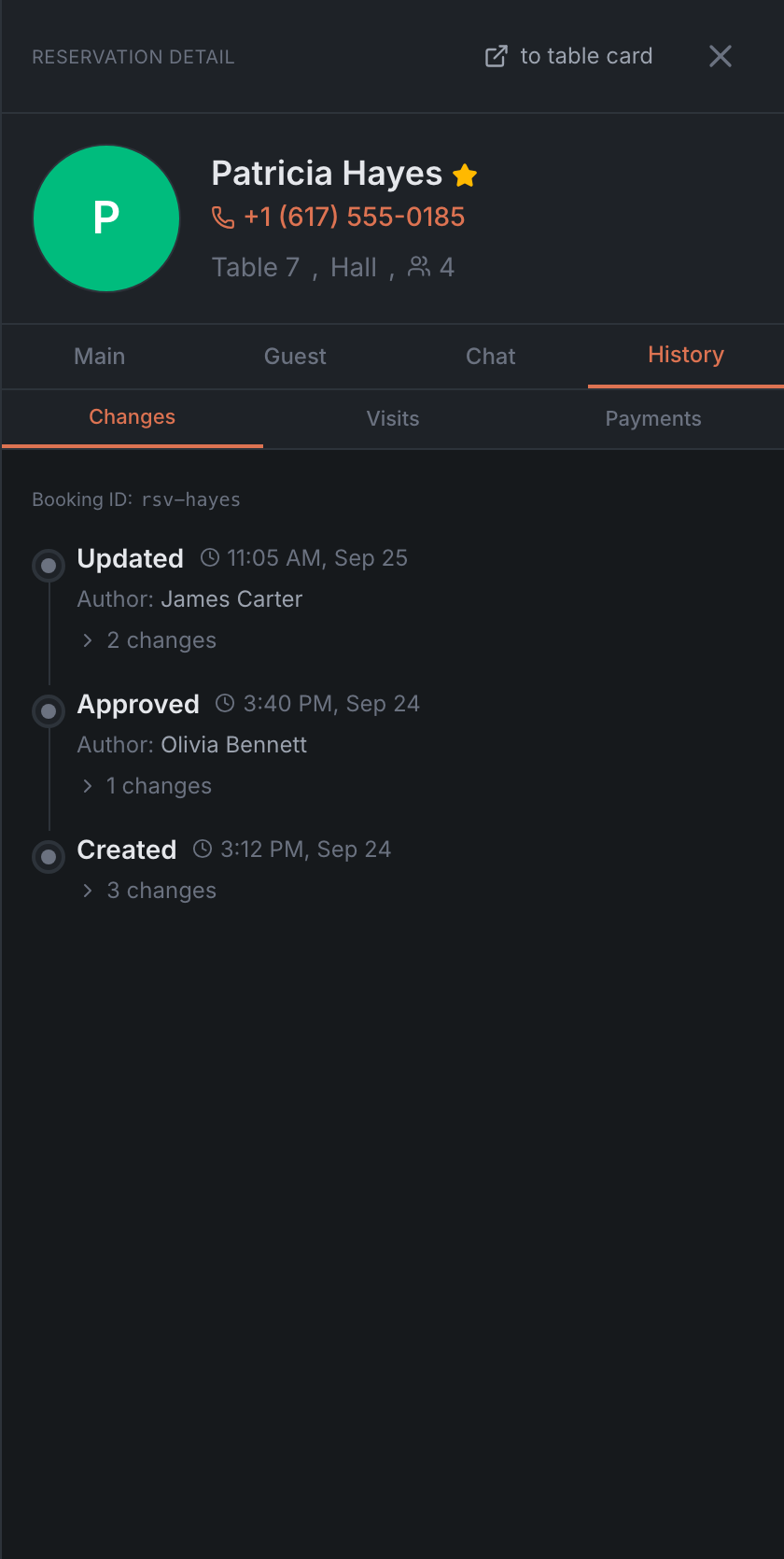
- Changes — what happened to the booking, newest first: created, approved, seated, table changed and so on. Each entry has a time and the Author, if known. Tap ”… changes” to see exactly what changed: the old value is struck through, the new one is next to it. At the top is the “Booking ID” — handy to copy for support. Changes to the guest’s phone and email aren’t shown here.
- Visits — this guest’s upcoming, current and past visits. Tap a visit to open that booking. Only for a guest from the guest book.
- Payments — deposit payments and refunds. If there were none — “No payments yet”.
Waitlist and request cards
A guest from the waitlist and a request from the reservation waitlist open in a similar card, with the same tabs. The differences:
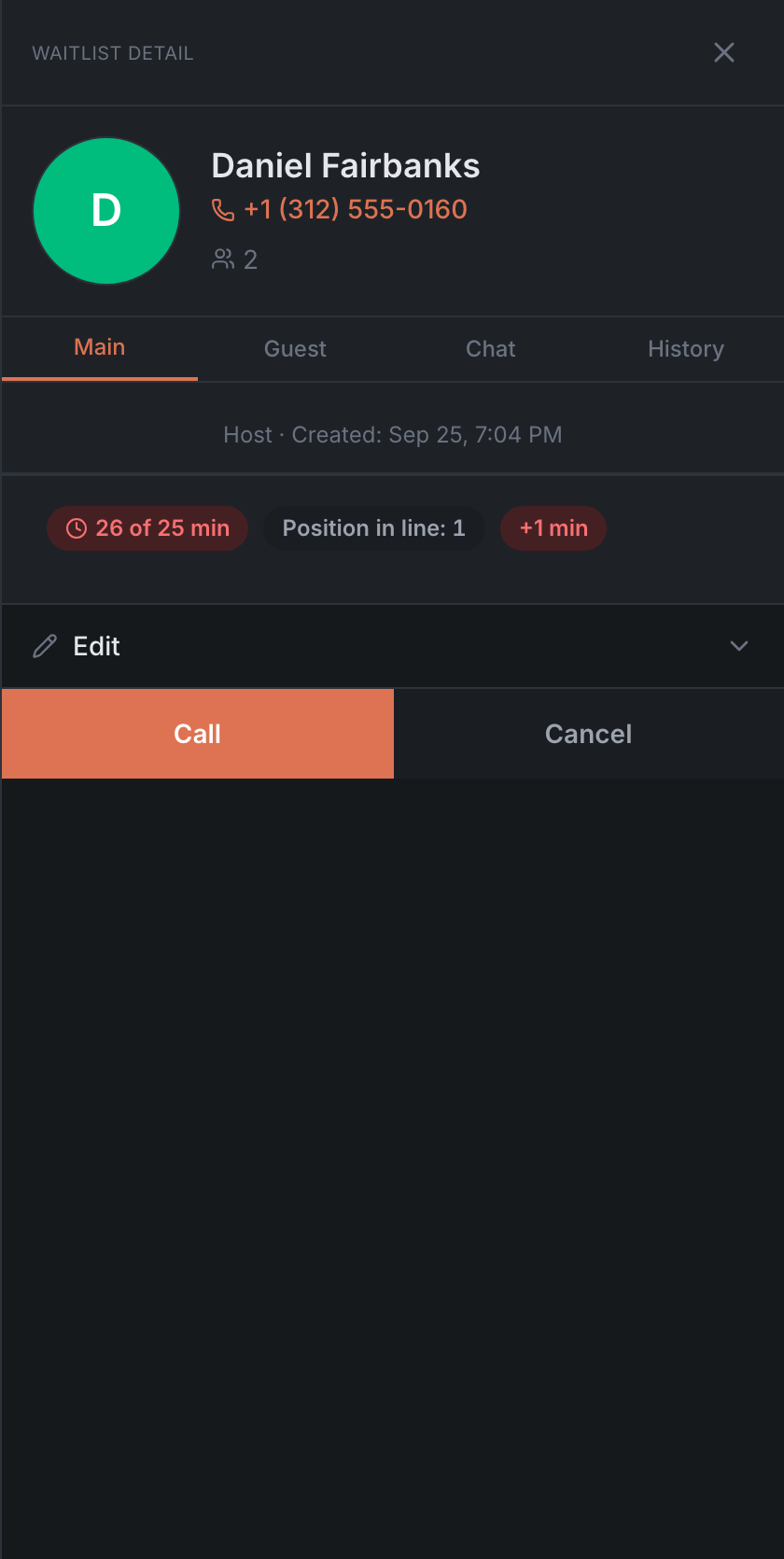
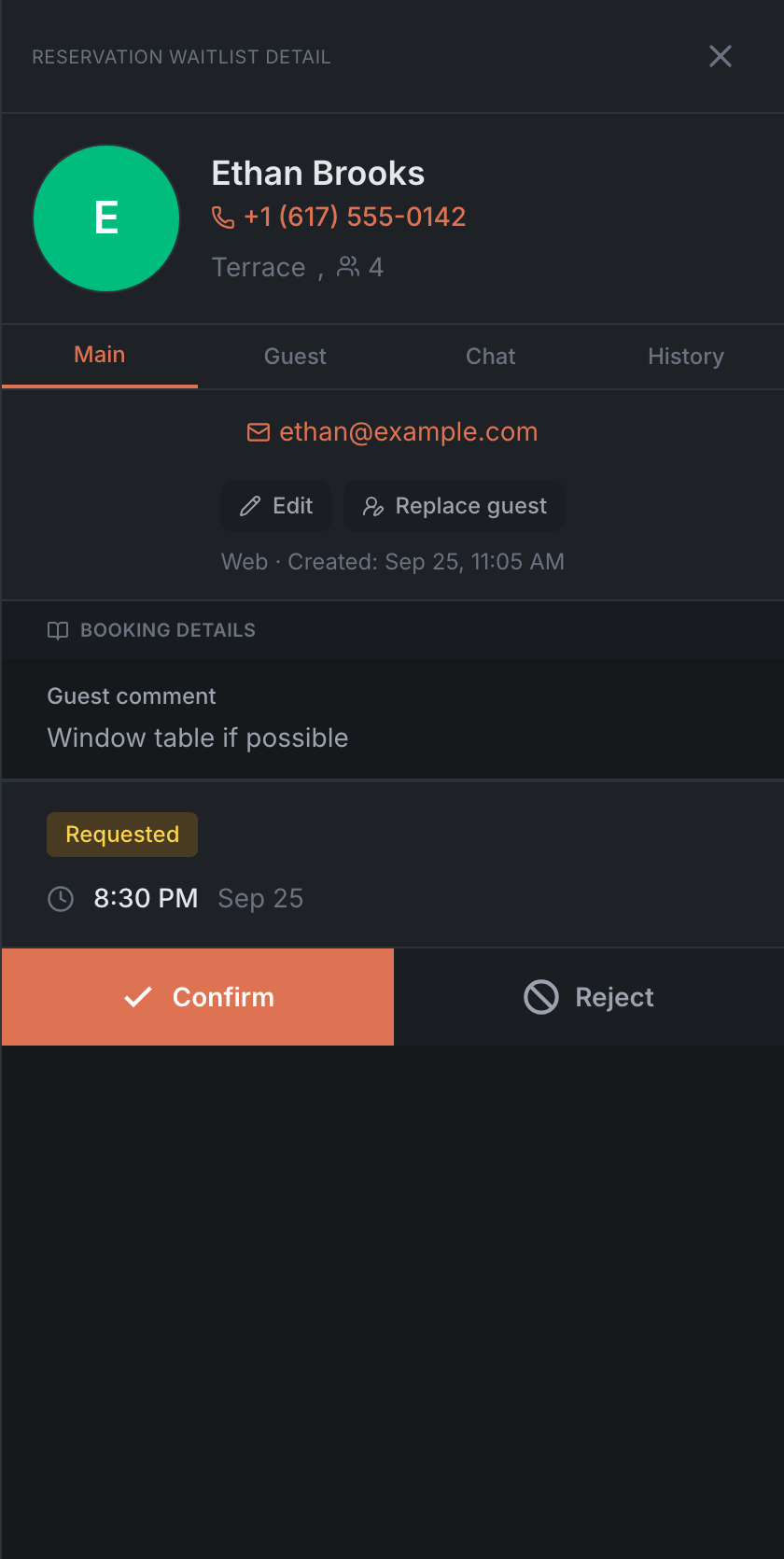
| Waitlist guest | Request | |
|---|---|---|
| Title | Waitlist Detail, after seating — Walk-in Detail, after leaving — Closed seating details | Reservation Waitlist Detail |
| Instead of the booking time | how long the guest has been waiting, their place in line, “called … min ago” | the Requested badge, the date and time |
| Buttons | Call, Seat, Cancel, Release, Reopen | Confirm and Reject |
| Editing | in the collapsed Edit section, which sits above the buttons | the Edit and Replace guest buttons are visible right away |
| Payments in History | no | no |
On a phone
On a phone, the card slides in from the side over the screen. Close it with the cross, by tapping the dimmed background or with the tab at the edge of the screen. Everything else is as on a tablet: the same tabs and buttons. The deposit refund window opens from the bottom.
In the HostMe Classic theme the card is the same, but editing a booking opens a dark full-screen wizard — right on the step you tapped.